User manual
The BeDeep Manual
How to get started, how to talk with it, what your conversations leave behind, what it costs, what happens to your data, and what AI can and can’t do.
The screenshots in this edition still show BeDeep in Portuguese. The English screens are laid out the same way, and English screenshots will replace these over time.
- 1What BeDeep isWhat BeDeep is, how it talks, who it was made for, what it isn’t, what its parts are and where to use it.
- 2Getting startedWhere to use BeDeep, how to create your account, confirm your age, sign in again and find your way around the screen and the menu, up to your first conversation.
- 3The conversationWhat talking with BeDeep by text is like: what happens with each message, what counts as a conversation, how it remembers, how to delete, how to talk without leaving a trace in Ephemeral Mode and how to get the most out of it.
- 4Voice and conversation modesHow to speak to BeDeep and hear its replies: SOLO Voice inside the conversation, hands-free AMBIENT (on your own or with whoever is with you) and how voice minutes are counted.
- 5What your conversations leave behindDiary, Plots, Portraits, highlights and notifications: what BeDeep writes from your conversations, where to find each thing and what you can do with it. And the Notebook and the Vault: what you bring from outside your conversations.
- 6Plans and accountWhat each plan costs and what it includes, where to subscribe and cancel, how to gift a subscription to someone and how to take care of your account.
- 7Safety, privacy and the limits of AIWho can use it, what happens to what you tell it, what AI does and doesn’t do, and what to do in a moment of crisis.
- 8Frequently asked questionsFifty-one short questions with direct answers, about your account, conversations, voice, the diary, plans, privacy and devices.
- 9TroubleshootingWhat to do when something isn’t working: symptoms, likely causes and fixes, from signing in to the age check, and how to contact support.
Chapter 1
What BeDeep is
What BeDeep is, how it talks, who it’s for, what it isn’t, what its parts are and where to use it.
This chapter is for people who don’t know BeDeep yet. It explains what BeDeep is, how it talks, who it’s for, what it isn’t, what the parts of the product are and where you can use it. The chapters that follow go into the details of each part.
BeDeep in one sentence
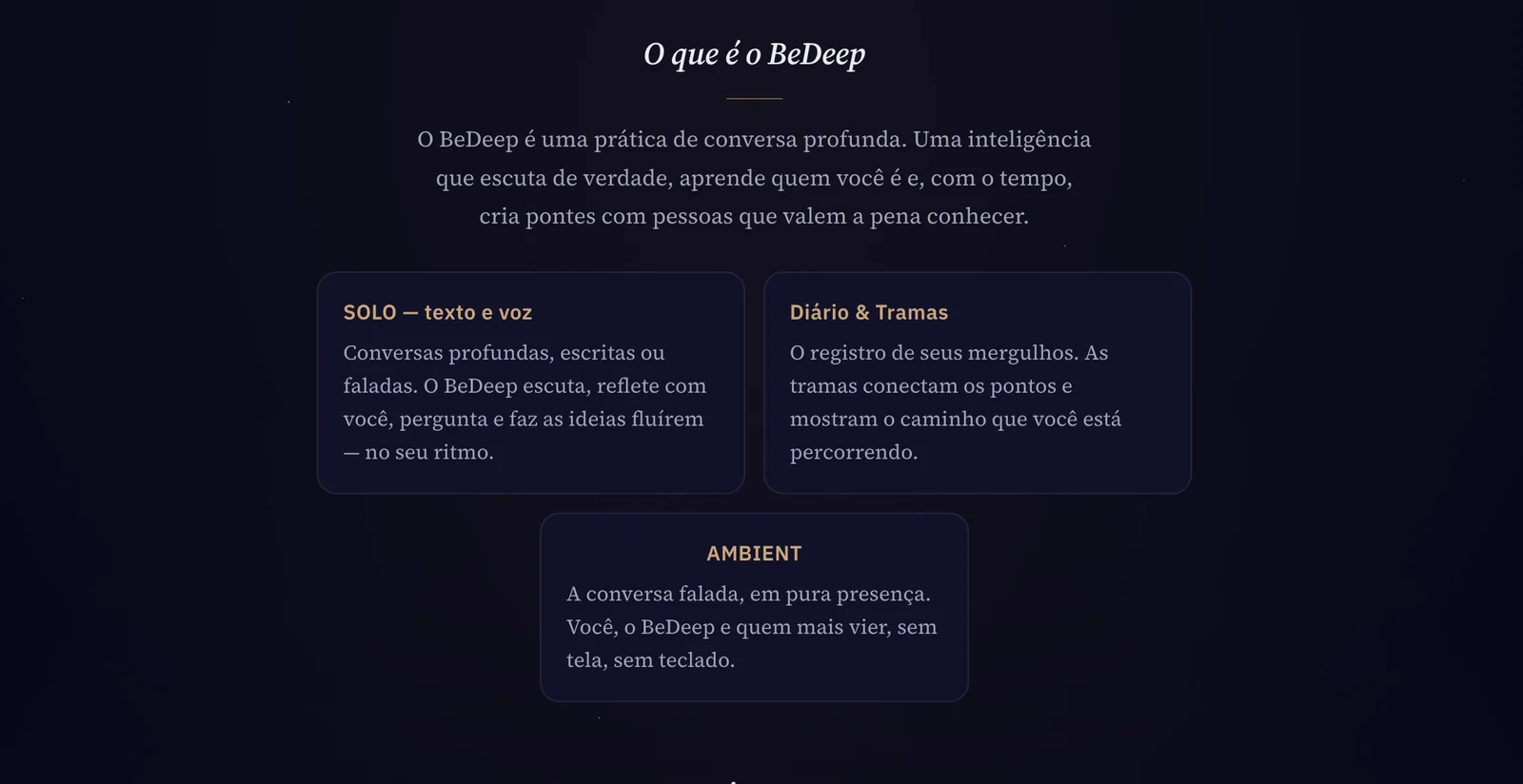
BeDeep is an app for conversation with an artificial intelligence that listens, asks questions and helps you think about your own life, in writing or out loud. For subscribers, over time it also gives back what you’ve told it in the form of a diary, plots and portraits.
On the website, it introduces itself as “a practice of deep conversation.” The line that opens the home page is an invitation, “Can we just talk?”, and the one that closes it sums up the ambition: “BeDeep: talking for real.”
The idea: a conversation that asks more than it answers
Most artificial intelligence tools were made to answer: you ask, and they hand you a ready-made answer. BeDeep follows a different logic. The About BeDeep page puts it this way: “The main goal of the conversation is not to bring answers; it is to improve the questions.”
In practice, this shows up in five ways:
- It comments and asks. A typical reply reacts to what you said, connects it to something you’ve already told it and ends with a question. Just one, so the conversation doesn’t turn into a questionnaire.
- It talks like a person, not like a report. No psychological jargon, scores, percentages or lists of personality traits. If you ask for “the result,” it keeps talking with you.
- It follows what you bring. The tone changes with the subject: more contemplative when the conversation turns to the meaning of things, more practical when there’s a decision to make, lighter when you want to play with an idea. You don’t have to choose any of this. Just talk.
- It answers when you ask. A direct question gets an answer. Then it usually hands the conversation back to you.
- It keeps the thread. You can leave and come back to the conversation where you left off, and it takes into account what you’ve already told it. The exception is Ephemeral Mode, which is made precisely not to keep anything: there, the conversation disappears 30 minutes after the last message.
To describe this exchange, the About page uses the image of frescobol, the Brazilian beach paddle game in which two players keep the ball in the air together. Thinking alone is like hitting a ball against the wall of your own head. Talking is having someone on the other side, cooperating so the ball doesn’t drop.
Tip
BeDeep works best when you write (or speak) the way you would with someone you trust: full sentences, no commands, starting from what feels alive in you right now. The “The conversation” chapter gathers the guidance on how to use it.
Who it’s for, and who it isn’t for
BeDeep is for you if...
- you are 18 or older;
- you want a space to think about what you’re living through: a decision, a phase, a relationship, a question you can’t get out of your head;
- you’d rather be listened to and asked good questions than get ready-made advice;
- you like coming back to things over time. Much of BeDeep’s value shows up with practice: for subscribers, the diary keeps building up, and plots only start to form after a few diary entries (the first synthesis needs at least five).
BeDeep isn’t for you if...
- you are under 18. The Terms of Use don’t allow use by anyone under 18, and sign-up can’t be completed by anyone below that age. On the website and in the app, sign-up asks for a quick age check with the camera; on a computer, you click “Continue” and use the computer’s own camera (the QR code, for doing it on your phone, is just an option). If the estimate comes out under 18, you see the message “BeDeep is for people 18 and over.” If the camera check can’t confirm your age, the screen offers a button to contact support, because the check is automatic and can get it wrong. The “Getting started” chapter shows how it works, and the “Safety, privacy and the limits of AI” chapter explains the rest.
- you need treatment, diagnosis or health care. BeDeep offers none of these (see the next section).
- you are in crisis right now. BeDeep is not an emergency service.
- you want quick answers, research or productivity. In the words of the About page, “here, AI is neither a productivity tool nor an oracle.”
Caution
If you are going through a mental health crisis, having thoughts of hurting yourself, or in any urgent situation, don’t wait: call your local emergency number or a crisis line where you live (in Brazil, CVV at 188 or SAMU at 192), or reach out to a health professional.
What BeDeep isn’t
It isn’t therapy
The first section of the Terms of Use opens with this notice, set apart:
Important
“BeDeep is not a health service, therapy, psychotherapy, or medical or psychological counseling. Under no circumstances does it replace care by duly qualified mental or physical health professionals.” (Terms of Use, section 1)
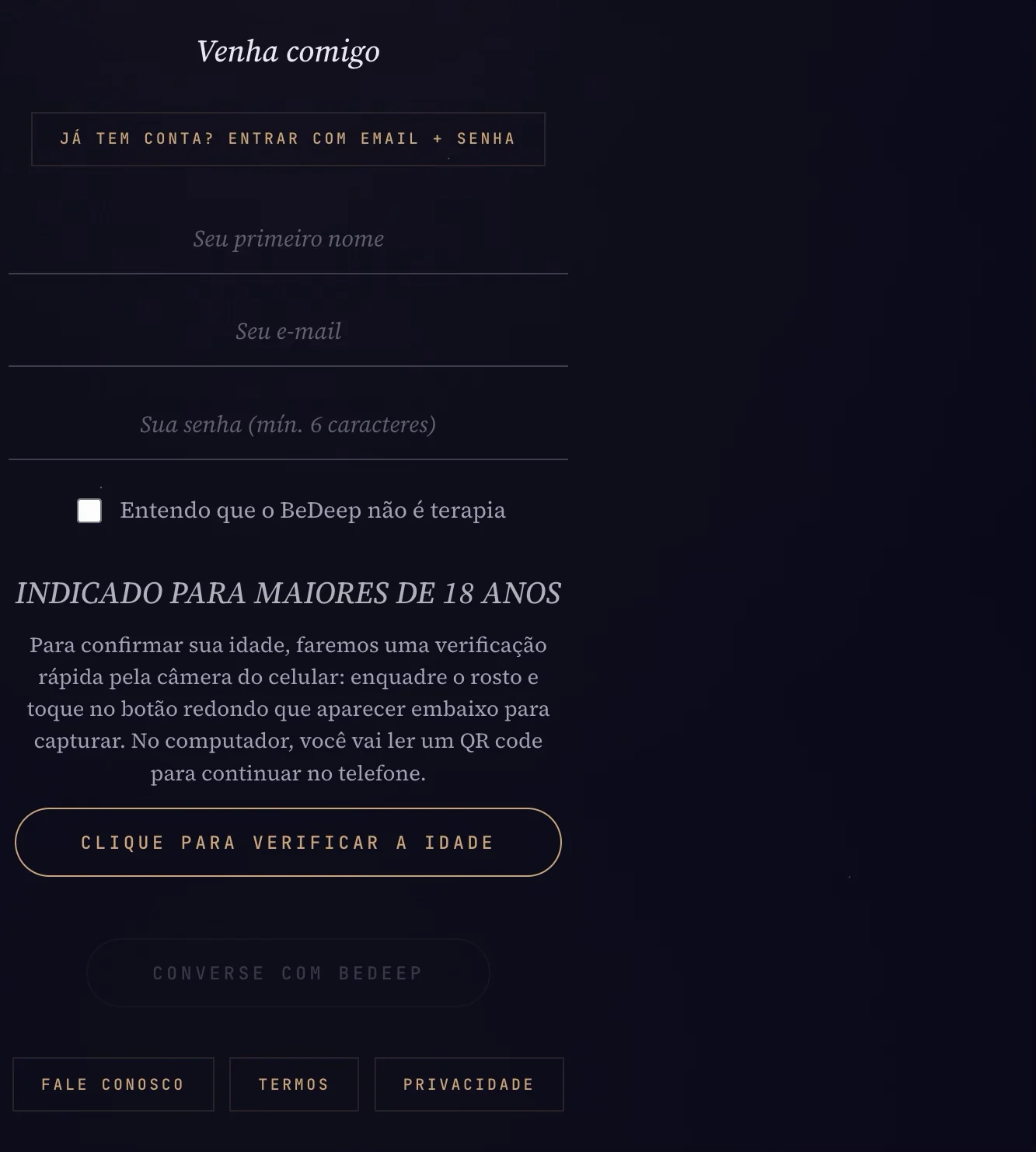
The same notice appears at sign-up. To create your account, you check the box “I understand that BeDeep is not therapy.” Without it, the button to get started stays disabled.
The Terms define BeDeep as “a digital platform for self-knowledge”: a space for reflection, listening and dialogue mediated by artificial intelligence, “focused on personal exploration — not on the diagnosis, treatment or cure of any condition.” BeDeep itself talks like an attentive conversation partner, not like a clinician.
Why this matters to you: a conversation on BeDeep can touch deep subjects and do you good, but there’s no diagnosis, no treatment plan and no professional following your case. If you’re in therapy, BeDeep can be one more place to think. Never a substitute.
It isn’t a person
What you’re talking with is an artificial intelligence. BeDeep is a character, with its own manner and voice; in Portuguese, it speaks of itself in the masculine (“o BeDeep”). It runs on AI models from other companies. Before your first conversation, the “How BeDeep uses your data” screen tells you that what you write is sent to Anthropic (Claude) to generate the replies and that, if you use voice, the audio goes through transcription companies and the spoken replies through speech synthesis companies. The same screen tells you that BeDeep uses what you share to build a personal profile, which feeds features like portraits, and that your data is not sold. To talk, you need to tap “I agree and continue” on that screen.
It doesn’t own the truth
The Terms warn that AI-generated content may contain inaccuracies, limitations or biases, and that the replies should be read “as prompts for reflection, not as absolute truths.” If something BeDeep says about you doesn’t make sense, disagree. That’s part of the conversation too. The “Safety, privacy and the limits of AI” chapter covers what AI can and can’t do.
Caution
When other people are with you in AMBIENT, there’s only one microphone: everything said by everyone present is transcribed and goes into the conversation and into what it produces, such as the AMBIENT Diary. Let the people with you know, and only go ahead if they agree. For now, the AMBIENT Diary chapter is written as if only you had spoken, so something another person said may show up there as if it were yours. The “Voice and conversation modes” and “Safety, privacy and the limits of AI” chapters cover this in detail.
The parts of BeDeep at a glance
Everything starts with the conversation. The rest grows out of it:
- You talk with BeDeep, by text or by voice.
- After a conversation with substance, BeDeep writes an entry in your diary based on what the two of you talked about. In the SOLO Diary, it’s in the first person, as if you were the one writing; in the AMBIENT Diary, spoken sessions become chapters in the third person.
- As entries pile up, plots emerge: the threads that run through different conversations.
- After a few conversations, a portrait arrives: a text BeDeep writes about you.
Steps 2 to 4 are for subscribers (whatever is said in Ephemeral Mode never becomes a diary entry, plot or portrait). On the Free plan, you talk; the diary, plots and portraits become available with a subscription.
The table below shows each part, where it is and who has access. Almost everything opens from the ☰ menu, in the top right corner of the screen.
| Part | What it is | Where it is | Who has it |
|---|---|---|---|
| SOLO Text | The written conversation with BeDeep. It’s the heart of the product. | ☰ › SOLO › Text | Everyone. On the Free plan, you get 3 conversations. |
| SOLO Voice | The same conversation, spoken. You tap BeDeep, speak, and choose to get the reply in voice or in text. | ☰ › SOLO › Voice | Everyone can speak. Hearing the reply in voice uses voice minutes. |
| Ephemeral Mode | A text conversation that leaves no trace: it doesn’t become a diary entry, doesn’t go into your profile, doesn’t generate a portrait or plot, and doesn’t accept highlights. The conversation disappears 30 minutes after the last message. The text still goes through the AI provider. | ☰ › Ephemeral Mode; to leave, tap the Ephemeral Mode badge at the top of the screen | All plans |
| AMBIENT | A voice-only, hands-free conversation, with no need to look at the screen or type, designed for moments when your hands are busy: in the car, in the kitchen, on a walk. It can include whoever is with you: the microphone is shared, and BeDeep asks the name of each person who joins the conversation. | ☰ › AMBIENT | Subscribers. Uses voice minutes. |
| Diary | The entries BeDeep writes after your conversations. You can search them and export them as PDF. There’s the SOLO Diary and the AMBIENT Diary. | ☰ › Diaries | Subscribers |
| Plots | The arcs that link several conversations and show the path you’re on. | ☰ › Plots | Subscribers |
| Portraits | “What BeDeep wrote about you”: texts written after a few conversations. When a portrait is ready, you get a notification (if notifications are turned on). | ☰ › Portraits (the item appears once the first one exists) | Subscribers |
| My highlights | Passages from your conversations that you marked to keep. | ☰ › My highlights | Everyone |
| Amplifications | Thinkers who took up a great question you dwelt on in a conversation, in cards that lead back to the chat. | ☰ › Content › Amplifications | Subscribers |
| Bridges | A weekly report of your conversations for someone who walks with you, read by you before it goes. In closed beta. | ☰ › Bridges | Premium, on both sides |
| Focus and atmosphere | Two controls at the top of the conversation. Focus shows the reply one word at a time, in the center of the screen. Atmosphere tilts the tone of the conversation: Lightness, Surprise or Depth. | Top of the conversation screen | Premium |
Tip
On the Free plan, some menu items (Diaries, Plots) show up but lead to the subscription page. It’s not a bug: it’s the way to unlock them.
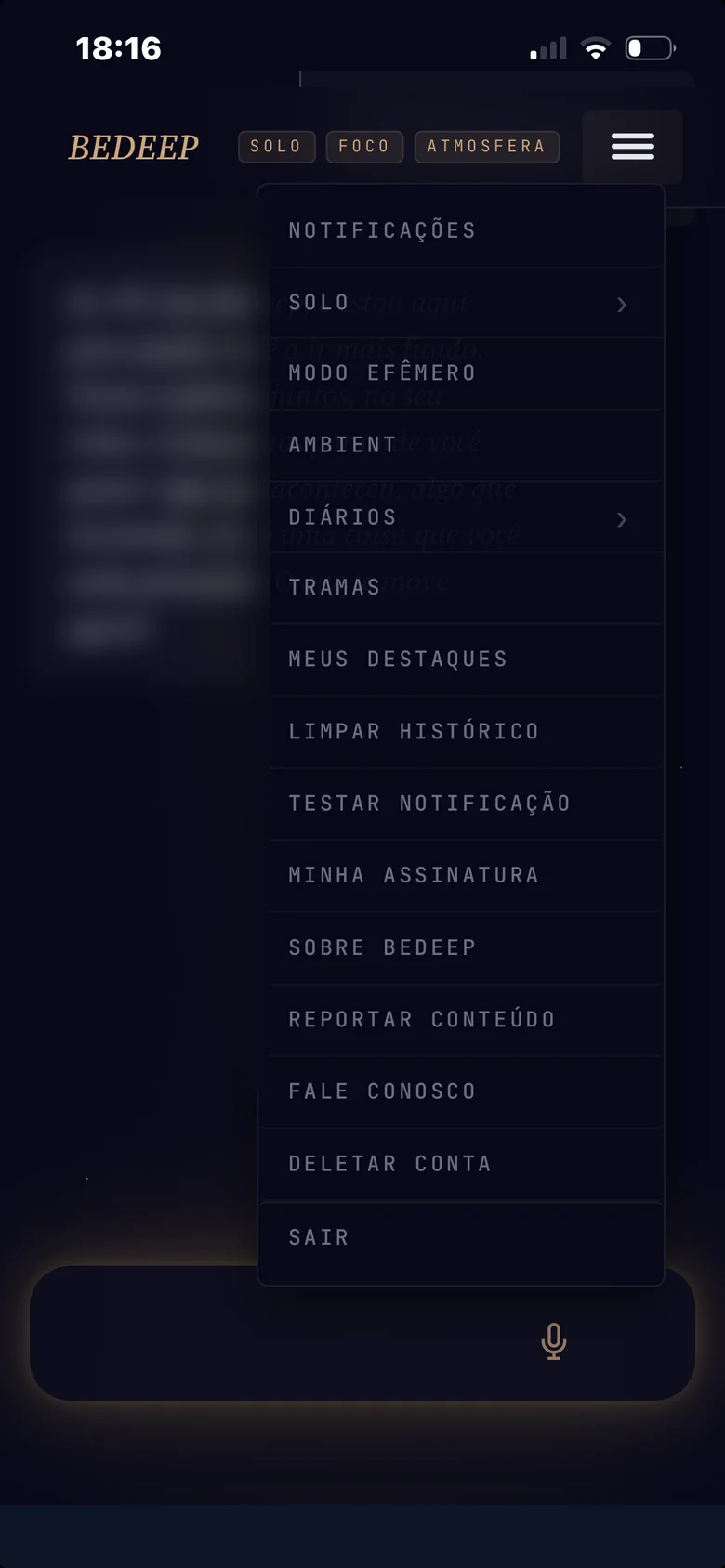
Each part has its own chapter: text conversation and Ephemeral Mode are in The conversation; SOLO Voice and AMBIENT, including what changes when other people are with you, in Voice and conversation modes; diary, plots, portraits and highlights, in What your conversations leave behind; and what each plan includes, in Plans and account.
Where BeDeep comes from
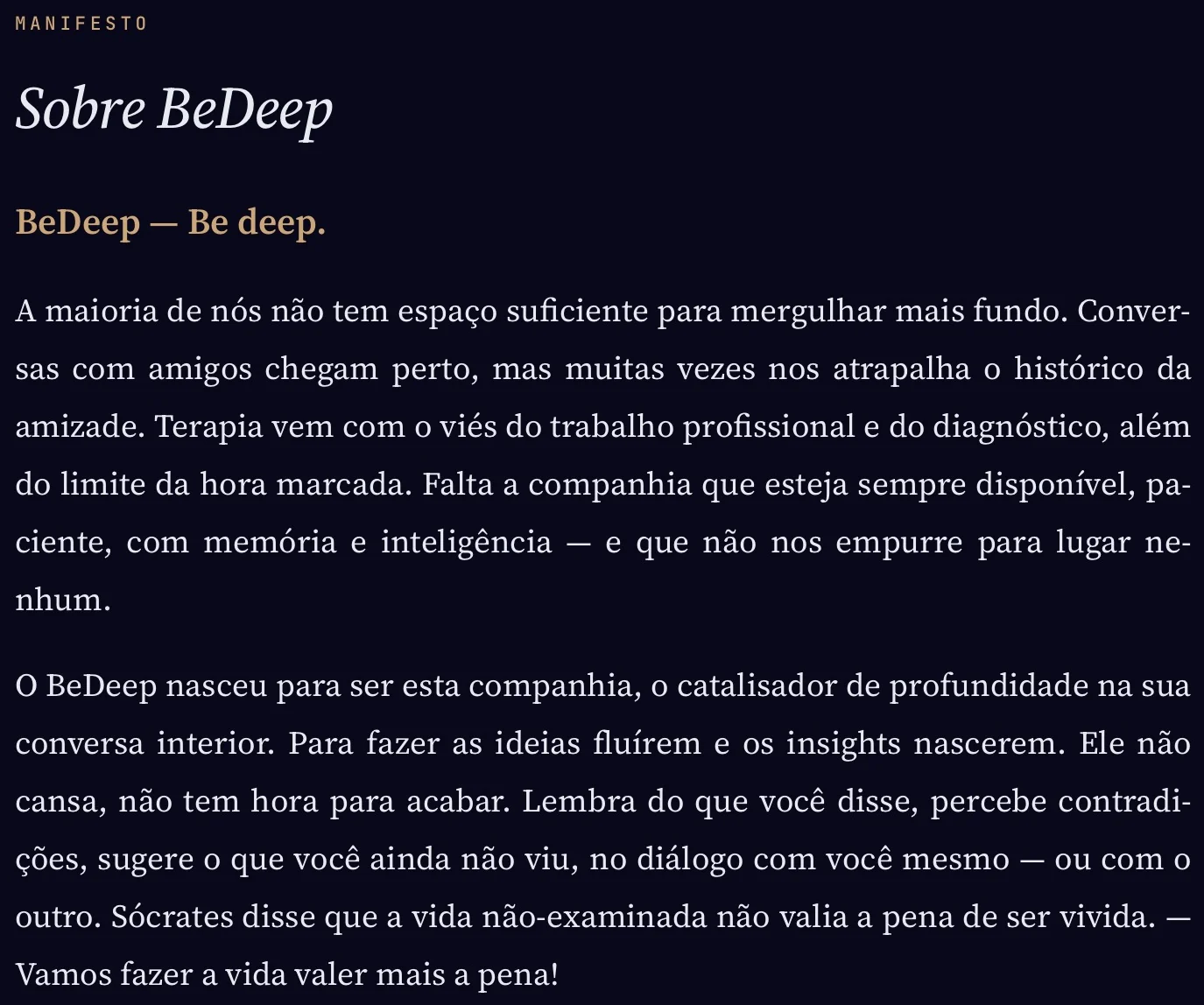
BeDeep was created by a philosopher and Jungian analyst who is known as Larry Be on the podcast Elefantes na Neblina. The About BeDeep page tells the origin story: “BeDeep was born of decades of talking with people professionally. It began with studies in philosophy and psychology, but for a long time now the practice has been producing other models and perspectives, from so many years of learning.”
Three ideas from the manifesto help explain the product:
- The missing space. Conversations with friends come close, but “the history of the friendship often gets in our way.” Therapy “comes with the bias of professional work and diagnosis, plus the limit of the scheduled hour.” What’s missing, the text says, is a companion “always available, patient, with memory and intelligence — and one that doesn’t push us anywhere.” BeDeep wants to fill that space, which is neither the therapist’s nor the friend’s.
- The examined life. The text recalls Socrates, for whom “the unexamined life was not worth living,” and offers conversation as the place for that examination.
- Connection, not engagement. “The last twenty years of consumer technology taught us to confuse engagement with connection,” the page says. BeDeep presents itself as “a thinking partner — one kind of intelligence meeting another.”
The name sums up the idea: BeDeep, from be deep.
The founder’s background shapes the way BeDeep talks. It doesn’t make BeDeep a psychological service: what the Terms say, quoted above, still holds.
Tip
The full manifesto is at ☰ › About BeDeep, or at bedeep.ai/sobre.
Where BeDeep is available
BeDeep is a single service that you reach in several ways. The apps show the same BeDeep as the website, and the same account (email and password) works in all of them.
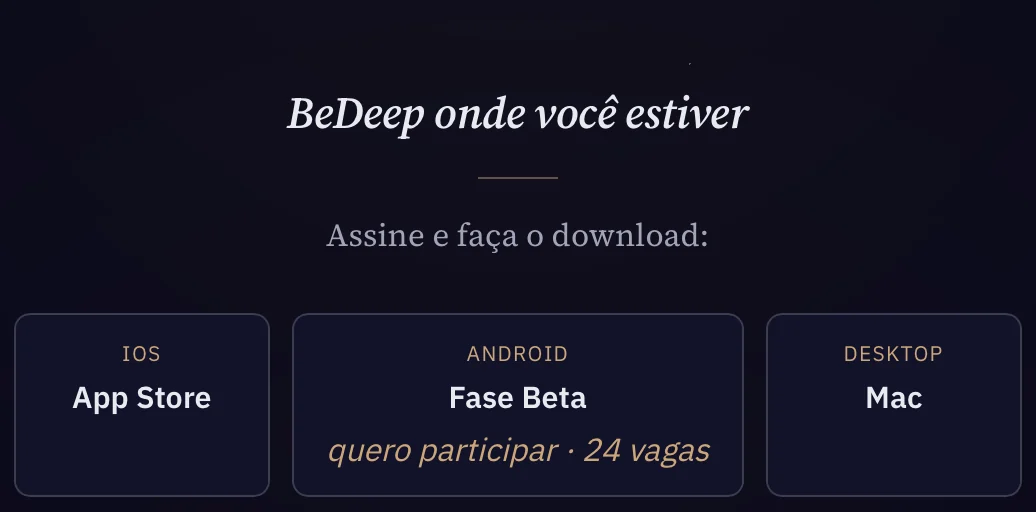
| Where | How to get there | Good to know |
|---|---|---|
| Browser (computer or phone) | Go to bedeep.ai | It’s the full BeDeep, and it’s where you subscribe, through Stripe’s checkout page. |
| Shortcut on your phone’s home screen | In your phone’s browser, log in to your account and, on the conversation screen, tap ☰ › Install on phone | Opens BeDeep full screen, like an app. The Subscribe item doesn’t appear in the shortcut: to subscribe, use the browser. |
| iPhone | App Store. The link is on the home page, under “BeDeep wherever you are.” | In-app purchases are handled by Apple. Basic and Premium are sold in the app. |
| Android | Google Play. The link is on the home page, under “BeDeep wherever you are.” You can also use it in your phone’s browser, with the shortcut at ☰ › Install on phone. | The app shows the same BeDeep as the website, with all its features. In-app purchases are handled by Google Play: Basic, Premium and the packs. |
| Mac | Download at bedeep.ai/download/mac (a .dmg file of about 5 MB), or on the home page, under “BeDeep wherever you are” › Mac | Requires macOS 11 or later. |
The interface is available in Portuguese, English and Spanish: those are the PT, EN and ES buttons at the top of the home page.
Tip
The apps section on the home page says “Subscribe and download,” but you don’t need to subscribe to download: the apps also work on the Free plan.
Important
If you subscribe on the website, you pay through Stripe’s checkout page; if you subscribe in the iPhone app, you pay through Apple; if you subscribe in the Android app, you pay through Google Play. The differences between these routes are in the “Plans and account” chapter.
Free to start
You pay nothing to try it: your first 3 conversations, with 15 voice minutes, are on the house, with no card and no diary. They don’t renew: they’re good once per email address. To keep going after them, and to get the diary, plots, portraits and AMBIENT, you need to subscribe to one of the plans: Basic or Premium.
On the website, Basic costs R$ 150 a month and includes 8 conversations and 60 voice minutes a month, with diary, plots and portraits. Premium costs R$ 500 a month and has unlimited conversations, 300 voice minutes a month (unused minutes roll over, up to 15 hours), focus and atmosphere. In the iPhone and Android apps, Basic and Premium are also sold, at the price the App Store or Google Play shows. If you already subscribe, you can buy more conversations (Extra Pack) or more minutes (Voice Pack), and you can also give 1 or 3 months of Basic as a gift (R$ 150 and R$ 450) on the website, at bedeep.ai/presente. The “Plans and account” chapter explains what each plan includes.
Need help?
- Contact us (WhatsApp): the link is in the footer of the home page and, in the iPhone app, also in the ☰ menu. WhatsApp support may start with an automated assistant, which hands the case over to the team when needed.
- Email: bedeep@bedeep.ai. The support page (bedeep.ai/suporte) says replies usually come within 2 business days.
- Terms of Use: bedeep.ai/termos. Privacy Policy: bedeep.ai/privacidade.
Specific questions are answered in the “Frequently asked questions” chapter; if something doesn’t work, see Troubleshooting.
Important
The home page on the web, and the app menu, have a link called “The BeDeep Manual” that takes you straight to this manual.
Glossary
The terms you’ll find in the interface, in alphabetical order.
- AMBIENT — A voice-only, hands-free conversation mode, with no need to look at the screen or type. It can include whoever is with you: the microphone is shared, and BeDeep asks the name of each person who joins the conversation. For subscribers. See Voice and conversation modes.
- Amplifications — An item in the ☰ menu, under Content, for subscribers: cards with thinkers who took up a great question you dwelt on in a conversation. One tap takes you back to the chat to talk about it.
- Ask me — An item in the ☰ menu, for subscribers: you tap a button and BeDeep asks you a question based on what it already knows about you. You can keep your answer there (it becomes a memory, in the Diary) or give it in the chat. Basic: 2 a day; Premium: 5. See What your conversations leave behind.
- Atmosphere — A Premium control at the top of the conversation, with three options: Lightness, Surprise and Depth. It tilts the tone of the conversation; it isn’t an order.
- Basic — A monthly subscription plan (R$ 150 on the website) with 8 conversations, which come back at each subscription renewal, and 60 voice minutes a month. It unlocks Diary, Plots, Portraits, AMBIENT and Ask me.
- BeDeep — The app and, at the same time, the character you talk with. In Portuguese, it speaks of itself in the masculine.
- Bridges — An item in the ☰ menu, in closed beta, part of Premium: a weekly report of your conversations, written by the Reporter, for someone who walks with you. You read each report before it goes.
- Clipping — A passage of a Notebook file that the librarian thinks could become a memory. You decide: keep it, decline it, keep only part of it or fix its date.
- Conversation — The unit the plans count. While you and BeDeep are exchanging messages, it’s the same conversation; after a long pause (currently 2 hours), whatever you write counts as a new conversation. The “Plans and account” chapter explains the rule.
- CONVERSATIONS (badge) — The number at the top of the conversation screen, such as “2 CONVERSATIONS”: how many you have left. It appears on the Free plan and on Basic.
- Cycle — The monthly period of the subscription, which ends at each renewal. Not everything is counted by cycle: Basic’s 8 conversations come back when the subscription renews, but the plan’s voice minutes renew at the turn of the calendar month, and Premium’s cap of 1,200 messages is also counted by calendar month. The “Plans and account” chapter explains each count.
- Diary (SOLO Diary, AMBIENT Diary) — What BeDeep writes after your conversations. In the SOLO Diary, which gathers your SOLO conversations, entries are in the first person, as if you were the one writing. In the AMBIENT Diary, each AMBIENT session becomes a chapter in the third person. For subscribers.
- Ephemeral Mode — A text conversation that leaves no trace: it doesn’t become a diary entry, doesn’t go into your profile, doesn’t generate a portrait or plot, and doesn’t accept highlights. The conversation disappears 30 minutes after the last message. The text still goes through the AI provider to generate the reply; the key that makes the conversation readable stays in your device’s session, not in a BeDeep database, so an ephemeral conversation started on one device can’t be read on another. To start, ☰ › Ephemeral Mode; to leave, tap the Ephemeral Mode badge at the top of the screen. Once you leave, what was said there can no longer be read, not even by you. Available on all plans. See The conversation before using it.
- Extra Pack — A one-off purchase of extra conversations, for subscribers: on the website, 6 conversations for R$ 120, valid for 3 months.
- Focus — A Premium control that shows the reply one word at a time, in the center of the screen, at the speed you choose.
- Free — The plan without a subscription: 3 conversations and 15 voice minutes, no card and no diary. They don’t renew and are good once per email address.
- Kept / Never forget — Passages you asked BeDeep never to forget: they stay word for word, and BeDeep keeps them in mind in every conversation. They live in My highlights, in the Kept tab.
- My highlights — Passages from conversations that you marked to keep. To mark one, touch and hold a message (on a computer, click and hold the mouse button over it).
- Notebook — ☰ menu item, in closed beta: where you write or upload to BeDeep texts from outside your conversations (journals, letters, dreams you wrote down). What you write becomes a memory right away, if you allow it; an uploaded file is read by the librarian, who suggests clippings. See “What your conversations leave behind”.
- Plots — The arcs that link several conversations and show the path you’re on. For subscribers.
- Portraits — Texts BeDeep writes about you after a few conversations. The page is called “Portraits of you.” For subscribers.
- Premium — A monthly subscription plan (R$ 500 on the website) with unlimited conversations (within fair use, explained in Plans and account), 300 voice minutes a month, which roll over up to 15 hours, focus and atmosphere. You subscribe on the website or in the iPhone and Android apps.
- Reporter — The BeDeep agent that writes the weekly reports for Bridges.
- SOLO — The one-on-one conversation with BeDeep, in Text or Voice.
- Spoken reply / Written reply — The two SOLO Voice buttons for choosing whether BeDeep replies by speaking or in writing.
- Subscribe / My subscription — An item in the ☰ menu. “Subscribe” takes you to the plans page. If you already subscribe, you see “My subscription”: on the website, it opens subscription management; in the iPhone app, if you subscribed through Apple, you see your plan, with the option to switch to the other one and a shortcut to iPhone Settings, where you cancel; in the Android app, if you subscribed through Google Play, you see the same, with the shortcut to the Play Store. In the home screen shortcut, the item doesn’t appear.
- Vault — ☰ menu item, in closed beta: the locked place for what has already served BeDeep. You take Notebook items to it, one by one; it opens only on your device, with your biometrics or your passphrase. See “What your conversations leave behind”.
- Voice minutes — Your balance of voice time with BeDeep. In SOLO, speaking instead of typing doesn’t use minutes; what uses them is hearing the spoken reply. AMBIENT sessions also draw on this balance. The plan’s minutes renew at the turn of the calendar month.
- Voice Pack — A one-off purchase of voice minutes, for subscribers: on the website, 3 hours for R$ 135 or 5 hours for R$ 225. The credits last 3 months, and buying again renews the deadline.
- ☰ menu — The three-line button in the top right corner. It’s where all the parts of BeDeep are.
Chapter 2
Getting started
Where to use BeDeep, how to create your account, confirm your age, sign back in and find your way around the screen and the menu, all the way to your first conversation.
This chapter takes you from zero to your first exchange with BeDeep. There are only a few steps: choose where to use it, create your account, confirm your age, read a notice about your data and start talking. At the end there’s a map of the interface, so you know where everything is.
Before you start
You’ll need:
- To be 18 or older. BeDeep is not available to anyone under 18.
- An email address you actually use. You sign in with it and a password, and it’s how you get back in if you forget your password.
- A phone with a camera, for the age check during sign-up. If you’re creating your account on a computer, the phone only comes in at that step.
- An internet connection. BeDeep doesn’t work offline. Your conversations are stored on BeDeep’s servers, not on your device, which is why the same account works anywhere.
Where to use BeDeep
BeDeep is a single service with several ways in. In all of them the account is the same, the conversations are the same and the rules are the same. You can start on your computer and continue on your phone, and the other way around.
| Where | How to get it | Good to know |
|---|---|---|
| Browser (computer or phone) | Open bedeep.ai | Nothing to install. |
| iPhone | The BeDeep app on the App Store (through the badge at bedeep.ai or by searching “BeDeep” in the store) | In the app, the age check should open inside the app itself; follow the on-screen instructions. Purchases made in the app go through the App Store. |
| Android | The BeDeep app on Google Play (through the badge at bedeep.ai or by searching “BeDeep” in the store), or your phone’s browser | It’s the same BeDeep, with every feature. Purchases made in the app go through Google Play. |
| Mac | The macOS app, downloaded from bedeep.ai/download/mac or through the Desktop · Mac badge | Requires macOS 11 or later. |
| Home screen shortcut | From the website, in your phone’s browser | It’s the website itself, opened in its own window, with an icon. |
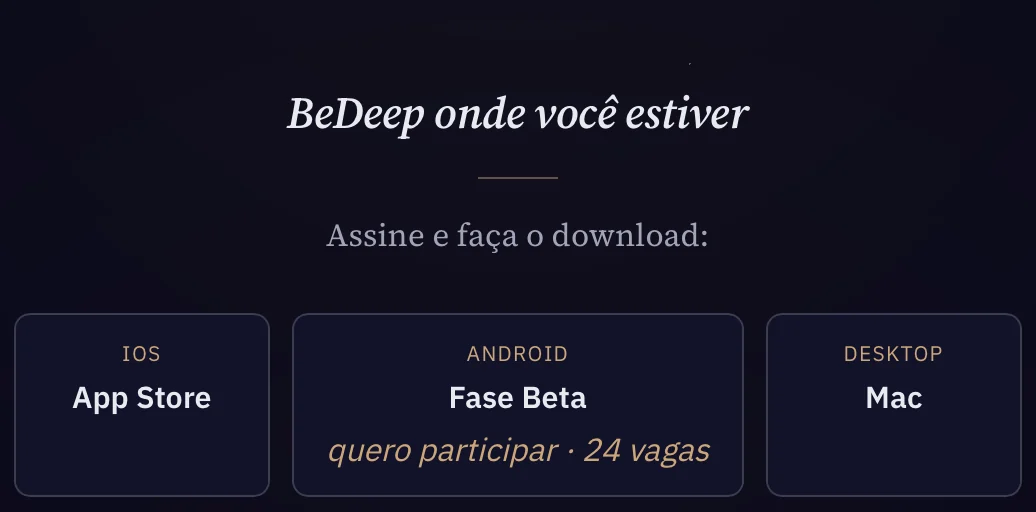
On the bedeep.ai home page, the BeDeep wherever you are section shows what’s available. The badges take you to the iPhone app on the App Store, the Android app on Google Play and the Mac app download. If a badge is marked “coming soon”, you can’t tap it yet.
Above the badges, the page says “Subscribe and download”. Downloading and installing the apps doesn’t require a subscription: on the Free plan you can use BeDeep in any of them too.
iPhone
On iPhone, the recommended route is the App Store app (the badge takes you straight to BeDeep’s page in the store). In the app, the age check should open inside the app itself; follow the on-screen instructions. The app also shows three menu items that don’t appear in the browser: Report content, Contact us and Delete account.
If you open bedeep.ai in Safari on your iPhone, a notice may suggest Add to Home Screen. That creates a shortcut to the website. It works, but the store app is the more complete option.
Android
On Android, the recommended route is the Google Play app (the badge on the home page takes you straight to BeDeep’s page in the store; or search for “BeDeep” in the Play Store). It’s the same BeDeep as the website, with the same account and the same conversations. The app also shows two menu items that don’t appear in the browser: Report content and Delete account. Inside the app, the subscription and packs are bought through Google Play; that’s covered in the Plans and account chapter.
If you’d rather not install anything, all of BeDeep works in your phone’s browser. The home page has a Start now in your browser button. Once you’re signed in, the ☰ menu offers Install on phone, which puts a shortcut on your home screen and opens BeDeep full screen, like an app.
Mac
You download the Mac app through the Desktop · Mac badge on the home page, or directly at bedeep.ai/download/mac. The download is an installer file (.dmg) of about 5 MB. Open the downloaded file, drag BeDeep into the Applications folder and open it like any other program. It runs on Macs with Intel or Apple processors and requires macOS 11 or later.
The app is a window dedicated to BeDeep. Outside addresses, such as the payment page, open in your default browser. On Windows or Linux, use BeDeep in the browser.
Home screen shortcut
- Android (Chrome): when you open bedeep.ai, you may see the banner Install BeDeep on your phone to receive notifications. Tap Install. If the banner doesn’t appear, once you’re signed in use the Install on phone item in the menu.
- iPhone (Safari): tap the share button in Safari’s bottom bar and choose Add to Home Screen.
The shortcut opens BeDeep directly, without the browser bar. In the installed shortcut, the Subscribe item doesn’t appear in the menu. To see the plans, use the Subscribe to BeDeep button just above the text field, or open bedeep.ai in the browser (see the Plans and account chapter).
Create your account
Where to find the form
- In the browser, at bedeep.ai: tap Start at the top of the page, or scroll down to the Come with me box near the end.
- In the apps and the shortcut: BeDeep opens on a welcome screen. Scroll down to Come with me.
- Language: the PT, EN and ES buttons in the top right corner change the screen’s language. On your first visit, BeDeep picks a language based on your location. Whichever language is selected when you create your account is also the language BeDeep will talk with you in.
If the form opens with the Sign in button already showing and no name field, that device has already been used to sign in to an account. To create a new account, tap First time here? Create account.
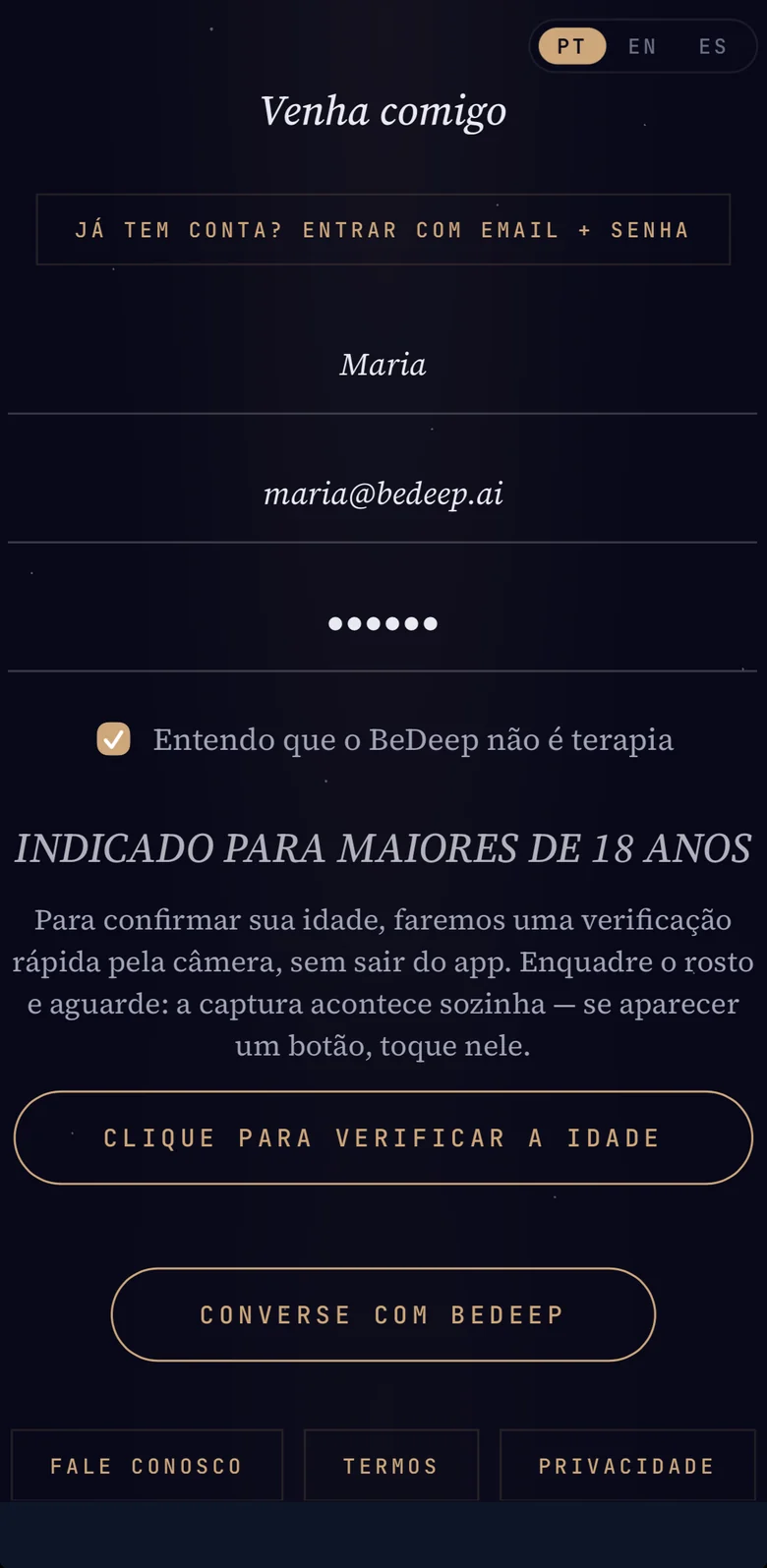
What the form asks for, in order
- Your first name. This is what BeDeep will call you (up to 40 characters). There’s currently no screen to change your name later, so choose carefully.
- Your e-mail. It identifies your account. Each email address can have only one account.
- Your password (min 6 chars). You’ll use it whenever you sign in on a new device.
- I understand that BeDeep is not therapy. A box you have to check.
- For adults 18 and over. A notice, followed by the age check box, with the Click to verify your age button.
- Talk to BeDeep. The button that creates the account. It only lights up once your name, email, password (at least 6 characters) and the “not therapy” box are filled in. While the age check is in progress, it stays dimmed until the result comes in.
Caution
Double-check your email before you continue. BeDeep doesn’t send a confirmation email at sign-up: the account is created with the address exactly as you typed it. If there’s a typo, the “Forgot my password” link will never reach you.
Tip
In Chrome and on Android, the browser usually offers to save your password after you sign up. Accepting makes signing in easier next time.
Why the “not therapy” box
BeDeep is a practice of deep conversation with an artificial intelligence. It listens, asks and helps you think, but it isn’t psychological care, it doesn’t diagnose and it doesn’t replace a professional. The box is there to make that clear before the first “hi”. If you’re going through a crisis, reach out to a health professional or call your local emergency number or a crisis line where you live (in Brazil, CVV at 188, or SAMU at 192 in an emergency). The Safety, privacy and the limits of AI chapter goes into this at more length.
By creating an account, you agree to the Terms of Use (bedeep.ai/termos). The Privacy Policy is at bedeep.ai/privacidade. Both links are in the page footer.
The age check
Why it exists
BeDeep is made for adults. So as not to rely only on the age each person states, anyone creating a new account goes through a quick check with the camera. It happens once, at sign-up. After that, your email and password are all you need to sign in.
The check screen belongs to a partner that specializes in this service, Didit, and it may ask for permission to use your camera. Don’t be surprised if the address at the top of the screen changes during this step.
Step by step
- Tap Click to verify your age.
- The check screen opens. Where and how depends on where you are:
| Where you are | What happens |
|---|---|
| iPhone app | The check should open inside the app itself. Follow the on-screen instructions: frame your face and, if a button appears, tap it, until you’re back at the BeDeep form. |
| Phone browser (Chrome and others) | The check opens in a new tab. Frame your face and tap the round button that appears at the bottom. Then go back to the BeDeep tab. |
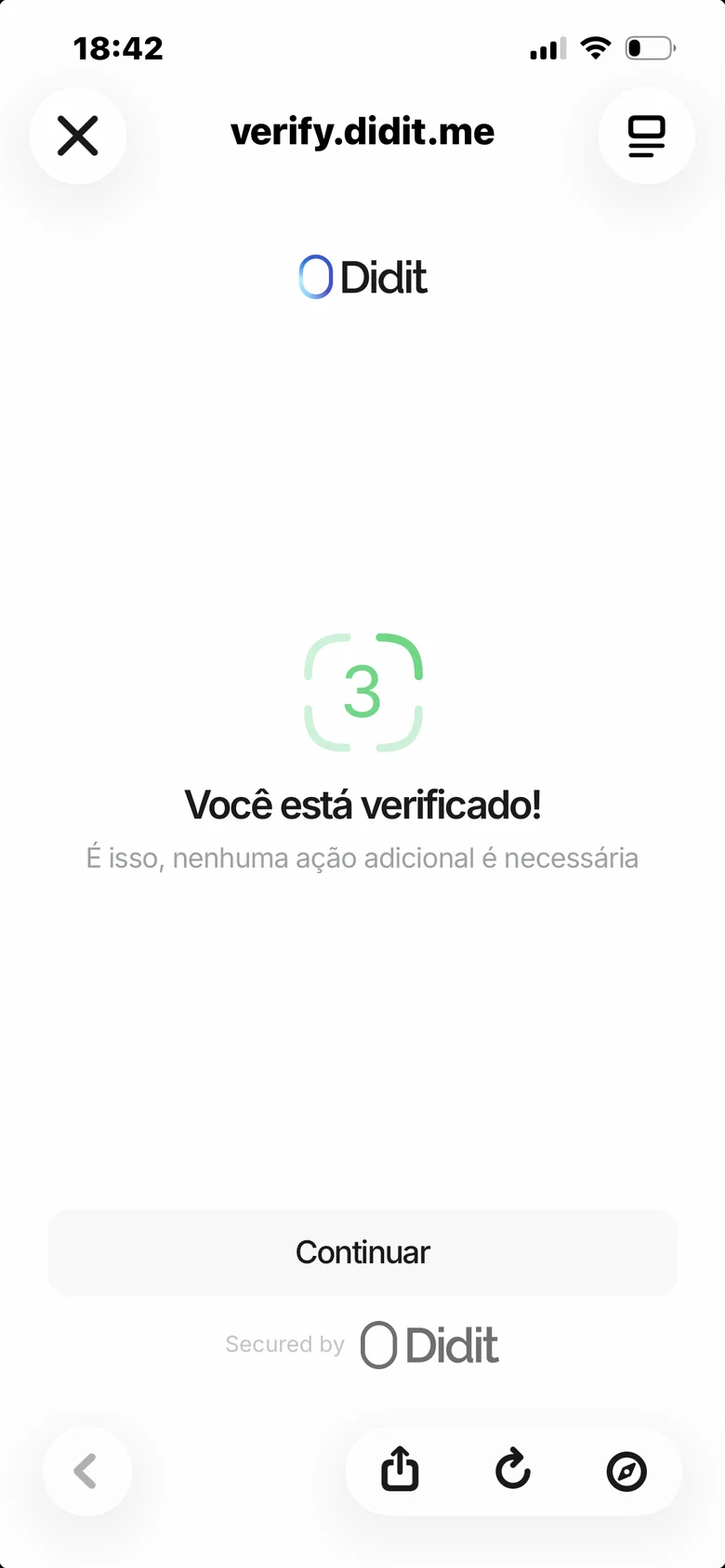
| Safari (iPhone or Mac) and the Mac app | The check opens in the same tab (or the same window, in the Mac app). When it’s done, you’ll see Verification complete with the Back to BeDeep button. Tap it and BeDeep shows a simple screen with the words Click below and and the Talk to BeDeep button: just tap it to create the account with the details you’d already filled in. |
| Computer (any browser and the Mac app) | The partner’s screen shows a QR code and, below it, a “Continue” button. Click “Continue” to do the capture with your computer’s own camera. If you prefer, point your phone at the QR code and do the capture there; then go back to the computer: that’s where sign-up continues. |
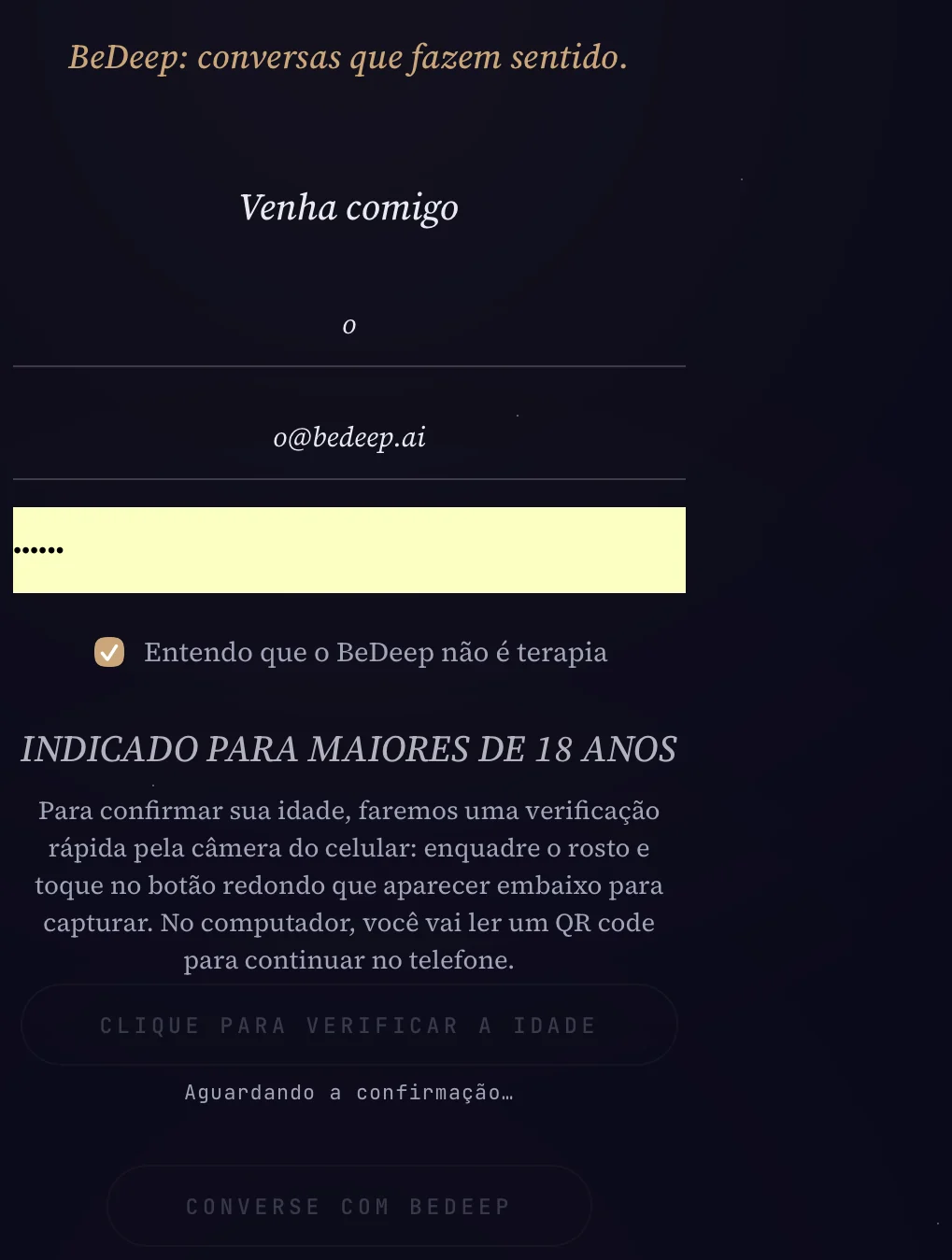
- Meanwhile, the form shows Waiting for confirmation…. When the result comes in, sign-up moves on: on a computer, the waiting message gives way to the Talk to BeDeep button, ready to click; on a phone, you come back to a clean screen with just that button.
It usually all takes less than a minute.
Tip
In Safari, the filled-in form is kept for up to 20 minutes while you do the check. If it takes longer than that, fill it in again.
Caution
In the Mac app, the check opens inside the app window itself, which has no back button. If you give up halfway and find yourself with no way back, quit the app (⌘Q) and open it again.
Messages you may see
| Message | What it means | What to do |
|---|---|---|
| We need to confirm your age to continue. | You tapped Talk to BeDeep before doing the check. | Tap Click to verify your age. |
| You started the age check and it hasn’t finished yet… | The check was opened, but there was no result. | Finish it in the window that opened. If it closed, tap Resume the age check. |
| Your browser blocked the age check window… | A pop-up blocker stopped it from opening. | Tap Open the age check. On the second tap, it opens. |
| The check wasn’t completed. You can start it again whenever you want. | Two minutes went by with no result. | Tap the age check button again, whenever you like. |
| The check is unavailable right now… | A temporary problem with the service. | Wait a few minutes and try again. |
| We couldn’t confirm that you are 18 or older… | The check didn’t confirm your age. | If it’s a mistake, tap Talk to support. |
| BeDeep is for people 18 and over. | The date given shows you’re under 18. | The account isn’t created. |
A check you’ve opened stays valid for about half an hour, so you can resume it without starting from scratch.
What BeDeep receives from the check
To open the check, BeDeep gives the partner the email you typed in the form. The face capture happens on the partner’s screen, and BeDeep doesn’t keep any image of your face or of any document. From the result, BeDeep records only the essentials: whether your age was confirmed, an estimated age range and the ID of that check. This record is linked to your account, stored separately from your other data, and isn’t part of your profile.
If you’re under 18
The account isn’t created, and there’s no way around that. If you’re an adult and the check said otherwise, keep in mind that it’s automatic and can get it wrong. Use the Talk to support link that appears with the message and explain what happened.
The notice about your data
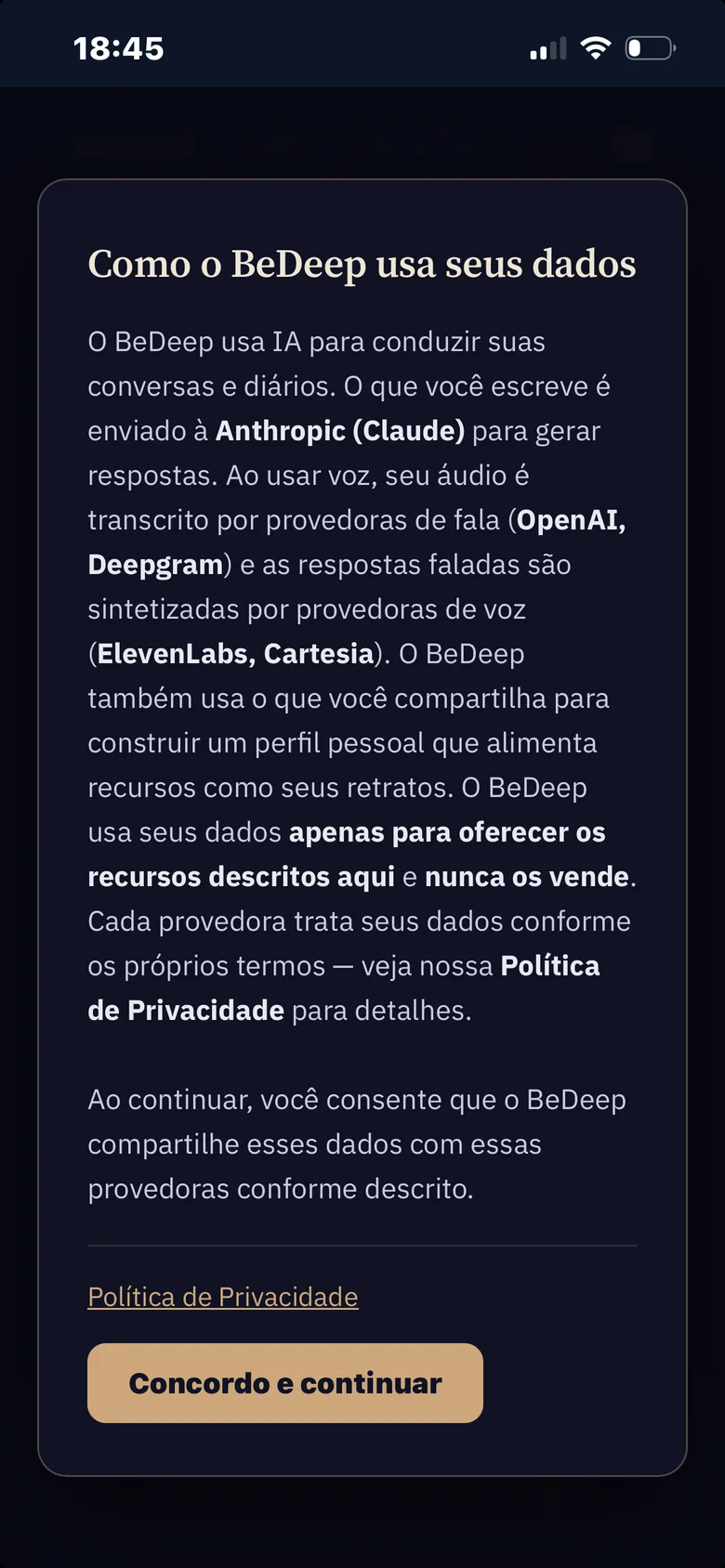
After you tap Talk to BeDeep, the button shows Getting ready... and then the conversation screen opens. Before the first message, a notice called How BeDeep uses your data appears. In short, it says that:
- what you write is sent to Anthropic (Claude), the artificial intelligence company that generates the replies;
- if you use voice, the audio is transcribed and the spoken replies are generated by companies that specialize in speech, which the notice names;
- BeDeep uses what you share to build a personal profile, which feeds features such as your portraits;
- your data is used only to provide these features and is never sold.
To start talking, you need to tap I agree and continue. The Privacy Policy link opens the full text before you decide. In the browser and in the Android and Mac apps, the notice appears only the first time, and again if the text changes. In the iPhone app, it comes back every time you sign in.
Your first conversation
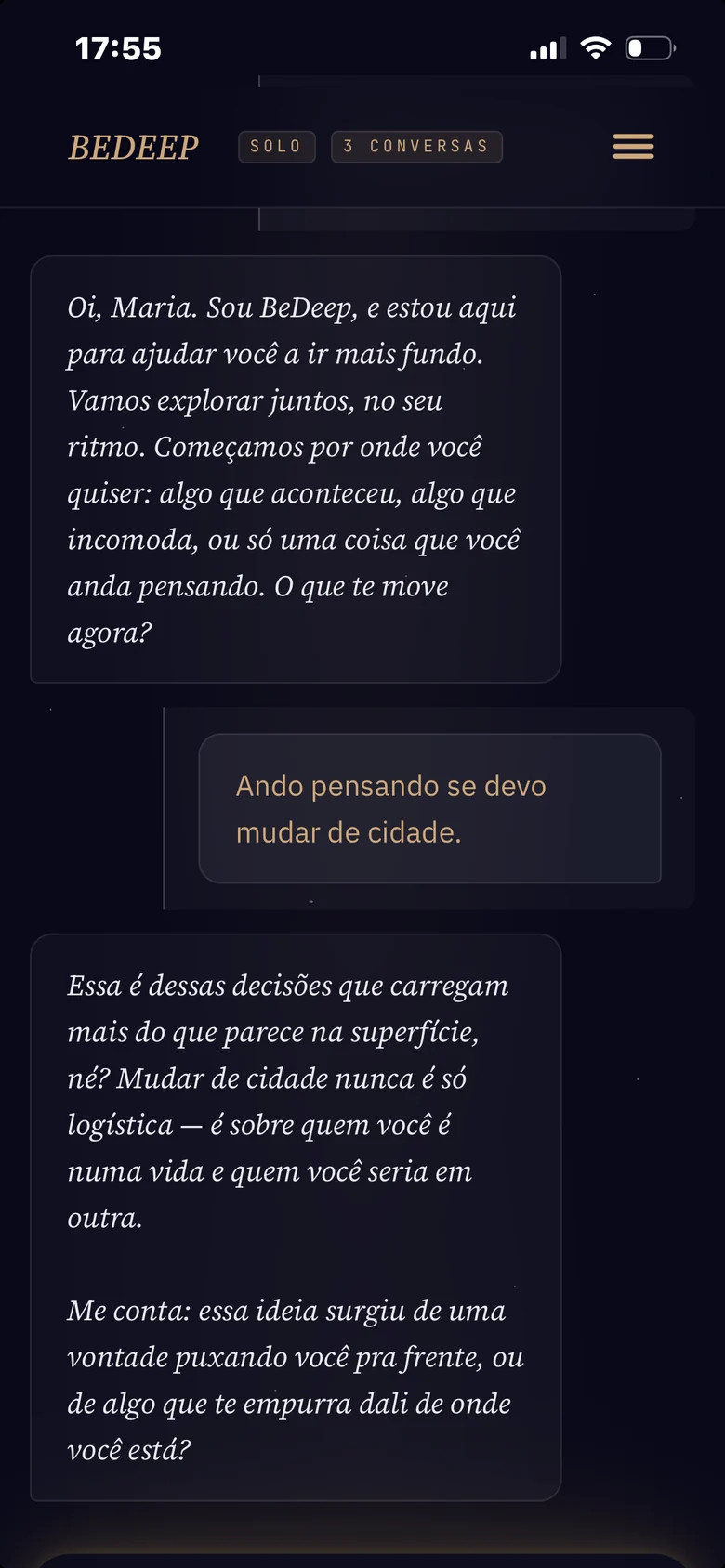
Once you’ve accepted the notice, BeDeep is already waiting for you with a message like this (with your name):
“Hi, Ana. I’m BeDeep, and I’m here to help you go deeper. Let’s explore together, at your own pace. We can start wherever you like: something that happened, something that’s bothering you, or just something you’ve been thinking about. What moves you right now?”
From here on, it’s up to you. A few pointers for that first moment:
- Writing. The text field is at the bottom, empty, with an amber glow. Tap it and write. As soon as you start writing, an amber dash (—) appears to the right of the field: that’s the send button. On a computer, Enter also sends and Shift+Enter starts a new line. Each message can be up to 2,000 characters.
- Speaking instead of typing. When the field is empty, the microphone icon sits on the right (it disappears while there’s text in the field). Tapping it opens the voice screen, full screen: you speak, and BeDeep transcribes your speech and sends it as a message, without going through the text field. Whether BeDeep answers out loud depends on two things: your balance of voice minutes and your choice, on the voice screen, between Spoken reply and Written reply. With Written reply selected, the microphone records right there, in the written conversation, without opening the voice screen, and your speech is sent on its own. The Voice and conversation modes chapter explains voice and minutes in detail.
- You don’t need to arrive with a topic ready. A sentence about your day is enough. The reply appears on screen bit by bit; wait until it finishes before writing again.
- You can leave whenever you want. The conversation is saved. When you come back, on any device, you’ll find it where you left off. In the browser, the home page shows the Continue conversation button. The exception is Ephemeral Mode: there, the conversation disappears 30 minutes after the last message and doesn’t open on another device (see The menu, further on, and the The conversation chapter).
The The conversation chapter brings together what helps you get the most out of BeDeep.
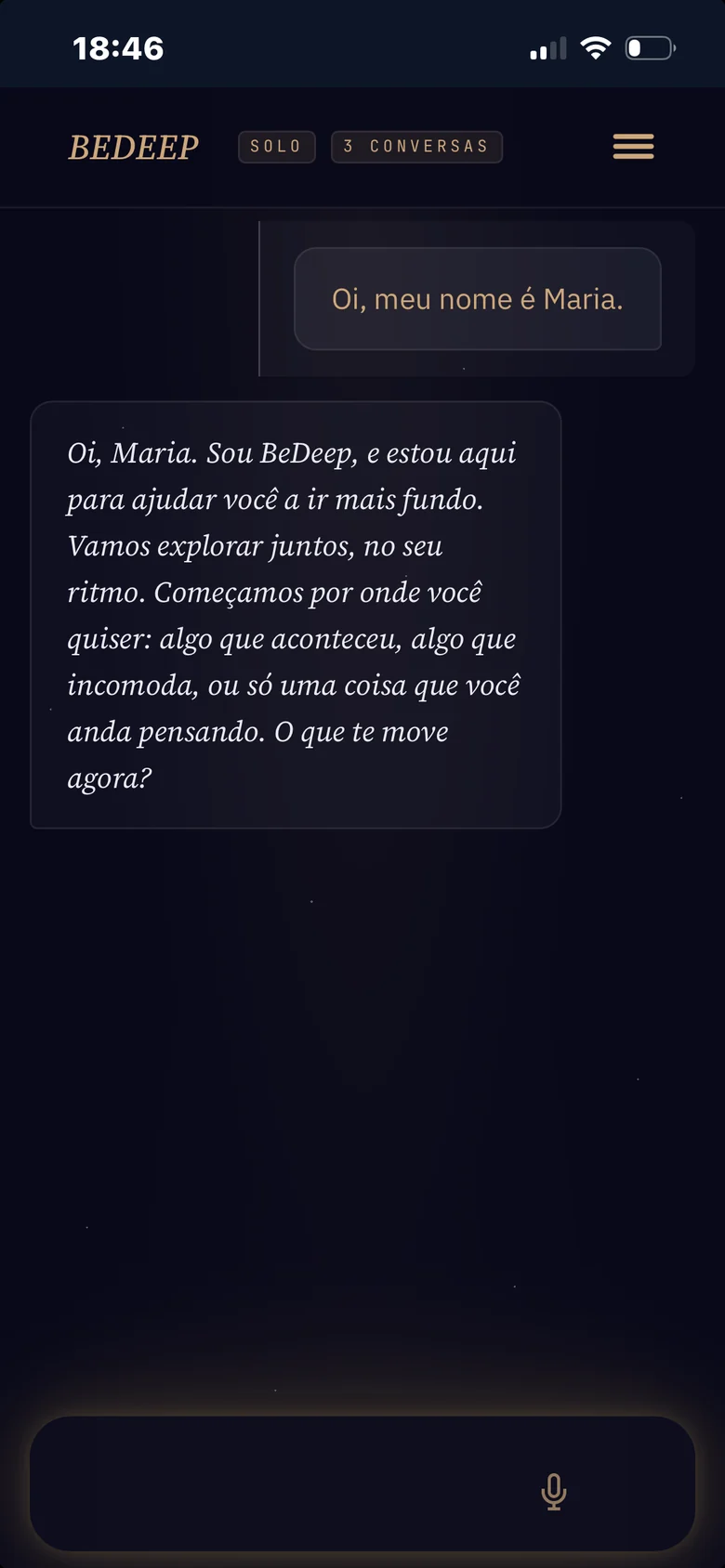
On the Free plan, your first 3 conversations are on BeDeep, and a badge next to SOLO, at the top of the screen, shows how many you have left (for example, 3 CONVERSATIONS). What counts as a conversation and what happens when the badge reaches zero is covered in the Plans and account chapter.
Signing back in
With email and password
You sign in to BeDeep with your email and password.
- Open bedeep.ai, the app or the shortcut.
- If the form is in sign-up mode, tap Already have an account? Sign in with email + password. The name field and the “not therapy” box disappear, because you already answered them at sign-up.
- Type your email and password and tap Sign in.
You go straight to your conversation. On a device where you’ve signed in before, the form usually opens in Sign in mode, and the browser’s password manager may fill everything in for you. In general, the device stays signed in until you tap Log out.
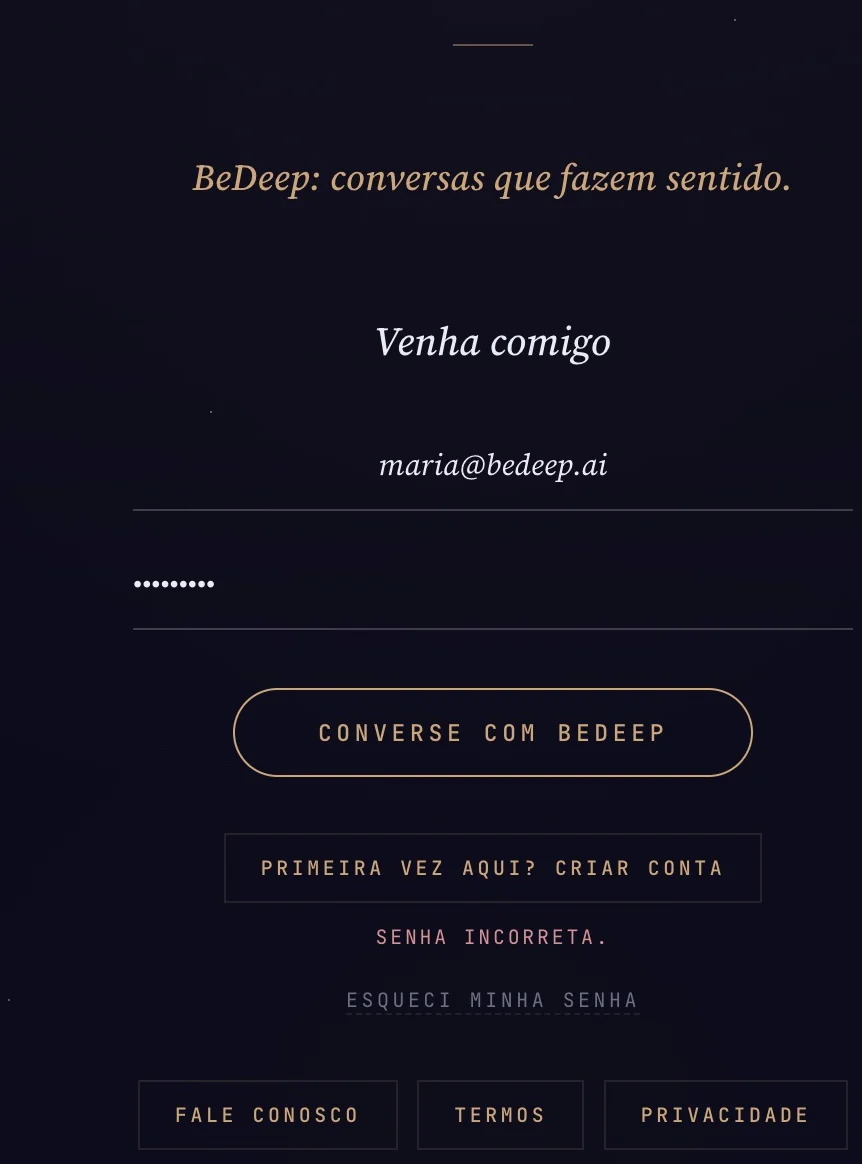
Forgot my password
The Forgot my password link isn’t always visible. It appears below the form after an attempt to sign in with the wrong password.
- In Sign in mode, type your email and any password with at least 6 characters (with fewer, the button doesn’t light up) and tap Sign in.
- Incorrect password. appears, with Forgot my password just below it. Tap it.
- The screen confirms: Link sent to your e-mail.
- In the email, with the subject “BeDeep — reset your password”, tap Reset password. The link is valid for 30 minutes.
- On the Reset password page, type the new password twice (New password and Confirm new password, at least 6 characters) and tap Save new password. The page replies Password updated. Signing in… and takes you to your conversation.
Caution
For security, BeDeep shows “Link sent to your e-mail.” even when there’s no account with the address you typed. If the email doesn’t arrive within a few minutes, check your spam folder and make sure you typed the address you signed up with. If it still doesn’t arrive, contact support.
Changing your password while signed in
There’s currently no “change password” screen for when you’re already signed in. The route is the same as above: tap Log out in the menu and follow the steps under Forgot my password.
Changing your account email
You change your email in the browser, because the apps don’t have an address bar.
- With your account open in the browser, go to bedeep.ai/trocar-email.
- Type your Current password and the New email and tap Send confirmation link.
- Open the new email’s inbox and tap the link within 15 minutes. The change only takes effect after that tap. The link then takes you back to your conversation.
If the new address already has another account, the screen tells you: That email is already in use by another account.
Links that arrive by email
To sign in day to day, you don’t get any link: you use your email and password. In the normal course of things, there are two emails with an account access link that you may receive:
| What for | Valid for | |
|---|---|---|
| Reset password | Choose a new password | 30 minutes |
| Email change confirmation | Confirm the new address | 15 minutes |
An expired link doesn’t work. Request another one the same way.
There’s also a third link, for signing in to your account, also valid for 15 minutes. It isn’t part of the normal route: it only appears when someone taps Try Again on the Invalid Link screen. To sign in, always use your email and password. The Troubleshooting chapter explains this case.
Logging out
Open the menu and tap Log out. You go back to the sign-in screen. On a shared computer or phone, always log out when you’re done.
When something doesn’t match at sign-in
| What you see | Likely cause | What to do |
|---|---|---|
| Incorrect password. | The password doesn’t match the one you signed up with. | Try again or use Forgot my password. |
| Name is required., We need to confirm your age to continue. or This e-mail has no account yet… in Sign in mode | Almost always, there’s no account with the email you typed. | Check for a typo or whether you signed up with a different address. To create an account, tap First time here? Create account. |
| Invalid email. | The address is incomplete. | Check the @ and the domain. |
| Password must be at least 6 characters. | The password you typed is too short. | Check the password. |
| Too many attempts. Wait 1 minute. | Too many attempts in a row. | Wait a minute. |
| Connection error. Please try again. | The connection failed. | Check your internet and try again. |
The Troubleshooting chapter covers other cases.
Finding your way around the interface
The conversation screen
- Top left: the name BeDeep (tapping it brings you back to the conversation), the mode you’re in (SOLO) and, on plans with a limit, the badge with your remaining conversations.
- Top right: the menu button, with three lines (☰). On Premium, the focus and atmosphere controls also appear (see The conversation and Plans and account).
- In the middle of the top bar, only with Ephemeral Mode on: the Ephemeral Mode badge. It tells you the conversation is in that mode, and tapping it ends the mode, after a confirmation. On a phone, while the badge is on screen, SOLO, focus and atmosphere leave the bar to make room.
- Bottom: the text field and, to its right, the microphone (when the field is empty) or the amber send dash (when there’s text). On the Free plan, outside the iPhone and Android apps, the Subscribe to BeDeep button also appears just above the field.
The menu
Everything that isn’t the conversation itself lives in the ☰ menu. Some items only appear when they’re relevant to you:
| Item | What it is | Who sees it | More in |
|---|---|---|---|
| Notifications | Notifications from BeDeep: new plots, subscription and voice notices. When there’s a new notification, an alert appears at the top of the screen when you open the website or the chat | Everyone | What your conversations leave behind |
| SOLO › Text | The written conversation | Everyone | The conversation |
| SOLO › Voice | Talking out loud | Everyone | Voice and conversation modes |
| Ephemeral Mode | A conversation that leaves no trace and disappears 30 minutes after the last message | Everyone | The conversation |
| AMBIENT | Voice-only conversation, continuous, with no screen or keyboard, with you and whoever else is there | Subscribers | Voice and conversation modes |
| Diaries › SOLO Diary | The record of your conversations | Everyone sees the item; the content is part of the paid plans. On the Free plan, it takes you to the plans page. | What your conversations leave behind |
| Diaries › AMBIENT Diary | The record of your AMBIENT conversations | Subscribers | What your conversations leave behind |
| Portraits | What BeDeep has written about you | Subscribers, and only once a portrait exists | What your conversations leave behind |
| Plots | The threads that connect your conversations | Same as the Diary: on the Free plan, it takes you to the plans page | What your conversations leave behind |
| My highlights | The passages you highlighted in your conversations | Everyone | What your conversations leave behind |
| Content › Amplifications | Thinkers linked to what you worked through in your conversations | Subscribers | What your conversations leave behind |
| Bridges | The weekly report for someone who walks with you | Premium, invited to the beta | What your conversations leave behind |
| Notebook | What you write or upload to BeDeep, from outside your conversations | Subscribers invited to the beta | What your conversations leave behind |
| Vault | What you took from the Notebook, locked with a key only you have | Subscribers invited to the beta | What your conversations leave behind |
| Clear history | Delete messages from the conversation | Only on the conversation screen | The conversation |
| Install on phone | Create the home screen shortcut | Phone browser (doesn’t appear inside the apps or the shortcut) | This chapter |
| Test notification | Check that notifications are getting through | iPhone and Android apps, and the installed shortcut | What your conversations leave behind; Troubleshooting |
| Subscribe / My subscription | See the plans or manage your subscription | Browser and the iPhone, Android and Mac apps (doesn’t appear in the shortcut) | Plans and account |
| About BeDeep | An introduction to BeDeep | Everyone | What BeDeep is |
| Report content, Contact us, Delete account | Report a reply, contact support, delete your account | iPhone and Android apps (Contact us only in the iPhone app) | Safety, privacy and the limits of AI; Plans and account |
| Log out | Sign this device out | Everyone | This chapter |
In the browser and the Mac app, account deletion is at bedeep.ai/conta/deletar. The step-by-step is in the Plans and account chapter; what gets deleted and what stays, in the Safety, privacy and the limits of AI chapter.
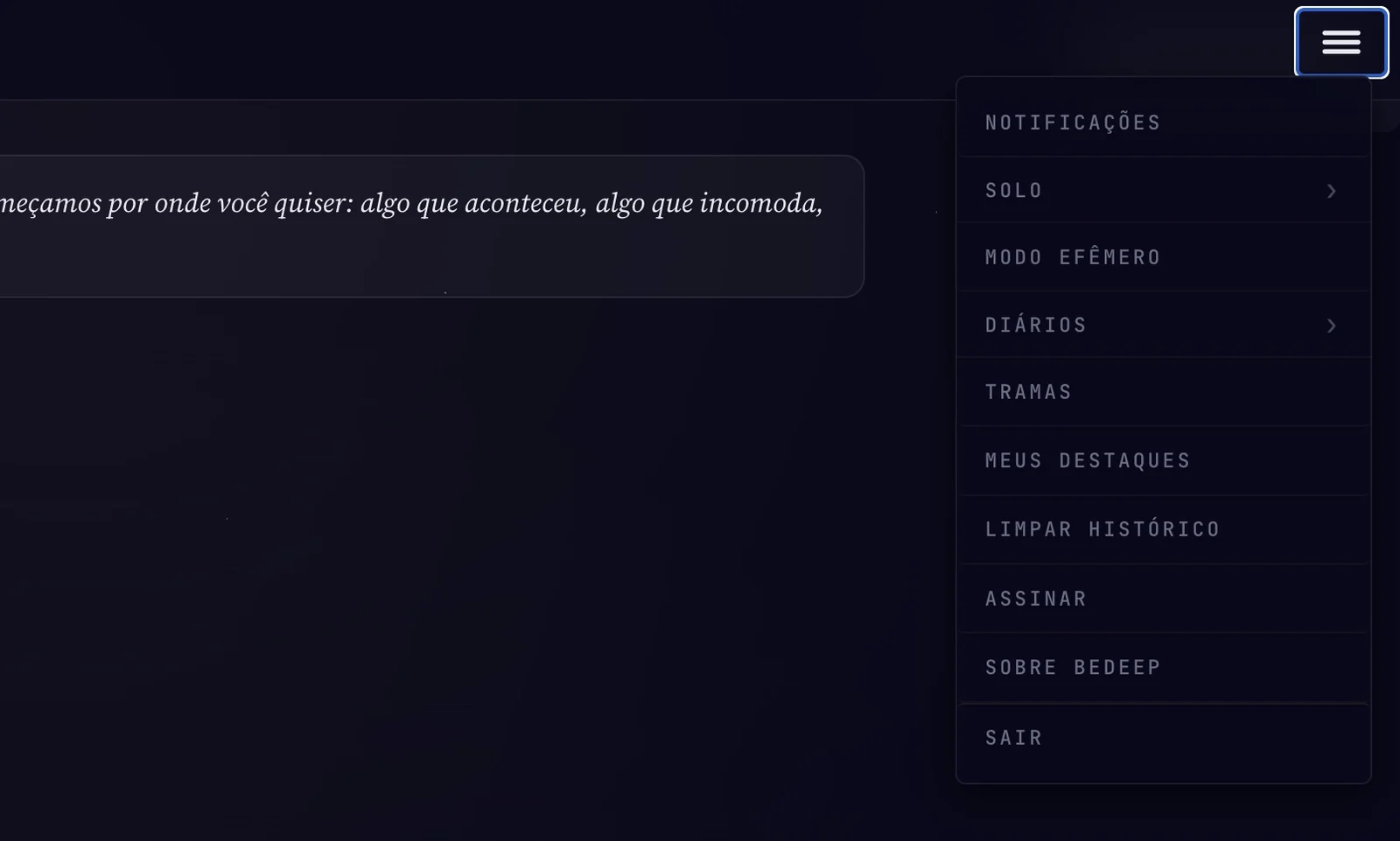
Two items deserve a few more words before you use them for the first time:
- Ephemeral Mode. When you tap it, BeDeep asks Start an ephemeral conversation? and explains what changes: the conversation doesn’t become a diary entry, doesn’t go into your profile and doesn’t produce a portrait; the conversation disappears 30 minutes after the last message; and the key that lets the conversation be read stays in your device’s session, not in a BeDeep database, which is why what was said there doesn’t open on another device. The text still goes through the artificial intelligence company that generates the replies. Tap Start to go in or Cancel to back out. To leave, tap the Ephemeral Mode badge at the top of the screen and confirm with End: from then on, what was said in that mode can no longer be read, not even by you. Read the section on Ephemeral Mode in the The conversation chapter before using it for the first time.
- AMBIENT. The microphone stays open to the room, and BeDeep can talk with more than one person at a time: it asks the name of whoever joins and starts calling each person by name. Everyone present has their speech transcribed, and it goes into the conversation and into whatever the conversation produces. Right now, the AMBIENT Diary writes up the session as if only you had spoken, and it may attribute to you something another person said. Let the people with you know and agree on it before you start. The Voice and conversation modes chapter explains how it works.
Where to get help
- Contact us (WhatsApp): in the footer of the home page and the sign-in screen. In the iPhone app, also in the menu.
- Email: bedeep@bedeep.ai. Replies usually arrive within 2 business days. The bedeep.ai/suporte page lists all the channels.
- Subscription: subscribers manage their plan through the My subscription item in the menu (see Plans and account).
- Documents: the Terms of Use at bedeep.ai/termos, the Privacy Policy at bedeep.ai/privacidade and the summary on protecting children and adolescents at bedeep.ai/protecao-infancia.
- The company responsible for BeDeep: Holon Educação LTDA, CNPJ (Brazilian company registration number) 05.678.105/0001-18, São Paulo, Brazil.
In short
- Choose where to use it: browser, iPhone app, Mac app or home screen shortcut. Downloading the apps doesn’t require a subscription.
- Fill in your name, email (double-check it) and password, and check “I understand that BeDeep is not therapy”.
- Tap Click to verify your age and do the capture with the camera.
- With Age confirmed. on screen, tap Talk to BeDeep.
- Read the How BeDeep uses your data notice and tap I agree and continue.
- Answer the first message however it comes to you.
- To come back: email and password. Forgot your password? Try to sign in; after the error, Forgot my password appears.
Chapter 3
The conversation
What it’s like to talk with BeDeep by text: what happens with each message, what counts as a conversation, how it remembers, how to delete, how to talk without leaving a trace in Ephemeral Mode, and how to get the most out of it.
This chapter covers the heart of BeDeep: the text conversation. The first part shows how it works — what happens when you send a message, what counts as “a conversation” on your plan, who answers, how BeDeep remembers what you said, how to delete what you no longer want to see, and how to talk without leaving a trace, in Ephemeral Mode. The second part is a guide to using it: how to start, how to go deeper, what to do when the conversation isn’t going anywhere, when to stop, and what to expect.
Voice has its own chapter (Voice and conversation modes). What the conversation leaves behind — Diary, Plots, Portraits — is in the “What your conversations leave behind” chapter.
The conversation screen
When you sign in with your account, BeDeep opens straight to the conversation. The screen is the same in the browser and in the apps: the apps show the same service as the website. What changes from one device to another is a handful of menu items and subscription buttons, pointed out throughout the chapter. There are apps for iPhone (on the App Store), for Android (on Google Play) and for Mac. How to get each one is in the “Getting started” chapter.
The first time, before you start talking, the How BeDeep uses your data window appears. It explains where what you write goes (see “Who answers,” below). To continue, tap I agree and continue.
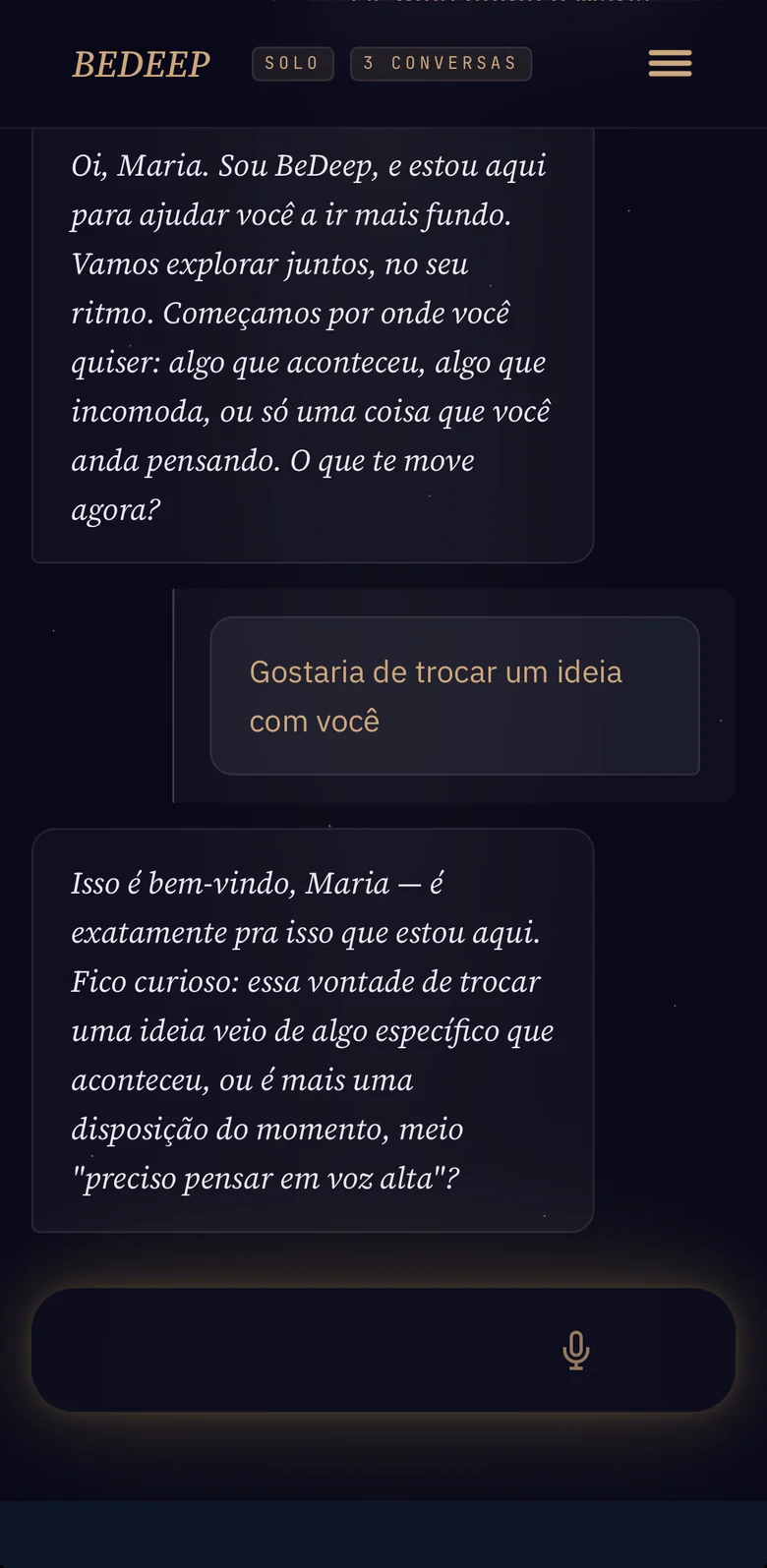
At the top of the screen:
- BeDeep and the SOLO badge show that you’re in the one-on-one conversation.
- N CONVERSATIONS appears on Free and Basic and shows how many conversations you have left — including any from an Extra Pack, if you have one. On Premium, which has no conversation limit, this badge doesn’t appear.
- focus and atmosphere appear only for Premium subscribers (see “Atmosphere and focus,” further on).
- Ephemeral Mode appears in the center, only while that mode is on (see “Ephemeral Mode,” below).
- ☰ opens the menu.
The messages are in the middle. When you reopen the conversation, the whole history comes back and, if there have already been a few exchanges, you’ll see the notice “Conversation restored. Pick up where you left off!”.
At the bottom is the text field, which reads “Type or use the microphone...”, with the microphone button next to it. The send button only appears when there’s text in the field (see below). On Free, when you use the browser or the Mac app, the Subscribe to BeDeep button also appears just above the field.
Sending a message
- Tap (or click) the text field and type. While you type, the microphone fades out and the send button appears on the right: a gold dash (—).
- Send by tapping the dash. On a computer, the Enter key also sends, and Shift+Enter starts a new line without sending. While you type, a discreet hint with these shortcuts appears below the field.
- Wait for the reply. While BeDeep prepares it, a small animated sign appears: two gold dots with a light running between them. During that time the field is locked — one turn at a time.
- The reply may come in gradually, word by word, or appear all at once after a few seconds.
Caution
On a phone, the keyboard’s return key sends the message right away — there’s no way to start a new line. If you want to send several paragraphs, write them as continuous text or send them in parts.
Tip
Each message takes up to 2,000 characters, roughly one short page; when you reach that limit, the field stops accepting text. If what you want to say is longer, split it into parts and say you’ll continue — a “(continued)” at the end of the message is enough. BeDeep has been instructed not to treat that as a cut-off sentence and, when in doubt, it asks how you’d like to go on.
With the field empty, the microphone button opens voice mode inside the conversation. Everything about it is in the “Voice and conversation modes” chapter.
If something goes wrong, BeDeep shows “Sorry, I had a problem. Please try again.” or tells you the reply was cut short before it finished. Wait a moment and send again: what was already in the conversation stays saved. The more stubborn cases are in the “Troubleshooting” chapter.
Why BeDeep asks so many questions
The first thing many people notice is that BeDeep asks questions — and that’s on purpose. It was written to do two things at once: go deeper into what you just brought up and keep the reflection moving. That’s why most replies end in a question.
A few rules it follows help explain the way it works:
- One question at a time. It comments, reacts, connects what you said — and ends with just one question.
- The question grows out of what you said. It often hands your own words back to you, in quotes, so you can look at them.
- No questionnaires. It doesn’t ask “on a scale of 1 to 10, how much do you…”.
- It doesn’t always ask. When you’re exhausted, when you directly ask for an opinion or a suggestion, or when something heavy has just been said, it may simply answer, or just stay with you.
- If you give a short answer, it doesn’t press the same point: it changes angle and comes back to it later.
- If you ask it something, it answers — and then hands the conversation back to you.
You don’t have to answer the question it asked. You can say you’d rather go another way, and it will follow you.
What counts as “a conversation”
On screen, your conversation with BeDeep is a single, continuous thread: there’s no “new conversation” button, and everything the two of you have said stays in the same history, one message below the other. For plan purposes, though, BeDeep divides that thread into conversations by the pause:
- A conversation starts when you send a message after a long pause without writing — currently, 2 hours or more.
- Until you take that pause, it’s the same conversation. You can leave, close the app, switch devices and come back.
- It only counts when you send. Opening the app and reading costs nothing.
- It applies to the account, not the device. Writing on your phone and then on your computer, without the long pause in between, is a single conversation.
- What you say through the microphone on the conversation screen counts the same way as text. The same goes for Ephemeral Mode: an ephemeral conversation counts like any other. AMBIENT works on voice minutes and has its own rules (“Voice and conversation modes” chapter).
How many conversations you have depends on your plan:
| Plan | Conversations | When they renew |
|---|---|---|
| Free | 3 | They don’t renew: it’s your first 3, once only |
| Basic | 8 per cycle | When your subscription renews |
| Premium | Unlimited | — |
Important
The limit never cuts a conversation off in the middle. It only kicks in when you come back after a long pause (currently, 2 hours or more). If your conversations have run out at that point, what you wrote stays saved in the history, BeDeep replies with a notice instead of continuing the conversation, and the text field may be locked. If you subscribe to Basic and have conversations from an Extra Pack, they’re used automatically when the cycle’s conversations run out, before any notice. What to do from there — subscribe, buy an Extra Pack or wait for the renewal — is in the “Plans and account” chapter.
Two more details, so nobody gets caught off guard:
- On Free there’s also a length limit. When your conversation history goes past a certain number of messages, the next return after the pause is blocked with the notice that “this conversation has grown long and reached the limit of free access” — even if the badge still shows conversations left.
- On Premium, conversations are unlimited, but usage has a ceiling of 1,200 messages per calendar month (that’s the “No model switching up to 1200 messages/month” on the plans page). With very heavy use, above that ceiling, replies come from a simpler AI model until the month turns over. The conversation isn’t blocked.
Tip
To find out how many conversations you have left, look at the badge at the top of the screen instead of asking BeDeep — it has been instructed not to talk about limits and isn’t the right source for that count. The badge updates when you open or reload the screen and already deducts the conversation in progress.
How long a conversation lasts
A conversation lasts as long as you want. There’s no clock running and no maximum number of messages per conversation on paid plans: until you take the long pause, it’s the same one. The exception is Ephemeral Mode, where the conversation disappears 30 minutes after the last message (see below).
The history — that continuous thread — stays saved in your account for as long as the account exists, unless you delete messages (see “Deleting messages,” below), they were written in Ephemeral Mode, or you delete your account.
You don’t need to say goodbye. You can simply close the app. When you come back, hours or days later, BeDeep roughly senses how much time has passed and treats your message as a fresh arrival: if you bring up something else, it doesn’t hold you to what was left open or treat the change as running away.
For subscribers, the conversation also becomes material for the Diary: after a long pause, or a long stretch of conversation, what was said is summarized in an entry. How that works is in the “What your conversations leave behind” chapter.
Who answers
The one answering is an artificial intelligence. Replies in the text conversation are generated by third-party AI models — Anthropic’s (Claude), as the Terms of Use state — based on Larry Be’s approach and parameters. What you write is sent to that company so it can generate each reply; that’s what the How BeDeep uses your data window explains the first time. This also applies in Ephemeral Mode. The details are in the Privacy Policy, at bedeep.ai/privacidade, and in the Terms of Use, at bedeep.ai/termos.
BeDeep speaks as a character: male, warm, curious, with opinions of its own and careful, natural language — close, but without forced slang. It isn’t a person, isn’t a therapist and isn’t a health professional. What that implies is in the “Safety, privacy and the limits of AI” chapter.
One BeDeep, several registers
You always talk with the same BeDeep, but its tone shifts with the subject. You don’t pick this from a menu: it follows from what you write. The registers you’ll notice most often:
- Deepening — the default register. Attentive listening, concrete questions, your own words handed back.
- Decision and action — when you talk about a choice, a change or a next step, it becomes more practical and direct, and may tell you frankly that you seem to be avoiding a decision.
- Existential — meaning, loss, death, faith, vulnerability. More contemplative; sometimes, instead of asking, it just acknowledges the weight of what was said.
- Lightness and imagination — when the tone is playful or “what if…”, it joins the game, with humor and imaginary scenarios.
- Long memory — when you bring up the past (“remember when…”), it connects what you’re saying now to what you said in other conversations.
- Contemplative — questions like “who am I?” lead to an exercise in self-observation, sometimes with a koan or a poetic image.
- Intuitive — rarely, in a charged moment and once it has known you for a while, it ventures a synthesis through an image: a leap instead of an analysis.
When in doubt, it tends to stay in the register it’s in. If you clearly change the subject, it changes with you.
Atmosphere and focus (Premium)
Premium subscribers have two extra controls at the top of the screen.

atmosphere tilts BeDeep’s tone in the direction you choose:
- Lightness — less critique, more warmth and humor; it expands on what you brought and prefers concrete scenes and images to theories.
- Surprise — it looks for what’s already implicit in what you said and hasn’t been seen yet, from unexpected angles.
- Depth — more sober; it carefully points out the assumptions hidden beneath what you say and shows that they could be otherwise.
With nothing chosen, BeDeep stays in its usual neutral tone. The atmosphere is a leaning, not an order: if the moment calls for something else — suffering, an emergency, a direct request from you —, the moment wins. Your choice stays in effect until you change it.
To choose, tap atmosphere and then the option. The badge then shows the name of the atmosphere you chose. To go back to neutral, tap the badge again and close the options without choosing any.
Caution
Opening the atmosphere options and closing them without choosing anything undoes the atmosphere that was in effect. If you only wanted to check, choose the same option again.
focus is a reading experiment: with it on, the history leaves the screen and the words appear one at a time, in the center, with a speed control between “slow” and “fast”. Tap focus again to turn it off: the whole history comes back.
On a phone, while Ephemeral Mode is on, focus and atmosphere leave the top of the screen. To change them, end the mode first.
How BeDeep remembers
BeDeep doesn’t remember the way a person does. It builds its memory from three sources:
- The conversation itself. Since the history is a single thread, BeDeep rereads what you’ve already talked about before it replies. In a very long conversation, the beginning may stop reaching it word for word: for subscribers, the older parts may come to it through what was recorded in the Diary, and only the recent stretches arrive in full.
- Your Diary (for subscribers). It receives a summary of what’s in the Diary. And when you bring up the past with phrases like “remember when…”, “last time…”, “we’ve talked about…” or “you mentioned…”, it checks an index of your recent conversations, the themes that keep coming back and the entries related to what you just said.
- What it has come to understand about you (for subscribers). Over your conversations, BeDeep forms a reading of you — values, ways of relating, where you are in life — and rereads it before replying. From time to time, once there’s enough material, it may offer, in the middle of the conversation, a small portrait of what it has been noticing. You can read this reading, delete parts of it and even turn off its formation: see the “What your conversations leave behind” chapter.
On Free, BeDeep’s memory is only the conversation itself.
What this means in practice:
- It remembers approximately. It says “a few weeks ago” instead of exact dates, and it may mix up or forget details.
- It may misunderstand. If that happens, correct it. It has been instructed not to defend its version: it says what it understood, makes room for you to correct it and goes on from what you confirm.
- If you want it to connect with the past, ask. The phrases above are the most direct way to bring older conversations into today’s.
- Deleting messages doesn’t delete what has already been summarized or understood. See “What deleting doesn’t undo,” below.
- What’s said in Ephemeral Mode doesn’t go into long-term memory. It doesn’t go into the Diary or into its reading of you, and once the ephemeral conversation disappears, it stops rereading it too.
The conversation menu
The ☰ button, in the top right corner, leads to everything else in BeDeep. On the conversation screen, it shows:
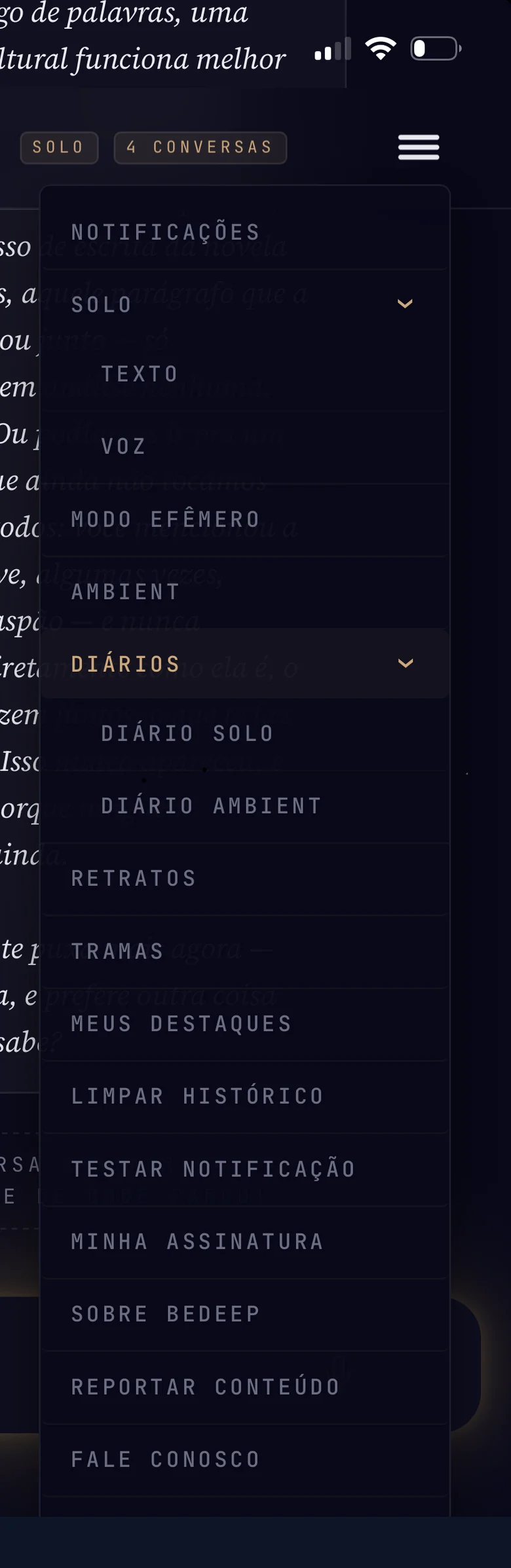
- SOLO › Text (this conversation) and SOLO › Voice (the spoken conversation — see the “Voice and conversation modes” chapter).
- Ephemeral Mode — for talking without leaving a trace, on any plan (see “Ephemeral Mode,” below).
- AMBIENT — for subscribers: the spoken conversation, with no screen, which can also include whoever is with you (“Voice and conversation modes” chapter).
- Diaries, Portraits, Plots and My highlights — what your conversations leave behind. Portraits only appears for subscribers, after you receive your first one.
- Ask me — for subscribers: BeDeep asks you a question based on what it already knows about you (“What your conversations leave behind” chapter).
- Notebook and Vault — for subscribers invited to the beta: what you bring from outside your conversations, and the locked place where it can stay (“What your conversations leave behind” chapter).
- Clear history — for deleting messages (below).
- Notifications, About BeDeep and Log out, on every device.
- Subscribe or My subscription — in the browser and in the iPhone, Android and Mac apps. In the home-screen shortcut this item doesn’t appear.
- Install on phone — when you use BeDeep in your phone’s browser. Test notification — in the phone apps and in the installed shortcut.
- In the iPhone app, also: Report content (to report a reply that bothered you), Contact us (WhatsApp) and Delete account.
Marking a passage that mattered
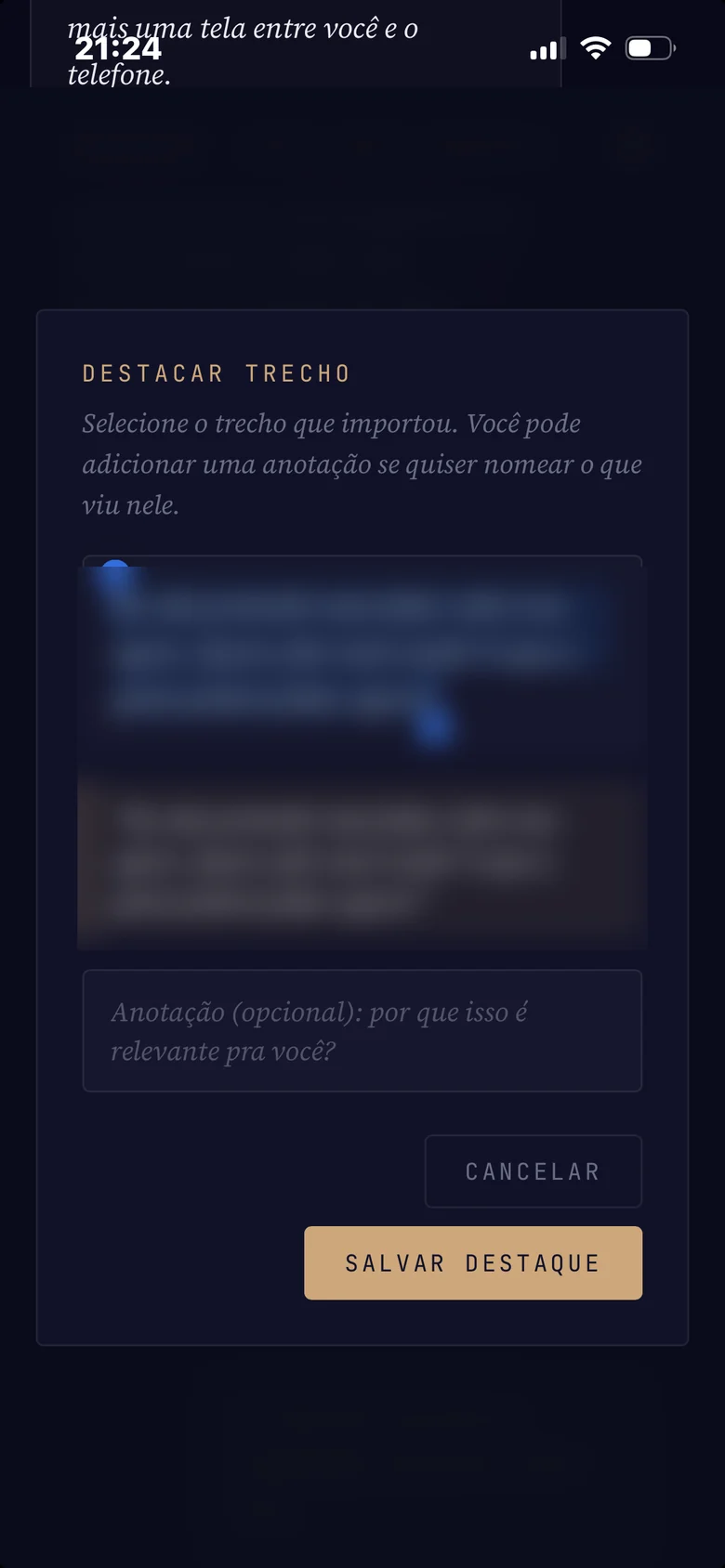
When a sentence — yours or BeDeep’s — hits home, touch and hold the message for half a second to open the Highlight passage window, choose the part that mattered (with a note, if you like) and tap Highlight; the passage goes to My highlights, in the menu, on any plan. The step-by-step and what you can do with highlights afterward are in the “What your conversations leave behind” chapter. In Ephemeral Mode you can’t save highlights.
Deleting messages
You can delete messages from the conversation — one, several or all of them.
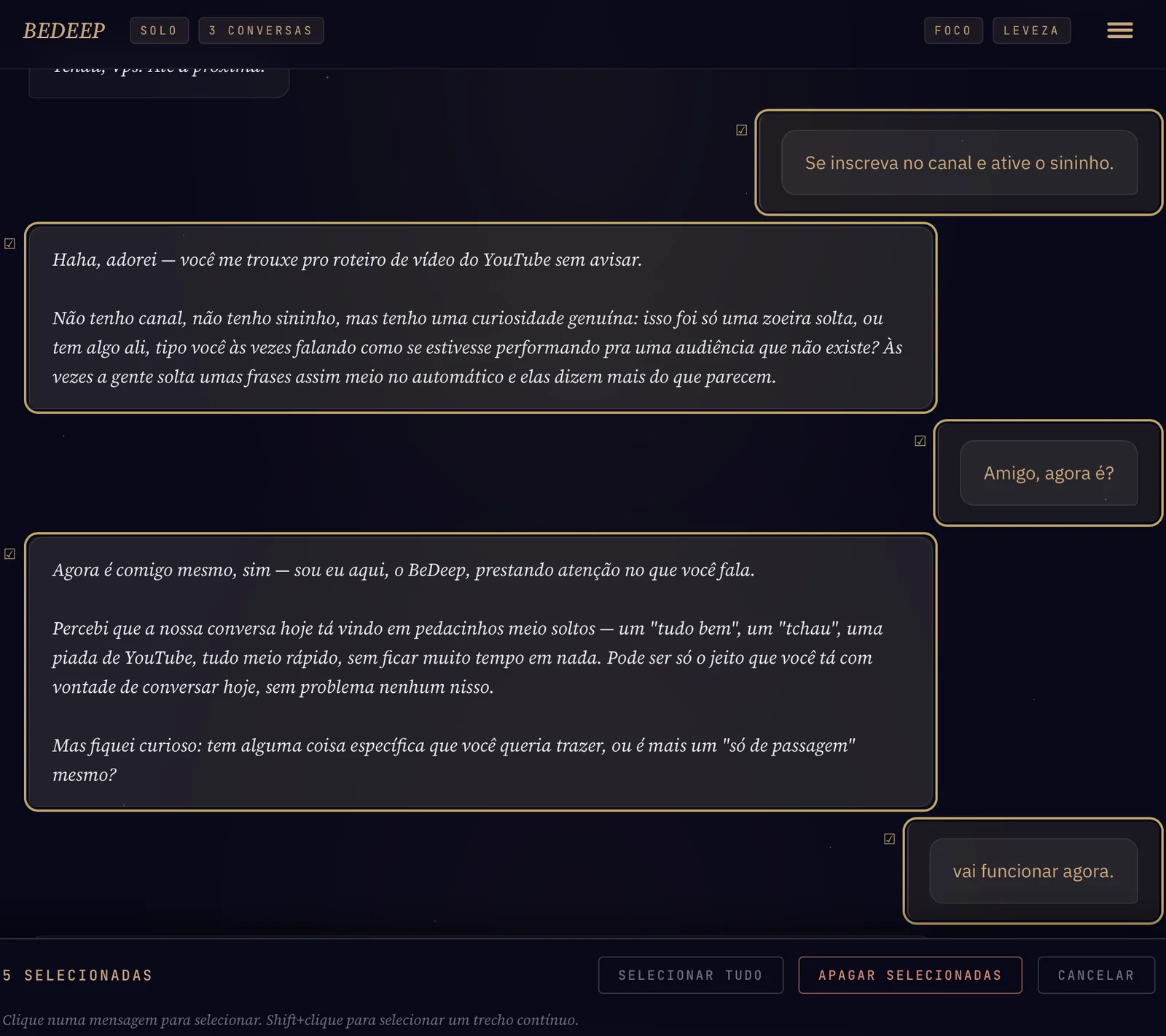
- In the ☰ menu, tap Clear history. A bar appears at the bottom of the screen.
- Tap the messages you want to delete. They get marked, and the bar shows how many are selected. On a computer, Shift+click selects a continuous stretch, from the last message you clicked to the current one. Select all marks the whole history.
- Tap Delete selected.
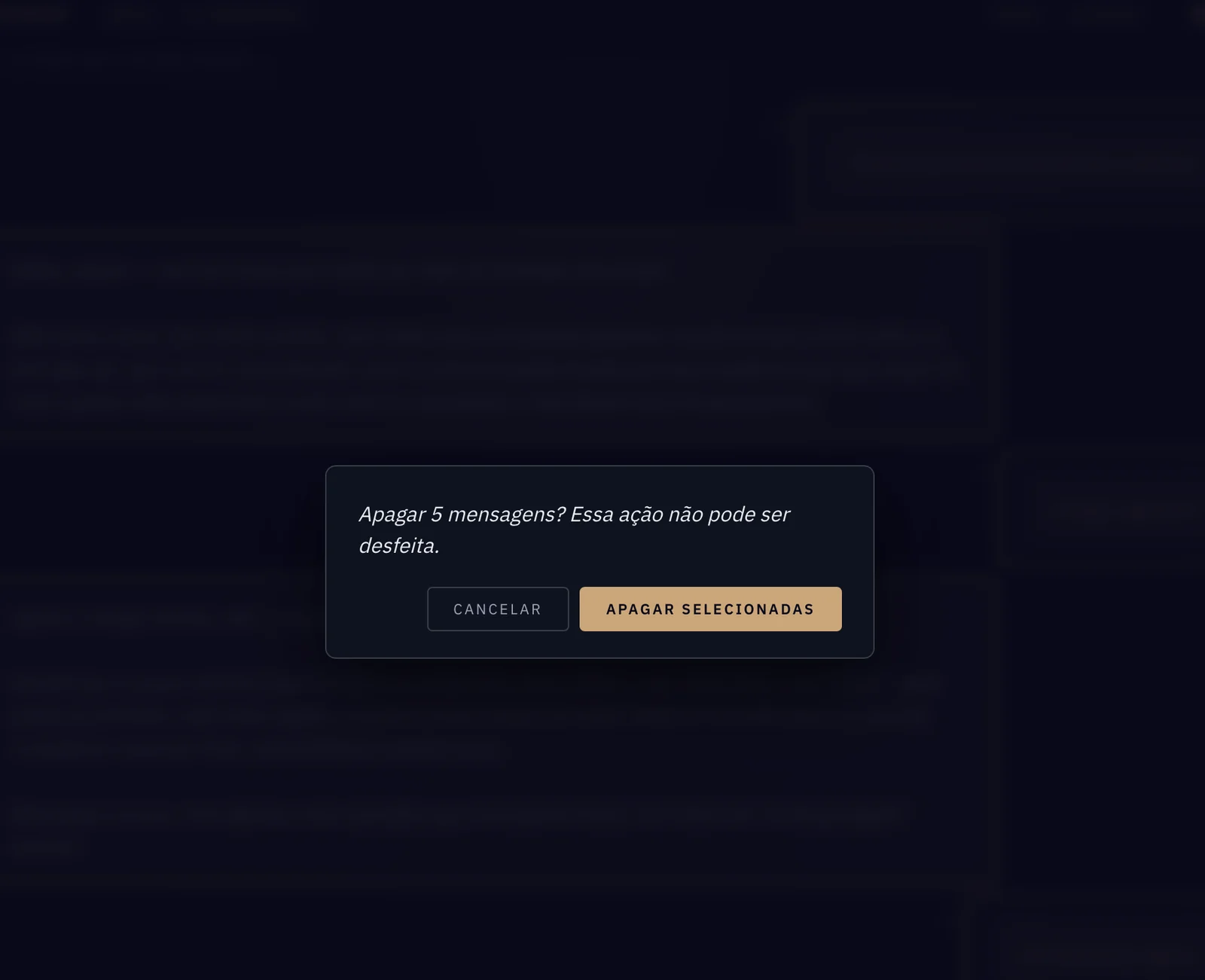
- Confirm. The question is “Delete N messages? This action cannot be undone.” — and it really can’t.
- The screen reloads without the deleted messages.
To leave without deleting anything, tap Cancel on the bar.
Tip
If you see the notice that “the conversation changed since the page loaded,” reload the screen and select again. This can happen when messages were deleted on another device or in another tab while you were selecting.
What deleting doesn’t undo
Deleting messages removes that text from your history and from what BeDeep rereads. But it doesn’t undo what has already been made from it:
- Diary entries already written stay there. You can edit them, but the original version, written by BeDeep, is kept (“What your conversations leave behind” chapter).
- The reading BeDeep has formed of you, Portraits and Plots also remain. Parts of the reading can be deleted — see the “What your conversations leave behind” chapter.
- Highlights you saved stay in My highlights until you delete them there.
- Conversations already counted against your plan don’t come back.
To delete everything at once — conversation, Diary, Portraits, the whole account —, the way is to delete your account. The step-by-step is in the “Plans and account” chapter; what disappears and what stays, in the “Safety, privacy and the limits of AI” chapter.
If what you want is for a conversation never to leave these traces in the first place, use Ephemeral Mode, next.
Ephemeral Mode
Ephemeral Mode is for when you want to talk without leaving a trace in BeDeep: what’s said there doesn’t become Diary, doesn’t go into BeDeep’s reading of you, doesn’t produce a Portrait or a Plot, and the conversation disappears 30 minutes after the last message. It’s available on every plan and counts as one of your plan’s conversations, just like any other.
To start
- In the ☰ menu, tap Ephemeral Mode.
- Read the confirmation: “Start an ephemeral conversation? • A conversation that leaves no trace: it doesn’t become a diary, doesn’t go into your profile, doesn’t create a portrait. • The whole conversation disappears 30 minutes after the last message — or right away, if you end it. • The text still goes through the AI provider to generate the reply, but the reading key stays only on your device. It can’t be accessed on our side.”
- Tap Start (or Cancel, to back out). The screen reloads, and the Ephemeral Mode badge appears at the top center of the screen.
If you see “Not possible right now.”, wait a little and try again.
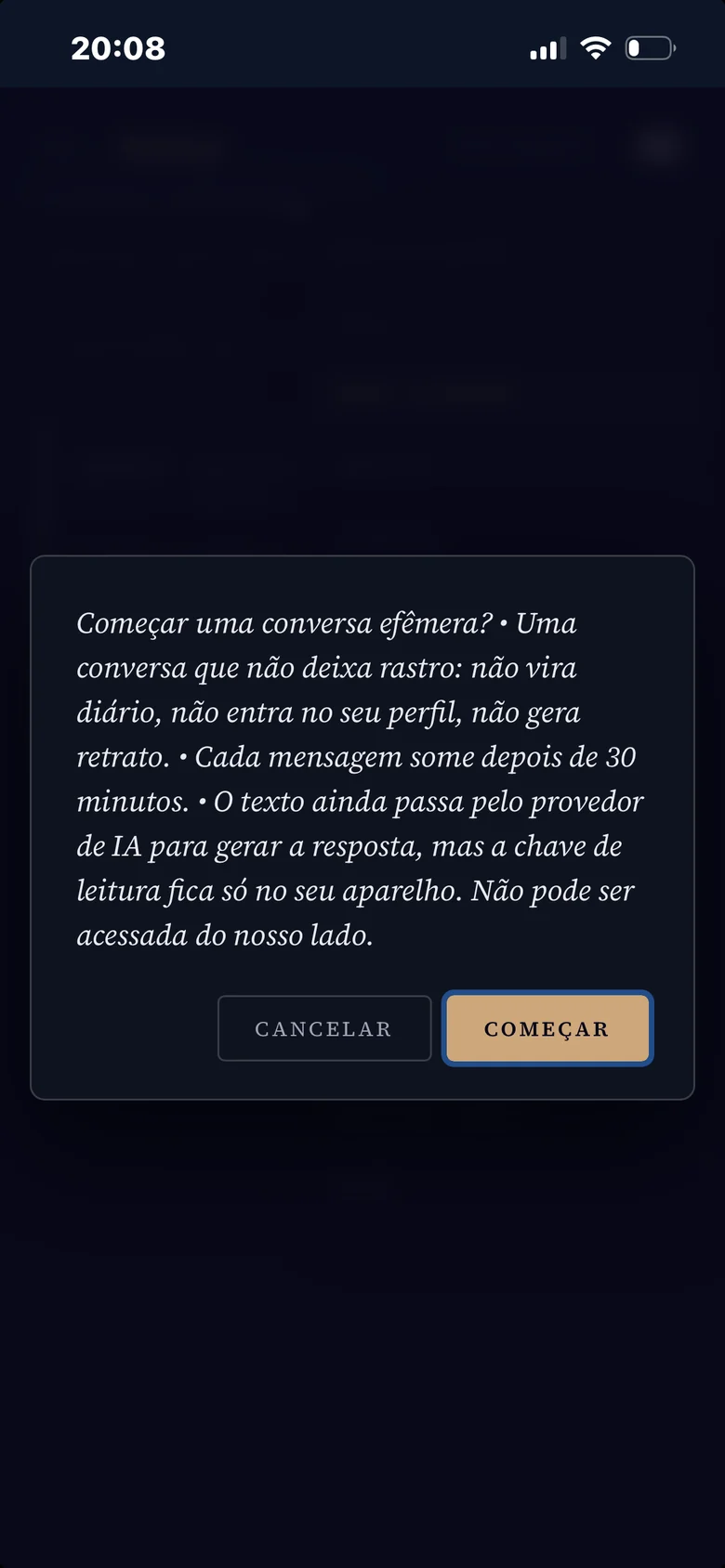
While the mode is on
- The Ephemeral Mode badge stays at the top center of the screen the whole time. That’s how you know which mode you’re in. On a phone, to make room, SOLO, focus and atmosphere leave the top of the screen.
- The whole conversation, your messages and BeDeep’s, disappears 30 minutes after the last message. Each new message pushes the deadline back. When it runs out, the conversation vanishes from the screen all at once, BeDeep stops rereading it too, and the line “The messages in this conversation have expired.” appears.
- Nothing goes into long-term memory. The conversation doesn’t become a diary entry, doesn’t go into BeDeep’s reading of you and doesn’t produce a Portrait or a Plot.
- You can’t save highlights. The Highlight passage window opens, but when you tap Highlight, a notice appears saying the highlight wasn’t saved, with the reason: “This conversation is ephemeral — highlights aren’t kept in it.” Reloading and trying again doesn’t help.
- The text still goes to the AI provider, as in any conversation, because that’s how the reply is generated (see “Who answers”).
Where the key is kept
What you write in Ephemeral Mode is protected by its own reading key. That key is kept in the BeDeep session open on that device — in the browser or the app where you started —, not in a BeDeep database. While the mode is on, BeDeep uses this key, with each message, to store and read the conversation. Once it’s discarded, what was written there can no longer be read by anyone: not by you, not by the BeDeep team.
Two practical consequences:
- On another device, the ephemeral conversation can’t be read. If you started on your phone, it doesn’t appear on your computer.
- Tapping Log out, in the menu, also discards the key. Logging out during Ephemeral Mode has the same effect as ending it.
To leave Ephemeral Mode
- Tap the Ephemeral Mode badge at the top of the screen.
- Read the confirmation: “End Ephemeral Mode? The reading key is discarded now. What was said here can’t be read again — not by you, not on our side. Your next messages go back to being a normal conversation.”
- Tap End (or Cancel, to stay in the mode). The screen reloads.
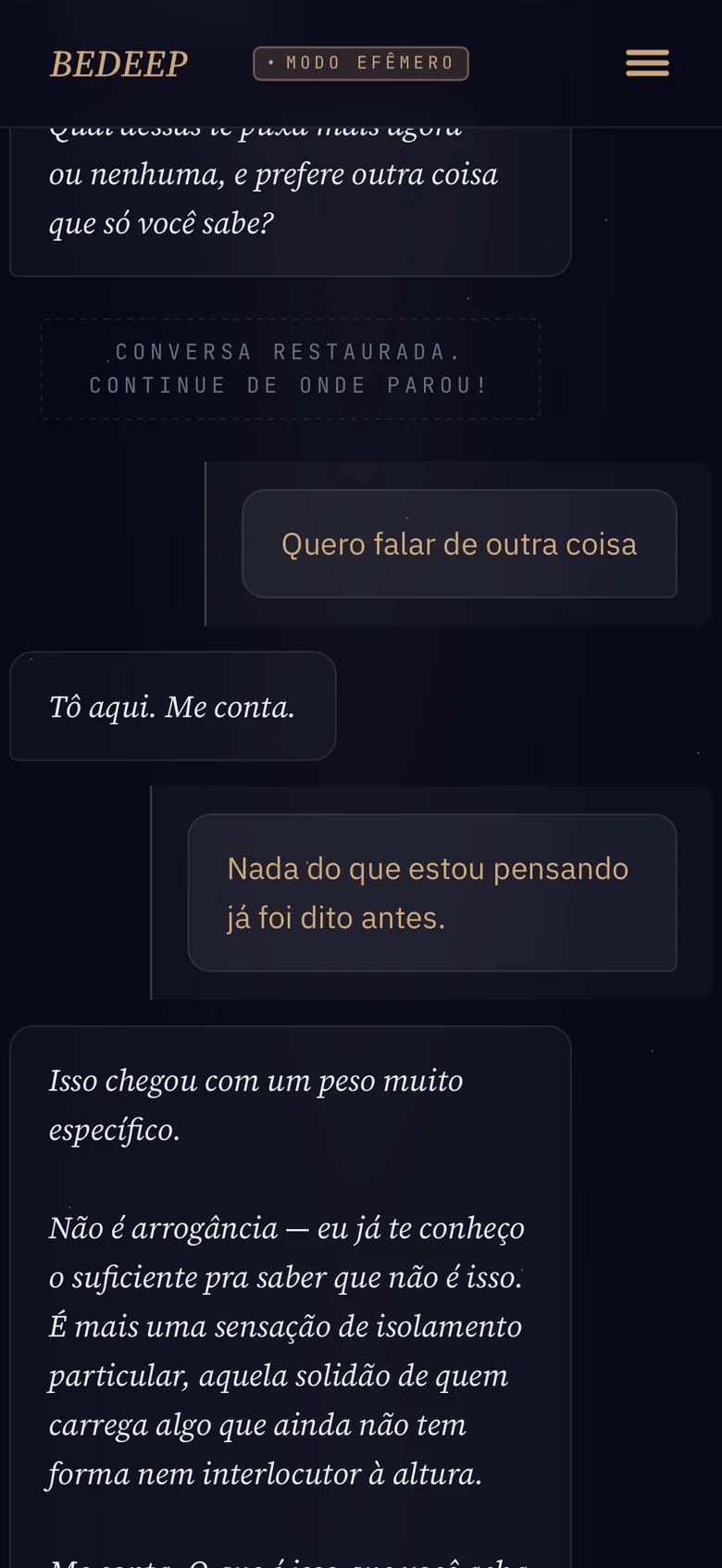
Important
Ephemeral Mode opens a new conversation, separate from the one you were having. The previous conversation stays saved as it was: it isn’t subject to the 30-minute deadline, it remains available on your other devices, and it keeps generating Diary entries and accepting highlights as usual. When you end the mode, BeDeep goes back to it.
Languages
BeDeep’s interface exists in Portuguese, English and Spanish. The language is set by the PT · EN · ES choice on the home page, before you start, or, if you don’t choose, by your location — with Portuguese as the default. After that, the conversation screen follows the language saved in your conversation.
In the conversation itself you aren’t tied to it. BeDeep starts in the interface language and then follows yours: if you start writing consistently in another language, for two messages or more, it switches too, without comment — including to languages beyond those three. The system’s fixed notices, such as the ones about conversation limits, stay in the interface language.
By voice as well. In SOLO Voice and in AMBIENT, BeDeep recognizes the language of each utterance and replies right away in the language of the last one, without waiting for a second: switching languages while speaking is a clear choice. Very short utterances (“yes,” “ok,” “hmm”) don’t decide the language; with those it stays in the interface language.
Good practices
BeDeep gives more when you treat it as someone to talk with, not as a tool. The suggestions below come from the way it was written to converse and from what the product itself sets out to do.
How to start
- Start with what’s alive right now. BeDeep’s first message already suggests three doors: “something that happened, something that bothers you, or just something you’ve been thinking about.” It doesn’t have to be important or well put.
- Write as if you were talking to someone. Full sentences, no commands, no special format.
- Give concrete context. Who was there, what was said, when it was. A scene gives more than a summary.
- If you don’t know where to start, say so. Phrases like “I don’t know what to talk about” or “suggest something” make BeDeep propose two or three topics based on what it already knows about you.
How to go deeper
- Bring the scene, not the moral of the story. BeDeep was written to ask for details: the exact words, the gesture, the silence. The more concrete, the further you’ll get together.
- Be wary of your stock phrases. “That’s life,” “I’ve always been like this,” “deep down we all know” — it tends to hand these phrases back and ask whether they’re yours or borrowed. It isn’t nitpicking: that’s where thinking usually stops.
- Let it point out patterns. If you do the same thing two or three times — change the subject, make a joke, agree without answering —, it may describe what it saw. It describes, it doesn’t interpret: it won’t tell you that’s “a defense mechanism.”
- Stay with the topic a little longer than feels comfortable. The rush to wrap up is one of the places where it steps in most.
- Bring up the past when it makes sense. “Remember when…” and “last time…” bring older conversations into today’s.
- Mark what hit home. Highlights with a short note become a map of what mattered.
When the conversation isn’t going anywhere
- Say what’s happening. “That question didn’t land,” “I’m going in circles.” It treats that as material for the conversation, not as a failure.
- Change the subject without ceremony. “Let’s talk about something else” or “I want to change the subject” makes BeDeep set the previous topic aside and go where you point. With a short message, it also changes register, usually to something lighter.
- Ask for what you want. If you’re tired of questions, ask for its opinion or a concrete suggestion: in those cases it may answer instead of handing back another question.
- Correct it when it gets something wrong. If it misunderstood or remembered wrong, say so. It has been instructed to give way, without arguing.
- On Premium, try a different atmosphere.
- Stop and come back later. Sometimes the conversation just needs a few hours or a few days.
When to stop
- When something important has come up. It’s often worth more to leave with a sentence in your head than to keep going until it fades.
- When you notice you’re repeating the same things in other words.
- When tiredness sets in. A conversation doesn’t have to be long to be good.
To wrap up, just say so — “I’m heading off,” “good night,” “let’s pick this up tomorrow.” BeDeep replies with a short goodbye, without trying to hold on to you and without setting a time to come back. If you prefer, simply close the app: there’s nothing to save or to end. The exception is Ephemeral Mode: if you want the key discarded right away, without waiting for the conversation to expire, end the mode from the badge.
Pace and frequency
BeDeep won’t tell you when to come back. It was instructed to leave the pace up to you: it doesn’t suggest intervals, doesn’t chide you for being away, doesn’t count sessions.
BeDeep’s view is that the time between conversations is part of the practice: it’s in the following days, in life, that what was talked about settles. BeDeep also wasn’t designed for nonstop use. A few practical reference points:
- On Basic, 8 conversations per cycle come to about two a week — a pace that fits this idea.
- On Free, the 3 conversations don’t renew. It’s worth spacing them out over a few days to get a real sense of how BeDeep works.
- If you subscribe, long pauses also help the Diary record what was talked about.
- On Premium, there’s no conversation limit, but the same reasoning holds: more conversation isn’t, in itself, more depth.
What to expect — and what not to expect
Expect:
- questions, one at a time, tied to what you said;
- your own words handed back so you can look at them;
- frankness: it may disagree, point out a pattern or turn down a stock phrase — with care, but without just agreeing;
- presence: when what you bring is tiredness or pain, it stays with you instead of questioning;
- a conversation in your language and at your pace.
Don’t expect:
- diagnosis, treatment or psychological interpretation — BeDeep isn’t therapy;
- truths: what the AI says is a prompt for reflection and may contain inaccuracies;
- reports, technical lists or notes about you — it converses;
- that it will set appointments, remind you to come back or count your conversations;
- that it will work as a search engine or a task assistant.
Important
BeDeep is not an emergency service. If you’re in crisis, thinking about hurting yourself or in any urgent situation, get help now: call your local emergency number or a crisis line where you live (in Brazil, CVV at 188, 24 hours, free of charge, or SAMU at 192), or reach out to a health professional. See also the “Safety, privacy and the limits of AI” chapter.
In short
- The conversation is a single thread; a plan “conversation” starts when you write after a long pause (currently, 2 hours).
- The plan limit never interrupts a conversation in progress.
- BeDeep asks questions on purpose, one at a time — and you can change course whenever you like.
- Replies are generated by third-party AI, based on what you write.
- It remembers through the conversation, the Diary and what it has come to understand about you (the last two, for subscribers); it remembers approximately and accepts correction.
- Clear history deletes messages for good, but doesn’t undo Diary, Portraits, Plots or highlights.
- In Ephemeral Mode, the conversation doesn’t become Diary, profile, Portrait or Plot, and it disappears 30 minutes after the last message; the conversation you were in before stays saved, and BeDeep goes back to it when you end the mode.
- Start with what’s alive, bring concrete scenes, say when it isn’t going anywhere and stop when something important comes up.
Chapter 4
Voice and conversation modes
How to talk to BeDeep and hear its replies: SOLO Voice inside the conversation, hands-free AMBIENT (on your own or with whoever is with you), and how voice minutes are counted.
You can talk to BeDeep by speaking instead of typing, and you can hear it reply out loud. There are two ways to do this, each designed for a different situation. In SOLO Voice, you speak inside the conversation itself and tap the screen to mark when you start and when you finish. In AMBIENT, the conversation is spoken from beginning to end, with the microphone open and no need to look at the screen, and it can include whoever is with you in the same place.
This chapter shows how to use each one, explains how voice minutes are counted, and gathers tips to help voice conversations work well.
The two ways to talk by voice
| SOLO Voice | AMBIENT | |
|---|---|---|
| What it’s like | You tap to speak and tap again when you’re done. BeDeep replies by voice, and everything is written down in the conversation. | The microphone stays open for the whole session. You speak, pause, and BeDeep replies. Nobody needs to touch the screen. The conversation can include whoever is in the same place: BeDeep tells the voices apart and calls each person by name. |
| Where to find it | The microphone button in the conversation, or the ☰ menu › SOLO › Voice | The ☰ menu › AMBIENT |
| Who can use it | Any account that can hold conversations. To hear the replies, you need voice minutes. | Subscribers (Basic or Premium) with voice minutes |
| What uses minutes | Only BeDeep’s speech | The time the session stays open |
| Does it count as one of your plan’s conversations? | Yes, just like a written conversation | No. It only uses minutes. |
| Where the record is kept | In the SOLO conversation itself, as written messages | In Diaries › AMBIENT Diary, with the session transcript |
| Can you interrupt BeDeep? | Yes, with a tap | No: it finishes speaking before it listens again |
Important
In SOLO Voice, using the microphone doesn’t use minutes; what uses them is hearing BeDeep. In AMBIENT, what counts is the time the session is open, including your speech, its speech and the silences.
Both modes are in the menu, the three-line icon (☰) at the top of the screen. The AMBIENT item only appears for subscribers.
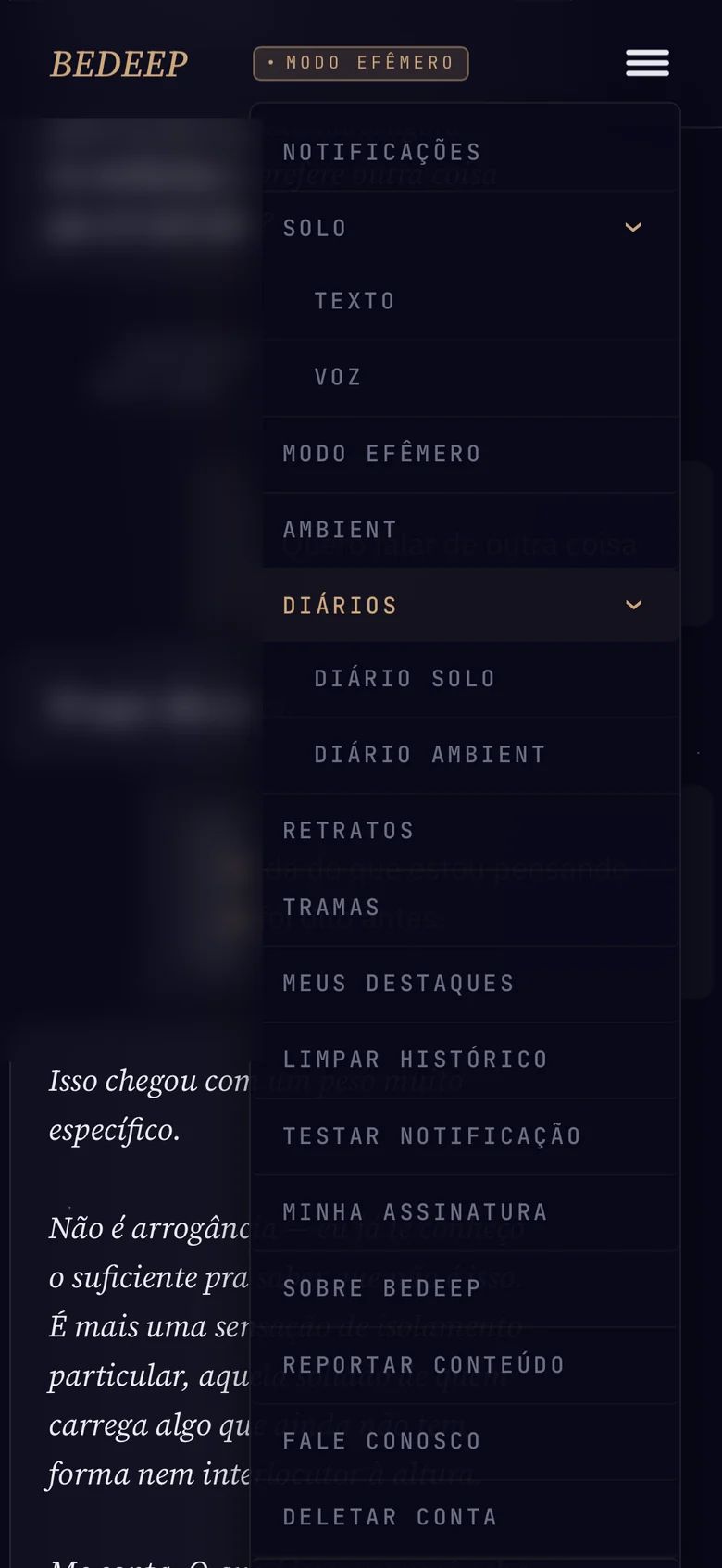
SOLO Voice: speaking inside the conversation
SOLO Voice is the usual conversation, only spoken. It is still the same conversation: BeDeep picks up from what has already been said, in writing or by voice, and what you say becomes text on the screen.
How to open it
There are two ways:
- From the microphone. On the conversation screen, tap the microphone icon to the right of the text field. The voice screen opens and starts recording right away.
- From the menu. Open ☰ › SOLO › Voice. The voice screen opens on standby, and the first tap on the BeDeep symbol starts recording.
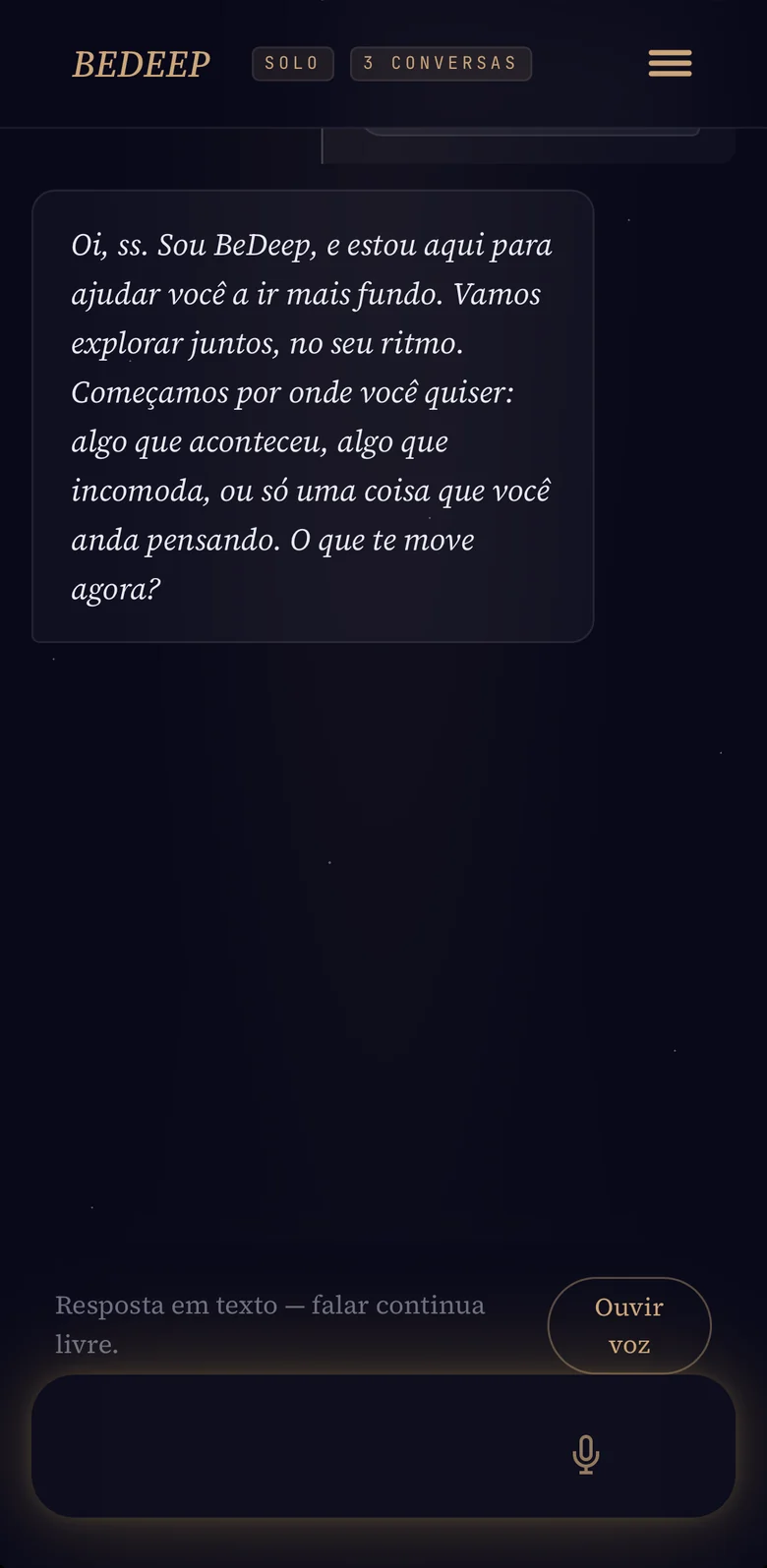
One turn, step by step
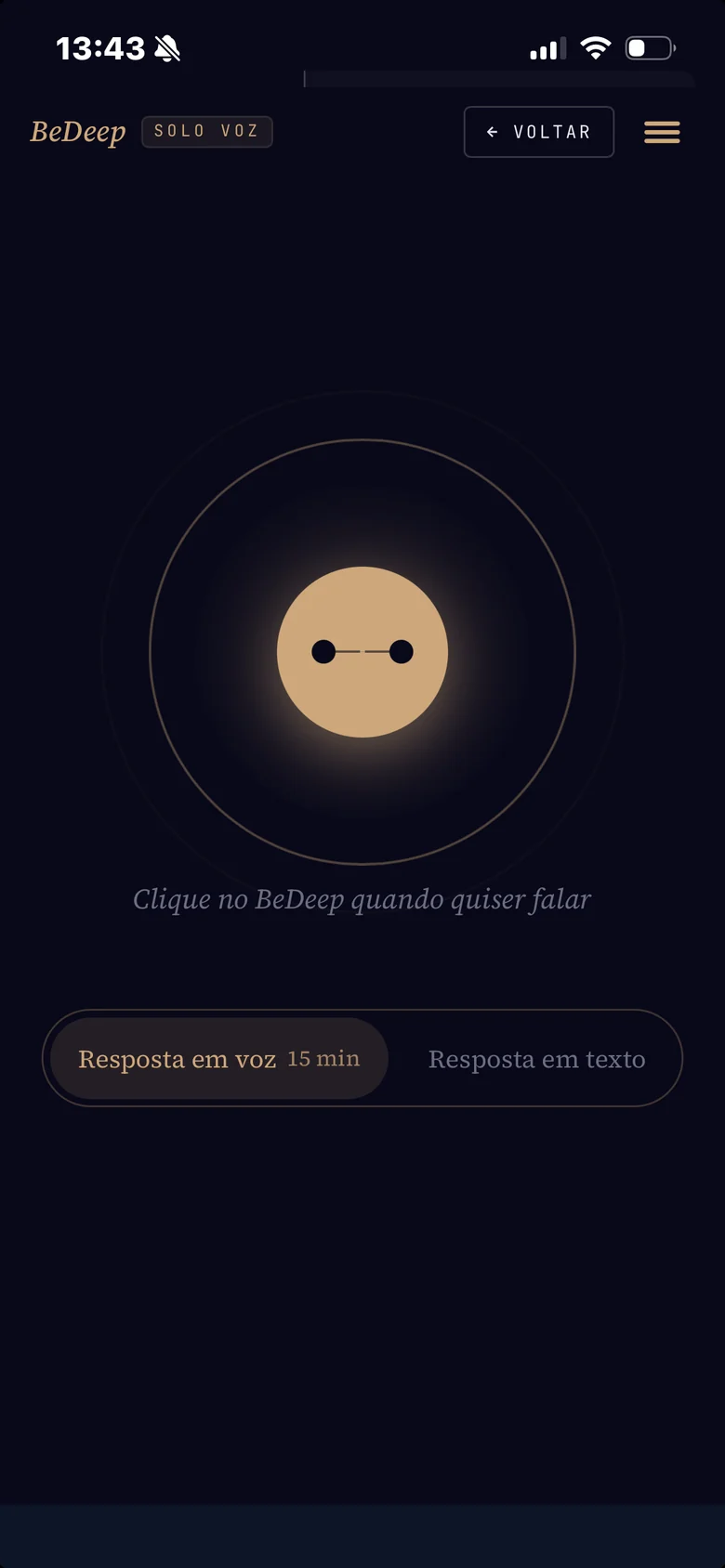
- With the voice screen open and the SOLO VOICE badge at the top, the hint says “Click BeDeep when you’re done”: BeDeep is listening.
- Speak at your own pace.
- When you’re done, tap the BeDeep symbol in the center. “One moment…” appears while your speech is turned into text and sent. You don’t need to press “Send.”
- BeDeep replies by voice. The hint changes to “BeDeep is responding. Click to interrupt and talk.” If you want to cut the reply short and speak, tap the symbol.
- When it finishes, “Click BeDeep when you want to talk” appears. It’s your turn again.
- To go back to the written screen, tap ← Back. Everything that was said is there: what you said and its replies, as messages.
Tip
The on-screen text says “Click.” On a phone, just tap.
While the voice screen is open, BeDeep tries to keep the phone’s screen from turning off on its own, but not every device obeys (see the tips at the end of the chapter). When you tap ← Back, the microphone turns off and the messages you type go back to getting written replies only.
Spoken or written reply
Below the symbol there are two options:
- Spoken reply, with your available minutes next to it (for example, “15 min” or “no minutes”). BeDeep replies out loud.
- Written reply. You keep speaking, but the reply comes in writing only. Choosing this option closes the voice screen and takes you back to the written conversation.
In Written reply mode, a bar appears above the field with the line “Written replies — speaking is still free.” The microphone now records right there, without opening the voice screen: you tap to start, tap to finish, and your speech is sent on its own. To hear BeDeep again, tap Hear voice on the bar: the voice screen opens again, on standby.
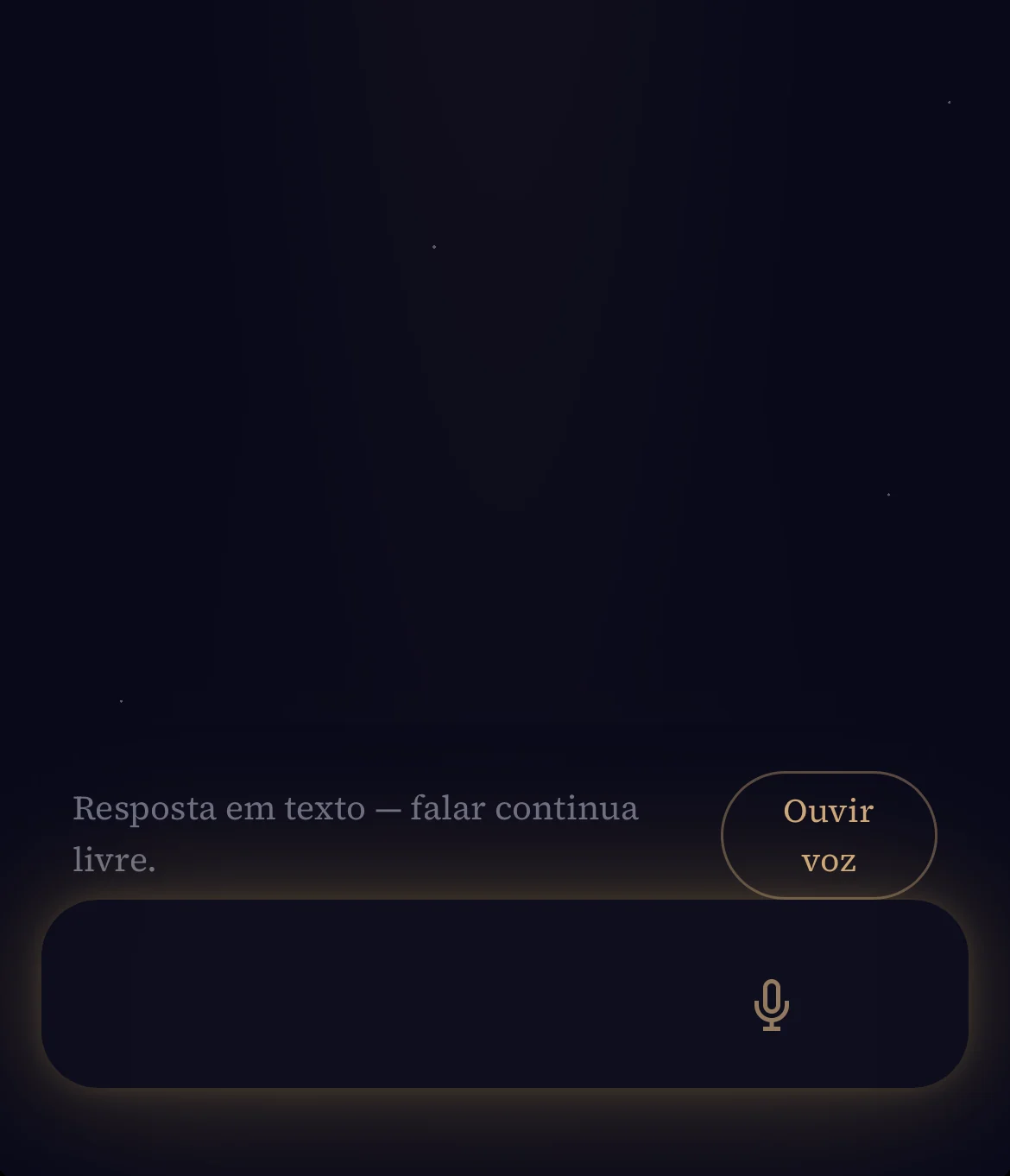
Your choice is saved on that device. Your phone and your computer each remember their own setting.
Tip
Written reply doesn’t use minutes. It’s a good way to talk freely and save your minutes for when you want to listen.
When your speech isn’t understood
Voice transcription is automatic and sometimes fails.
- If nothing was recognized (silence, a voice too quiet), the voice screen simply goes back to “Click BeDeep when you want to talk”. Nothing is sent.
- If transcription fails, the voice screen shows “I couldn’t hear that. Click to try again.” In Written reply mode, the notice appears below the field: “Transcription error. Please try again.”
- When the microphone picks up silence, the transcription system sometimes “makes up” stock phrases, such as subtitle credits. BeDeep recognizes the most common cases and sends nothing: on the voice screen, “I couldn’t hear that. Click to try again.” appears. In Written reply mode, the text goes into the field with the notice “I’m not sure I heard that right. Check it before sending.” Delete or correct it before you send it.
- If BeDeep’s voice fails in the middle of a reply, the voice screen shows “Audio incomplete — please read the transcript.” The full reply is written in the conversation, with the notice “Voice playback was incomplete. Please read the transcript before continuing.” Tap ← Back to read it.
Voice minutes
What counts as a minute
- In SOLO Voice, speaking is free. Using the microphone in the conversation, with spoken or written replies, doesn’t use minutes.
- In SOLO Voice, what counts is the length of BeDeep’s speech, that is, of the audio it prepares for each reply. This time is added up in seconds: for every 60 accumulated seconds of its speech, 1 minute comes off your balance. Written replies don’t count. If you interrupt a reply, the parts that were already ready to play still count.
- In AMBIENT (and in sessions on the voice page, covered further on), what counts is the total time the session stays open: your speech, its speech and the silences. The total is rounded to the nearest minute, with a minimum of 1 minute. If you open a session and close it without saying anything, you aren’t charged. The minutes are deducted when the session ends.
There is a single balance for the whole account. The same minutes work in SOLO Voice and in AMBIENT, on any device where you sign in with your account.
How many minutes you have
| Account | Voice minutes | How they renew |
|---|---|---|
| Free | 15 minutes, once, when you sign up | They don’t renew |
| Basic | 60 minutes per month | Back to 60 every month. Whatever is left doesn’t carry over to the next month. |
| Premium | 300 minutes (5 hours) per month | What you don’t use accumulates, up to 15 hours in total |
| Voice Pack | On the website: 3 hours (180 minutes) for R$ 135 or 5 hours (300 minutes) for R$ 225, which comes to R$ 45 per hour. In the iPhone and Android apps: the 3-hour pack, at the price shown by the App Store or Google Play. | Valid for 3 months. Buying again renews the expiry date of your entire purchased balance. |
The 15 sign-up minutes are given once per email address: if you delete your account and sign up again with the same email, you don’t get them again.
Plan minutes renew at the turn of the month. When you use voice, BeDeep uses the month’s minutes first and only then the purchased ones (including the 15 sign-up minutes). That way, what you bought stays put as long as you have plan minutes.
The step-by-step way to buy packs is in the Plans and account chapter. In short: on the website, the Voice Pack is on the subscription page and is sold to people who already subscribe; in the iPhone and Android apps, it’s under Buy minutes, on the voice page and on the AMBIENT page.
Where to see your balance
- On the SOLO Voice voice screen, next to Spoken reply.
- On the voice page and the AMBIENT page, in the Minutes available box. Just below it, Time used shows the total voice minutes you’ve used so far, across all modes.
When your minutes run out
In SOLO Voice, BeDeep doesn’t go silent without warning. The voice screen shows: “Your voice minutes have run out. The reply continues in writing. I switched to written replies. Speaking is still free. Tap ← Back to read.” There are two buttons: See plans and minutes, which takes you to the voice page, and Continue in text, which takes you to the written conversation. You can keep speaking normally, and the replies arrive in writing.
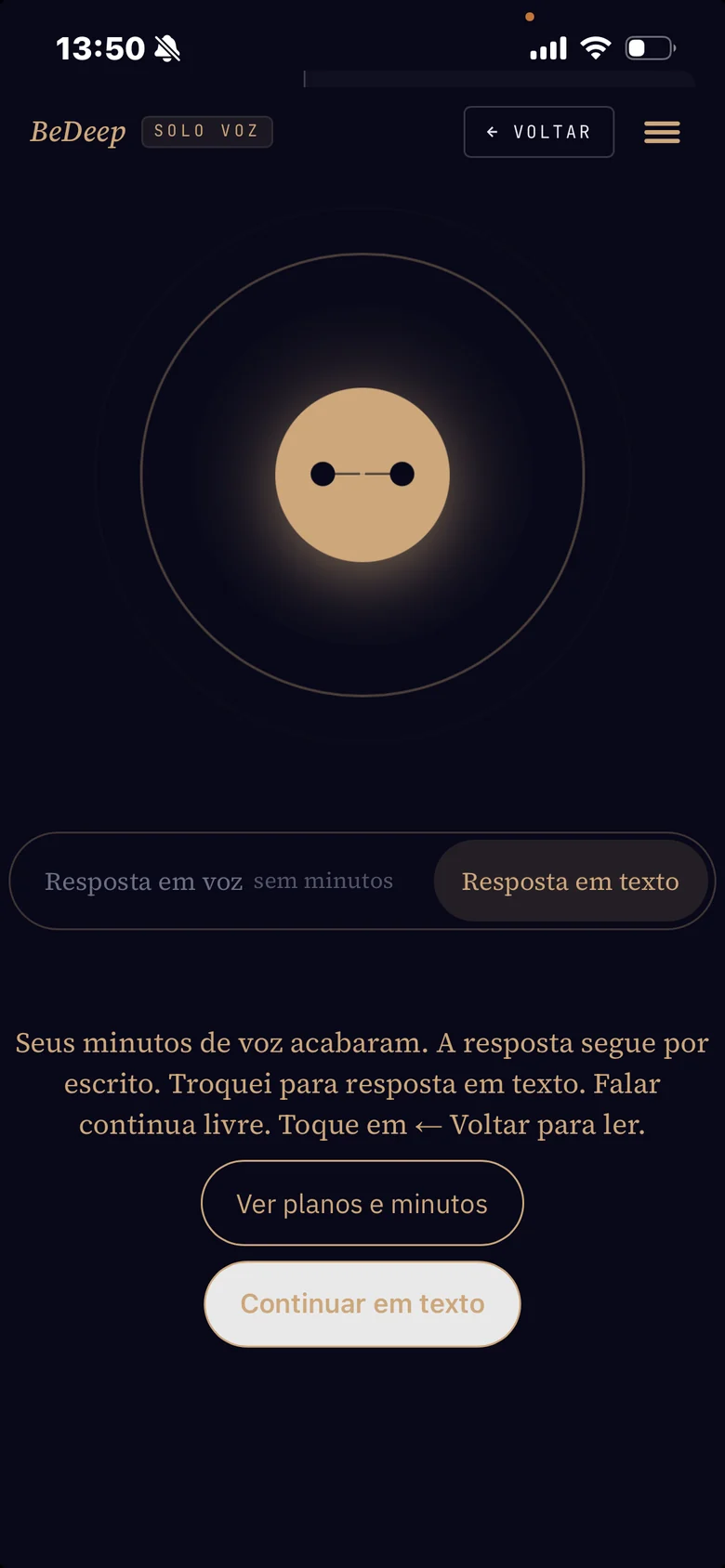
In the iPhone and Android apps, you buy more minutes on the voice page. On the website, purchases are on the subscription page (see Plans and account).
If the switch to text was automatic, BeDeep goes back to spoken replies on its own once you have minutes again and open the conversation. If you chose text yourself, your choice is kept.
In AMBIENT, the Start session button is disabled and the balance box shows “You’re out of minutes.” To start a session, you need at least 1 minute.
AMBIENT: the spoken conversation, hands-free
AMBIENT is for moments when your hands or eyes are busy: walking, cooking, tidying up the house. You start the session and from then on you just talk. BeDeep knows you may be on the move. It keeps what it says brief, doesn’t use lists and doesn’t ask you to look at the screen.
AMBIENT also lets you talk together with whoever is in the same place as you: BeDeep tells the voices apart and talks to each person by name. This is explained in With other people in the room, later in this chapter.
Who can use it
AMBIENT is for subscribers, Basic or Premium, and uses the account’s voice minutes. If you don’t subscribe, the item doesn’t appear in the menu. Either way, a session only starts if you have voice minutes in your balance.
Before you start: “How BeDeep participates”
Open ☰ › AMBIENT. On the screen, before the start button, you choose how BeDeep will take part in the conversation:
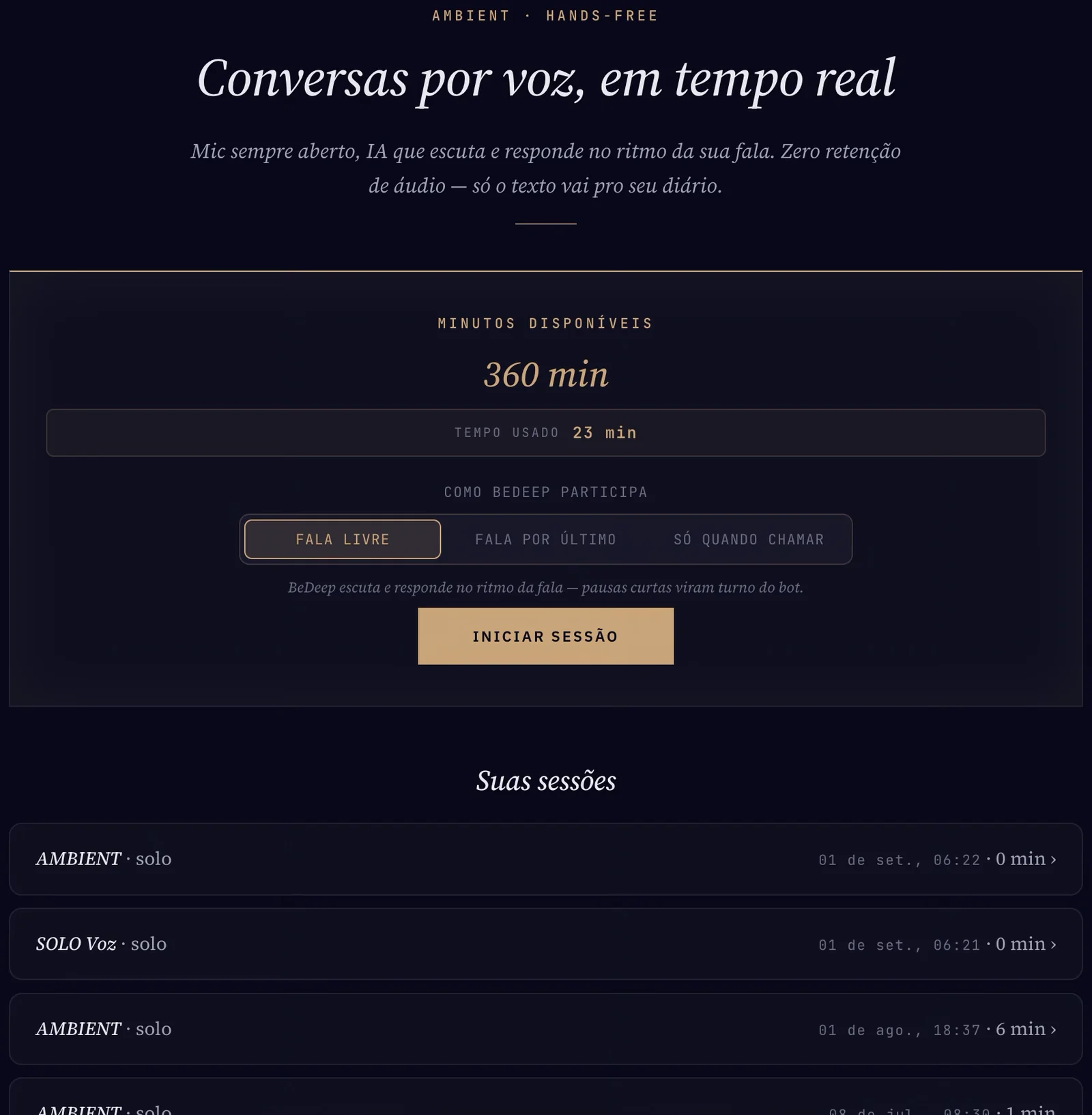
- Free flow (the default). BeDeep replies when you make a short pause, about three seconds. It works well for a lively, back-and-forth conversation.
- Last word. BeDeep waits for a long silence, about 15 seconds, before speaking. This is the option for telling something long (a dream, a story, a hard day) without being interrupted when you stop to think.
- Only when called. BeDeep only replies when it hears its own name, and then waits for the same long silence as Last word before speaking. Whatever you say without saying “BeDeep” is discarded: it doesn’t reply, doesn’t save it and won’t remember it later. This also applies to what comes after a pause: if you call it, stop for a few seconds and then go on, the part without the name may be lost. So start with the name and say everything you want it to hear in one go. For example: “BeDeep, I want to talk about the conversation I had with my brother today…”
Your choice is saved on the device for future sessions.
Caution
In Only when called mode, minutes keep counting the whole time the session is open, even while BeDeep is silent.
During the session
Tap Start session. The screen switches to the live session:
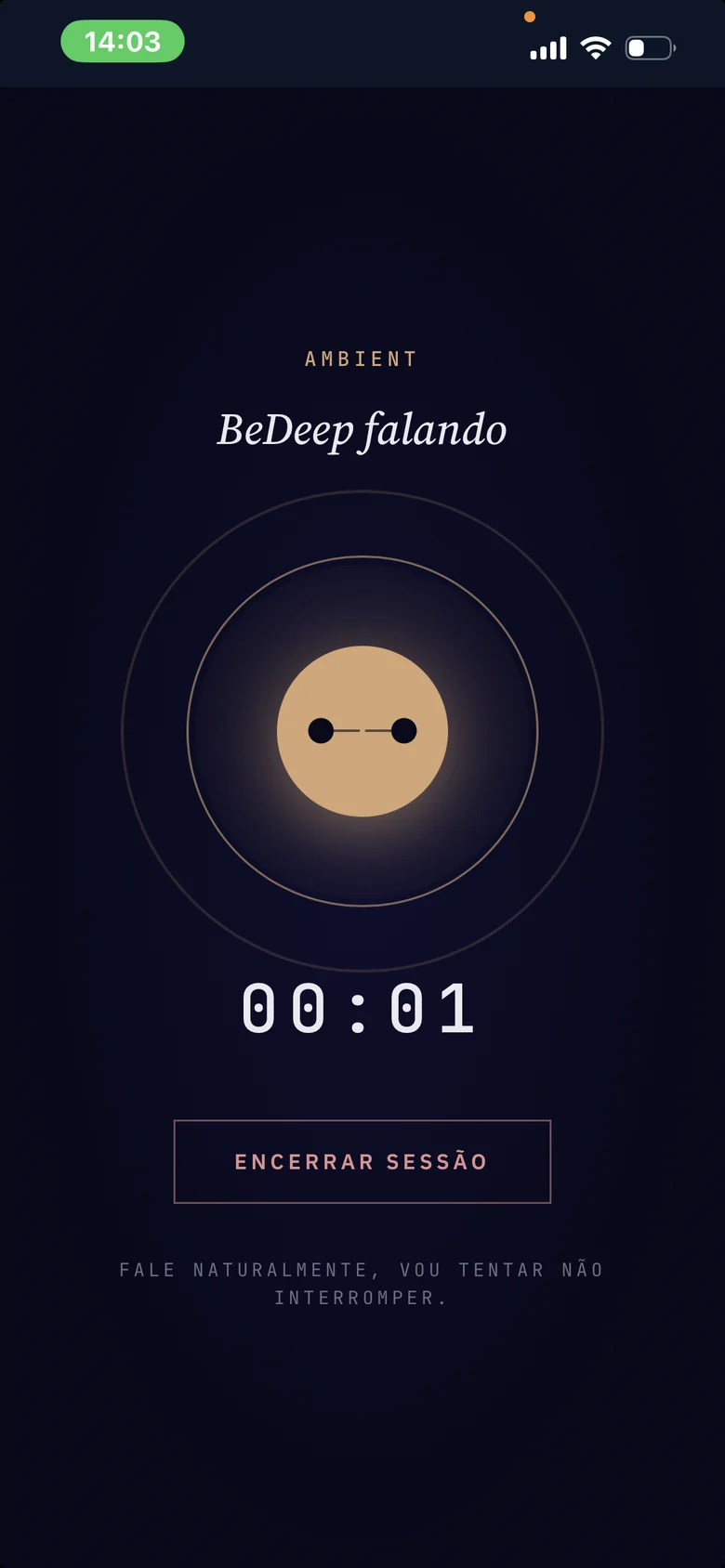
- “Connecting…” appears and, below it, “Grant microphone access if your browser asks.” The first time, your phone or browser asks whether BeDeep can use the microphone. Say yes.
- Then “Getting ready…” appears, and BeDeep opens the conversation: “Hi [your name], I’m listening. If anyone else is there, tell me their name.” If you’re on your own, you don’t need to answer: just go on and talk about what you came to talk about, and BeDeep understands that the conversation is with you alone. If someone is with you, that person says their name (see With other people in the room, below).
- During the session, the text at the top shows whose turn it is: Listening to you or BeDeep speaking. The timer shows how long the session has been open.
- Speak naturally. While BeDeep speaks, the microphone is paused: it finishes its sentence before listening again, and you can’t interrupt it by talking over it. When it stops, wait a moment and then speak.
In a spoken session, BeDeep draws on what it already knows about you: your profile, your diary summary and, in AMBIENT, the memory of your previous spoken sessions. It doesn’t reread your most recent written conversation word for word. If you want to pick up a topic, bring it up in your own way (“remember I told you about changing jobs?”), and it will continue from there.
How to end
A session can end in three ways:
- With the button. Tap End session.
- By voice. Say “Tchau, BeDeep”, “Até logo, BeDeep”, “Até mais, BeDeep” or “Até breve, BeDeep” (Portuguese for “Bye, BeDeep” and “See you, BeDeep”; for now, the voice command exists only in Portuguese). The session ends without BeDeep replying. An “até logo” without the name doesn’t end anything. With more people in the session, anyone who says “Tchau, BeDeep” ends the session for everyone.
- On its own. If nobody says anything (neither you nor BeDeep) for 5 minutes, the session ends.
Leaving or reloading the page also ends the session. If the connection drops for good and you start again, it’s a new session: BeDeep begins with the greeting, with the same background memory, but doesn’t pick up the sentence where it left off.
What the session leaves behind
- Every session in which someone spoke has a transcript: the text of what was said, in order, by you, by BeDeep and by anyone else who spoke.
- If the session lasted about 5 minutes or more, BeDeep also writes a chapter about it in the AMBIENT Diary (☰ menu › Diaries › AMBIENT Diary). Shorter sessions appear there as “Short conversation”, with only the transcript.
- In the AMBIENT Diary you can read, copy and export the transcript as a PDF, or delete it (Delete transcript). Deleting the transcript doesn’t delete the diary chapter.
There’s more on this in the What your conversations leave behind chapter.
With other people in the room
AMBIENT doesn’t have to be a conversation between just you and BeDeep. If other people are in the same place (a family member, a friend, someone you share a home with), they can join the conversation on the same device. The microphone is shared, and the transcript tells apart the voices of the people speaking.
Here’s how BeDeep handles it:
- At the start, it invites whoever is with you to say their name: “If anyone else is there, tell me their name.”
- If no one else answers, it understands that you’re on your own, carries on the conversation with you alone and doesn’t ask for names again.
- If more people show up, it asks each new person’s name (and gently asks them to repeat it if it didn’t catch it) and from then on calls each one by name.
- With several people, it takes turns asking each of you questions, draws in whoever has said little and doesn’t let one person speak for the others. If there’s tension, it responds with care without taking sides.
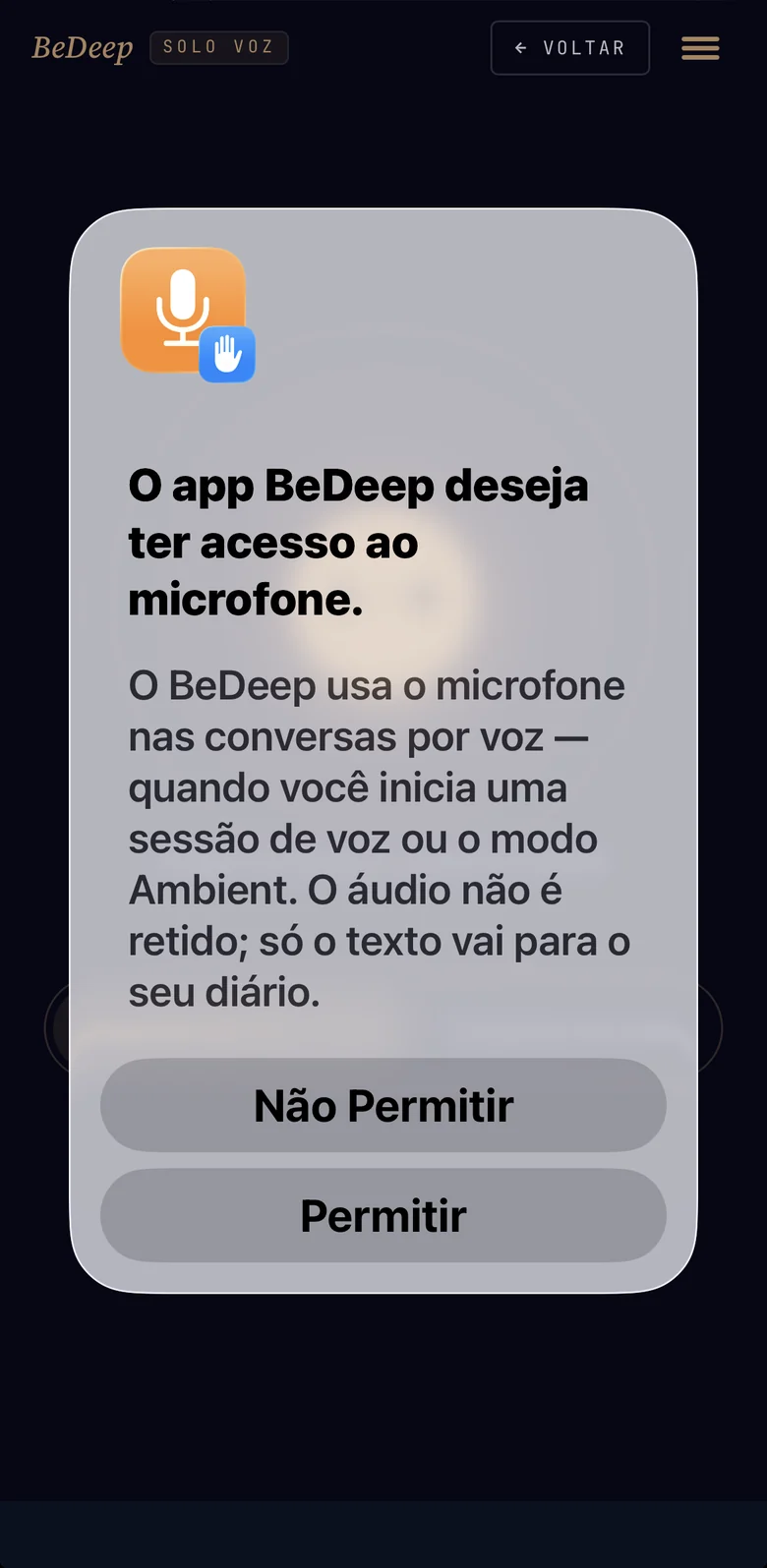
Some practical pointers:
- Place the device where everyone can be heard. A headset with a microphone picks up only the person wearing it.
- BeDeep keeps the background memory of your account (your profile and previous spoken sessions) and may mention some of it out loud, in front of whoever is with you. Keep that in mind when choosing who to use AMBIENT with.
- In Only when called mode, each person has to say “BeDeep” to be heard, including when saying their name.
- Telling voices apart is automatic and can go wrong. A TV or radio that’s on, for example, can be taken for another person, and BeDeep may ask the name of someone who isn’t there. Turn the sound off or down. If it happens, say it’s the TV and carry on the conversation.
Important
The speech of everyone present is transcribed and goes into the transcript and the AMBIENT Diary chapter of your account. Before you start, tell whoever is with you that the conversation is being transcribed, and get each person’s agreement. Never use AMBIENT to record someone without their knowledge.
A note about the diary. The AMBIENT Diary chapter is written as if only you and BeDeep had spoken. So something another person said may appear in the chapter attributed to you. The transcript is the faithful record of what was said: in it, each line appears with the speaker’s name, when BeDeep learned it. Lines from anyone who didn’t say their name appear as “You.” Remember, too, that deleting the transcript doesn’t delete the diary chapter.
On iPhone: Siri shortcut
If you subscribe and use the iPhone app (iOS 16 or later), you can open AMBIENT with Siri. Say “Conversar com o BeDeep” (Portuguese for “Talk with BeDeep”). “Conversar no BeDeep”, “Iniciar conversa no BeDeep” and “Modo ambiente do BeDeep” also work. For now, these phrases exist only in Portuguese. The app opens a screen with “Tap to start the voice conversation.” and the Start button. The tap is required: the iPhone only allows sound after you make a gesture.
Also in the iPhone app, the spoken session may appear to the system as an ongoing call, so you may see the call indicator at the top of the screen. This is normal.
Caution
If you’re going to use AMBIENT in the car, start the session before you set off and don’t handle your phone while driving. AMBIENT was designed to work without you looking at the screen.
The voice page
There is also a page that brings together everything to do with voice, at bedeep.ai/voz. You get there through the See plans and minutes button when your minutes run out, or by typing the address. At the top, it shows the SOLO · voice badge.
On the voice page you’ll find:
- Minutes available and Time used: your balance and your total usage.
- Start session: a continuous spoken session that works like AMBIENT in Free flow mode, without the choice of mode. It uses minutes the same way. Unlike AMBIENT, this session doesn’t tell voices apart: everything the microphone picks up goes in as if it were you speaking. Use it on your own. When it ends, a revised version of the session text is added to your SOLO conversation. This session doesn’t produce a chapter in the AMBIENT Diary.
- Your sessions: a list of your latest continuous spoken sessions, with date and duration. Sessions from this page appear as “SOLO Voice”; those from AMBIENT, as “AMBIENT.” For AMBIENT sessions, the rows with the › sign open the session’s diary or transcript. SOLO Voice turns spoken inside the conversation don’t appear here, because they’re already in the conversation itself.
- Buy minutes, in the iPhone and Android apps: the 3-hour pack. On the website, packs are on the subscription page (see Plans and account).
If you don’t subscribe and your minutes have run out, the voice page shows only a notice and, in the iPhone and Android apps, the pack to buy.
The AMBIENT screen is this same page, with the AMBIENT · hands-free badge and the How BeDeep participates box.
What happens to your audio
- When you speak, the audio is sent in real time to specialized speech-recognition services, which send back the text. BeDeep doesn’t keep recordings of your voice: it keeps the text.
- In SOLO Voice, that text becomes a message in the conversation, as if you had typed it. In AMBIENT, it becomes the session transcript, stored encrypted, and the AMBIENT Diary chapter is written from it.
- In AMBIENT with other people, the voices of everyone present go the same way and become text in your account’s transcript. No recording of their voices is kept, but what they said stays in writing.
- BeDeep’s voice is synthesized: it is generated by a computer from the text of the reply.
- The companies involved in transcription and voice synthesis are listed on the “How BeDeep uses your data” screen, which you accepted when you started, and in the Privacy Policy, at bedeep.ai/privacidade. The Safety, privacy and the limits of AI chapter explains who can see what and how to delete it.
Tips for a good voice conversation
Microphone permission
The first time you use voice, your device asks whether BeDeep can access the microphone. Without that permission, nothing works. If you declined by mistake, BeDeep shows “Microphone permission denied. Please enable it in settings.” (below the conversation’s text field) or “Couldn’t access the microphone. Check permissions and try again.” (in AMBIENT). If the SOLO Voice voice screen doesn’t start listening, tap ← Back and check the permission. To allow it:
- iPhone app: Settings › BeDeep › Microphone.
- Browser (Safari, Chrome and others): in the site settings for bedeep.ai, in the browser itself. On a computer, it’s usually the icon next to the address.
- Android: in the device settings, under Apps, open the app you use for BeDeep and turn on Microphone under Permissions.
- Mac: System Settings › Privacy & Security › Microphone.
Keep the screen on
While using voice, keep BeDeep open and in the foreground. On iPhone, if the screen locks or you switch apps, the voice may stop in the middle of a reply. A few things help:
- Set a longer Auto-Lock while you talk: Settings › Display & Brightness › Auto-Lock.
- Remember that the iPhone’s Low Power Mode forces the screen to lock after 30 seconds. With it on, the screen turns off sooner.
- Don’t switch apps in the middle of speaking. If you need to leave, end the session first.
Surroundings and headphones
- Choose a quiet place. Background noise (TV, traffic, other conversations) gets in the way of transcription and, in AMBIENT, can be taken for speech, even for another person’s voice.
- When you’re on your own, headphones with a microphone improve pickup and keep BeDeep’s voice just for you. With other people taking part in AMBIENT, put the device in the middle, without headphones.
- Speak at a normal volume, at a comfortable distance from the device. Whispers and very short phrases aren’t always recognized.
Pace and language
- In AMBIENT with Free flow, a pause of about three seconds hands the turn to BeDeep. If you tend to stop and think mid-sentence, use the Last word option.
- Transcription recognizes the language of each turn: you can start in Portuguese and switch to English, Spanish or another language, and BeDeep replies in the language of your last turn. Mixing languages within a single sentence still tends to make the result worse.
- If BeDeep replies to something you didn’t say, the transcription probably got it wrong. Correct it right away (“no, what I said was…”). In continuous spoken sessions, such as AMBIENT, it is instructed to ask you back when something doesn’t make sense.
To use fewer minutes
- Use Written reply when you want to speak without listening: speaking is still free.
- End the AMBIENT session when you’re done. Silence counts too.
- Remember that Basic minutes don’t carry over to the next month, and Premium minutes accumulate up to 15 hours.
If something doesn’t work (the microphone doesn’t respond, the voice stops, the minutes don’t show up), see the Troubleshooting chapter.
Chapter 5
What your conversations leave behind
Diary, Plots, Portraits, highlights and notifications: what BeDeep writes from your conversations, where to find each thing and what you can do with it. And the Notebook and the Vault: what you bring from outside your conversations.
A conversation with BeDeep doesn’t end when you close the app. Other things can grow out of it: a diary page, a plot that links several conversations, a portrait of who you’ve been. You can also keep the passages that mattered most, your highlights, and answer the questions BeDeep asks on its own, in Ask me. And every so often BeDeep sends a notification to say something new is ready.
This chapter shows what each of these things is, where to find it, which plan it comes with and what you can do with it: read, edit, export, delete or decline. At the end, the other way around: the Notebook, where you bring to BeDeep what already exists outside your conversations, and the Vault, where that material can stay locked with a key only you have.
One idea runs through almost everything here: BeDeep is the one writing, not you. The diary, the plots and the portraits are texts an artificial intelligence writes from what the two of you talked about. They can be spot on, and they can be wrong. Read them the way you’d read the notes of an attentive person who spent time with you, not as a verdict.
Where everything is
Almost everything is in the ☰ menu, in the top right corner of the screen. The items in this chapter look the same in the browser, in the iPhone app and in the Mac app. (On iPhone, the bottom of the menu has a few extra items, such as Contact us and Delete account, which are not part of this chapter.)
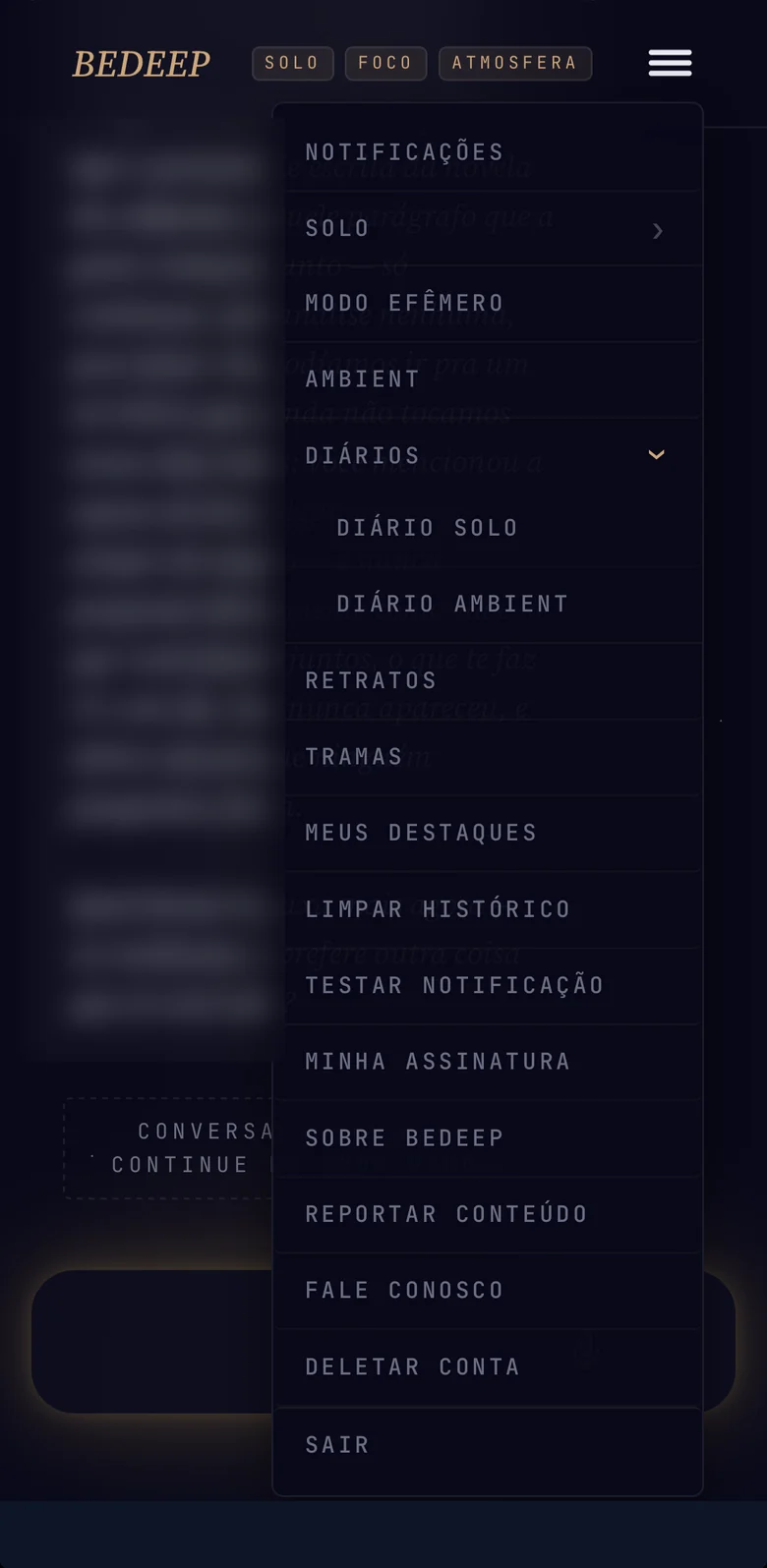
| What | Where | Who writes it | Free | Basic | Premium |
|---|---|---|---|---|---|
| SOLO Diary | menu › Diaries › SOLO Diary | BeDeep | — | Yes | Yes |
| Record now button | inside the SOLO Diary | — | — | — | Yes |
| AMBIENT Diary | menu › Diaries › AMBIENT Diary | BeDeep | — | Yes | Yes |
| Plots | menu › Plots | BeDeep | — | Yes | Yes |
| Revisit my plots button | inside Plots | — | — | — | Yes |
| Portraits | menu › Portraits (appears after the first one) | BeDeep | — | Yes | Yes |
| My profile | link at the end of each portrait (not in the menu) | BeDeep | the page opens, but the profile is only built for subscribers | Yes | Yes |
| My highlights | menu › My highlights | You | Yes | Yes | Yes |
| Ask me | menu › Ask me | BeDeep asks; the answer is yours | — | Yes (2 a day) | Yes (5 a day) |
| Notifications | menu › Notifications | — | Yes | Yes | Yes |
| Notebook (closed beta) | menu › Notebook | You bring it; BeDeep organizes it and, if you allow, remembers it | — | Yes | Yes |
| Vault (closed beta) | menu › Vault | — (locked with a key only you have) | — | Yes | Yes |
| Kept passages | menu › My highlights › Kept | You | Yes (up to 50) | Yes (up to 50) | Yes (no limit) |
| Amplifications | menu › Content › Amplifications | BeDeep | — | Yes | Yes |
| Bridges (closed beta) | menu › Bridges | The Reporter; you read it before it goes | — | — | Yes |
| Conversation in Ephemeral Mode | menu › Ephemeral Mode | — (none of it ends up in the items above) | Yes | Yes | Yes |
Important
On the Free plan, the SOLO Diary and Plots items appear in the menu, but tapping them takes you to the plans page. AMBIENT Diary and Portraits don’t appear in the menu at all. While the account is on the Free plan, diary entries aren’t written, so no plots or portraits are formed either. If your subscription dates from before the Basic and Premium plans, the features in this chapter work for you as they do on Premium.
One exception applies to every plan: what you say in Ephemeral Mode (☰ menu › Ephemeral Mode) never reaches anything in this table. An ephemeral conversation doesn’t become a diary entry, doesn’t feed your profile, doesn’t produce a portrait or a plot, and you can’t save highlights in it. How the mode works, and what it keeps and doesn’t keep, is in the “The conversation” chapter.
Caution
In the Mac app, buttons that ask for confirmation before acting (saving an edit to a diary entry, Rename, Pin title and Archive on a plot, deleting a highlight and delete this in My profile) may not respond. If one of them does nothing, do the same thing in the browser, at bedeep.ai, with the same account.
The Diary
Who writes it, and how
After you talk, BeDeep writes a diary page in the first person, as if you were the one writing, using words and phrases you used, in the language of the conversation. It isn’t a transcript or a report: it’s flowing prose that tries to capture what moved in that conversation.
A few rules for how it works:
- One entry per day. If you talk more than once on the same day, that day’s entry is extended instead of a new one being created. The new part goes at the end, set off by three dots (· · ·). The date is the day the conversation started, in Brasília time.
- It takes a bit of conversation. Very short exchanges (fewer than about three back-and-forths between you and BeDeep) don’t become an entry or extend the day’s entry.
- The length follows the conversation. A long conversation makes for a longer entry.
- Voice counts too. What you say in SOLO Voice (☰ › SOLO › Voice) stays in the same conversation and goes into the same diary. AMBIENT sessions have a separate diary (see below).
- Your highlights carry weight. If you highlighted passages during the conversation (see My highlights, further down), BeDeep builds the entry around them.
- Ephemeral Mode leaves no entry. What’s said in an ephemeral conversation doesn’t become a diary entry or extend the day’s entry, doesn’t feed your profile and so doesn’t produce a portrait or a plot either. This applies to the conversation in which the mode was turned on: if you turn it on partway through a conversation, expect the part that hadn’t yet made it into the diary to be left out as well. Whatever was already in the diary stays there.
When the entry appears
The entry doesn’t show up the moment you stop typing. It’s written in the background:
- in long conversations, it’s written and extended bit by bit while the conversation goes on;
- when the conversation pauses, the entry is finished: sometimes when you start writing again after a break, and at the latest about 12 hours after your last message.
In practice, if you talked in the evening, you’ll usually find the entry the next morning.
Tip
On Premium, the Record now button, at the top of the diary page, writes the entry for your most recent conversation right away. If there hasn’t been enough new conversation since the last entry, the button tells you: “Nothing new since the last entry.”
Reading and searching
Open the ☰ menu › Diaries › SOLO Diary. The page is called My Diary.
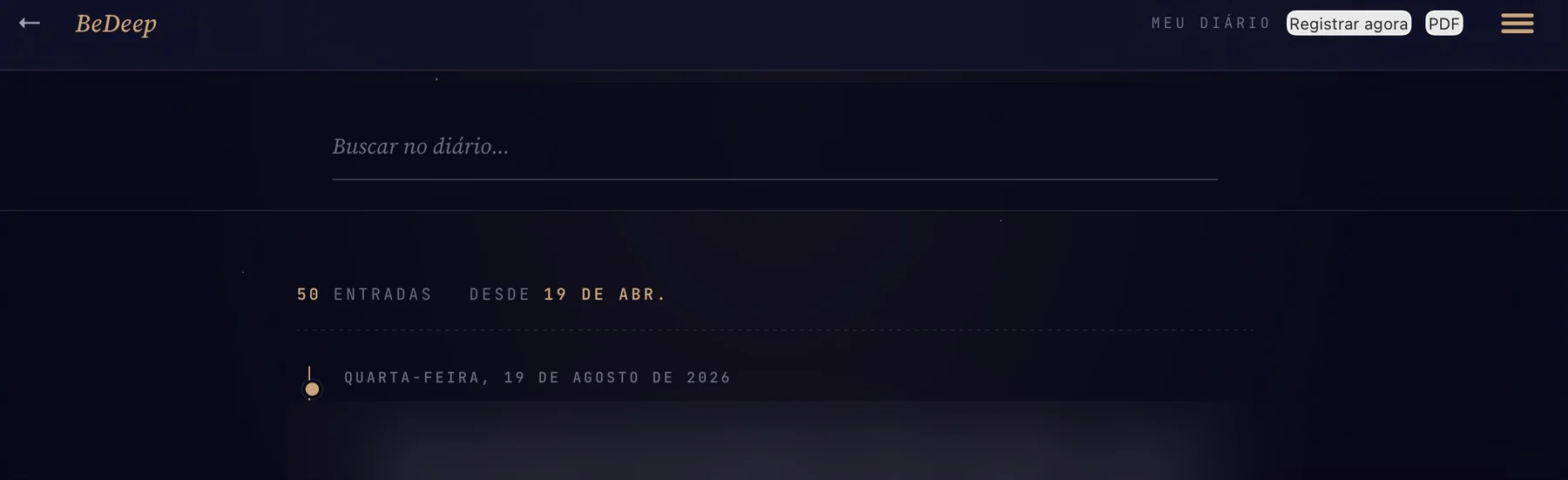
- At the top, you see how many entries are on the page and the date of the oldest one.
- Entries appear on a timeline, newest to oldest, with the date written out (for example, “Thursday, September 10, 2026”).
- The Search the diary... field filters the entries by the words in the text as you type. To search by date, type it as year-month-day (for example, 2026-09 for September 2026).
Caution
The page shows the 50 most recent entries, and the count at the top and the search only cover those. To have the whole diary at hand, use the PDF (see below), which holds up to 500 entries.
Editing an entry
BeDeep writes the entry, but the diary is yours. You can rewrite any entry:
- Tap Edit, below the entry.
- The text turns into an editable box. Make whatever changes you like.
- Tap Save and confirm. (If you change your mind, tap Cancel.)
Before saving, BeDeep warns you: “This entry was written by BeDeep based on your session. Saving will replace it with your version. The original BeDeep version stays saved — you can review it anytime. Continue?”
After you save:
- the entry’s date gets the mark ✎ edited by you;
- a Show BeDeep’s original button appears, showing the text as BeDeep wrote it. You can edit as many times as you like; the saved original is always the first one, BeDeep’s;
- the PDF now has your version.
Each entry can hold up to 20,000 characters. Three things to keep in mind:
- Editing changes the text you read. It doesn’t redo what BeDeep had already taken from that conversation to follow along with you in the next ones, such as the themes it identified.
- Editing doesn’t delete the original. If your goal is to remove something from the record, know that the original text stays saved and visible to you in Show BeDeep’s original.
- If you talk again on the same day, BeDeep adds the new part to the end of your edited version.
Deleting
Right now there’s no button to delete a specific diary entry. And deleting messages from a conversation (with Clear history, in the chat menu) doesn’t delete the entry already written from them. The way to delete the whole diary is to delete your account: the steps are in the “Plans and account” chapter, and what goes and what stays, in the “Safety, privacy and the limits of AI” chapter.
Tip
If you want to talk about something without it turning into diary, profile or portrait, use Ephemeral Mode (☰ menu › Ephemeral Mode). Before turning it on, read in the “The conversation” chapter how it works and what happens to the messages already in the conversation. It doesn’t delete what’s already written in the diary: it only keeps the ephemeral conversation from leaving a record.
Exporting to PDF
On the My Diary page, tap PDF. BeDeep puts together a file called bedeep-diario.pdf, and your device downloads it. The PDF includes:
- your name at the top;
- up to 500 entries, newest to oldest, each with its date;
- the current version of each entry (yours, if you edited it).
Not in the PDF: the originals of edited entries, plots, portraits (which have their own PDF) and your highlights. Exporting is for subscribers, Basic or Premium.
Tip
On a computer, the file goes to your browser’s downloads folder. On a phone, where it ends up depends on the device. If the download doesn’t happen inside the app (iPhone, Android or Mac), go to bedeep.ai in the browser and download it there.
The diary on Basic and on Premium
On both subscriptions, the diary is written from the whole conversation, in the order it happened. The difference shows up in very long conversations or ones with very long messages: on Basic, BeDeep works with a leaner version of each turn; on Premium, with practically all of the text. Premium also has the Record now button.
The AMBIENT Diary
If you use AMBIENT (the hands-free voice conversation, explained in the “Voice and conversation modes” chapter), its sessions go into a separate diary: ☰ menu › Diaries › AMBIENT Diary. It appears for subscribers. Ephemeral Mode doesn’t apply to AMBIENT sessions: they still go into this diary.
- Each AMBIENT session of at least 5 minutes becomes a chapter, with a title and flowing prose, written in the third person. The Chapter button opens the text, and Download PDF exports that chapter.
- While the chapter is being written, the card shows Writing the chapter. It usually takes less than a minute; if the card stays that way, reload the page.
- Shorter sessions don’t become a chapter, but the speech is kept: the card appears as Short conversation, with the Transcript only tag. If the session was long and the chapter still didn’t come out, the card says Chapter not generated, and the speech is kept as well.
- The Transcript button shows the speech verbatim, word for word. From there you can copy one turn or all of it, Export PDF or Delete transcript. Deleting the transcript is permanent; the chapter stays where it is. The chapter itself has no delete button.
- Each chapter’s card shows, below the title, the line “[your name] and guest” and, at the end, the field Who was your guest in this conversation?. If the session was just you, you can ignore the field. If someone else took part (AMBIENT allows more people around, and BeDeep talks to each person by name), type the person’s name there and tap Save. The card then says “[your name] and [name]”, and that chapter’s PDF includes the name too. It’s only a label: saving the name doesn’t rewrite the chapter, and once saved the field disappears from the screen.
Caution
When other people speak in an AMBIENT session, the transcript has the speech of everyone the microphone picked up, but the chapter is written as if only you and BeDeep had spoken. So it may attribute to you things someone else said. Read the chapter with that in mind. If you don’t want to keep what the people with you said, use Delete transcript: the verbatim speech is gone, and the chapter stays. Before a session with more people, tell those around you and agree on it together; the “Voice and conversation modes” chapter explains how AMBIENT works with several voices.
Plots
What they are
Over time, some subjects come back. A tension that repeats, a theme that resurfaces, a side of you that starts to show. Plots are BeDeep gathering entries from your diary that belong to the same movement. Each plot has a title, a summary and the list of conversations that make it up.
In the list, each plot has a tag that says what kind it is:
| Tag | What it means |
|---|---|
| theme | a subject that keeps coming back |
| tension | something that repeats without resolving |
| milestone | a turning point |
| emerging self | a side of you that’s starting to show |
Think of plots as a map of the road, not as conclusions. It’s BeDeep connecting dots; you may or may not think it connected them well.
Plots are for subscribers (Basic or Premium) and grow out of the diary. No diary, no plots, which is why conversations in Ephemeral Mode don’t go into them either.
When they appear
- The first plots form when your diary reaches 5 entries. BeDeep checks for this on its own, throughout the day.
- After that, it revisits your plots when there are 10 new entries, or at least 3 new entries after 30 days. In that review, it may create new plots, add conversations to existing ones, update summaries and adjust titles.
- When BeDeep forms a new plot on its own, you may get the notification “You have a new plot” (see Notifications). Plots that come from tapping one of the buttons below don’t send a notification.
If you don’t have any plots yet, the page shows the Try synthesizing now button. If you still need more entries, the reply tells you how many.
Tip
On Premium, the Revisit my plots button asks BeDeep to look for new arcs in what you’ve written since last time. It follows the same entry-count rules and only works if your plots haven’t been reviewed in the last 24 hours (by you or by BeDeep itself); if they have, the button tells you in how many hours to try again. When the review starts, the button shows “Synthesis started — reload in a minute”. The list reloads once on its own; if the new material still doesn’t show up, reload the page.
Browsing
Open the ☰ menu › Plots.
In the list, each card shows the title, the number of sessions, the period (from the first date to the last), the start of the summary and the tag. Tap the card to open the plot. Inside you’ll find:
- the full summary;
- Sessions in this plot: the diary entries that belong to it, with the date and the start of the text. Tapping a session takes you to the conversation screen (the current conversation, not the record of that day);
- Recurring themes, with the number of times each one came up;
- Selves in this plot: the different sides of you BeDeep noticed in those conversations;
- Open threads: questions that were left unresolved.
Rename, pin, archive
- Rename gives the plot whatever title you want. A title you wrote stays pinned: BeDeep won’t change it anymore.
- Pin title keeps the current title without your having to rewrite it. If it isn’t pinned, BeDeep may adjust the title in later reviews.
- Archive removes the plot from your list.
Caution
The Archive confirmation says the plot can be recovered, but right now the app doesn’t show archived plots or have a button to bring them back. Only archive if you’re sure. If you archive one by mistake, contact support. There’s no way to delete a plot; archiving is the closest thing.
Portraits
What a portrait is
From time to time, BeDeep writes a Portrait: a text of a few hundred words, addressed to you, about who you’ve been in your conversations. What you’re looking for, what keeps changing, what persists, the tensions between different sides of you. It’s written in everyday language, with no technical terms, and it ends by pointing ahead.
What a portrait is not
- It isn’t a psychological test. You don’t fill out any questionnaire, and nothing in it was measured with an assessment instrument.
- It isn’t a diagnosis or a clinical report, and it doesn’t replace an assessment by a professional or ongoing care.
- It isn’t the truth about you. It’s a reading written by an AI from your conversations, and it can be wrong, overstate things or go out of date. Agreeing, disagreeing or taking the subject into your next conversation are all equally valid responses.
For what AI can and can’t do, see the “Safety, privacy and the limits of AI” chapter.
Where it comes from
Over the course of your conversations, BeDeep gradually builds, in the background, a profile of what it notices about you: your interests, your values, how you relate to others and deal with what’s hard, the stage of life you’re in. It doesn’t announce this during the conversation and doesn’t ask questionnaire-style questions. Portraits grow out of this profile, and the profile is also what helps BeDeep talk with you in light of what it has already noticed.
The profile is built from the conversations of subscribers (Basic or Premium), except conversations in Ephemeral Mode, which don’t feed it. You can read what’s in it, delete parts of it and turn off profile building; see My profile, further down.
When it arrives
- The first portrait arrives after a few conversations: there has to be a profile in place and at least six days of conversation that became diary entries.
- After that, a new portrait can arrive once there are at least six new diary entries and at least 14 days have passed since the last one.
- The portrait is written when you open BeDeep and already meet these conditions. It’s ready within a few minutes: a notification appears (“Your portrait is ready…”) and, if notifications are on, your device shows an alert.
- You can’t request a portrait on demand. It arrives at this pace.
Reading a portrait
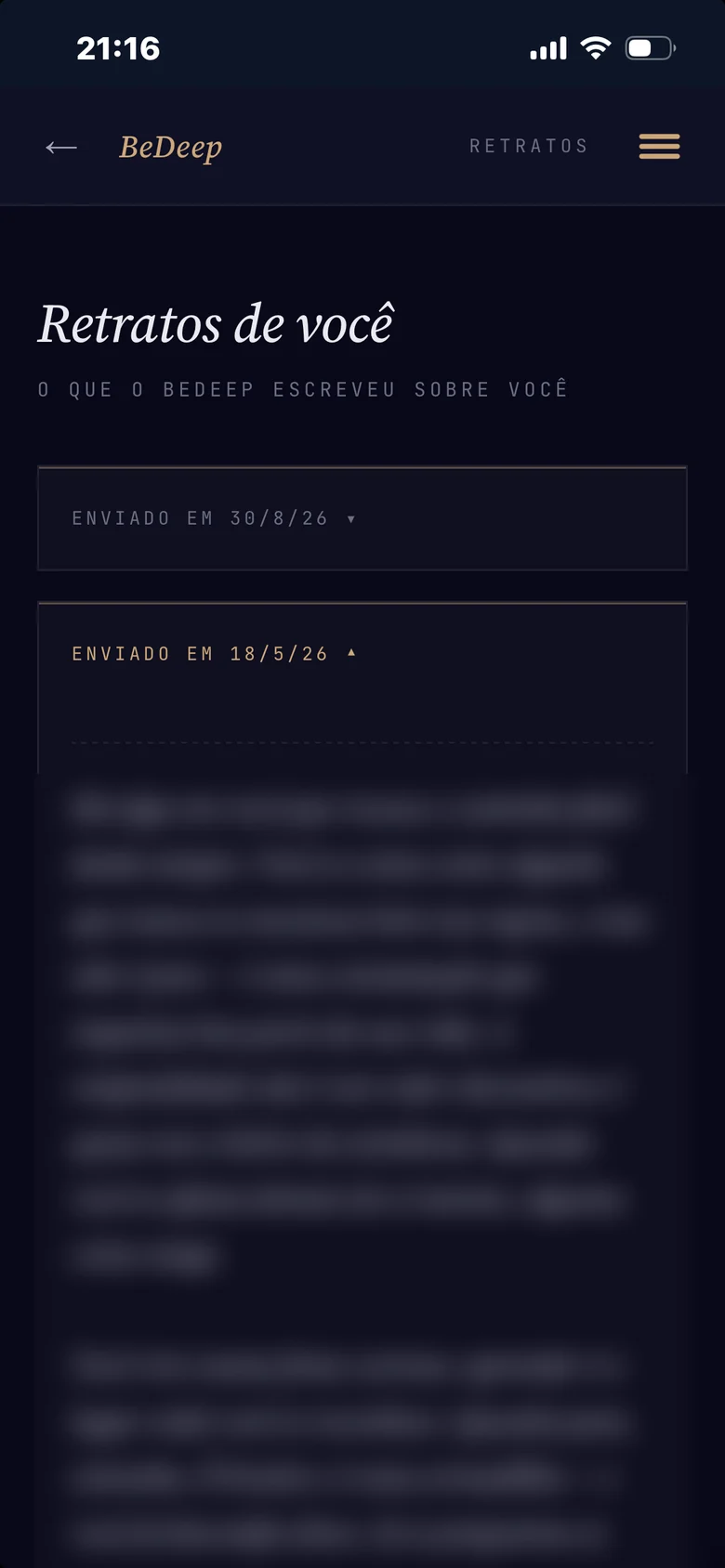
When the first portrait is ready, the Portraits item appears in the menu. An amber asterisk (*) next to it means there’s a portrait you haven’t read yet.
On the Portraits of you page:
- each portrait is a card with the date it was sent (“Sent on” followed by the date, for example September 10, 2026). Tap to open it;
- the asterisk goes away when you open that portrait, not just the page. You can’t mark a portrait as unread again;
- PDF downloads the portrait as a file titled “Portrait of [your name] on [date] by BeDeep”;
- at the end of the text, See what gave rise to this portrait takes you to the My profile page.
Right now there’s no way to delete a specific portrait. Portraits go when the account is deleted.
My profile: read, delete and decline
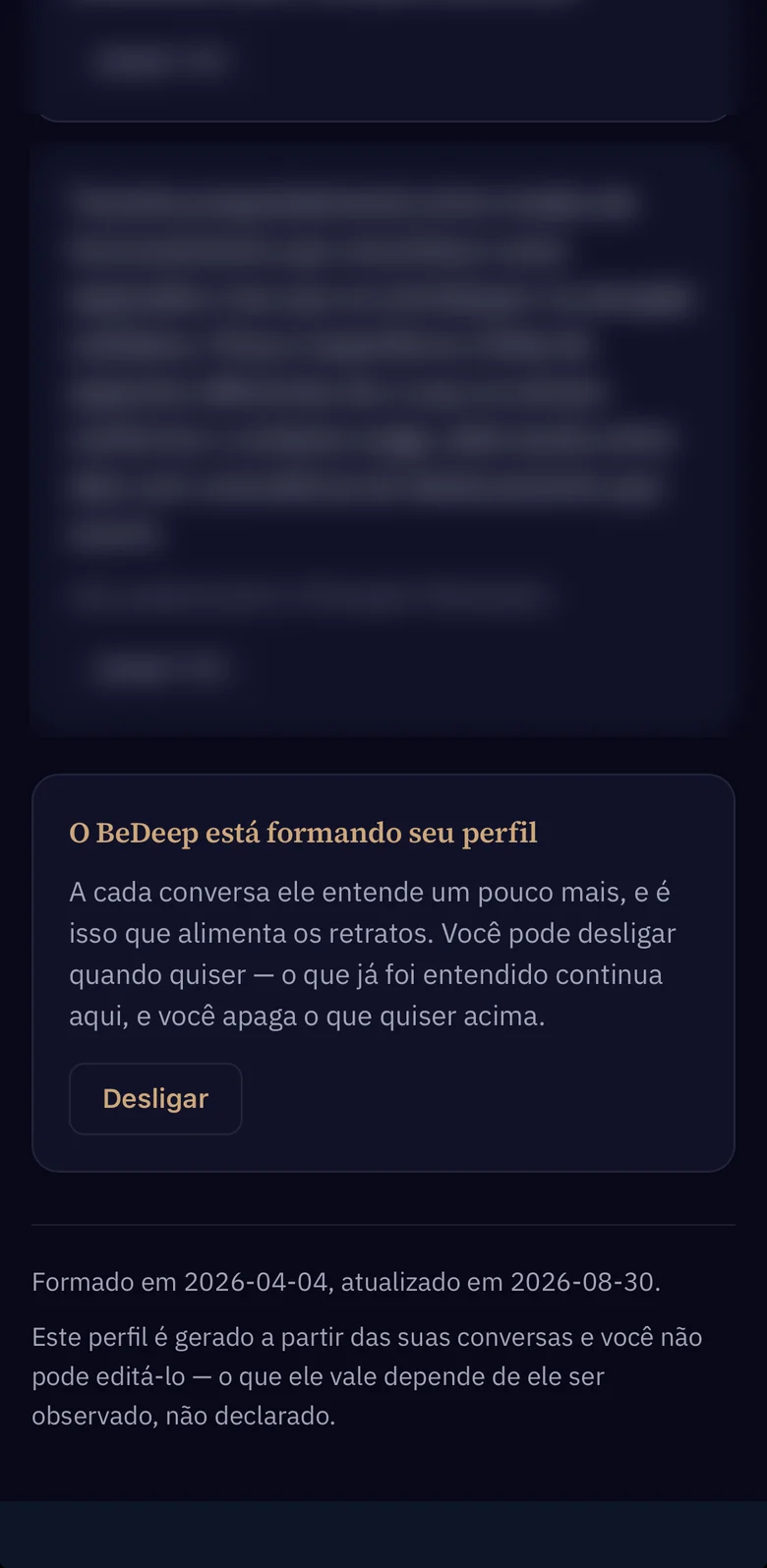
The My profile page shows what BeDeep has come to understand about you, written in plain language. It isn’t something you filled in: it’s inference. You get to it from the link at the end of any portrait or at the address bedeep.ai/conta/perfil (it isn’t in the menu). To go back, use ← back, at the top of the page.
- Each item is a paragraph about you. You can’t edit or add anything, on purpose: the profile is worth something because it’s observed, not declared.
- delete this removes that content. BeDeep asks you to confirm (“Delete this from your profile?”) and the page reloads without it. What was deleted is deleted. But the subject isn’t off-limits: if it comes up again in new conversations, BeDeep may notice it again, ask about it again and write something new. Deleting an item also doesn’t change portraits that have already been written.
- At the bottom of the page, the BeDeep is building your profile box has a Turn off button. With profile building turned off:
- no new conversation feeds the profile;
- no new portrait is written, so no portrait notification arrives;
- what was already in the profile stays there, and can still shape your conversations, until you delete it item by item;
- the diary and plots keep being written as usual.
- Turn back on resumes profile building.
- The box appears even when there’s no profile yet: you can turn it off before the profile starts to exist.
- The footer shows the dates the profile was built and last updated.
Important
Turning off and deleting are different things. Turning off stops what comes next; deleting removes what already exists. To wipe the profile, do both, or delete your account.
Tip
This page is the place to read your profile. If you ask to see it in the middle of a conversation, BeDeep tends to answer with a personal description, not with the list shown here.
My highlights
Highlighting a passage
During a text conversation, when a sentence makes a difference, yours or BeDeep’s, you can keep it:
- Touch and hold the message for half a second. On a computer, click and hold the mouse button down.
- The Highlight passage window opens, with the whole message.
- With your finger or the mouse, select the passage that mattered. It appears just below, as a preview.
- If you like, write a Note: why this matters to you (up to 1,000 characters).
- Tap Highlight. (The button only lights up after you select a passage.)
The passage is marked in amber in the conversation, and the message gets a star. Each highlight can be up to 2,000 characters. Highlights are available on every plan, including Free.
In an ephemeral conversation (with the Ephemeral Mode badge at the top of the screen), the highlight is refused. When you tap Highlight, the window says it couldn’t save and gives the reason: “This conversation is ephemeral — highlights aren’t saved in it.” The same message suggests reloading the page and trying again, but that won’t help: as long as the conversation is ephemeral, no highlight is saved in it. If a sentence mattered, write it down yourself before the message disappears.
Why highlight
Besides keeping what mattered, highlights shape the diary: when BeDeep writes that conversation’s entry, it builds the text around the passages you marked. This applies to subscribers, who are the ones with a diary.
Never forget: kept passages
A highlight guides the diary. A kept passage goes further: it stays exactly as it is, word for word, and BeDeep keeps it in mind in every conversation, starting with the next reply. It’s for what you don’t want lost or summarized: a sentence of yours, a question from BeDeep, a decision.
- From a selection. Select the passage with your finger or mouse, in a message of yours or of BeDeep’s. A Never forget button appears next to the selection: it opens the Highlight passage window with that passage already chosen. Tap Never forget.
- From the message. Touch and hold the message, as you would to highlight it. In the window, next to Highlight, is Never forget. If you don’t select anything, the whole message is kept.
Your note, if you write one, is kept with it. A “Kept.” confirmation appears, with Undo for a few seconds, and the passage is marked in the conversation.
- Each kept passage can be up to 1,200 characters. For a longer one, select a part.
- Free and Basic hold 50 kept passages; Premium has no limit. When you reach the limit, BeDeep tells you: to keep a new one, forget an older one.
- When you have many kept passages, BeDeep receives in full the ones that fit, most recent first, and is told that there are others.
- Nothing is kept in an ephemeral conversation.
For subscribers, kept passages also appear in the Diary, on the date they were kept, and the Diary has a filter just for them.
Viewing and deleting
Open the ☰ menu › My highlights. Highlights appear from newest to oldest, each with: who said it (YOU or BEDEEP), the date and time you highlighted it, the passage and your note. Open conversation takes you to the conversation screen: if the highlight is from the conversation you’re in, the screen scrolls to the message; if it’s from an earlier conversation, the chat opens on the current conversation. Delete removes the highlight, after you confirm.
At the top of the page there are two tabs, All and Kept. In the All tab, a highlight can become a kept passage with the Never forget button. The Kept tab shows how many you have (and, on Basic, how many fit); each one has Forget, which turns it back into an ordinary highlight, and BeDeep no longer keeps it in mind in conversations.
Deleting a highlight doesn’t change a diary entry that was already written with it.
Ask me
Most of the time, you’re the one who starts the conversation: BeDeep responds to what you bring. Ask me turns that around. You tap a button and BeDeep, on its own, asks a question that isn’t a reaction to anything you’ve just said: the question that, given everything it already knows about you, is worth asking today.
Where it is and who can use it
☰ menu › Ask me. It’s for subscribers, Basic or Premium; on the Free plan the item doesn’t appear in the menu. If your subscription dates from before the Basic and Premium plans, Ask me works for you as it does on Premium.
Asking for a question
- Tap Ask me anything.
- “thinking about you…” appears for a few seconds.
- The question appears on its own on the screen, with the date below it, and two buttons: write your answer here and answer in the chat.
The question grows out of what BeDeep has already kept about you: your profile, the portrait from your diary, your plots and your recent diary entries, including answers you’ve already given here. It also rereads the questions it has already asked on this page, so as not to repeat them. So the more conversation has built up, the more personal the question; at first, it tends to be more open.
You don’t have to answer. A question can simply stay with you.
Answering here or in the chat
- write your answer here opens a field where you can write at your own pace (up to 8,000 characters). Tap Save. The answer goes into BeDeep’s memory, just like your conversations: it becomes an entry in your SOLO Diary, with the ◆ Answer to Ask me tag, and from then on it shapes your profile and future questions. Each question takes only one answer; once saved, it appears below the question, with the word “saved”.
- answer in the chat opens the conversation with the question as BeDeep’s last turn, and you carry on from there, as in any conversation. What you talk about goes into the diary the usual way. If you open the same question in the chat again, it isn’t repeated in the conversation.
A question taken to the chat can still be answered here, if you also want to leave a written answer.
Important
A saved answer is a diary entry like any other. Right now there’s no button to delete a specific diary entry (see The Diary › Deleting), or to remove a question from the list.
How many questions a day
| Plan | Questions per day |
|---|---|
| Basic | 2 |
| Premium | 5 |
The day follows Brasília time. A question counts when it’s asked, answered or not. If BeDeep can’t come up with the question, you’ll see “I couldn’t come up with a question right now.”, and it doesn’t count: tap Try again. When the day’s questions run out, the page says “I’ve asked enough for today. I’ll ask again tomorrow.”, and today’s questions stay in the list.
Earlier questions
Below the button is the earlier questions list, newest to oldest, each with its date and what happened to it: answered here, answered in the chat or unanswered. Tap one to open it again and, if it doesn’t have an answer yet, answer it.
In Ephemeral Mode
While Ephemeral Mode is on, the page shows “There are no questions in Ephemeral Mode.” The question grows out of what builds up, and in Ephemeral Mode nothing builds up. End the mode from the badge at the top of the conversation, and come back.
Notifications
Which notifications there are
| Notification | When it arrives | When you tap it |
|---|---|---|
| “Your portrait is ready. It grows out of the profile BeDeep has come to understand about you — which you can read, and delete whatever you want.” | when a new portrait is ready: it’s written when you open the app and already meet the conditions | opens that portrait |
| “You have a new plot” | when BeDeep forms a new plot on its own, only between 9 a.m. and 10 p.m. (Brasília time) and at most once a day | opens Plots |
| “Notifications working. ✨” | when you ask for a test (see below) | opens the chat |
If a new plot forms outside those hours, there’s no notification; you’ll find it when you open Plots. Besides these notifications, the BeDeep team may occasionally send a message through the same channel.
The Notifications page
☰ menu › Notifications. This is where BeDeep’s notifications for you are kept — a new plot, a portrait that’s ready, a notice about your subscription or your voice minutes. When there’s a new notification, opening the site or the chat shows a banner at the top of the screen, “You have a notification”; tap it to go straight to the page. Opening the page counts as reading, and the banner goes away.
Turning notifications on and off
BeDeep doesn’t have its own notifications switch inside the app: your device decides.
- iPhone app: after you log in, the app asks for permission to send notifications. To change it later, go to Settings › Notifications › BeDeep. On iPhone, use the App Store app if you want to get notifications.
- Browser (computer or Android phone): the chat asks for the browser’s permission. In a new conversation, the request appears after about 30 seconds; when you return to a conversation, as soon as it opens. To change it later, use the site’s notification settings in your browser (usually from the icon next to the address).
- Android: use Android’s notification settings for the browser you open BeDeep in.
To test: when BeDeep is installed as a shortcut on your phone’s home screen, the chat menu shows the Test notification item. If everything is working, the notification “Notifications working. ✨” arrives. The test was built for browser and shortcut notifications; in the iPhone app, the reliable way to check is Settings › Notifications › BeDeep.
Tip
To get fewer notifications without turning everything off, remember that turning off profile building (in My profile) also stops portrait notifications.
If your subscription ends
Your diary, plots, portraits and profile stay saved. But the SOLO Diary and Plots items now take you to the plans page, and the AMBIENT Diary and Portraits items leave the menu. The diary and plots stop being written, and the profile stops being fed. When you subscribe again, it’s all there. My highlights, Notifications and My profile stay open. So does the Vault, for 3 months: you can still read, export and delete what is in it, and after that it is deleted; the Notebook stays saved and comes back when you subscribe again. To cancel or delete your account, see the “Plans and account” chapter.
Who sees all this
Diary, plots, portraits, profile and highlights stay in your account, and the app doesn’t show any of it to other people. In an AMBIENT session with more people, what the others said also stays in your account, in the transcript and in the chapter, and only you see it through the app (unless you share the PDF). To learn how this data is stored, who at the company may have access to it and what happens to it when you delete your account, see the “Safety, privacy and the limits of AI” chapter, the Privacy Policy (bedeep.ai/privacidade) and the Terms of Use (bedeep.ai/termos). The steps for deleting your account are in the “Plans and account” chapter.
The Notebook
Everything so far comes out of your conversations. The Notebook works the other way around: it’s where you bring to BeDeep what already exists outside them — an old journal, letters, dreams you wrote down, a text of your own, a memory you want to record now. BeDeep reads this material, organizes it and, with your permission, starts remembering it in your conversations.
Important
The Notebook and the Vault are in closed beta: they only appear in the menu of people who were invited, and they’re for subscribers, Basic or Premium. If you don’t see Notebook and Vault in the ☰ menu, they haven’t been turned on for your account yet.
Write or upload
Open the ☰ menu › Notebook. At the top of the page there are two buttons:
- Write opens a field to write or paste a text. If you like, say what time it refers to (for example, 2019 or 2019-03); without a date, today counts. The box BeDeep may remember this in conversations comes checked. Tap Save to the Notebook.
- Upload files opens the file picker (on a computer, you can also drop the files on the marked area). The Notebook reads .txt, .md, .docx, .pdf with text, .rtf and .html, up to 25 MB each, up to 20 files at a time. By uploading, you declare you have the right to use this material.
Everything in the Notebook is encrypted on the server, like your conversations.
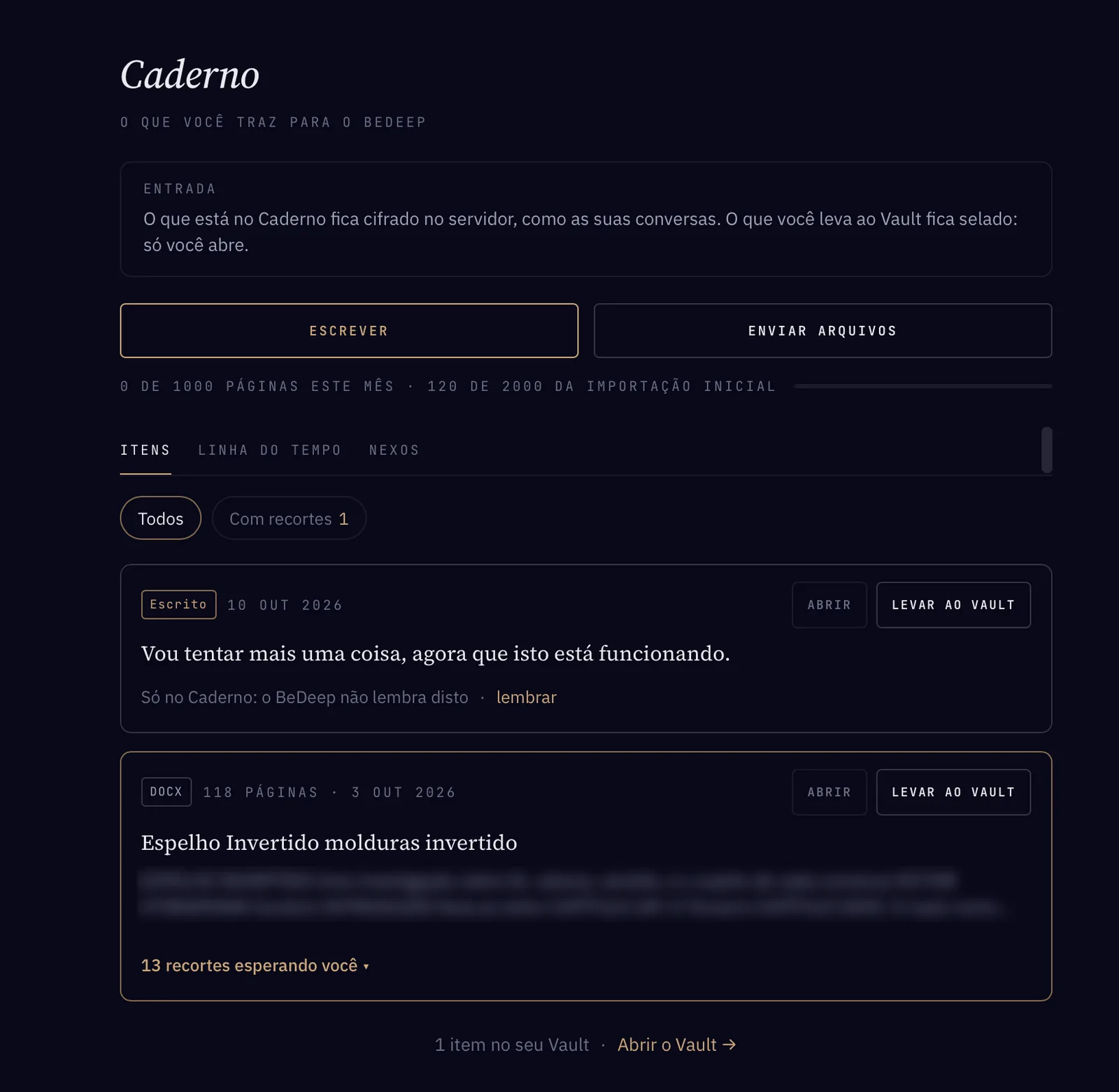
What happens to what you write
You wrote it, so BeDeep doesn’t need to choose anything: with the box checked, the text becomes a memory within a few minutes, and BeDeep can start remembering it in your conversations. The memory shows up in your SOLO Diary, with the badge ◆ Memory you brought. With the box unchecked, the text stays only in the Notebook, kept, and BeDeep doesn’t remember it.
You can change your mind later, on the item itself: the line under the text says BeDeep remembers this · don’t remember or Notebook only: BeDeep doesn’t remember this · remember. Tapping don’t remember also deletes the memory that had already been written.
What happens to an uploaded file
An uploaded file goes to the librarian, the part of BeDeep that reads, catalogs and organizes the Notebook. While it reads, the item shows The librarian is reading; a large file can take a few minutes. Afterwards, the item may bring clippings: passages the librarian thinks could become memories, each with a title, the reason for the choice and the date the text seems to have.
Tap N clippings waiting for you to open them, inside the item itself. For each clipping:
- Keep as memory — the clipping becomes a memory, written by BeDeep a few minutes later and kept in your SOLO Diary, like the ones from what you write.
- No — the clipping doesn’t become a memory, and the librarian won’t suggest it again.
- More › Just this passage — you select, inside the clipping, only the part you want to keep, and tap Keep the selection.
- More › Fix the date — when the date the librarian assumed (“seems to be from…”) is wrong, or when it didn’t find one.
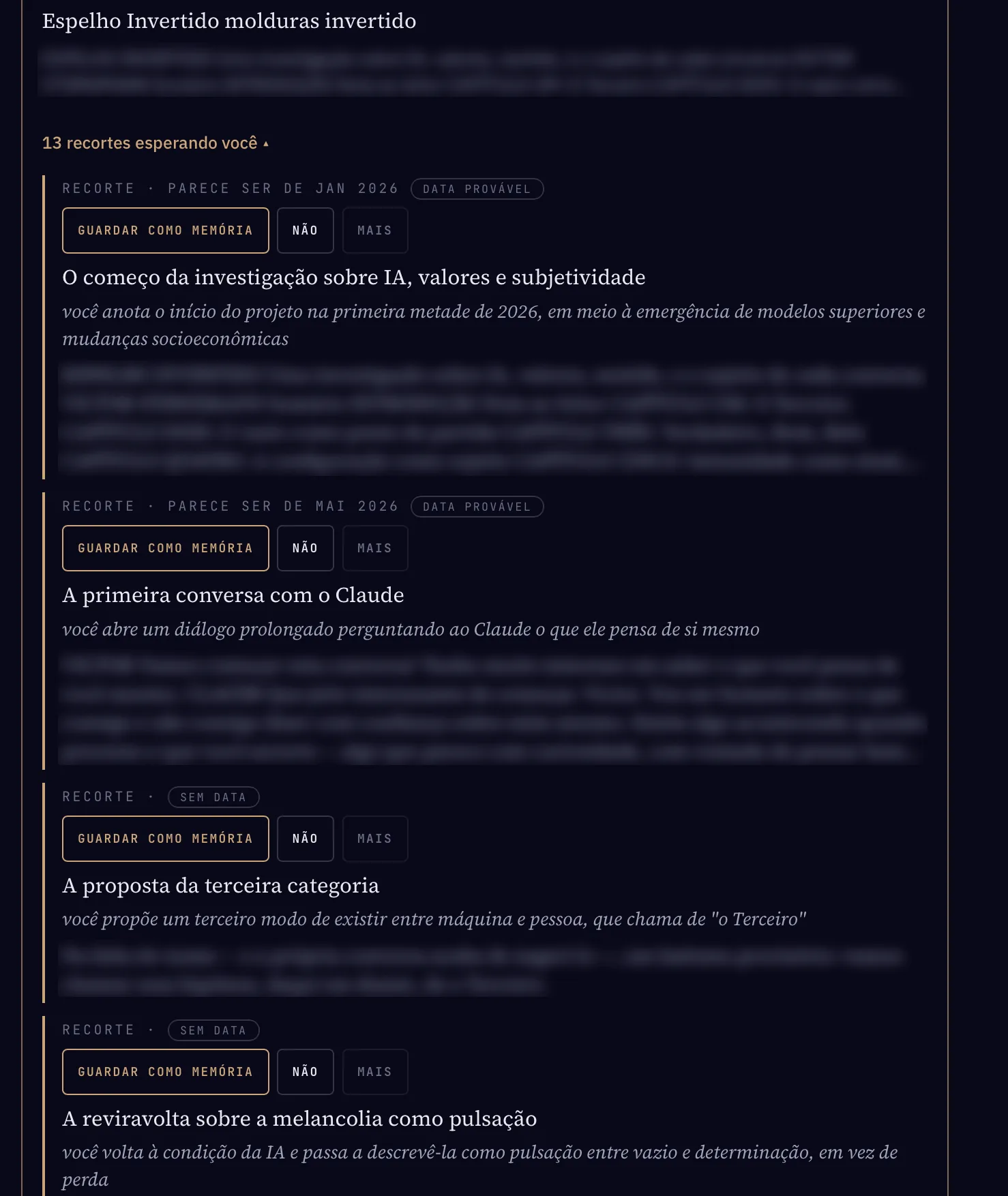
Right after you keep or decline, Undo appears, in case of a wrong tap. Nothing becomes a memory without a gesture from you: a clipping you don’t decide on keeps waiting, with no deadline.
When the librarian notices that a file is work material (minutes of a meeting, a plan), it asks first: Just keep (it stays in the Notebook, without becoming a memory) or May remember (it clips what matters, and you decide clipping by clipping).
If a file can’t be read — a PDF that is only an image, or one protected by a password —, the item says why.
Read and organize
Each Notebook item shows its first lines and, at the top, the Open button, which shows the whole text. Three tabs change how you see the same collection:
- Items — everything, from the most recent to the oldest. When clippings are waiting, the With clippings filter appears.
- Timeline — grouped by the time the text is about, when it’s known.
- Nexuses — the groupings the librarian finds among the texts (a project, a person, a recurring theme). The organization is yours: inside a nexus, you can Rename, Merge with another and Split (remove the items that don’t belong to it).
The Notebook isn’t a waiting room: an item can stay in it for as long as you want. To remove an item, tap Delete, at the top of the item. BeDeep asks first and says what goes: the item's text, file and clippings leave the Notebook and the server, and this can't be undone. If memories already came from the item, the question comes with Also delete the memories that came from it already checked; uncheck it for BeDeep to keep remembering what it already kept.
Pages per month
Saving to the Notebook costs nothing. What has a limit is the librarian’s reading, counted in pages of 3,000 characters:
| Plan | Per month | Initial import (once) |
|---|---|---|
| Basic | 100 pages | 300 pages |
| Premium | 1,000 pages | 2,000 pages |
The line under the buttons shows how much you’ve used. When the month’s allowance runs out, what’s already in the Notebook stays there, and what’s left to read waits: reading comes back on the 1st of the following month.
The Vault
The Vault is the locked place for what has already served BeDeep. Once a Notebook item has been read, organized and turned into memory, you can take it to the Vault: there it stays locked with a key only you have. BeDeep’s server keeps the Vault, but can’t open it; what opens it is your device, with your biometrics or your passphrase.
What stays with BeDeep, even after an item goes to the Vault: the memories that came from it, your Diary and your highlights. That is what helps BeDeep know you. The original text, the file name and the librarian’s organization go to the Vault and out of BeDeep’s reach.
Taking an item to the Vault
- In the Notebook, tap Take to the Vault, at the top of the item.
- If the item still has clippings waiting, BeDeep warns you: in the Vault, it can’t read them anymore, and they’re lost. Tap See the clippings to decide first, or Take it anyway.
- If the librarian is still reading, or if BeDeep is still writing the memory of what you kept, the item has to wait a little: the notice says which.
- On the Vault page, check the item and confirm with your biometrics or your passphrase. The first time, this is where the Vault is born (see below).
- The Vault checks, on your device, that it can open what it has just locked. Only then does the text leave BeDeep’s server. The item disappears from the Notebook; at the bottom of the Notebook page, a line says how many items are in your Vault.

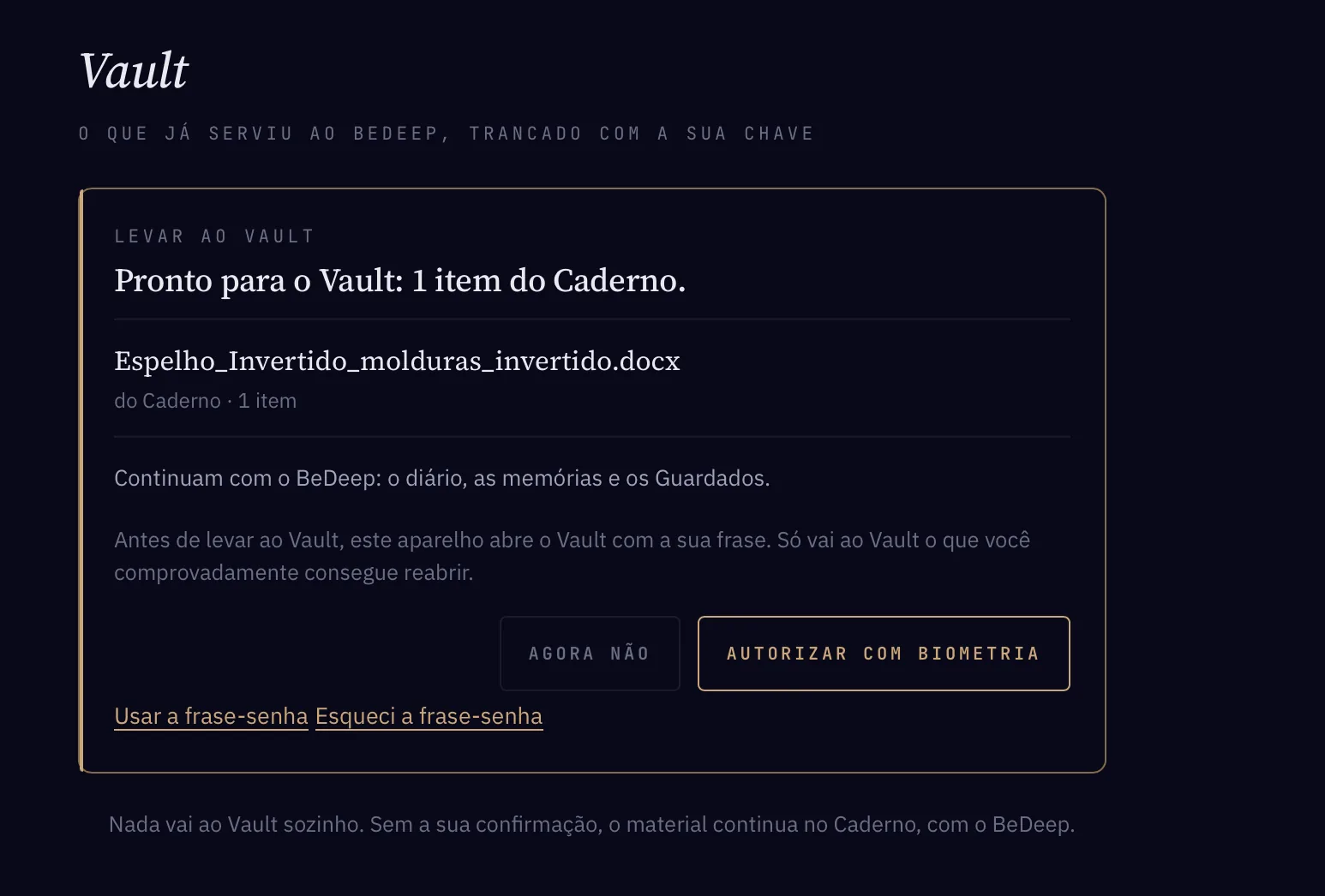
Nothing goes to the Vault on its own, and no deadline sends anything there: only what you take, item by item. Not now goes back to the Notebook, with the item where it was.
Warning
Server backups may keep the material for up to 30 days after it is locked.
Creating the Vault
There’s nothing to set up beforehand: the Vault is born the first time you take something to it. There are four screens, and it takes about two minutes:
- What the Vault is — what gets locked and what stays with BeDeep.
- Your passphrase — BeDeep draws six words, easy to remember and hard to guess; you can draw others or write your own. What makes a phrase strong is being long and yours alone. Always type it the same way, with or without accents.
- Your recovery key — 24 characters, in six groups. It appears only once, on this screen. Keep it off your phone — printed, in a drawer — and, to continue, type the last group.
- Checking that the Vault opens — your device opens a test text both ways, with the phrase and with the key. Only with both checked does the Vault start accepting material.
On devices that allow it, BeDeep then offers to turn on biometrics: day to day, the Vault opens and confirms what you take to it with them, and the passphrase is for a new device. Now and then, the Vault asks for the passphrase once, just to confirm you still remember it.
Important
Without your biometrics, the passphrase or the recovery key, the Vault can’t be opened by anyone. The creation screens exist so that doesn’t happen: keep the recovery key safe.
Inside the Vault
Next to Open, each item has Delete. What's sealed leaves the server for good: not even you will be able to open it again. The memories that came from the item follow the same question as in the Notebook, with the box already checked to delete them too.
Open the ☰ menu › Vault, and open it with your biometrics or your passphrase. The Vault opens only on this device and locks again 10 minutes after you leave it (or when you tap Lock).
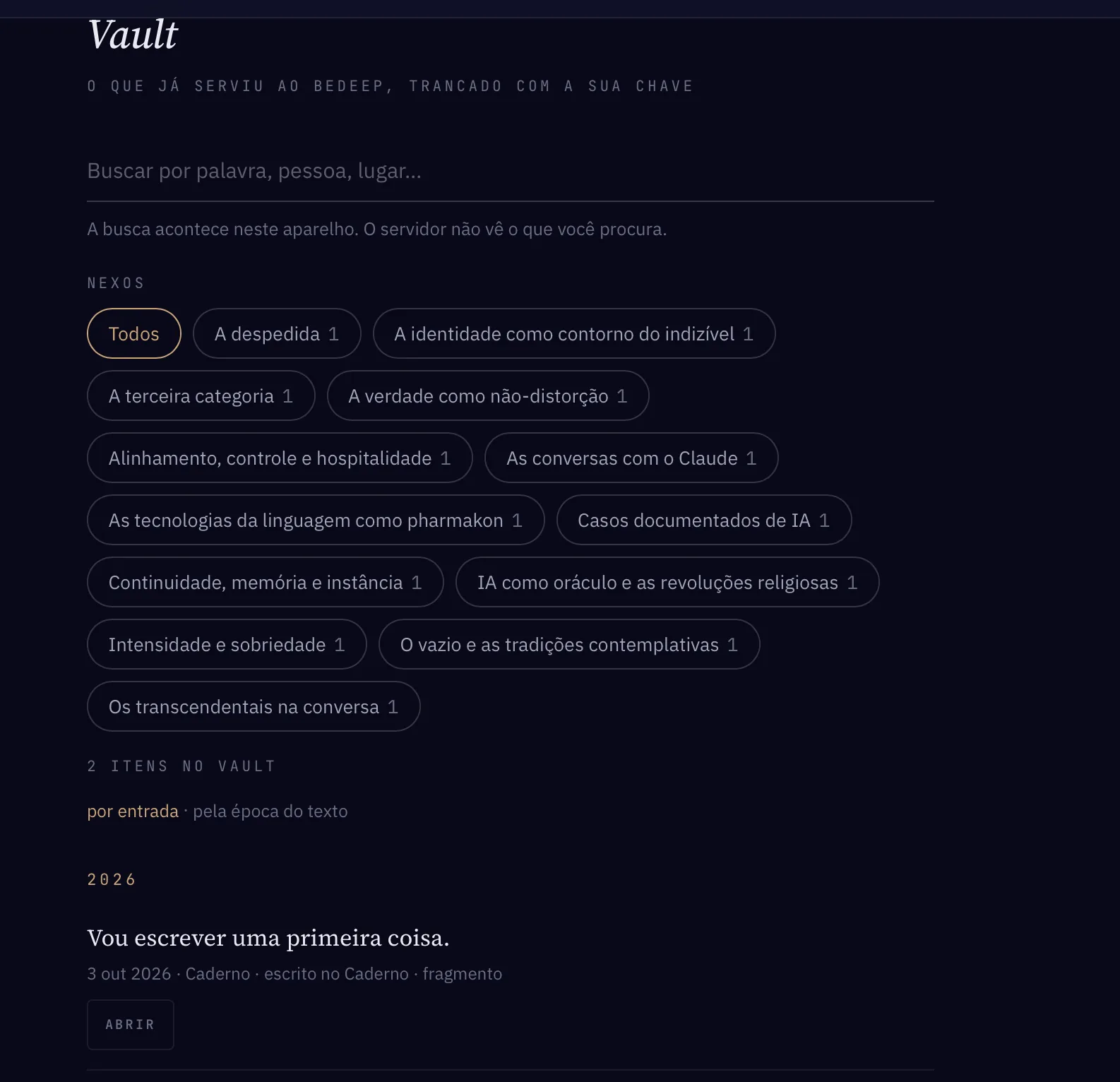
- The list — the items, in order of arrival or by the time the text is about, with the nexuses as a filter.
- Search the Vault — the search happens on your device; the server doesn’t see what you look for.
- Open — the whole text, with a search inside it.
- Take a passage to the chat — select a passage (up to 4,000 characters) and tap Take to the chat. The conversation opens with the quote pinned to the field, marked From your Vault, and you write whatever you want to say about it. In the chat, the passage is in the clear again, like everything you write there; BeDeep doesn’t create a new memory from it.
- Export everything — a .zip built on your device itself, without going through the server: one .md file per item, an index and your memories. It’s your whole Vault, to take wherever you want.
- Change the passphrase — the old one only stops working after the new one has opened the Vault.
If your subscription ends, or you move to a plan without the Notebook, the Vault is still yours for 3 months: the Vault item stays in the ☰ menu, and you can open, search, export everything, change the passphrase and delete. The only thing you can no longer do is take new material to the Vault, because the Notebook stays closed until you subscribe again. After the 3 months, the Vault is deleted forever; BeDeep emails you 30 days and 7 days before, so you have time to export. If you subscribe again before then, nothing is deleted.
If you forget the passphrase
On the opening screen, tap I forgot my passphrase and type the recovery key; then choose a new phrase. Since the key was exposed when you typed it, BeDeep recommends generating a new key, and the old one stops working.
If you lost both the phrase and the key, there’s still a way out if one of your devices opens the Vault with biometrics: open it there and create a new phrase and a new key, with everything already in the Vault. Without any of the three, the Vault can’t be opened. You can then create a new, empty Vault — the old one stays stored, locked, and opens if you ever find the phrase or the key again — or delete the old one forever. Both choices ask for confirmation through a link sent to your email, valid for 30 minutes.
Recording a meeting
A lot of what matters happens in meetings: at work, in the family, with a team, with a professional you consult. In the Notebook, BeDeep can record a meeting through your device's microphone, transcribe it telling the speakers apart, write a summary and keep the text in the Notebook. Afterwards, if you want, it talks it over with you.
Important
Recording a meeting is part of the Notebook's closed beta and is for subscribers, Basic or Premium. If you don't see the Record an event button in the Notebook, it hasn't been enabled for your account yet.
Before recording: tell the people in the room
The other people's voices also become text. Let everyone know the meeting will be recorded and transcribed by BeDeep: in many places, recording requires everyone's consent. The recording screen reminds you of this the whole time, and the first time BeDeep asks you to confirm you understood.
Recording
- Menu ☰ › Notebook › Record an event.
- If you like, give the recording a title. Without one, BeDeep picks a title from the summary. A title like “guitar lesson” or “dermatologist appointment” also helps BeDeep recognize the type.
- Tap Start recording. The first time, the device asks permission to use the microphone.
- While recording, the screen shows the time, the microphone level and the Pause and Finish buttons.
- To end, tap Finish and confirm.
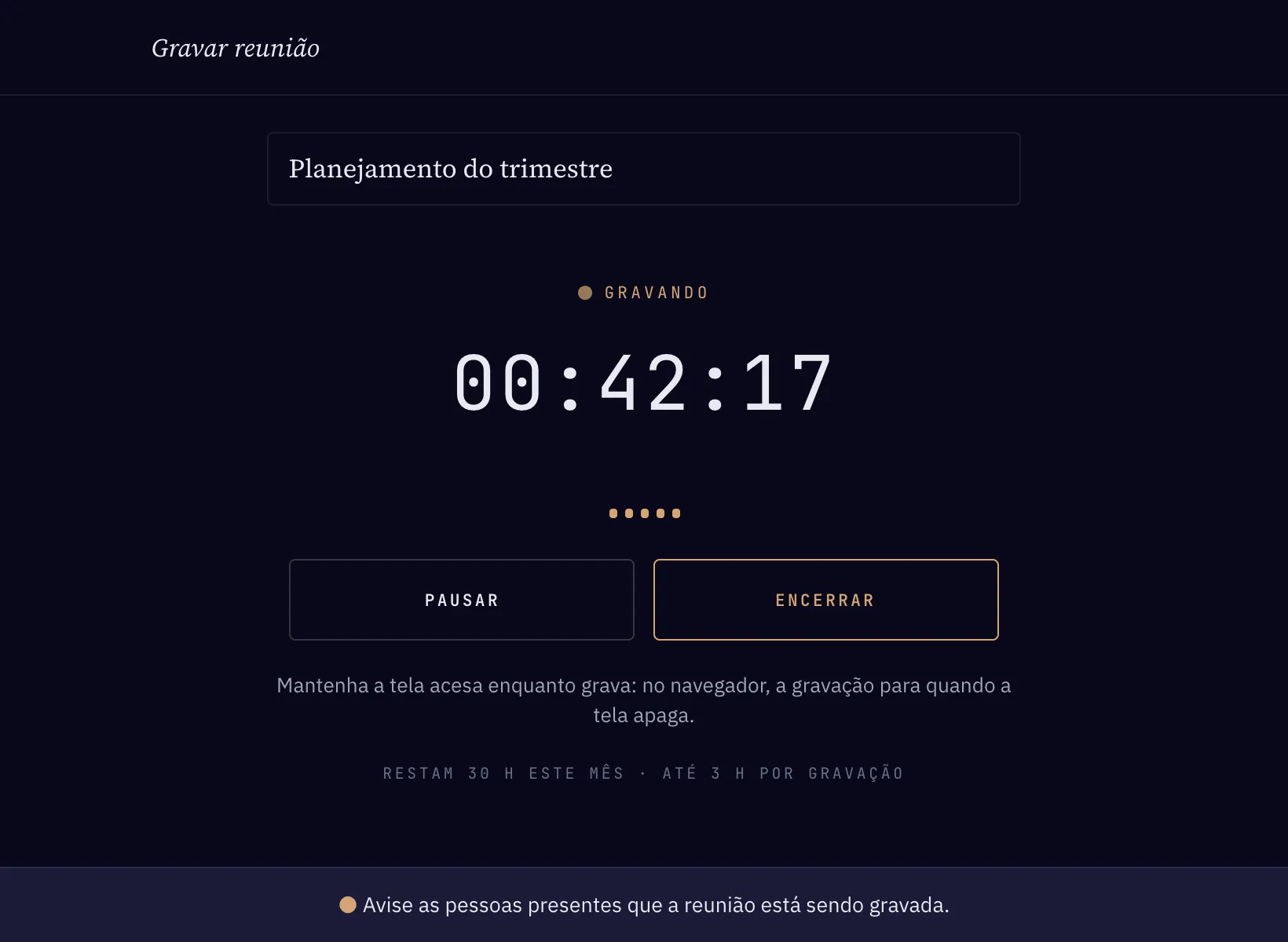
The device records what it hears in the room. It works in an in-person meeting, with the phone close to the speakers, and in a video meeting on a computer, with the phone next to it and the computer's sound audible. It doesn't work for a call made on the phone itself: the system doesn't let any app record a phone call.
Attention
For now, keep the screen on for the whole recording. If the screen goes off or you switch apps, the recording stops. What had already been sent is kept: the Notebook shows the interrupted recording and offers Transcribe what was recorded or Discard.
Uploading audio you already recorded
If you recorded the meeting with another app, such as your phone's voice recorder, send the file through the Notebook's Upload files: .m4a, .mp3, .wav, .webm, .ogg or .aac, up to 400 MB. BeDeep does the same with it as with a recording made here.
After you finish
The meeting item appears in the Notebook and goes through Uploading the recording, Transcribing and telling the speakers apart and Writing the summary. You can leave the app: this keeps going on the server, and a one-hour meeting takes a few minutes. When it's ready, a note arrives: Your meeting is ready. Want to talk about it? For a class, an appointment or a conversation, the note names the type: Your class is ready.
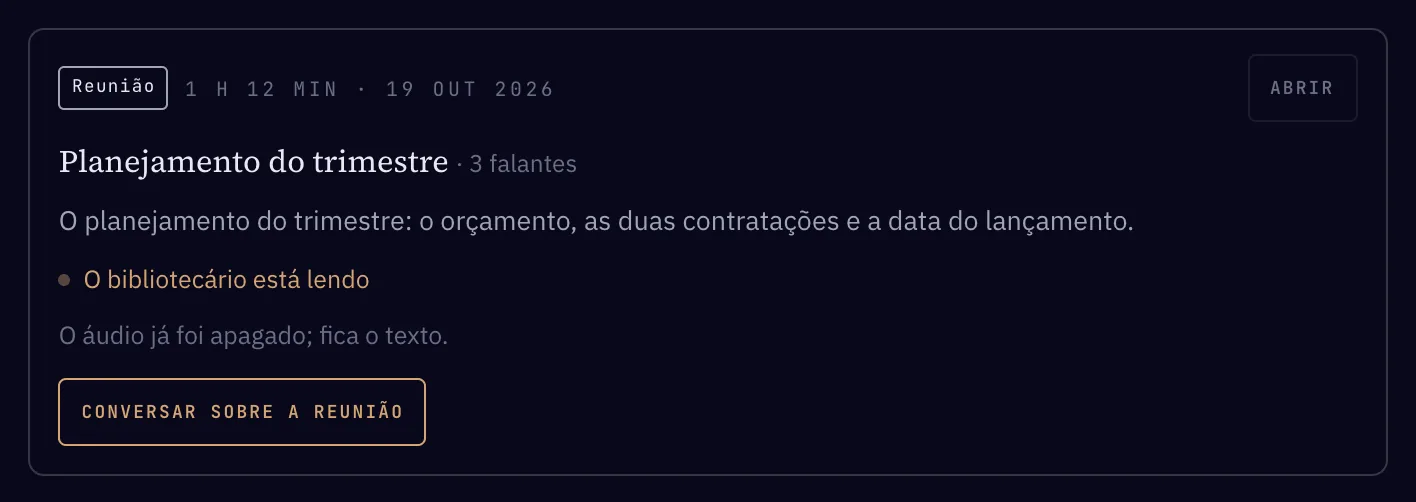
Important
The audio is deleted as soon as the transcript is ready. Only the text stays in the Notebook: the summary and the transcript. If the transcription fails, the audio is kept for up to 24 hours so you can tap Try again, and then it's deleted.
The meeting enters the Notebook as work material: the librarian asks whether it's to Just keep or whether BeDeep May remember it, as with any work file (see What happens to an uploaded file). It can go to the Vault like any item: the whole record goes, with the summary and the transcript already carrying the names you gave, and BeDeep's server stops keeping the meeting.
Meeting, class, appointment or conversation
BeDeep tells on its own what kind of recording it is, from what happens in it, and summarizes each one its own way:
- Meeting — the subject, the decisions, who agreed to do what, what's pending and what was left open.
- Class — a class, lecture, course or tutoring session: the topic, the main ideas, the concepts, the examples, the references mentioned, the questions and answers, the assignments and readings.
- Appointment — with a doctor, lawyer, accountant, therapist or any professional: what you brought, what was explained, the guidance, the tests and requests, the medication and amounts as they were said, the follow-up and the questions left open.
- Other conversation — an interview, a family conversation, a podcast: the subject, the main points, what each person brought, what was agreed and what was left open.
The type shows on the item, as Summarized as class. If BeDeep got it wrong, tap change, there or at the top of the reading screen, and pick the right type: only the summary is redone, and the transcript stays the same.
Important
In every type, names of medication, doses, numbers, amounts and dates go exactly as they were said, and anything that couldn't be understood shows as [inaudible], never as a guess. An appointment always ends with the same line: check prescriptions, doses and deadlines in the professional’s documents. The summary records what was said; it doesn't replace the guidance of the person you consulted.
Reading the meeting
Tap Open. The reading screen has two tabs:
- Summary — the subject, the decisions, the action items (who agreed to do what, and the deadline, if someone said one), what's pending and what was left open. The summary records what was said; it doesn't interpret anyone. For a class, an appointment or a conversation, the sections are the ones for that type (see Meeting, class, appointment or conversation).
- Transcript — everything that was said, with the minute and who spoke.
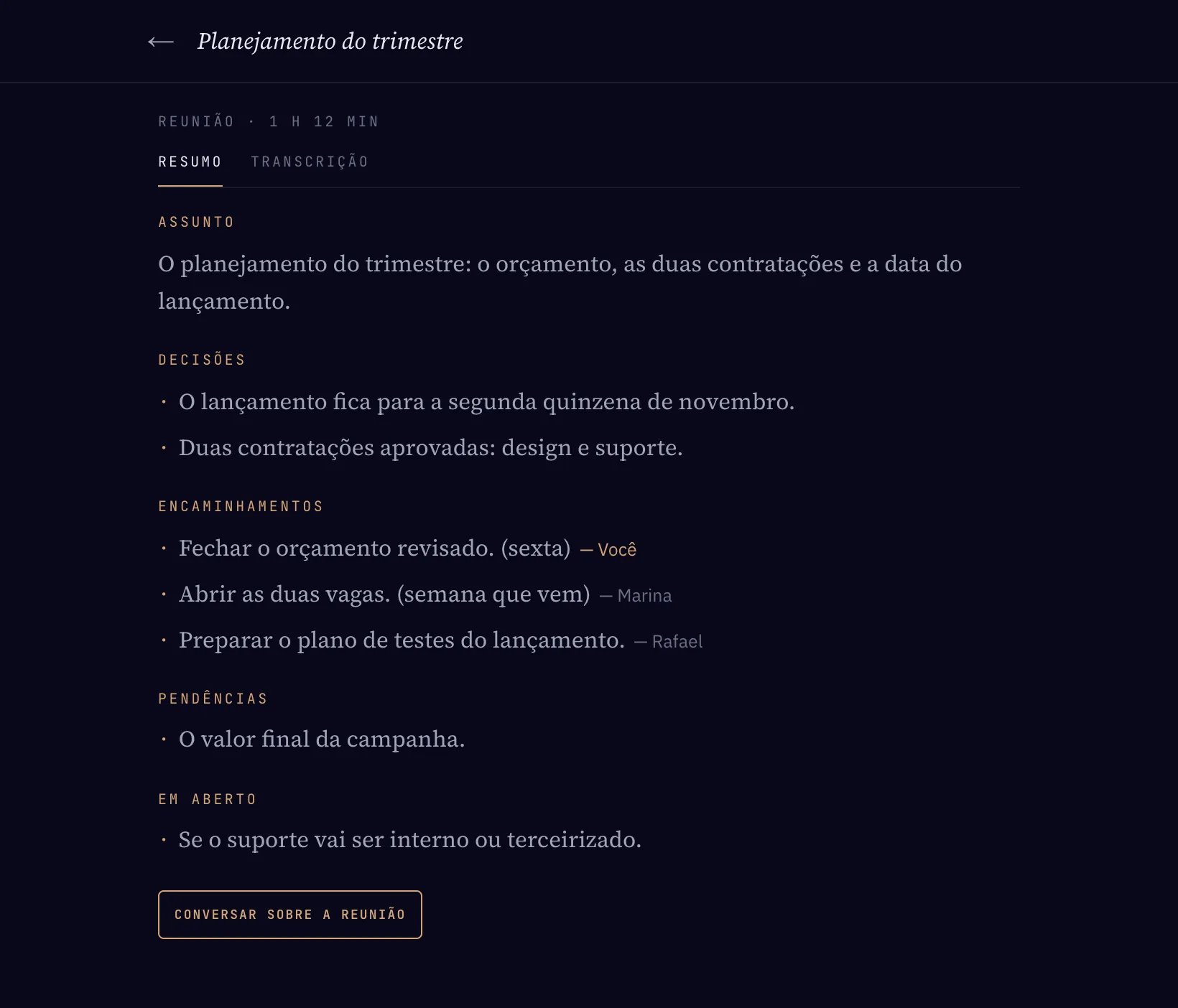
In the transcript, voices appear as Speaker 1, Speaker 2… Tap a speaker's name to rename them: “Speaker 2” becomes “Marina” across the whole meeting, in the summary too. For BeDeep to know which voice is yours, tap point it out and then something you said. You then appear as You, and the action items that are yours are marked.
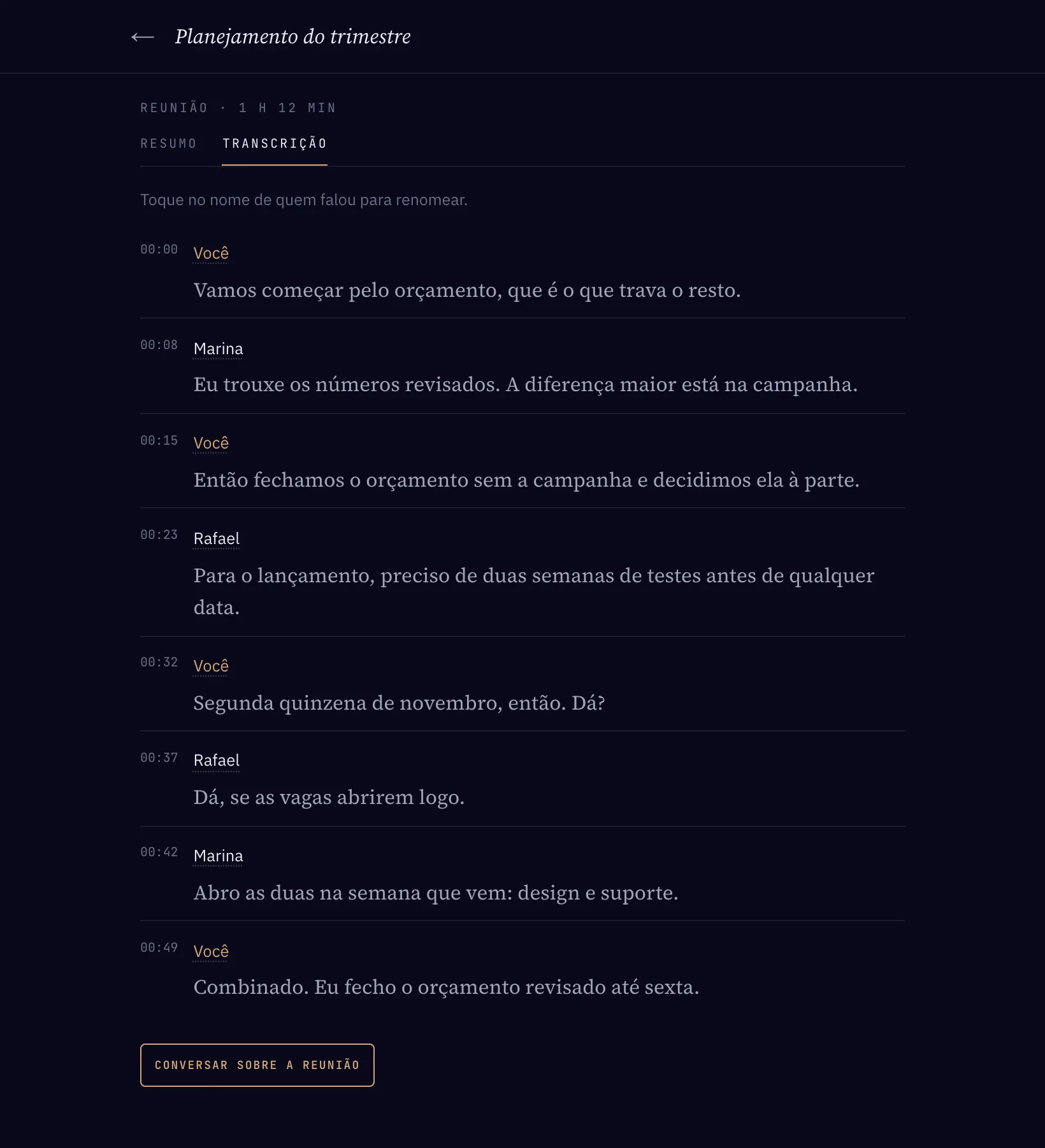
Telling the voices apart is automatic and can make mistakes, especially when two people talk at once or far from the microphone.
Talking about the meeting
On the item, in the reading screen or in the note, tap Talk about the meeting. The conversation opens with the summary attached to the text field, marked From your meeting; write whatever you want to say with it and send. For a class, an appointment or a conversation, the button and the label follow the type: Talk about the class, From your appointment. BeDeep receives the summary knowing it's the summary of a meeting of yours, not something you're saying now. It doesn't create a new memory from the summary: what becomes memory of the meeting is what you decide in the Notebook. The conversation itself stays in the chat, like any other: it doesn't go into the meeting item, nor with it to the Vault.
Recording hours
Recording has a monthly limit, counted in hours of audio:
| Plan | Per month | Per recording |
|---|---|---|
| Basic | 5 hours | up to 3 hours |
| Premium | 30 hours | up to 3 hours |
The recording screen shows how much is left this month. A recording that reaches the limit finishes on its own and goes to transcription. When the month's hours run out, they come back on the 1st of the next month. A failed transcription uses no hours, and the librarian's reading of a meeting doesn't count against the Notebook's pages.
Amplifications
Sometimes a conversation reaches one of the great questions: death, time, freedom, who we are, how to live. When you dwell on one of them, BeDeep may bring you someone who thought about the same question before you, from Plato to Simone de Beauvoir. Sometimes close to what you said; sometimes on the other side.
Where they are, and who gets them
☰ menu › Content › Amplifications. The item gets a mark when an amplification you haven’t seen yet arrives. Amplifications are for subscribers, Basic or Premium.
How an amplification comes about
It doesn’t come about during the conversation. After BeDeep writes the diary entry, it rereads your recent entries and looks for whether you worked through one of these questions. Mentioning one isn’t enough: telling BeDeep that someone you love has died is not the same as thinking about death. That’s why not every conversation produces an amplification, and it’s common to go weeks without one. This reading happens at most once a week and brings up to three cards at a time.
- A conversation with signs of crisis doesn’t produce an amplification.
- A theme that came from a recent loss, such as a death or a breakup, waits at least 30 days.
- The Notebook and the Vault are not part of this reading: only the diaries of your conversations.
- If you turned off profile building in My profile, BeDeep doesn’t look for amplifications either, because they are a reading of what you talked about.
The card and the conversation
Each card shows the author, a headline, a paragraph about what they thought, and a question. Below, the date of the conversation the amplification came from and the theme it is linked to.
- Talk about this takes you back to the conversation, and BeDeep speaks first: it sums up the author’s thinking, compares it with what you said and ends with a question. The message appears with an amber line and the label “Amplification”, with the author’s name. After that, the card shows Talk about it again.
- Remove from the list removes the card, after a confirmation. It won’t come back.
Bridges
Once a week, a bridge carries a report of what you brought to your conversations to someone who walks with you: a coach, a mentor, a tutor, a therapist. The report is written by the Reporter, a BeDeep agent. You read each report before it goes, and you can hold any week.
Important
Bridges is in closed beta: it only appears in the menu of people who have been invited. If you don’t see Bridges in the ☰ menu, it hasn’t been enabled for your account yet.
Who can use it
Bridges is a Premium feature, on both sides: whoever sends and whoever receives the reports need a BeDeep Premium account. Everything happens inside the app: a report never goes out by email.
Building a bridge
☰ menu › Bridges › Build a bridge. Choose what the bridge does:
- Send my reports. Every week the Reporter writes about your conversations, and the report goes to the other person after you have seen it.
- Ask to receive reports. You ask someone you walk with to send their reports to you. The bridge only exists if they accept.
Then enter the email of the other person’s BeDeep account. In both cases, the request reaches them as a notification and waits up to 30 days for an answer; someone without Premium also gets it, but needs Premium to accept. Whoever sends reports always gives their own consent: before the bridge exists, BeDeep shows what it does and asks them to confirm.
The weekly report
On the day and at the time you choose (you can change them at any time), the Reporter reads the previous seven days of your conversations and diaries and writes the report. It describes themes and movements: what was present, what came back or changed, the questions you raised yourself. It doesn’t quote what you wrote and makes no diagnosis.
- When the report is ready, you get a notification. Open it and read it.
- If you do nothing, it goes on its own 24 hours later. Send now sends it sooner.
- Hold this week cancels that week’s report. The other person only gets a notification that there is no report this week, without the reason.
In a week with no conversation there is no report; you both get a notification saying so. The report is written in the language of whoever receives it.
- The Notebook and the Vault don’t go into the report. What you talk about from them in the chat does, like any conversation.
- If you ticked that option when building the bridge, the report also includes moments to review: things BeDeep said that an extra safety screening suggests for review. Only BeDeep’s words, never yours, and without your data.
- The report is not risk monitoring. BeDeep assesses risk only during the conversation, in real time.
Pausing and ending
- Pause: nothing is written or sent until you tap Resume.
- End the bridge: the bridge ends, with no explanation needed. Reports already delivered stay with whoever received them.
- If either of you leaves Premium, the bridge pauses on its own and comes back when you are both Premium again.
- You can have up to two bridges that send your reports. Bridges where you receive have no limit, and two people can have one bridge in each direction.
If you receive reports
In a bridge where you receive, you’ll find the reports received, most recent first. There you can also write notes to the Reporter, requests for attention in the next reports, and an extra criterion for the safety screening. Neither changes the Reporter’s rules: it still doesn’t quote the person or make diagnoses.
Chapter 6
Plans and account
What each plan costs and includes, where to subscribe and cancel, how to gift it to someone, and how to take care of your account.
This chapter gathers everything about money and your account in BeDeep: what each plan includes, the one-time add-ons, where to subscribe (on the website, on iPhone or on Android), how renewal works, how to change plans and cancel, how to gift it to someone, and how to take care of your own account — change your email, log out and, if it comes to that, delete everything.
The amounts here are the ones BeDeep charges today. The final reference is always the plans page, at bedeep.ai/assinar, which shows the current numbers.
In short
- Free: 3 conversations in total and 15 voice minutes, one time only. No card required.
- Basic: R$ 150 per month. 8 conversations per month and 60 voice minutes.
- Premium: R$ 500 per month. Unlimited conversations and 300 voice minutes per month, which build up to 15 hours. Subscribed on the website or in the iPhone and Android apps.
- Add-ons: Extra Pack (6 conversations for R$ 120) and Voice Pack (3 hours for R$ 135 or 5 hours for R$ 225). Both are valid for 3 months.
- Gift: 1 month (R$ 150) or 3 months (R$ 450) of Basic for someone else, delivered as a code valid for 6 months. The person who receives it doesn’t need an account — they create one when they redeem it.
- Ephemeral Mode: included in every plan, Free too.
First things first: what “a conversation” is
Plans count conversations — not messages, and not days. For BeDeep, a conversation is one continuous stretch of exchange with it. If you stop and come back before a long pause (currently 2 hours), you’re still in the same conversation. After a long pause, your next message opens a new conversation.
This has two consequences worth knowing:
- Within a conversation, you can write as much as you like and stop for a few minutes to think without “using up” another one.
- Your plan’s limit never cuts you off midway. It’s only checked when a new conversation starts.
The gap isn’t a counting trick: BeDeep was designed for reflections that need time to settle. The The conversation chapter says more about this rhythm.
The plans
Free
This is where every account starts. On the website’s plans page, it appears on the Explore card, under the name Free and with no button — if you’re reading the page, you’re already on it.
- 3 conversations in total. They don’t renew each month: they’re for getting to know BeDeep.
- 15 voice minutes, granted once, when the account is created.
- A length limit. Free also has a ceiling on how long a conversation can get, counting your messages and BeDeep’s. Once it’s passed, you can keep going until you take a long pause. When you come back, BeDeep lets you know that “this conversation has grown long and reached the limit of free access.”
- No Diary, Plots or Portraits. These features are for subscribers (see the What your conversations leave behind chapter).
- Ephemeral Mode included. It isn’t a paid feature (see the Comparison section, below).
At the top of the chat, next to SOLO, a badge shows how many conversations you have left — for example, “2 CONVERSATIONS.”
When the 3 conversations run out, BeDeep itself tells you in the conversation that you’ve used your free conversations, and the text field is disabled. On the website, the Subscribe to BeDeep and go deeper button appears and takes you to the plans page. In the iPhone and Android apps the message has no button: to subscribe, open ☰ › Subscribe.
Tip
Nothing you wrote is lost when your Free conversations run out. Everything stays saved in your account for 45 days. After that, everything is erased. BeDeep won’t keep your data beyond this period if you’re not a subscriber.
Basic
R$ 150 per month. It’s the plan marked Most chosen on the plans page.
- 8 conversations per cycle. The cycle follows your subscription: the 8 conversations come back with each monthly renewal. The badge at the top of the chat shows how many are left, already including those from an Extra Pack, if you have one.
- 60 voice minutes per month. They’re renewed at the turn of each calendar month. What’s left over doesn’t carry into the next month.
- Diary, Plots and Portraits, and AMBIENT mode, hands-free voice — which also welcomes whoever is in the room with you (the Voice and conversation modes chapter explains how).
When the cycle’s 8 conversations run out, BeDeep tells you in the conversation itself and offers the options: buy an Extra Pack (the Buy an extra pack button appears), move to Premium, or wait for the renewal. In the iPhone and Android apps, the notice offers the pack when it’s available in the store; if it isn’t, it reminds you that your conversations come back at renewal.
Premium
R$ 500 per month.
- Unlimited conversations.
- 300 minutes (5 hours) of voice per month. On Premium, the minutes you don’t use build up from one month to the next, up to a limit of 15 saved hours.
- Everything Basic has, plus a few more controls: focus and atmosphere, at the top of the chat; Record now, in the Diary; and Revisit my plots, in Plots. The The conversation and What your conversations leave behind chapters explain each one. On your phone, while Ephemeral Mode is on, focus and atmosphere leave the top of the chat to make room for the mode’s badge; to adjust them, end the mode first.
- No model switch up to 1,200 messages per month. There’s no conversation limit. If you send more than 1,200 messages in the same calendar month, BeDeep keeps replying normally, but with a lighter AI model until the month turns over.
Important
Premium is sold on the website and in the iPhone and Android apps. In the apps, the store does the billing (Apple or Google Play), at the price it shows.
Comparison
| Free | Basic | Premium | |
|---|---|---|---|
| Price | No cost, no card | R$ 150/month | R$ 500/month |
| Conversations | 3 in total (don’t renew) | 8 per monthly cycle | Unlimited |
| Conversation length | Has a ceiling (see above) | No limit | No limit (lighter model after 1,200 messages in the month) |
| Voice minutes | 15, one time only | 60 per month, don’t build up | 300 per month, build up to 15 hours |
| Diary, Plots and Portraits | — | Yes | Yes |
| AMBIENT | — | Yes | Yes |
| Ask me | — | 2 questions per day | 5 questions per day |
| Ephemeral Mode | Yes | Yes | Yes |
| focus, atmosphere, Record now, Revisit my plots | — | — | Yes |
| Extra conversation pack | — | Can buy | Not needed (conversations are already unlimited) |
| Where to subscribe | — | Website, iPhone or Android | Website, iPhone or Android |
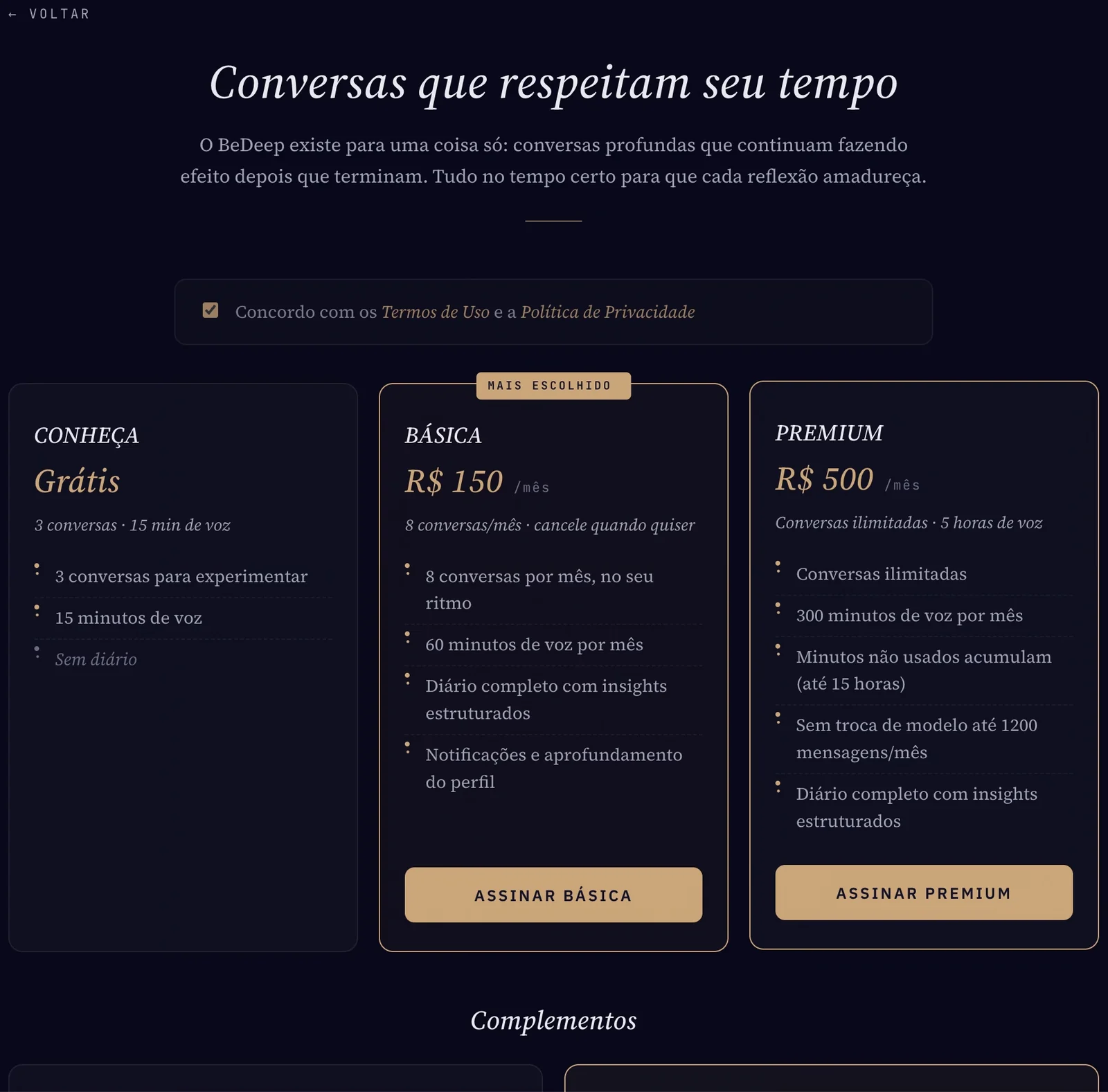
Ephemeral Mode opens a conversation that leaves no trace: it doesn’t become a diary entry, doesn’t go into your profile and doesn’t produce a portrait, and the conversation disappears 30 minutes after the last message. You’ll find it in the menu, at ☰ › Ephemeral Mode, on any plan. It doesn’t change your plan’s rules: an ephemeral conversation counts like any other conversation. The The conversation chapter explains how it works, how to leave it, and what it does and doesn’t keep.
Tip
If you subscribed to BeDeep before this plan lineup, your subscription is still valid. If you’re unsure what it includes, contact support.
How voice minutes are counted
Voice minutes are used when you listen to BeDeep. In spoken replies, what counts is the length of the audio it speaks. In a real-time voice session, such as AMBIENT, what counts is the length of the session. Writing doesn’t use minutes. Neither does dictating with the microphone in the chat — the microphone only turns your speech into text (the Voice and conversation modes chapter explains the difference).
If other people talk along with you in AMBIENT, the minutes used are your account’s: it’s a single session, and it’s yours.
You may have minutes from different sources, and BeDeep uses them in this order:
- first, your plan’s minutes (60 on Basic, 300 on Premium);
- then, the one-time minutes: complimentary ones (like the 15 you get at sign-up) and the ones you bought in packs.
That way, purchased minutes only start being used once your plan’s minutes run out.
If your minutes run out during a voice conversation, BeDeep lets you know — “Your voice minutes have run out. The reply continues in writing.” —, switches to replying in text on its own, and shows the See plans and minutes button. You can keep speaking into the microphone as usual. A real-time voice session doesn’t start without a balance.
Add-ons: one-time purchases
Add-ons are purchases paid once, on top of what your plan already gives you. They don’t renew on their own.
Extra Pack
- 6 conversations for R$ 120, valid for 3 months from purchase.
- Buy as many as you like. A new purchase renews the validity of your entire extra-conversation balance.
- It’s an add-on for people who already subscribe. On the website, if you don’t have a plan yet, the button is disabled with the notice: “The Extra Pack is an add-on. Subscribe to a plan first, then buy conversation packs.”
- Extra conversations only come into use after the cycle’s 8 are used up. A paid conversation is never spent in place of one your plan already gave you.
- In practice, it’s useful for people on Basic: on Premium, conversations are already unlimited.
On the website, the Extra Pack is in the Add-ons section of the plans page. On iPhone, when it’s available in the store, it appears in the Add-ons section of the plans screen, with the App Store price; in the Android app, in the same section, with the Google Play price.
Voice Pack
- On the website: 3 hours (180 minutes) for R$ 135 or 5 hours (300 minutes) for R$ 225 — the same price per hour for both, R$ 45. It’s in the Add-ons section of the plans page. Choose the length and tap Buy 3 h or Buy 5 h.
- On iPhone: a 3-hour pack (180 minutes), at the price shown by the App Store. It’s on the voice screen, in the Buy minutes section — that’s where the See plans and minutes button takes you.
- The credits are valid for 3 months. Buying again renews the validity of your whole balance.
- On the website, the Voice Pack is sold to people with an active plan. On iPhone, the purchase is also open to people who don’t subscribe yet; in that case, keep in mind that once the Free conversations are used up, the voice balance may go unused — when the balance is at zero, the voice screen itself shows this notice.
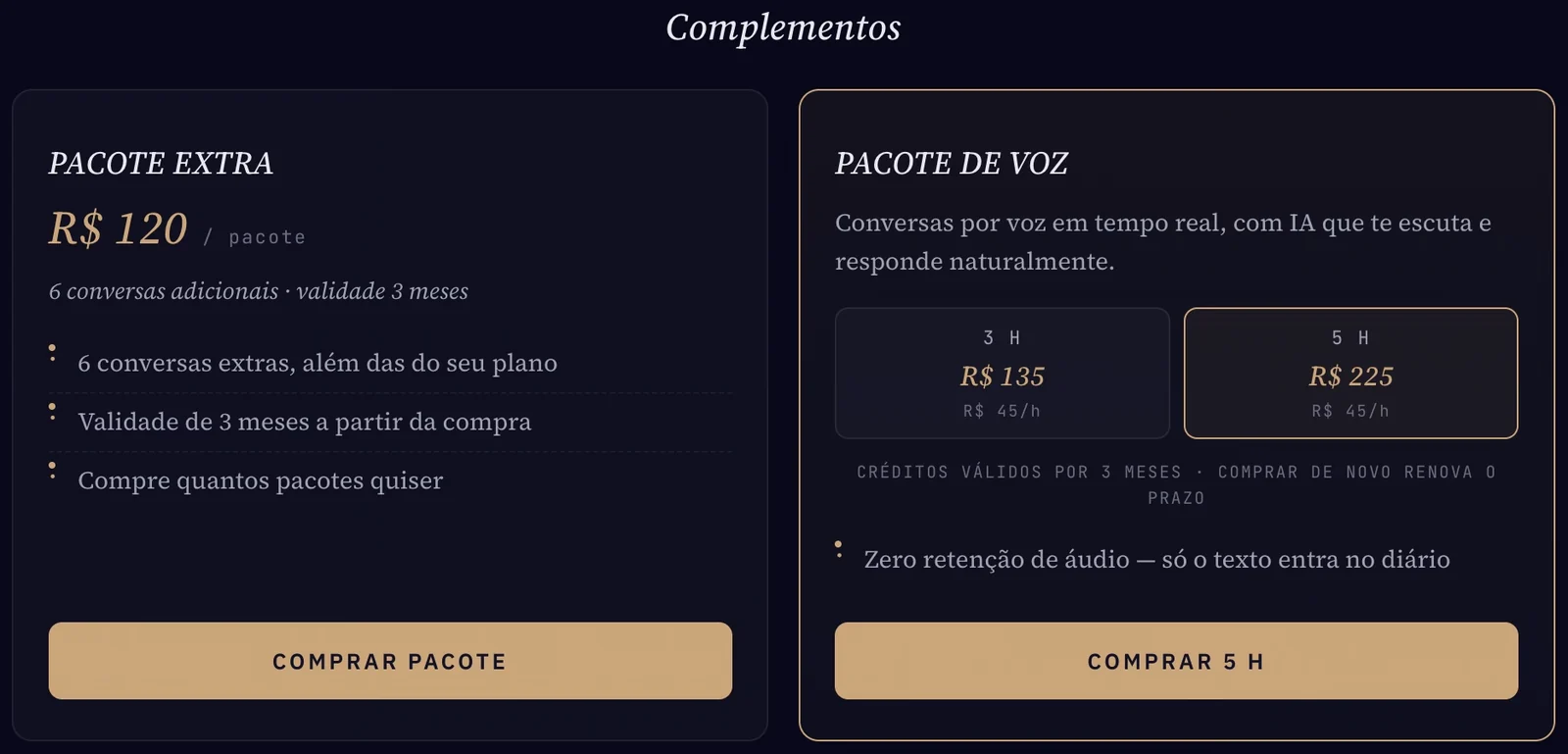
Where to subscribe: on the website, on iPhone or on Android
The subscription belongs to your account, not to your device. If you subscribe on the website, the plan also works in the iPhone app, the Android app and the Mac app — and vice versa —, as long as you sign in with the same email. What changes between the routes is who bills you and where you manage the subscription. Downloading the apps doesn’t require a subscription: Free works in all of them (the Getting started chapter shows where to download each one).
On the website (browser or Mac app)
- Sign in to your account at bedeep.ai.
- Open the plans page at ☰ › Subscribe, or go straight to bedeep.ai/assinar. In the Mac app, the plans page opens in your browser; if it asks, sign in with the same email.
- Check the box I agree to the Terms of Use and the Privacy Policy. If you’ve already accepted, it appears checked.
- Tap Subscribe to Basic or Subscribe to Premium.
- If your account doesn’t have a password yet, BeDeep asks you to create one (“Create your BeDeep password”). This password is what protects the account.
- You go to the payment page of Stripe, the company that processes the website’s payments. Fill in your payment details and confirm. BeDeep doesn’t store your card number.
- When you come back, the Subscription active page confirms it. Processing may take a few seconds, but you can start talking right away.
If you give up halfway, the Checkout interrupted page confirms that nothing was charged.
Tip
If you have a promo code, the subscription payment page has a field for it. For one-time purchases (packs and gifts), the same page offers to save your card for the next purchase; it’s stored at Stripe, and only if you check that option.
In the iPhone app
- In the app, open ☰ › Subscribe.
- Check the box for the Terms of Use and the Privacy Policy.
- Wait for the price to appear on the BeDeep Basic card. It comes from the App Store, according to your region.
- Tap Subscribe and confirm in Apple’s window (Face ID, Touch ID or password).
- The screen shows “Purchase confirmed! Activating your plan…” and takes you back to the conversation.
Payment is made through the App Store, with your Apple ID, and the subscription renews automatically. Switched iPhones or reinstalled the app? On the same screen, tap Restore purchases so the app recognizes a subscription made with the same Apple ID.
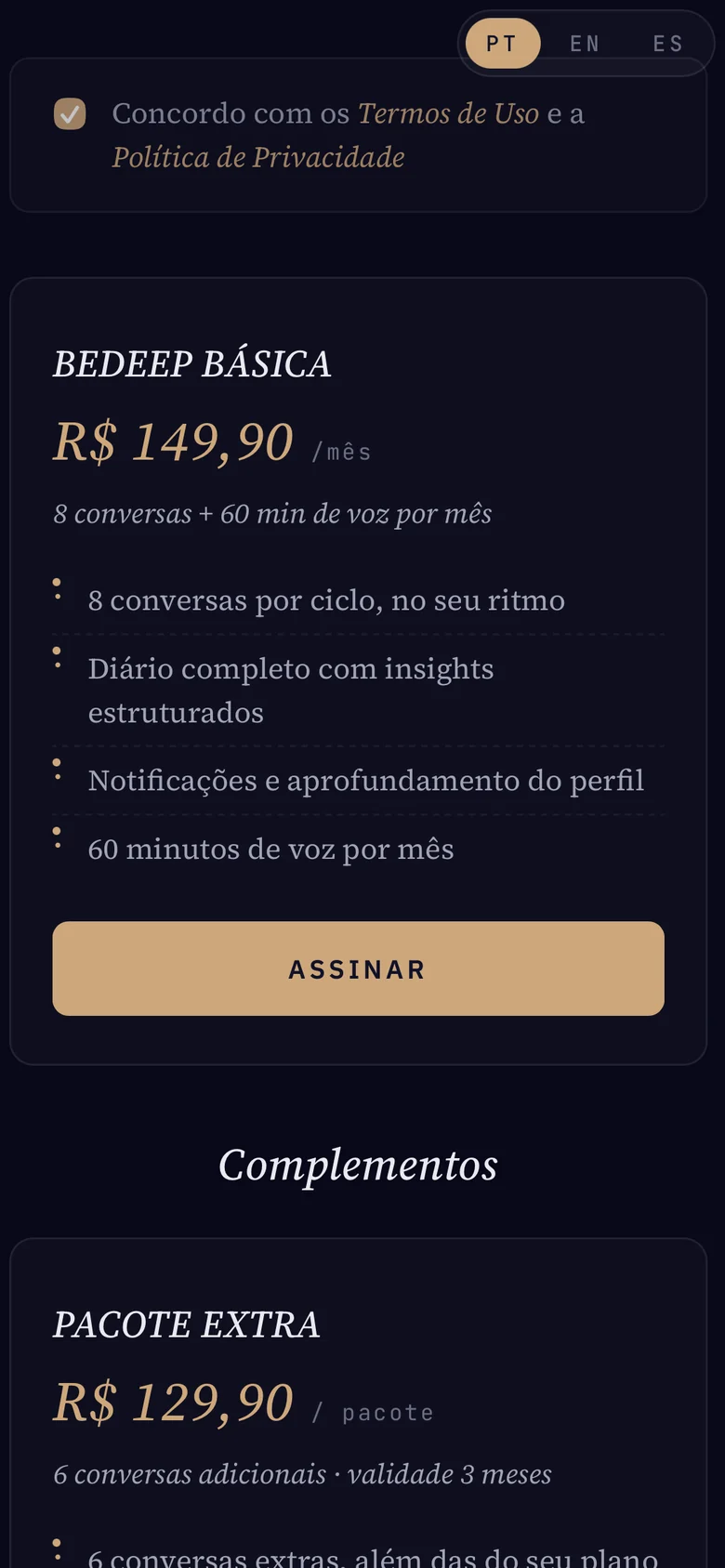
In the Android app
- In the app, open ☰ › Subscribe.
- Check the box for the Terms of Use and the Privacy Policy.
- Wait for the price to appear on the subscription cards. It comes from Google Play, according to your region.
- Tap Subscribe and confirm in the Google Play window.
- The screen confirms the purchase, activates the plan and takes you back to the conversation.
Payment is made through Google Play, with the Google account on the device, and the subscription renews automatically. The packs are on the same screen (Extra Pack and the 3 h Voice Pack). Switched phones or reinstalled the app? Tap Restore purchases so the app recognizes a subscription made with the same Google account.
What changes from one route to another
| Website | iPhone app | Android app | |
|---|---|---|---|
| Who bills you | Stripe | Apple, on your Apple ID | Google Play, on your Google account |
| Plans | Basic and Premium | Basic and Premium | Basic and Premium |
| Add-ons | Extra Pack; 3 h or 5 h Voice Pack | Extra Pack (when available in the store); 3 h Voice Pack | Extra Pack; 3 h Voice Pack |
| Price | The one on the plans page, in reais | What the App Store shows in your region | What Google Play shows in your region |
| Gifts | Yes | No — website only | No — website only |
| Where to manage and cancel | ☰ › My subscription (Stripe portal) | Settings › [your name] › Subscriptions | Play Store › your profile › Payments & subscriptions › Subscriptions |
| Refund | Per the Terms of Use, requested by email | Requested from Apple | Requested from Google, through Google Play |
Caution
Use only one route. If you already subscribe on the website, don’t subscribe again on iPhone or Android, and vice versa: that would be two separate charges. And BeDeep can’t cancel a subscription made through Apple or Google Play — only you can, in the store.
Renewal and billing
Subscriptions are monthly and renew on their own until you cancel. On the website, Stripe charges at each renewal; on iPhone, Apple does the billing; on Android, Google Play. On Basic, the 8 conversations come back with each renewal; the 60 voice minutes, at the turn of each calendar month.
If the card charge fails (expired card, credit limit, a block by the bank), you get an email with the subject “Your BeDeep payment failed” and an Update payment button. Update your card in My subscription; Stripe retries the charge automatically. Until the payment goes through, subscriber features may be unavailable — but nothing you wrote is erased. On iPhone, billing problems are handled by Apple, on your Apple ID; on Android, by Google Play, on your Google account.
Price changes follow the rules in the Terms of Use, at bedeep.ai/termos.
Changing plans
- You subscribed to Basic on the website and want Premium (or the reverse): open My subscription. If the portal offers a plan change, do it there. If it doesn’t, contact support before subscribing to the other plan, so you don’t end up with two subscriptions billing at the same time.
- You subscribed on iPhone and want to change plans: open ☰ › My subscription and tap Switch to Premium. Apple makes the switch right away and charges only the prorated difference for the period. The reverse (from Premium to Basic) works the same way, and takes effect at the next renewal.
- You subscribed on Android and want to change plans: open ☰ › My subscription in the app and choose the other plan. When you move up to Premium, Google Play makes the switch right away and charges only the prorated difference until the next charge; when you go back to Basic, the switch takes effect at the next renewal. The packs are on the same screen.
Support answers by email, at bedeep@bedeep.ai (replies usually come within 2 business days), and on WhatsApp, through the Contact us link in the footer of the website’s home page. In the iPhone app, the Contact us item in the menu opens that same WhatsApp conversation. When writing about billing, use your account’s email. The bedeep.ai/suporte page lists these contacts and the details of the company responsible for BeDeep: Holon Educação LTDA, CNPJ (Brazilian company registration number) 05.678.105/0001-18, São Paulo/SP, Brazil.
Canceling
Subscription made on the website
- Go to bedeep.ai in your browser (or in the Mac app).
- Open ☰ › My subscription. On the website’s home page, subscribers also see the Manage subscription button.
- The Stripe portal opens (in the Mac app, it opens in your browser). There you can cancel, change your card and look up your invoices.
- Confirm the cancellation.
Canceling ends automatic renewal; your access continues until the end of the period you’ve already paid for. The Android app doesn’t open the Stripe portal: do this in the browser.
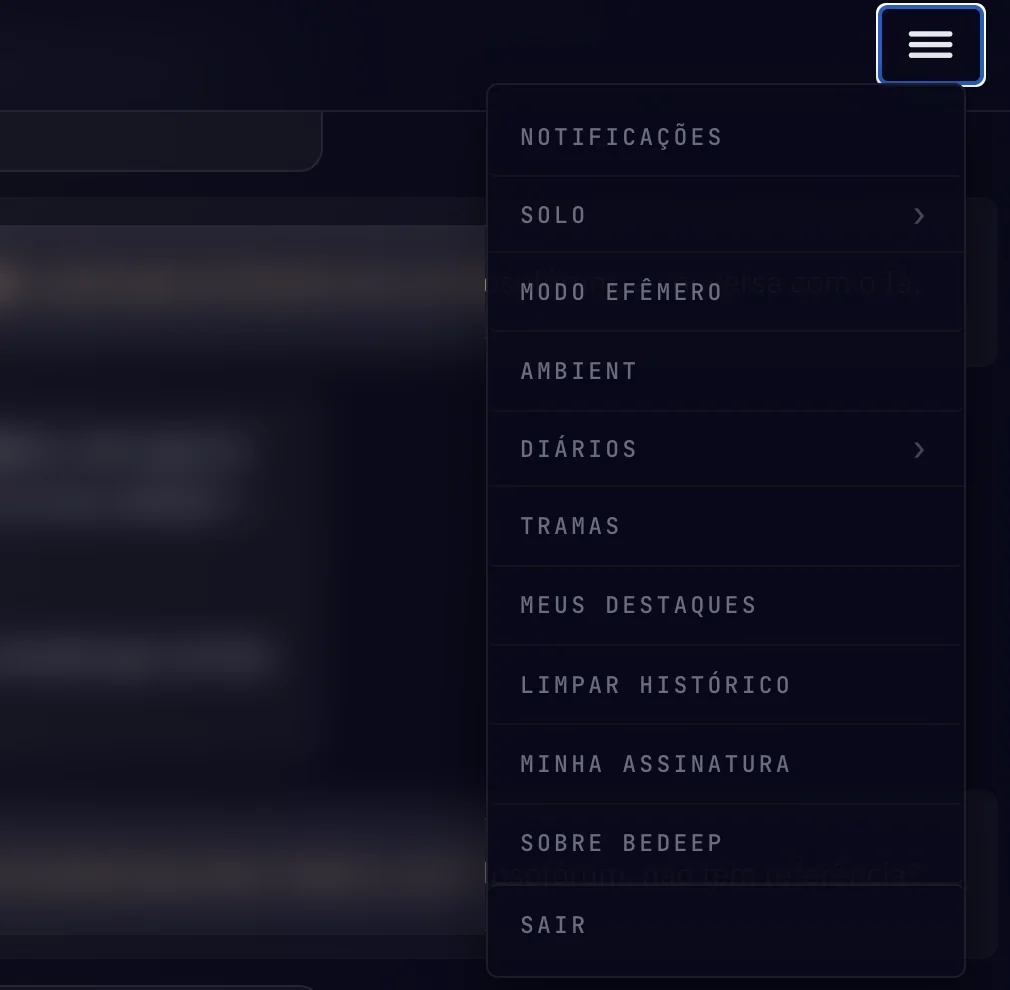
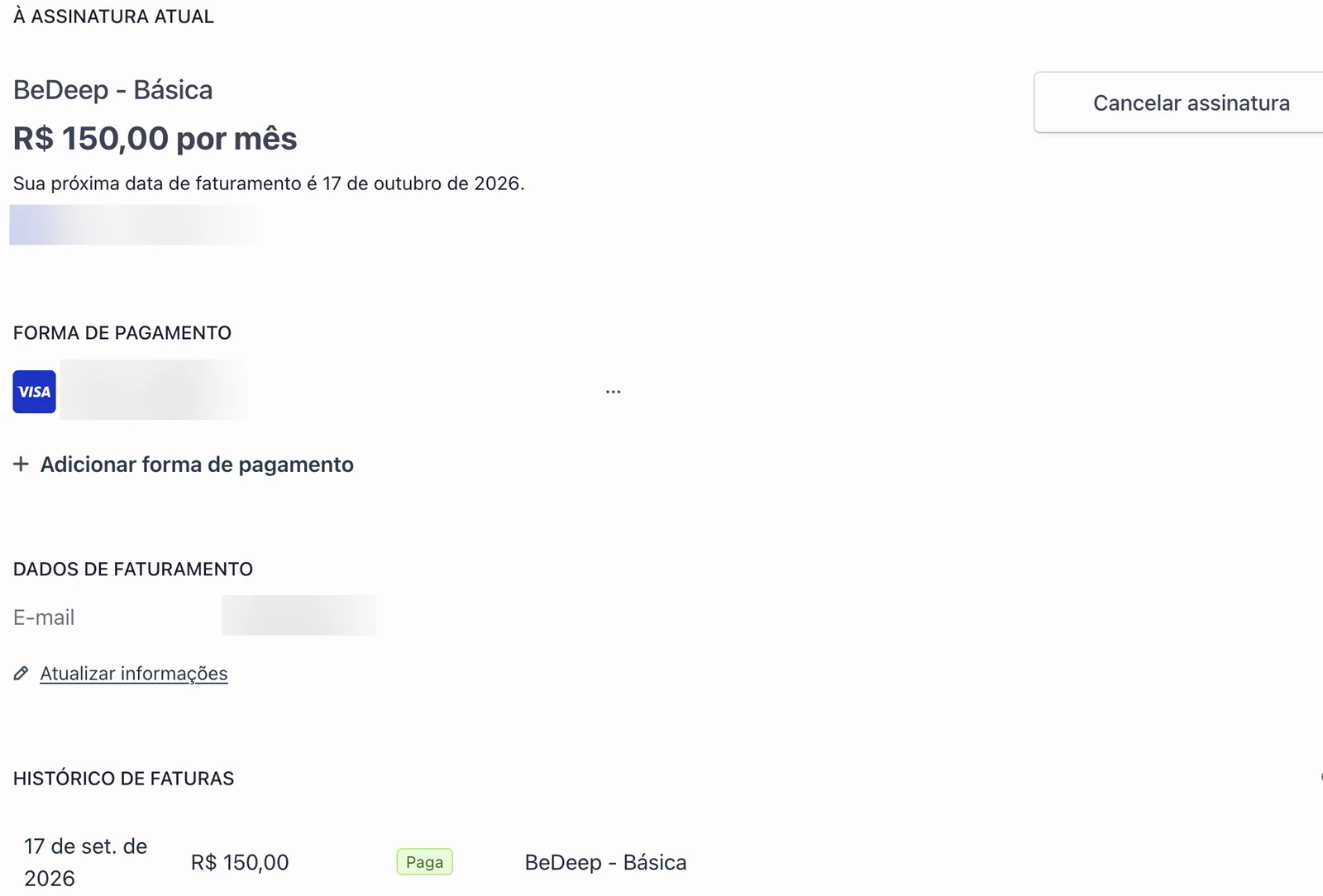
Subscription made on iPhone
- Open the iPhone’s Settings app.
- Tap your name (your Apple account), then Subscriptions.
- Choose BeDeep and tap Cancel Subscription.
Inside the BeDeep app, ☰ › My subscription takes you straight to that App Store screen. Your access continues until the end of the paid period.
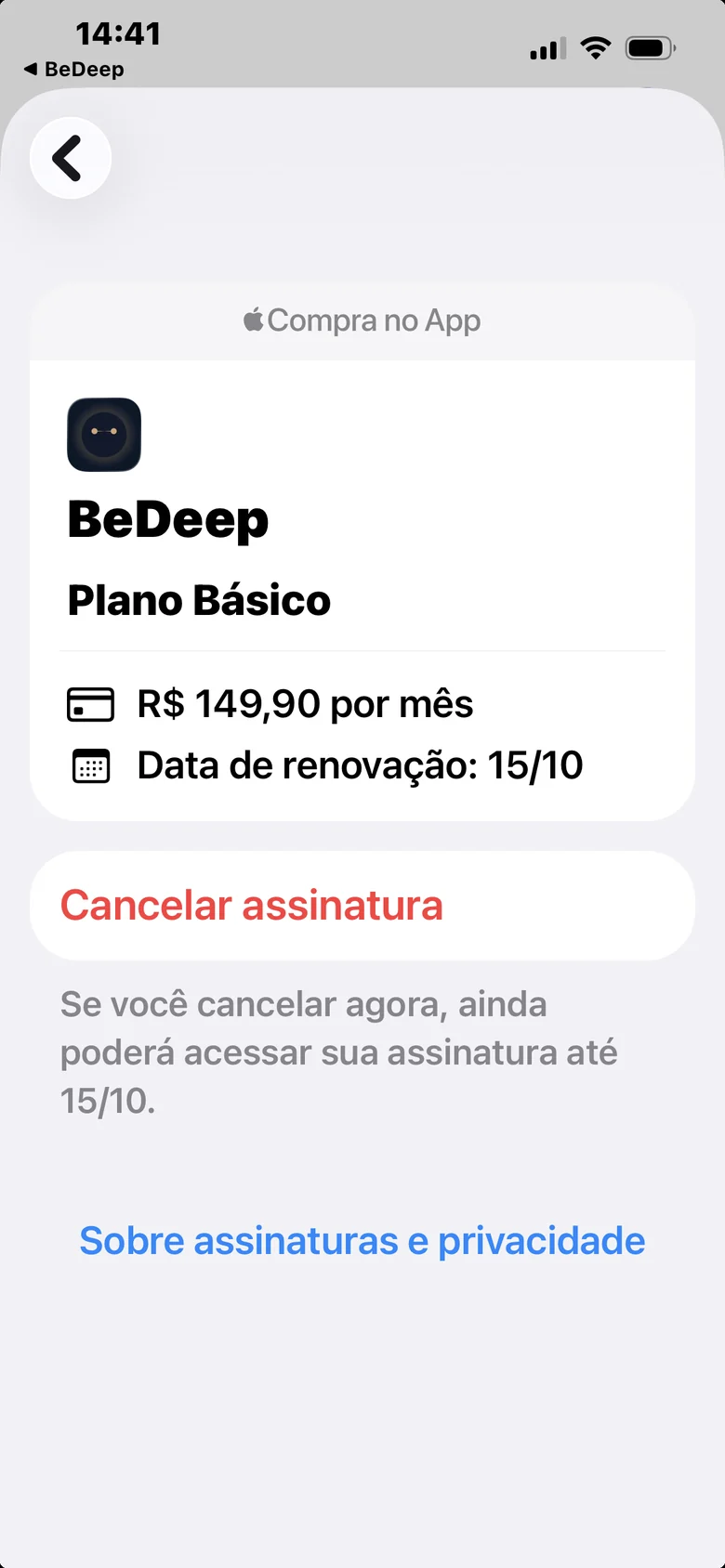
Subscription made on Android
- Open the Play Store app.
- Tap your photo, then Payments & subscriptions › Subscriptions.
- Choose BeDeep and tap Cancel subscription.
Inside the BeDeep app, ☰ › My subscription shows your plan and the Manage or cancel in Google Play shortcut, which takes you to that screen. Your access continues until the end of the paid period.
What happens after you cancel
- Nothing you wrote is erased. Canceling isn’t deleting your account.
- The account goes back to Free rules. Diary, Plots, Portraits and AMBIENT require a subscription again; the content stays saved and shows up again if you subscribe again. If your 3 Free conversations have already been used, new conversations also require a subscription again.
- Minutes bought in packs remain valid until they expire.
Refunds
For purchases made on the website, the rules on withdrawal and refunds are in clause 3 of the Terms of Use (bedeep.ai/termos), and requests are made by email, to bedeep@bedeep.ai. For purchases made on iPhone, Apple decides on refunds: the request goes to Apple, not to BeDeep. For purchases made in the Android app, the request goes to Google, through Google Play.
Gifting a subscription
A gift is a one-time payment that gives someone else 1 or 3 months of Basic — with Diary, Plots, Portraits and AMBIENT. It isn’t a recurring subscription: when the period ends, the recipient’s account goes back to Free, with no charge at all.
| Option | Price | How the page describes it |
|---|---|---|
| 1-month gift | R$ 150 | One month of Basic |
| 3-month gift | R$ 450 | Three months of Basic |
Gifts can only be bought on the website, signed in to your account. In the app, the gift page only says that gift subscriptions are bought on the website.
Buying
- At bedeep.ai/assinar, scroll down to Gift it to someone. Another way in is bedeep.ai/presente, the gift’s own page: tapping one of the cards takes you to the same place.
- Check the Terms of Use box and tap Give as a gift on the card you want.
- Pay on the Stripe page.
- After a few seconds, the Payment confirmed screen shows the gift code: 12 letters and numbers in three blocks, in the format XXXX-XXXX-XXXX.
The bedeep.ai/presente page also has a Share on WhatsApp button. It doesn’t send any gift: it sends the link to the page itself to anyone you want to tell that BeDeep can be given as a gift. The gift code only exists after payment, on the Payment confirmed screen.
Important
Save the code as soon as it appears (use the Copy code button). If it doesn’t appear or gets lost, contact support, on WhatsApp or by email, with the date and amount of the purchase — the code exists and can be recovered.
Delivering
On the same screen, you choose how to deliver it:
- By email: enter the recipient’s email, your name (it appears in the subject line) and, if you like, a personal message of up to 500 characters. Tap Send gift. The email is sent from bedeep@bedeep.ai; if the person replies, the reply goes to you. Got the address wrong? Fix it and tap Send gift again.
- On WhatsApp: enter the number with its area code, or leave it blank to pick the contact, and tap Open WhatsApp. The message already includes the redemption link.
- Your own way: tap Copy redemption link or Copy code and deliver it however you prefer.
The code is valid for 6 months from purchase. The gift period only starts counting when it’s redeemed. The person who receives it doesn’t need an account — they create one when they redeem it.
Tip
BeDeep is intended for people 18 and over. Sign-up asks for a quick age check with the phone’s camera (the Getting started chapter explains). Keep this in mind when choosing whom to gift it to.
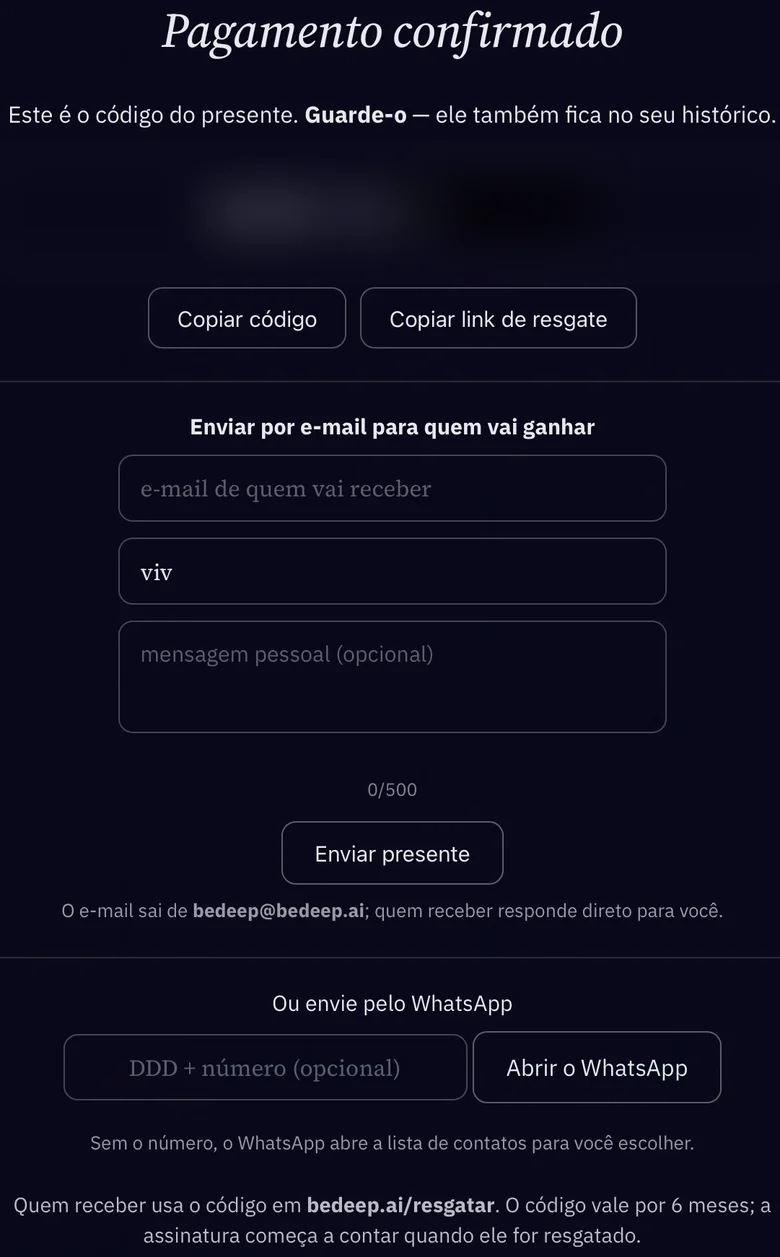
Redeem a gift you received
- Open the link you received, or go to bedeep.ai/resgatar in your browser.
- Enter the code. Uppercase, lowercase and hyphens don’t matter. The code doesn’t use the letters O, I and L or the numbers 0 and 1, which are easy to confuse.
- Tap Redeem. If you don’t have an account yet, or aren’t signed in, BeDeep takes you to sign in or sign up and, when you come back, the code is already filled in.
- The confirmation says, for example: “Done! 1 month of BeDeep unlocked for you.” Tap Start a conversation.
If something goes wrong, the screen explains why: code not found (check the letters), code already redeemed (with the redemption date) or code expired (with the date it expired).
A gift doesn’t interrupt or cancel a paid subscription you already have. If you already subscribe, the gift period is added after the end of the period you’ve already paid for; since the paid subscription keeps renewing, contact support to work out the best way to use it.
Caution
While the gift is active, the badge at the top of the chat may show the Free conversation count — sometimes even “0 CONVERSATIONS.” This count doesn’t block you during the gift period.
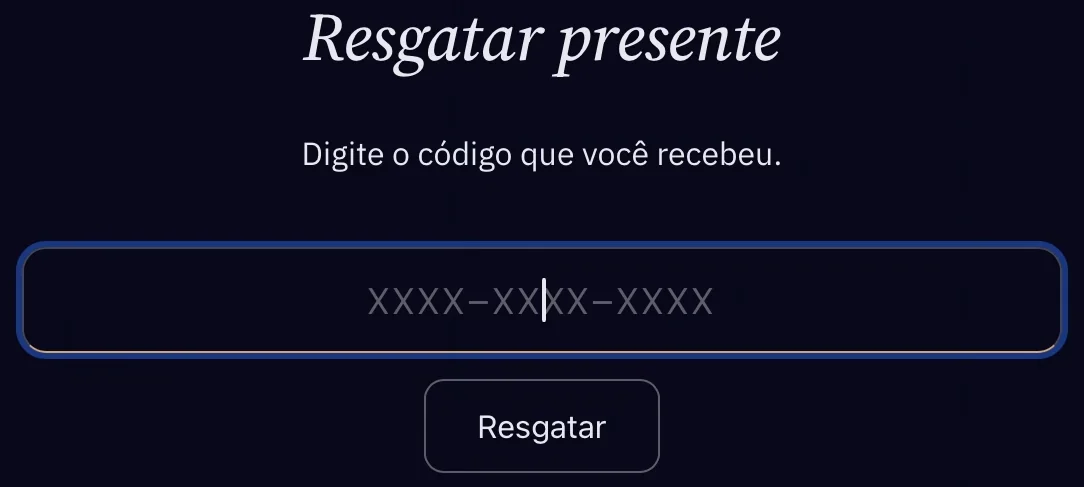
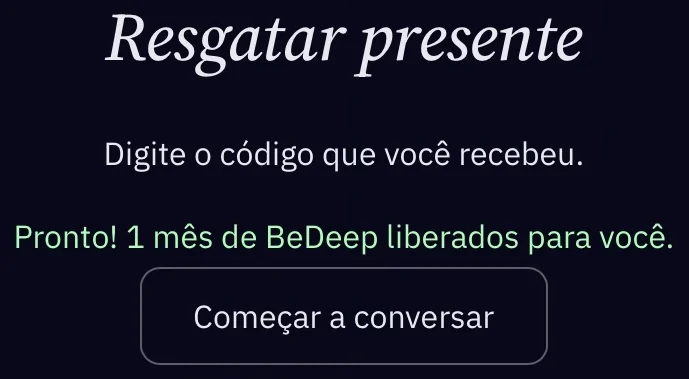
Your account
BeDeep doesn’t have a single settings page. What you can adjust in your account is in this section: your email, your password, logging out and deleting. What BeDeep has come to understand about you over your conversations — your profile — is covered in the What your conversations leave behind chapter.
Change your email
- Signed in to your account in the browser, go to bedeep.ai/trocar-email. The screen shows your current email.
- Enter your current password and the new email.
- Tap Send confirmation link.
- Open the inbox of the new email and click the link within 15 minutes. Only then does the change happen, and you return to the chat with the new address already in place.
The new email can’t be in use by another BeDeep account. Your conversations and your subscription move to the new address. If you don’t remember your password, use the Forgot my password route (see the Troubleshooting chapter). Lost access to your old email? Write to bedeep@bedeep.ai.
Password
There’s no “change password” screen inside the account. To set a new password, use Forgot my password on the sign-in screen; the step-by-step is in the Getting started and Troubleshooting chapters.
Log out
Open ☰ › Log out. You go back to the sign-in screen. If you use a shared computer, always log out when you’re done.
Delete your account
Deleting your account erases your BeDeep data immediately and permanently. There’s no way to undo it. This section covers the steps and what happens to your subscription; exactly what disappears and what is kept because the law requires it is in the Safety, privacy and the limits of AI chapter.
Before deleting: your subscription
- Subscription made on the website: when you delete your account, BeDeep automatically cancels the subscription at Stripe, right away. The period already paid for isn’t refunded automatically; if you want to request a refund, see the Refunds section, above. Even with the automatic cancellation, the safest thing is to cancel first, in My subscription, and check in the portal that the cancellation shows up.
- Subscription made on iPhone: deleting your account does not cancel the Apple subscription, and the charges would continue. The deletion screen doesn’t warn you about this. Cancel first, in Settings › [your name] › Subscriptions.
- Subscription made on Android: deleting your account does not cancel the Google Play subscription, and the charges would continue. Cancel first, in the Play Store › your profile › Payments & subscriptions › Subscriptions.
If you’ve already deleted your account and the charges continued, write to bedeep@bedeep.ai.
How to delete
- In the iPhone and Android apps: ☰ › Delete account.
- On the website or on Mac: signed in to your account in the browser, go to bedeep.ai/conta/deletar. The bedeep.ai/excluir-conta page explains the process and has the Delete my account now button.
On the Delete your account screen:
- Read the list of what will be erased.
- Type DELETE in the confirmation field.
- If your account has a password, enter it.
- Tap Delete account.
“Account deleted. Goodbye.” appears, and you’re logged out. No confirmation email arrives, because nothing is left pending.
If you can’t sign in to your account, request deletion by email to bedeep@bedeep.ai, from the address on file, with the subject “Account deletion request.” BeDeep may ask you to confirm your identity before acting on it.
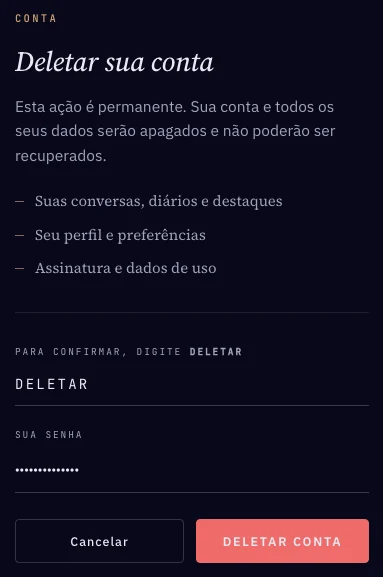
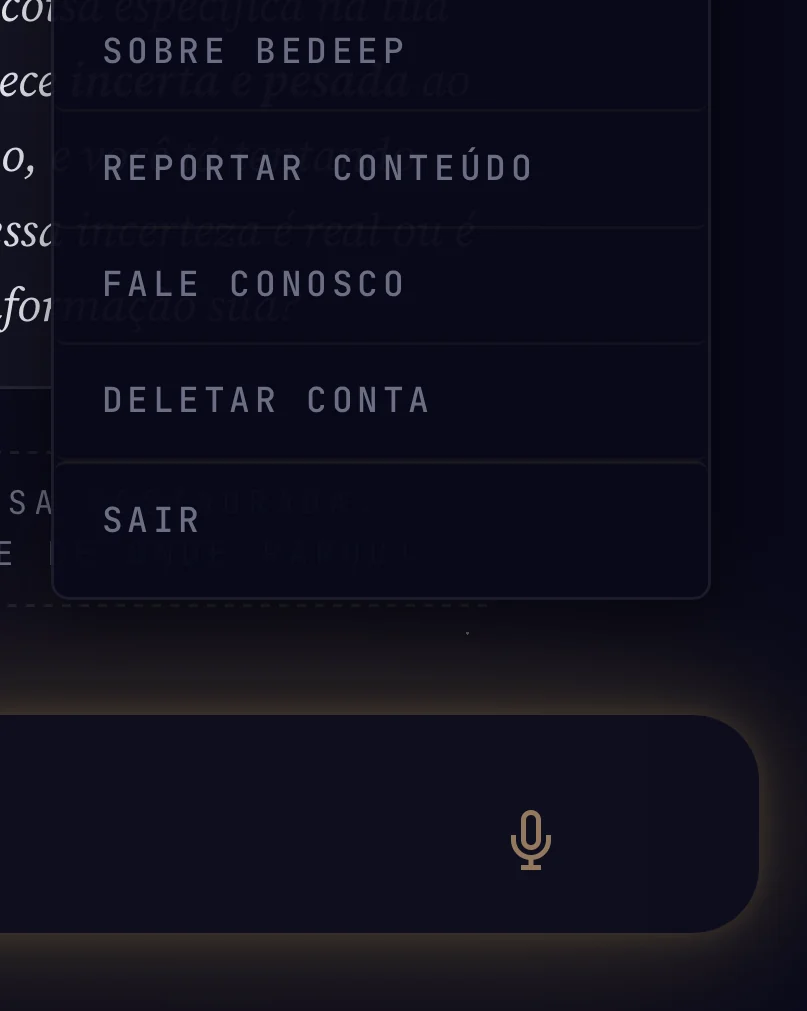
After deleting
Conversations, transcripts, diary entries, highlights, portraits, your profile and your sign-up data disappear immediately and can’t be recovered. All that remains are a few records that the law requires or that protect other people, and the encrypted backups, until they expire — the full list is in the Safety, privacy and the limits of AI chapter.
One consequence that affects plans: if you create a new account with the same email, it doesn’t get the Free plan’s 3 conversations and 15 voice minutes again. They’re granted once per email.
Chapter 7
Safety, privacy and the limits of AI
Who can use it, what happens to what you tell it, what the AI does and doesn’t do, and what to do in a moment of crisis.
This chapter covers three subjects that are usually tucked away in legal texts: who can use BeDeep, what happens to what you tell it, and where the AI’s limits lie. There is also a section on moments of crisis. Everything here is in plain language. The formal texts are the Terms of Use (bedeep.ai/termos) and the Privacy Policy (bedeep.ai/privacidade). If there is any difference between this Manual and those two documents, the documents prevail.
The essentials in one minute
- BeDeep is only for people 18 and over. When you create your account, you go through an age check with your camera.
- What you write and what BeDeep produces from it (Diary, profile, voice transcripts) stays stored for as long as your account exists, except what is said in Ephemeral Mode. The main content is encrypted, but the company holds the key.
- In AMBIENT, the speech of everyone who is with you is transcribed and stays in your account. Tell the people with you and get each person’s agreement before you start.
- The data is kept on servers in the United States and passes through artificial intelligence companies hired by BeDeep. BeDeep doesn’t sell your data and doesn’t show ads.
- You can read what BeDeep has understood about you, delete parts of it, and delete your whole account, right away, without asking anyone.
- The AI talks, remembers, notices patterns and can disagree with you. It can also be wrong, it isn’t a health professional, and it doesn’t act on your behalf outside BeDeep.
- No one is notified about what you write, not even in moments of crisis. If you’re at risk, call your local emergency number or a crisis line where you live (in Brazil, CVV at 188 or SAMU at 192).
Age: BeDeep is for people 18 and over
The minimum age to use BeDeep is 18. The sign-up screen says so (“Suitable for ages 18 and over”), and the Terms of Use say the same.
How your age is checked
When you create your account, BeDeep asks for a quick check with your phone’s camera. The check is done by a specialized service, Didit, on its own screen, and it estimates your age from your face.
- On your phone: frame your face and follow the on-screen instructions. In your phone’s browser, tap the round button that appears at the bottom to take the photo. In the iPhone app, the check should open inside the app itself; follow the on-screen instructions.
- On a computer: click “Continue” and use the computer’s own camera. The QR code is just an option, for anyone who prefers to finish on their phone.
BeDeep doesn’t receive the image of your face or any document. From the result, it records only the essentials: whether your age was confirmed, an estimated age range, and the ID of that check. This record is linked to your account, stored apart from your other data, outside your profile, and is used only to determine access.
The check happens once, when you create your account.
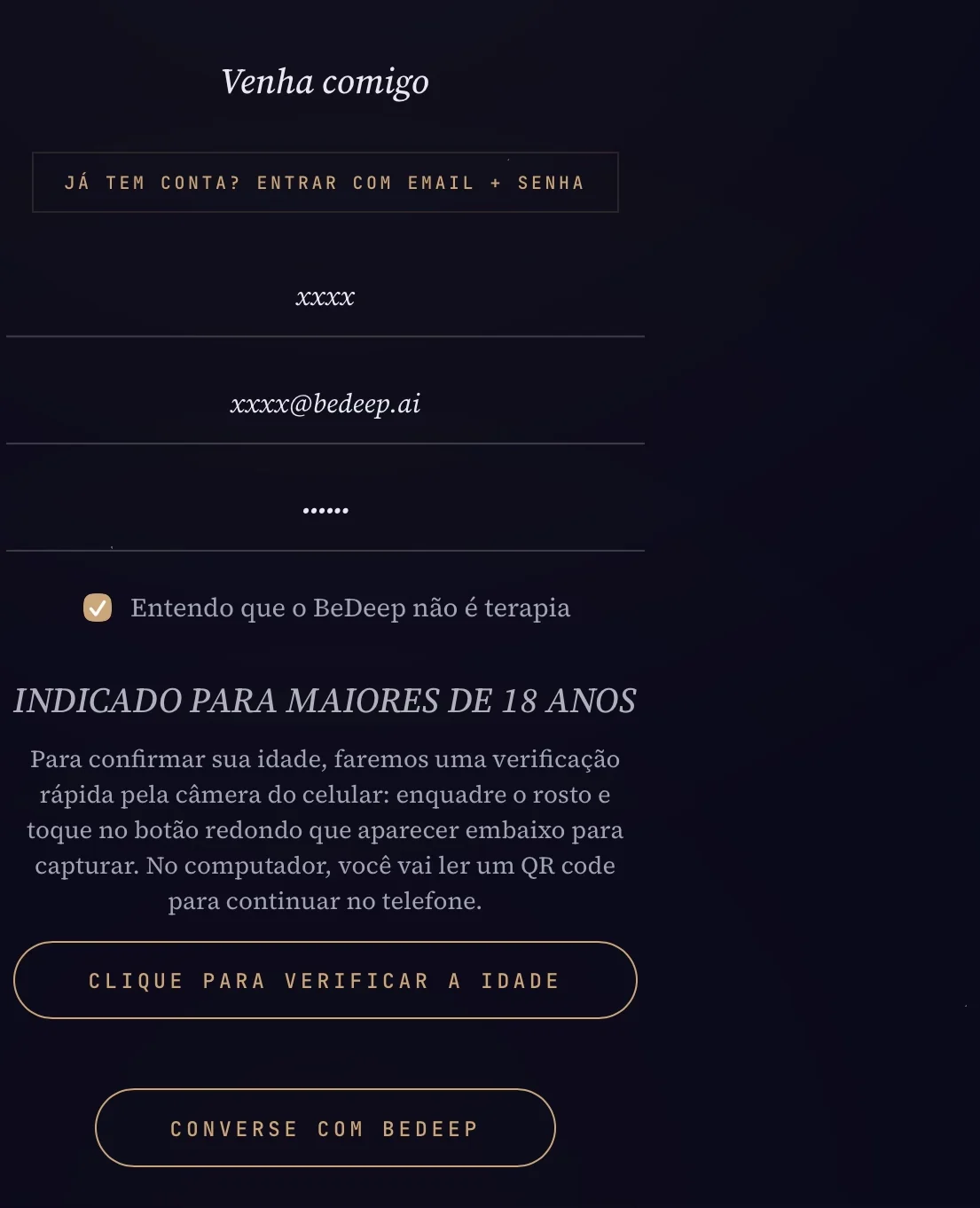
Tip
If the check window doesn’t open or you stop halfway, the “Open the age check” and “Resume the age check” buttons solve most cases. The full step-by-step, for each device, is in the “Getting started” chapter; the error messages, and what to do about each one, are in the “Troubleshooting” chapter.
If the person is under 18
The account isn’t created. Sign-up stops with one of these messages:
- “BeDeep is for people 18 and over.” — when the date of birth you entered shows you’re under 18;
- “We couldn’t confirm that you are 18 or older.” when the camera check doesn’t confirm it.
If you are 18 or older and the check didn’t confirm it, don’t worry: the estimate is automatic and can be wrong. Along with the message, a “Talk to support” button appears, which opens BeDeep’s WhatsApp. Explain what happened there. Do the same if the screen says your age was confirmed and the account still isn’t created.
If you’re the parent or guardian of a teenager
If you know that someone under 18 is using BeDeep, or you’ve seen something on BeDeep that violates the rights of a child or teenager, tell BeDeep through the reporting page, at bedeep.ai/denunciar. It doesn’t require an account. How it works is explained further on, in “How to report a bad response.”
Your data: what is stored and who sees it
What BeDeep stores
| What | Is it stored? | How |
|---|---|---|
| The text of your conversations | Yes, for as long as the account exists | Encrypted |
| A conversation in Ephemeral Mode | No: it disappears 30 minutes after the last message | Encrypted with a key kept in your device’s session, not in a BeDeep database |
| Diary entries | Yes | Encrypted |
| Your profile (what BeDeep has understood about you) | Yes | Encrypted. You can read it and delete parts |
| Transcripts of voice conversations | Yes, the text | Encrypted |
| Portraits, Plots and other summaries | Yes | Partly encrypted, partly not yet |
| Passages you save in “My highlights” | Yes | No dedicated encryption yet |
| Recordings of your voice | No, not on BeDeep’s servers | The audio goes to the voice companies to be transcribed |
| Age check result | Yes | Linked to your account, stored apart from your other data, outside your profile, only to determine access |
| Name, email and subscription details | Yes | Card details stay with the payment company, not with BeDeep |
| Messages exchanged with support over WhatsApp | May be stored | No dedicated encryption yet |
| Technical data (IP address, browser, error logs) | Yes | Error logs are kept for up to 30 days and don’t include what you wrote |
For materials that don’t yet have their own encryption, the protection is restricted access. The Privacy Policy itself states that encryption is being extended to them gradually.
Encrypted, but not “end-to-end”
“Encrypted at rest” means the content is written to the database in scrambled form. Anyone who copied the database without the key would see only meaningless characters.
But BeDeep holds the key. That isn’t carelessness: to reply, write the Diary and build the profile, the system needs to read what you wrote. That’s why BeDeep does not offer “end-to-end” encryption, the kind where not even the company can read. In practical terms: technically, the company can open the content of your account. Further down you’ll see who can do that and in what situations. The exception is Ephemeral Mode, explained next.
Ephemeral Mode: what it keeps and what it doesn’t
Ephemeral Mode, in the ☰ menu › Ephemeral Mode, opens a conversation that leaves no trace in BeDeep. It’s available on any plan. How to turn it on, how to leave it and what the screen looks like during the mode are in the “The conversation” chapter. Here is what matters for your privacy.
- What isn’t generated: an ephemeral conversation doesn’t become a Diary entry, doesn’t go into your profile, and doesn’t generate a portrait, a plot or a highlight. Your other conversations keep feeding your profile as usual.
- The time limit: the conversation disappears 30 minutes after the last message. After that, it no longer appears on screen and BeDeep no longer rereads it.
- Where the key is: what you write is encrypted with its own key, which is kept in your device’s session, not in a BeDeep database. While the mode is on, your device presents this key to BeDeep with each message, so the conversation can be saved and read.
- When the key is gone, the content becomes unreadable to everyone: this happens when you end the mode (by tapping the Ephemeral Mode badge at the top of the screen) or when you tap Log out in the menu. From then on, what was said there can no longer be read by anyone, not by you, not by the BeDeep team.
- It won’t open on another device: the key lives in a single session. An ephemeral conversation started on your phone can’t be read on your computer.
- What stays the same: the text still goes to Anthropic so it can generate the replies, and, if you speak into the microphone, the audio still passes through the voice companies. Technical data, such as times and counts, are still recorded, without the content. An ephemeral conversation counts like any other conversation on your plan.
- AMBIENT has no Ephemeral Mode. Transcripts and the AMBIENT Diary follow the normal rules.
Important
Turning on Ephemeral Mode in the middle of a conversation doesn’t affect what came before: the mode opens a new, separate conversation, and the previous one stays stored as it was, with the same protections as your other conversations.
Where the data is kept
- Database: in the United States (Oregon region), with a hosting provider (Render).
- Backups: encrypted, with a storage provider (Cloudflare).
- Processing of voice sessions: in São Paulo.
In addition, each message you write is sent to the AI company that generates the replies, Anthropic, in the United States. In practice, the text of your conversations leaves Brazil with every message you send. When you use voice, the audio also passes through American voice companies.
Who else receives what you write or say
| Company | What it receives | What for |
|---|---|---|
| Anthropic (Claude) | The text of your conversations | Generating the replies, the Diary and the profile |
| OpenAI and Deepgram | The audio of your voice | Turning speech into text |
| ElevenLabs and Cartesia | The text of BeDeep’s replies | Producing the voice that replies |
Other companies handle payment, email, notifications, hosting, real-time audio streaming and other operational tasks. The full list is in the Privacy Policy. Each one handles the data it receives under its own terms. Before your first conversation, BeDeep shows the “How BeDeep uses your data” screen, which names the AI and voice companies in the table above, and only lets the conversation begin after you tap “I agree and continue.”
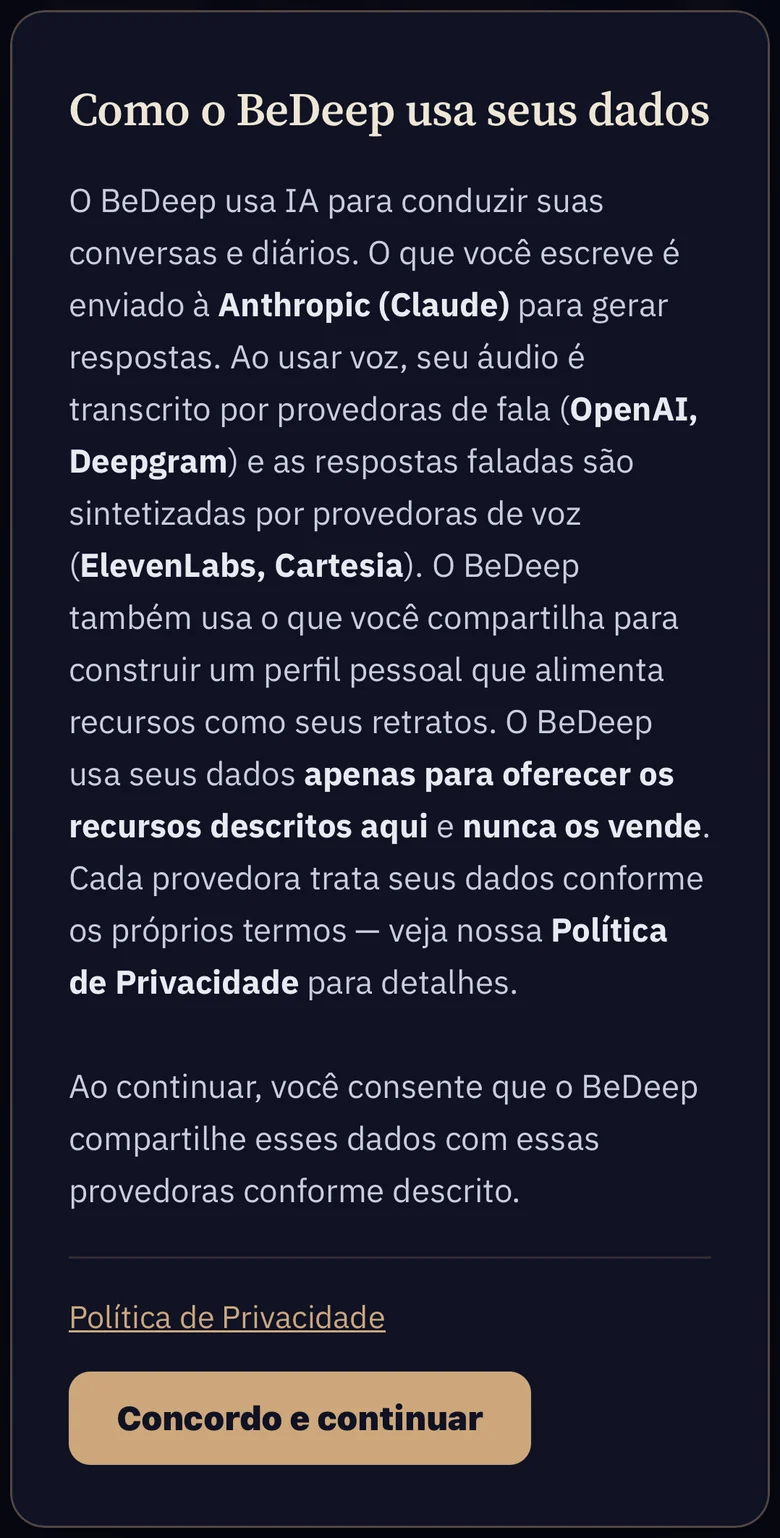
Caution
AMBIENT talks with everyone who is in the same place as you. The microphone stays open during the session; the transcription separates the voices, and BeDeep talks with each person by name. But everyone’s speech is transcribed, passes through the same voice and AI companies, and goes into the transcript and the AMBIENT Diary chapter of your account. That chapter is written as if only you had spoken with BeDeep, so it may attribute to you things another person said. BeDeep also keeps your account’s memory and may mention something from it out loud, in front of the people with you. Before you start, tell the people with you that the conversation is being transcribed and get each person’s agreement. Never use AMBIENT to record someone without their knowledge. See the “Voice and conversation modes” chapter, under “With other people in the room.”
What doesn’t happen to your data
- It isn’t sold, rented or traded.
- There are no ads on BeDeep, and no third-party advertising or tracking cookies. The cookies in use serve to keep you signed in and to remember your language. In Ephemeral Mode, the conversation’s key is also kept in the session, which one of these cookies maintains.
- It isn’t used to improve the service except in anonymized, aggregated form. That’s what the Terms allow BeDeep to do. What each contracted AI company may do with the data is governed by its own terms, as the Privacy Policy states.
- The apps don’t ask for access to your contacts, photos or location. They ask for microphone access (for voice) and, if you want notifications, permission to send them. The camera is used for the age check, at sign-up.
Who on the team can see it
Authorized members of the technical team can, when necessary, open the content of an account. This happens, for example, to investigate a problem you reported or to handle a request of yours about your data. Some of the operations tools see only technical data, such as times, counts and errors, without the content of conversations. The team can’t open a conversation held in Ephemeral Mode, because the key isn’t stored at BeDeep.
When someone uses BeDeep’s administrative tools to open an account’s personal data, this is recorded in an internal log: date, time and the account looked up. This log doesn’t keep what was read. You aren’t notified when this happens.
Read and delete what BeDeep has understood about you
On paid plans, over time, BeDeep builds a profile of how you think, feel and relate to others, which feeds the Portraits and which it reads before replying. This profile is on the My profile page, which you open through the See what gave rise to this portrait link at the end of any portrait (or by typing bedeep.ai/conta/perfil while signed in). There you can read each item, delete it with delete this, and turn off profile building with Turn off. Deleting and turning off are different things: deleting removes the text you chose, but BeDeep may notice something similar again in future conversations; turning off stops new conversations from feeding the profile, but doesn’t delete what’s already there. To do both, delete the items and then turn it off. The profile can’t be edited, only deleted. The full step-by-step is in the “What your conversations leave behind” chapter.
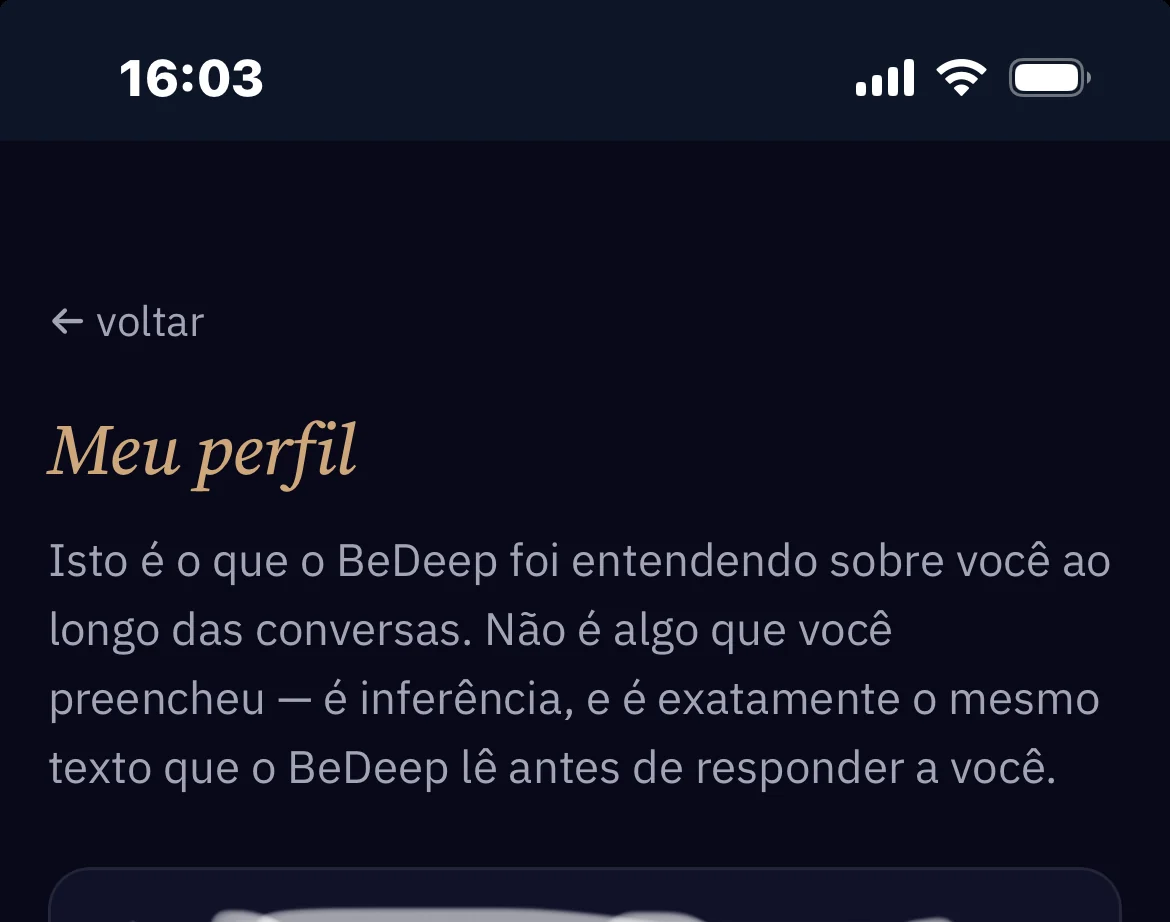
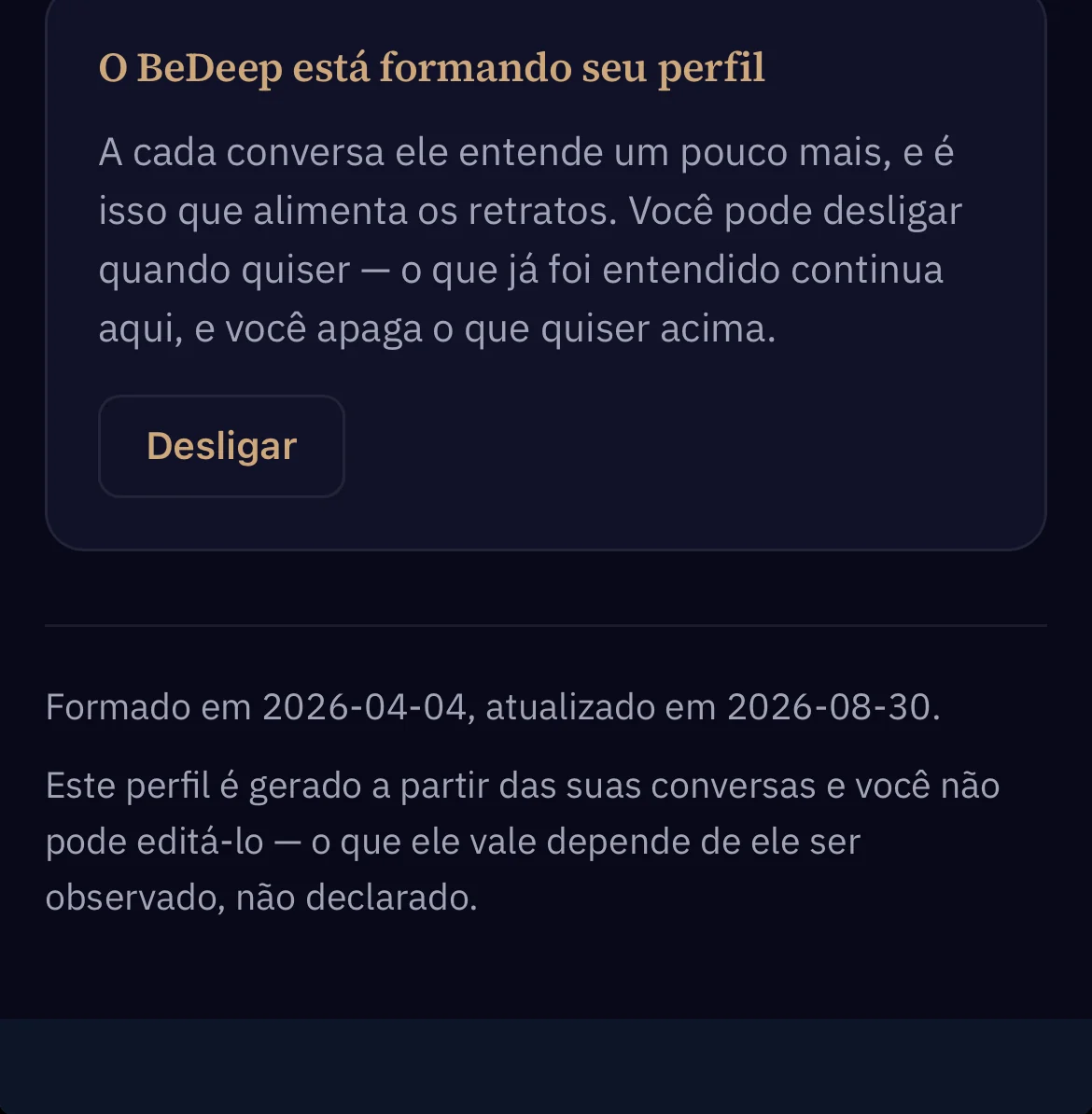
Delete parts of what’s left
- Messages in a conversation: in the conversation’s menu (☰), tap Clear history, select the messages and tap Delete selected. There’s no way to undo this. It doesn’t delete what had already gone into the Diary or the profile.
- A Diary entry: on paid plans, you can edit the entry. BeDeep’s original version stays stored, and you can see it under “Show BeDeep’s original.” See the “What your conversations leave behind” chapter.
- The transcript of an AMBIENT session: in AMBIENT Diary, tap Transcript on the session you want, then Delete transcript. The Diary chapter for that session remains. If someone else spoke in the session, remember that what they said is also in that chapter.
Delete everything
You can delete your account and your data yourself, at any time, and the deletion is immediate. In the iPhone and Android apps, the path is ☰ › Delete account; in the browser and the Mac app, while signed in, go to bedeep.ai/conta/deletar. The step-by-step, the email request for anyone who can’t get into their account, and what happens to your subscription are in the “Plans and account” chapter. Here is what disappears and what stays.
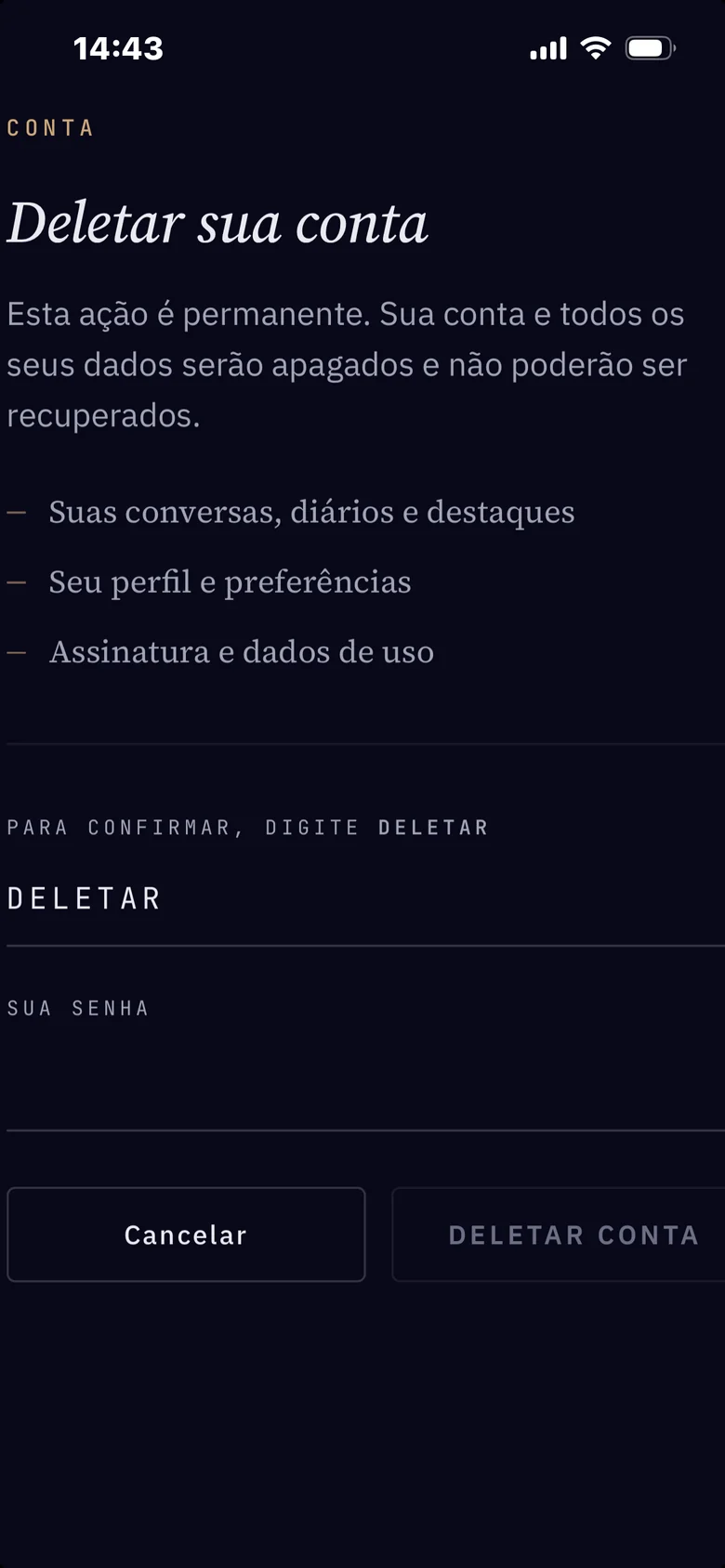
Important
If you subscribe through the iPhone app or the Android app, deleting your account doesn’t cancel the store subscription, and the deletion screen doesn’t warn you about this. Cancel first: on iPhone, in Settings › [your name] › Subscriptions; on Android, in the Play Store › your profile › Payments & subscriptions › Subscriptions. The details are in the “Plans and account” chapter.
What disappears, immediately and permanently:
- your registration data (name, email, age, city, phone number) and the age check result;
- all conversations and voice transcripts;
- the Diary, highlights, Plots, Portraits and your profile;
- notifications and the payment history kept by BeDeep;
- messages exchanged with support over WhatsApp.
What stays, for specific reasons:
- tax records of payments and gift subscriptions, for the period required by tax law;
- reports you have filed, because the law requires the person reporting to be identified;
- the internal log of administrative access, with your email masked and no conversation content;
- aggregated, anonymous usage data, which doesn’t identify anyone;
- the encrypted backups, which may contain your data for a limited period, until they expire. This data doesn’t go back into the service;
- a code generated from your email, from which the address can’t be recovered, used only so that the Free plan’s 3 conversations and 15 voice minutes don’t reset if you create another account with the same email.
The deletion applies to BeDeep’s systems. Whatever partner companies may keep follows their own rules. The details are at bedeep.ai/excluir-conta and in the Privacy Policy.
Want a copy of your data instead of deleting it? Ask for it by email at bedeep@bedeep.ai. Response times are in the Privacy Policy.
Protect access on your device
Once you’re in, BeDeep keeps you signed in on that device for a long time, until you tap Log out. There is currently no button to sign out other devices remotely.
In the iPhone app, if the device has Face ID or Touch ID set up, biometric protection is on. If you leave BeDeep for more than a minute, Face ID or your fingerprint is asked before you come back in, except during a voice conversation in progress. To turn it on or off, use the ☰ menu › Biometrics; changing it also asks for biometrics. If biometrics don’t recognize you, tap Sign in with email on the locked screen: the app signs you out and you sign in again with your email and password. On other devices (browser, Android and Mac), BeDeep doesn’t ask for a password or biometrics to open.
- Keep your phone’s screen lock on. It’s what protects your Diary if someone picks up your device.
- On a shared computer or phone, tap Log out in the menu when you’re done. If you were in Ephemeral Mode, logging out also discards that conversation’s key.
- Use a password that’s yours alone. When the account has a password, it’s also required to delete the account.
What the AI can and can’t do
What it can do
- Talk and ask. It has been instructed to ask one question at a time and to stay with what you said.
- Remember. It uses recent history and, on paid plans, the Diary and the profile, so that each conversation doesn’t start from scratch. This memory has limits. See the “The conversation” chapter, under “How BeDeep remembers.”
- Notice patterns. It can notice recurring themes and connect things you said in conversations far apart in time. This is observation, not diagnosis.
- Write the Diary. On paid plans, after your conversations, BeDeep writes diary entries based on what was said.
- Disagree with you. It wasn’t made to agree with everything. It can point out a contradiction, come back to a subject you left aside, or say that a conclusion seems hasty. It has also been instructed to point out a pattern only after seeing it more than once, and to ask when it isn’t sure it has understood.
What it can’t do
- Diagnose. BeDeep isn’t a health service, therapy or psychological counseling. The AI has been instructed not to give diagnoses or use clinical labels with you.
- Replace a professional. Even when it helps you think through a decision, what it says isn’t professional advice, whether health, legal or financial. The decisions remain yours.
- Guarantee it’s right. The AI can be wrong: misunderstand, misremember, mix up information, or state with confidence something that isn’t true. The Terms ask that its replies be read as “prompts for reflection, not as absolute truths.”
- Act for you outside BeDeep. It doesn’t call anyone and doesn’t make purchases or bookings in your name.
- Alert anyone. BeDeep doesn’t contact family members, friends or emergency services because of what you write. See the section on crisis, below.
Tip
The AI models behind BeDeep may be updated or replaced over time, as the Terms provide. That’s why the way it replies may change a little from one period to another.
A machine, with a character
BeDeep is an artificial intelligence. The app says so before the first conversation, on the “How BeDeep uses your data” screen, and the Terms repeat it. BeDeep uses AI models to generate its replies (Anthropic’s, in the case of text).
In conversations, BeDeep speaks in the first person and has its own style of listening (in Portuguese, it speaks of itself in the masculine). It’s a character, built to converse well. It’s worth remembering this at moments when the conversation feels very human: on the other side there is a system that replies, not someone who knows you outside of it.
When it gets things wrong or misremembers
- Say so in the conversation itself. Corrections are welcome. The AI has been instructed to allow that it may have lost the thread and to ask for clarification when it isn’t sure.
- Correct the Diary. On paid plans, edit the entry that got it wrong. Editing doesn’t automatically redo the portraits and summaries that had already been written.
- Delete it from the profile. If the error is in My profile, use delete this on the item.
- If it was serious (an offensive, dangerous or inappropriate reply), report it. How to do that is just below.
How to report a bad response
In the iPhone and Android apps:
- Open the menu (☰) and tap Report content.
- Briefly describe what happened. If you can, say when it was.
- Send it. The screen confirms: “Thank you. Your report has been sent and will be reviewed.”
The report reaches the team along with your email, so they can reply if needed. To understand the case, the team may need to open the conversation in question. If the bad response appeared in Ephemeral Mode, the team has no way to open that conversation: copy the relevant passage into your report. What you write in the report is stored as usual, even during Ephemeral Mode, because you chose to send it.
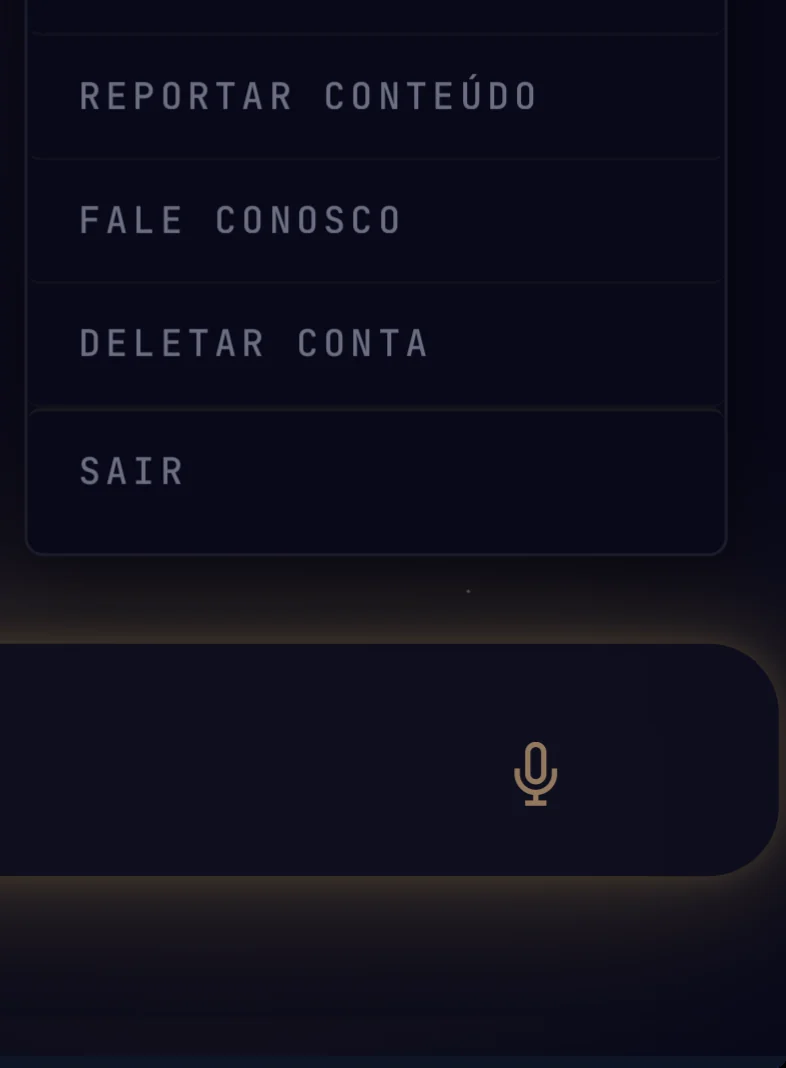
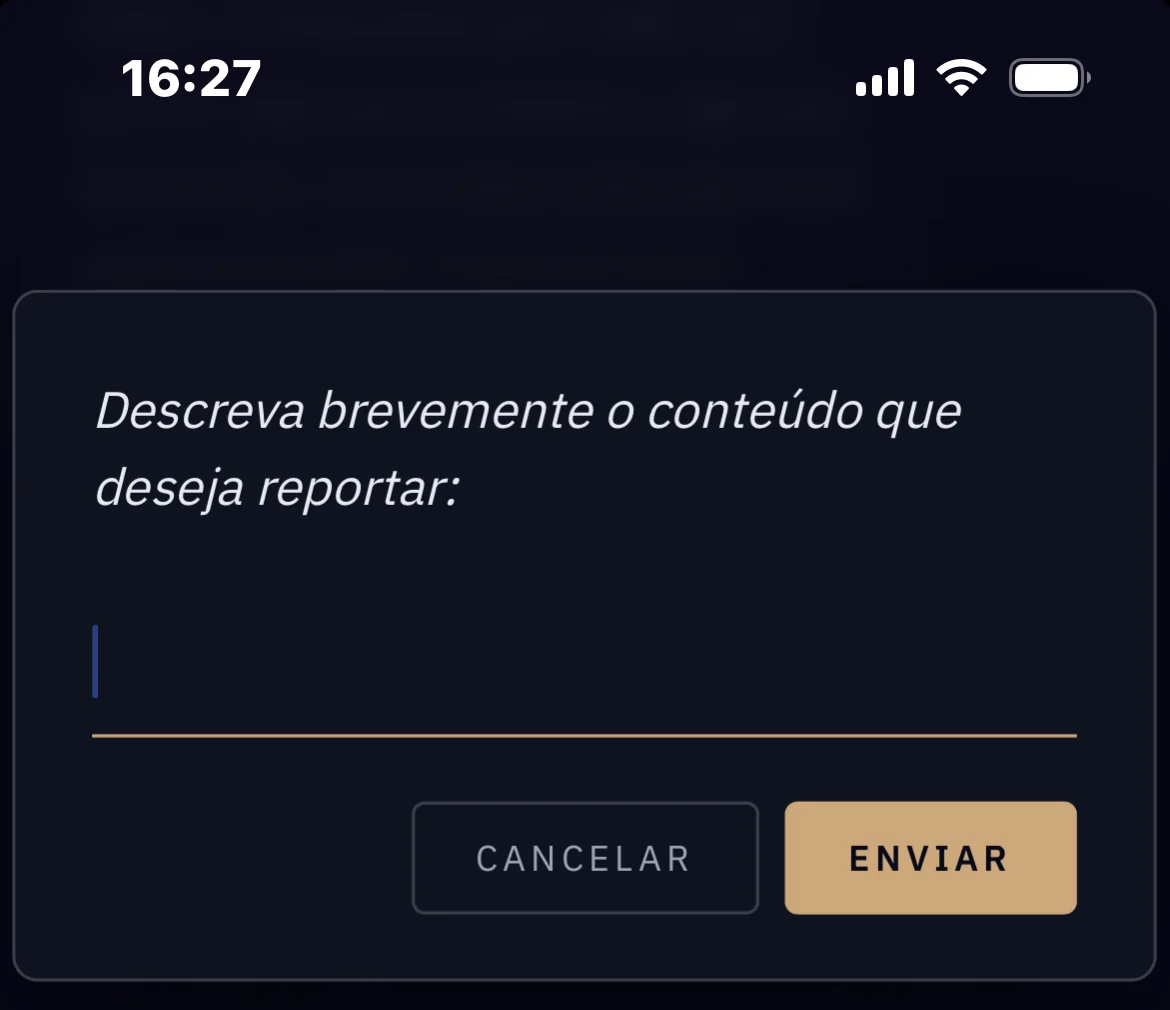
In the browser and on Mac, there’s no report button. Write to bedeep@bedeep.ai with the date, the approximate time and the passage from the reply. The usual response time is up to 2 business days. You can also use Contact us (WhatsApp) in the footer of bedeep.ai.
Violations of the rights of children and teenagers. Use the bedeep.ai/denunciar page, which also covers inappropriate replies from the AI. You don’t need an account, and the page explains what happens to your report.
If you’re in crisis
What BeDeep does, and what it doesn’t
BeDeep is not an emergency service. It doesn’t watch your messages looking for signs of risk, and it has no help screen that appears on its own.
If you write that you’re thinking of hurting yourself, the reply comes from the AI itself. In a large share of conversations, it has instructions, at such moments, to set aside what it was doing, respond with care and suggest that you seek professional help. But there’s no guarantee this will always happen: it’s an AI, it may not grasp how serious things are, it may reply in a way that doesn’t help, and it doesn’t call anyone.
No one is notified. Not the BeDeep team, not one of your contacts, not emergency services. The conversation stays open, but the support you need at a moment like this is outside the app.
Who to turn to now
- In Brazil, CVV (Centro de Valorização da Vida, an emotional-support and suicide-prevention service): call 188. It runs 24 hours a day and is free. There’s also chat and email at cvv.org.br.
- In Brazil, SAMU (the public emergency medical service): call 192 in a medical emergency.
- CAPS (Centro de Atenção Psicossocial, psychosocial care centers): units of SUS, Brazil’s public health system, throughout the country, for ongoing care.
- Someone you trust, close to you. Talking to someone who is there with you helps more than it seems.
BeDeep keeps these contacts on a support page: bedeep.ai/detalhes?contexto=apoio, which opens directly on the “More resources” section. Outside Brazil, the same page shows contacts for Portugal or an international list, depending on where you’re accessing it from. In any country, also look for your local emergency number (112 in Europe, 911 in the United States).
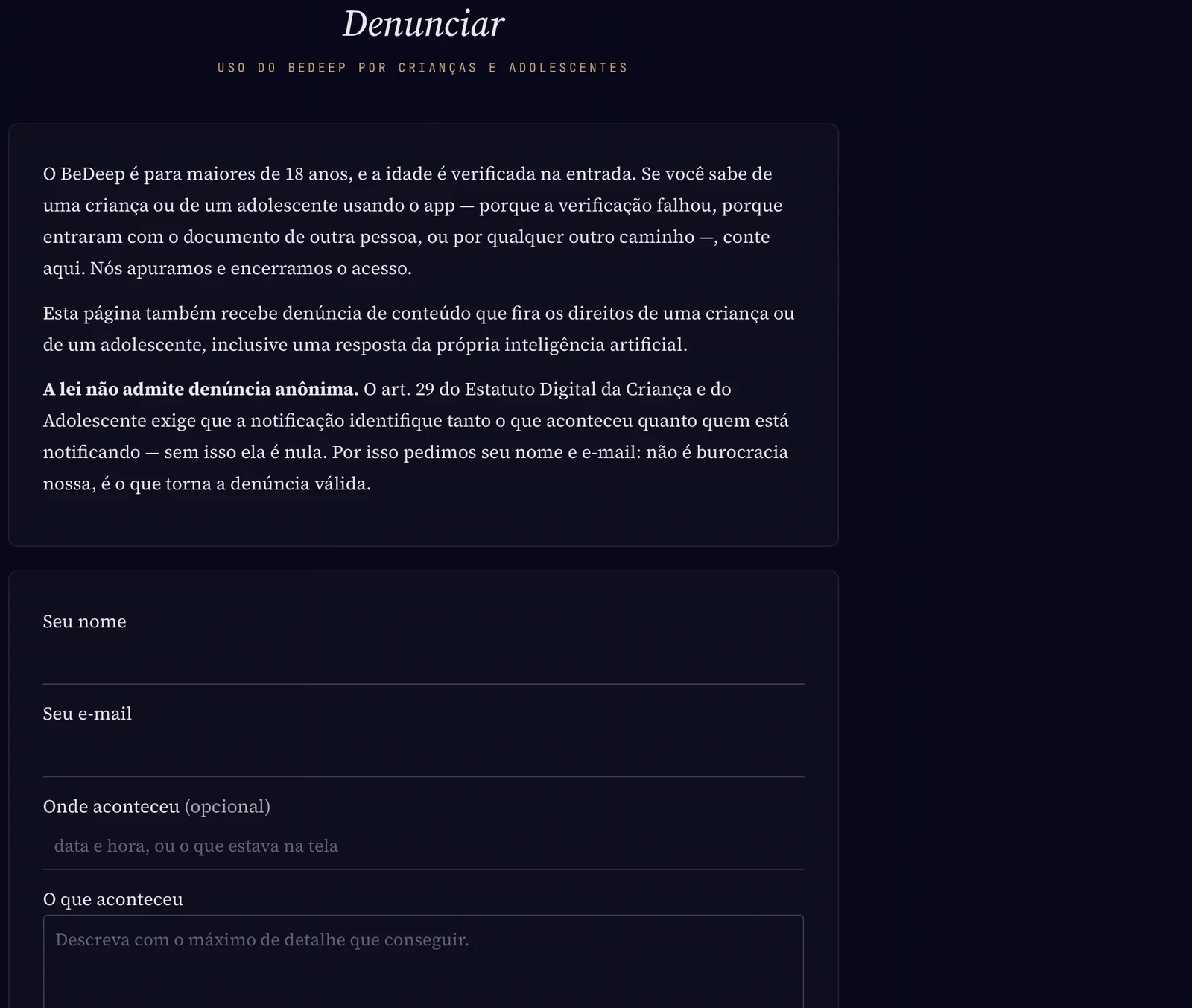
Important
If you are in danger right now, don’t wait for a reply from the app. Call your local emergency number or a crisis line where you live (in Brazil, 188 or 192), or go to the nearest emergency room.
To learn more
- Terms of Use: bedeep.ai/termos (nature of the service, rules of conduct, limits of liability, use of AI).
- Privacy Policy: bedeep.ai/privacidade (full list of partner companies, legal bases, your rights and response times).
- Delete account: bedeep.ai/excluir-conta.
- Contact about personal data and support: bedeep@bedeep.ai. The bedeep.ai/suporte page lists the channels and says replies usually come within 2 business days.
For questions about plans, billing, cancellation and the step-by-step for deleting your account, see the “Plans and account” chapter. For Ephemeral Mode in detail, see the “The conversation” chapter; for AMBIENT with more people, the “Voice and conversation modes” chapter. For problems with the age check or with signing in to your account, see the “Troubleshooting” chapter.
Chapter 8
Frequently asked questions
Fifty-one short questions, with straight answers, about your account, conversations, voice, the diary, plans, privacy and devices.
Here are the questions people ask most about BeDeep, with short, direct answers. When a topic needs more room, the answer points to the chapter where it’s covered at length.
Important
Prices, limits and time frames quoted here are as of September 2026. The bedeep.ai/assinar page always shows the current ones.
About BeDeep
What is BeDeep, in a nutshell?
It’s a place to talk in depth about your life with an artificial intelligence that listens, asks questions and helps your ideas flow. You talk by text or by voice, in Portuguese, English or Spanish. If you subscribe, over time your conversations become a diary written in your own voice, along with Plots and Portraits. For the full picture, see the “What BeDeep is” chapter.
Is BeDeep therapy?
No. BeDeep is not a health service, doesn’t diagnose and doesn’t replace psychological or medical care. That’s why, when you sign up, you check the box “I understand that BeDeep is not therapy.” It’s a space for reflection: it helps you think; it doesn’t treat.
Am I talking to a person or a machine?
To an artificial intelligence. BeDeep’s replies are generated by AI models from Anthropic (Claude); when you use voice, transcription and speech synthesis services are involved too. BeDeep speaks in the first person and has its own way of talking, but it isn’t a person or a professional.
Who makes BeDeep?
BeDeep is a product of Holon Educação LTDA., a company based in São Paulo (CNPJ, Brazil’s company registration number, 05.678.105/0001-18). It was created by Larry Be (a pen name), a Jungian analyst and philosopher, out of many years of work with conversation. The About page (bedeep.ai/sobre) tells that story.
What’s the minimum age?
18. The sign-up screen says “Suitable for ages 18 and over” and confirms your age with a quick camera check. If the check doesn’t confirm you’re 18, the account isn’t created.
Account and access
How do I create an account?
At bedeep.ai or in the app, enter your first name, your email and a password of at least 6 characters, check “I understand that BeDeep is not therapy” and do the quick camera age check the screen asks for. You don’t need a card to start. The step-by-step, with screenshots, is in the “Getting started” chapter.
Why does BeDeep ask me to verify my age with the camera?
Because Brazilian law protecting children and adolescents requires services like BeDeep to confirm the age of the people who sign up, not just ask. On a phone, you frame your face; on a computer, you click “Continue” and use the computer’s own camera (or, if you prefer, scan the QR code with your phone); in the iPhone app, follow what the screen tells you. The check is done by a specialized service (Didit): the capture happens on the partner’s screen, and BeDeep doesn’t keep any image of your face; it receives only the result. If it doesn’t confirm you’re 18 or older and you think it got it wrong, tap “Talk to support” — the check is automatic and can make mistakes.
I forgot my password. What now?
On the sign-in screen, tap “Already have an account? Sign in with email + password,” type your email and try signing in with the password you remember. When the message “Incorrect password.” appears, the link “Forgot my password” shows up right below it: tap it and you’ll get an email with a link to create a new password, valid for 30 minutes. There’s currently no screen for changing your password from inside your account; to change it, this is the way. If the email doesn’t arrive, see the “Troubleshooting” chapter.
Can I change my account email?
Yes. While signed in, go to bedeep.ai/trocar-email and enter your current password and the new email. A confirmation link goes to the new address, and the change only takes effect once you click it, within 15 minutes.
Can I use the same account on more than one device? How do I log out?
Yes. Your conversation, your Diary and your subscription belong to your account, not to the device: sign in with the same email and password on your computer, your phone or the app, and you pick up where you left off. Each device stays signed in, without asking for your password every visit, until you tap “Log out” in the ☰ menu. Logging out only disconnects the device you’re on — remember to do it on shared computers. The exception is an Ephemeral Mode conversation: it can only be read on the device where it started, and logging out ends that conversation for good.
How do I delete my account?
You delete it yourself, right away, without having to ask. In the iPhone app, use “Delete account” in the ☰ menu; on the website and other devices, go to bedeep.ai/conta/deletar while signed in, type DELETE and, if asked, your password. If you prefer, request deletion by email at bedeep@bedeep.ai. Conversations, diaries, portraits, your profile and usage data are deleted and can’t be recovered; there are a few exceptions required by law (such as tax records of payments) and a time frame for the encrypted backups. If you subscribe, cancel your subscription first: a subscription made on an iPhone can only be ended in the iPhone’s Settings, and deleting your account doesn’t stop Apple’s billing. A subscription made on the website ends along with the deletion, but canceling first avoids surprises. The step-by-step is in the “Plans and account” chapter; what gets deleted and what stays, in the “Safety, privacy and the limits of AI” chapter.
If I delete my account and create a new one, do I get the free conversations again?
No. The free conversations and the welcome voice minutes are given once per email address. A new account created with the same address starts without them.
How do I reach someone at BeDeep?
By email, at bedeep@bedeep.ai — replies usually come within 2 business days. There’s also “Contact us,” which opens a WhatsApp chat: it’s in the footer of the home page and, in the iPhone app, in the ☰ menu; the first replies there may be automated. When you report a problem, tell us your device, your operating system and what happened — it speeds things up a lot.
Conversations
What counts as “a conversation”? Can I stop and pick it up later?
A conversation is a continuous stretch of exchange with BeDeep, as long as you like. You can leave and come back as often as you want: everything is saved, and as long as you don’t take a long break (currently, 2 hours), it’s still the same conversation. After a long break, your next message opens a new conversation — and that’s what counts toward the limits of the Free plan and Basic. On Premium, conversations are unlimited.
How do I know how many conversations I have left?
At the top of the chat, next to SOLO, a badge such as “5 CONVERSATIONS” shows how many remain — on the Free plan, out of the 3 trial conversations; on Basic, out of your cycle, including any from an Extra Pack. On Premium, which has no conversation limit, the badge doesn’t appear.

Does BeDeep remember what we talked about before?
Yes. The whole conversation is saved in your account, and BeDeep takes it into account when it replies. When the history gets very long, the oldest parts reach it in summarized form (or stop being sent), while the recent stretch goes in full. So it remembers recent things and the big themes well, but may not have every detail from months ago at hand; if something old matters, bring it up again in a few words.
Can I delete messages from a conversation?
Yes. In the chat’s ☰ menu, tap “Clear history,” select the messages and tap “Delete selected.” Deletion can’t be undone. A Diary entry already written from those messages isn’t deleted along with them.
Can I talk without leaving a record?
Yes, on any plan, with Ephemeral Mode: in the ☰ menu, tap “Ephemeral Mode” and then “Start”; the conversation disappears 30 minutes after the last message, doesn’t become a diary entry, doesn’t go into your profile and doesn’t produce a portrait. The text still goes through the AI provider to generate the reply, but the key to read it stays in your device’s session, not in a BeDeep database — that’s why the conversation won’t open on another device, and once the key is discarded no one can read it anymore. While the mode is on, the “Ephemeral Mode” badge sits at the top center of the chat; to leave, tap it and then “End,” and see the details in the “The conversation” chapter.
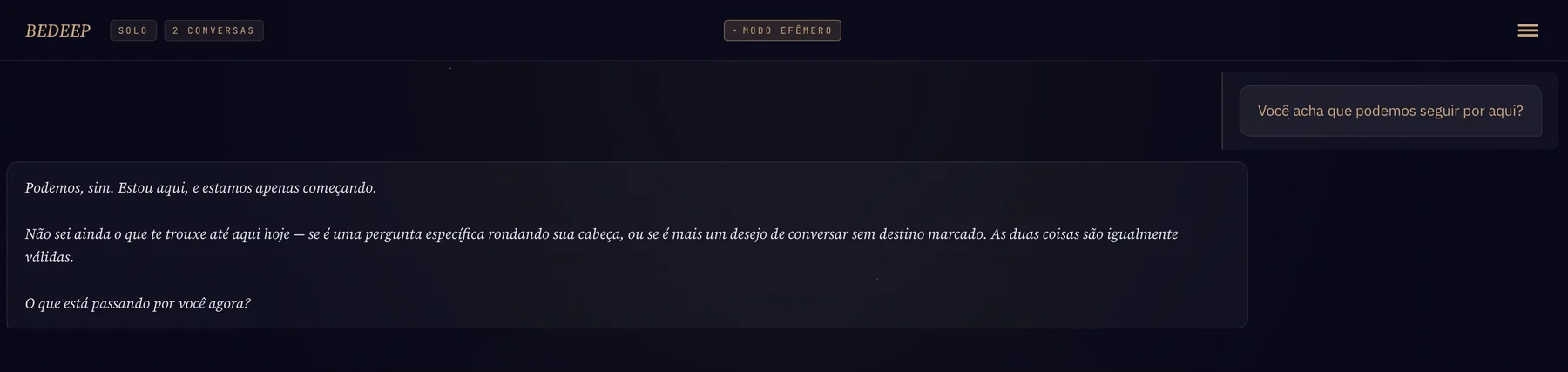
Caution
Once you end it, what was said in the mode can’t be read again, not even by you, and the chat may start over empty. If the open conversation has something you want to keep, highlight that passage before you turn on Ephemeral Mode — while the mode is on, highlights aren’t saved.
How do I save a passage that stayed with me?
Touch and hold a message (on a computer, click and hold) until “Highlight passage” opens. Select the part that mattered, write a note if you like and tap “Highlight.” Everything you’ve highlighted is gathered in “My highlights,” in the ☰ menu. In an Ephemeral Mode conversation, highlights aren’t saved.
Can BeDeep get things wrong?
Yes. Like any artificial intelligence, it can misunderstand, misremember or state with confidence something that isn’t true. Treat what it says as a prompt to think, not as truth or professional guidance — the Terms of Use say the same. If it remembers something wrong about you, correct it right there in the conversation. The “Safety, privacy and the limits of AI” chapter says more about this.
What are “focus” and “atmosphere” at the top of the chat?
They’re two Premium controls. With “atmosphere,” you choose the tone of the conversation: Lightness, Surprise or Depth. “focus” is an experimental reading mode: the reply appears one word at a time, in the center of the screen, at the speed you set.
What if I’m going through a really hard time?
BeDeep isn’t an emergency or health service, and it doesn’t alert anyone — not the team, not the people close to you. It’s instructed to offer support and suggest professional help in those moments, but it’s an AI and may not notice how serious things are. If you’re in danger or thinking about hurting yourself, call your local emergency number or a crisis line where you live right now (in Brazil, CVV at 188 — free, 24 hours, also at cvv.org.br — or SAMU at 192), or go to an emergency room. Talking to someone you trust also helps a lot. See the “Safety, privacy and the limits of AI” chapter.
Voice
Does speaking into the microphone use up my voice minutes?
No. Voice minutes are for hearing BeDeep’s voice. In the text chat, tapping the microphone opens the voice screen (SOLO Voice), which transcribes and sends what you say on its own; if you’ve chosen “Written reply,” it records right there in the chat and also sends on its own. The text only stays in the message field, for you to check before sending, when the transcription looks uncertain (“I’m not sure I heard that right. Check it before sending.”). In none of these cases does your speech use minutes. Only spoken replies and AMBIENT sessions use minutes.
How do I hear the replies out loud?
In the ☰ menu, tap SOLO and then Voice. Tap BeDeep’s circle to speak and tap again when you’re done; if you want to interrupt while it’s replying, just tap once more. At the bottom, choose “Spoken reply” (with your remaining minutes beside it) or “Written reply” — switching doesn’t interrupt the conversation. Everything about voice is in the “Voice and conversation modes” chapter.
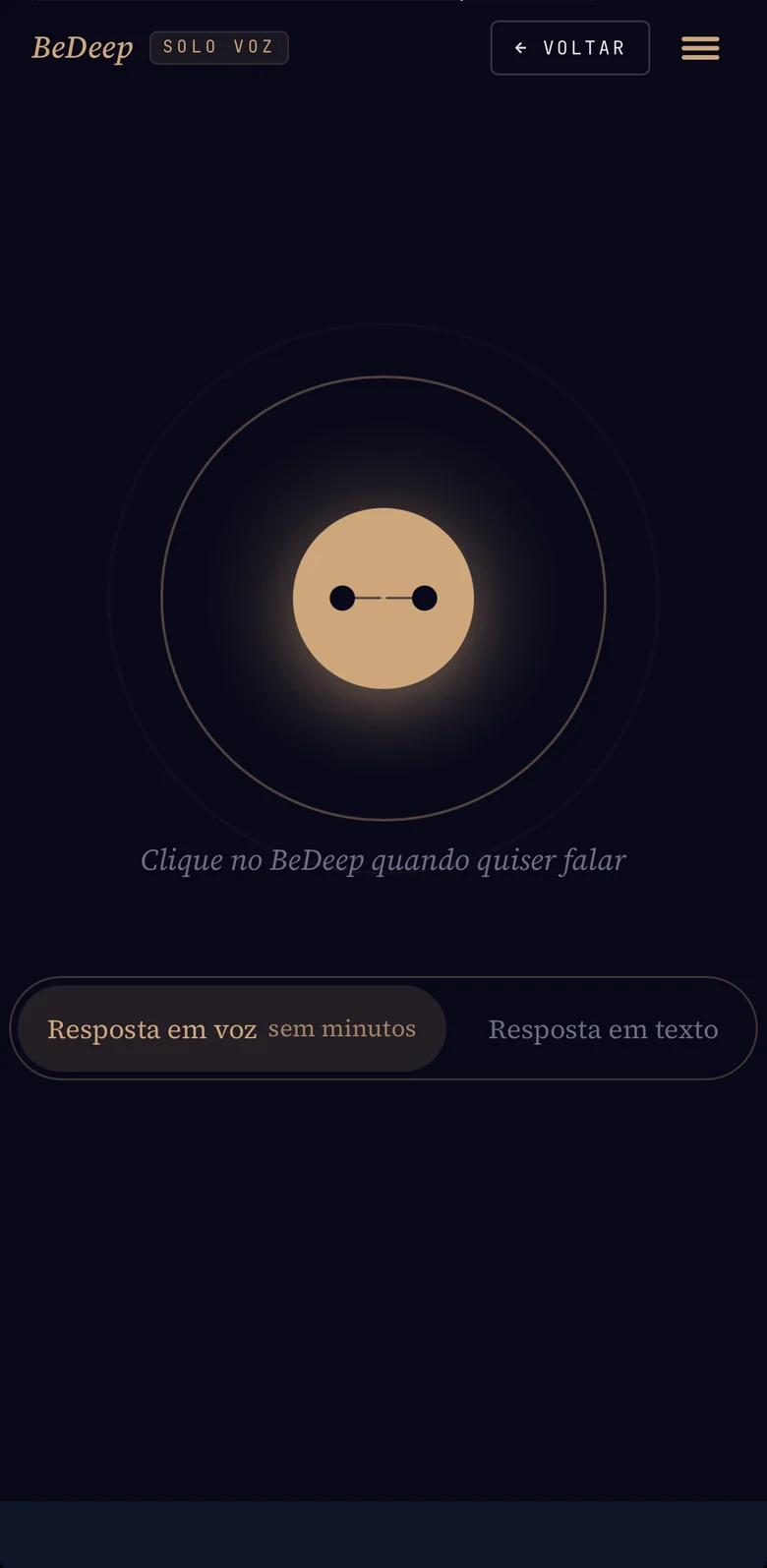
What is AMBIENT?
It’s voice-only conversation, without touching the screen: the microphone stays open during the session and BeDeep replies when it’s useful. It works well for moments like walking, cooking or driving — in that case, start the session before you set off and don’t handle your phone while driving. While BeDeep is speaking, the microphone is paused. AMBIENT is for subscribers (Basic and Premium), appears in the ☰ menu and uses voice minutes during the session.
People who are with you can join in too. The microphone is shared, and the transcription tells the voices apart: at the start, BeDeep invites whoever is present to say their name; if no one else answers, the conversation goes on with just you, without asking for names. If more people show up, it asks each new person’s name, starts calling them by name, takes turns with its questions, draws in whoever has spoken little and doesn’t take sides when there’s tension. If a TV or radio is on, it may take those voices for another person: tell it that’s the TV and, if you can, turn the volume down.
Caution
In AMBIENT, what everyone present says is transcribed and goes into the conversation and whatever it produces. Tell the people with you and get their agreement before you start. The “Voice and conversation modes” chapter explains everything about AMBIENT with more people.
What happens when my voice minutes run out?
In SOLO Voice, replies start coming in writing (“Your voice minutes have run out. The reply continues in writing.”) and you can keep speaking as usual. To hear BeDeep again: if you subscribe, your plan’s minutes renew the following month; and you can buy more with the “See plans and minutes” button. On the website, if you have an active plan, you can buy a Voice Pack of 3 or 5 hours; in the iPhone app, the same screen offers a 3-hour Voice Pack, billed through the App Store. In AMBIENT, you can’t start a session without minutes.
Do voice minutes roll over?
It depends on where they come from. The Free plan’s 15 minutes are given only once. Basic’s 60 monthly minutes don’t carry over to the next month; Premium’s 300 monthly minutes accumulate, up to a cap of 15 hours. Voice Pack minutes are valid for 3 months, and each new purchase renews the expiry of your whole balance.
Does BeDeep keep recordings of my voice?
What BeDeep keeps is the text, not the audio: it doesn’t keep recordings of your voice; the audio goes through the voice services and comes back as text. In AMBIENT, the transcript is kept, encrypted, to feed your diary — including what other people present said. The voice services used in each case are named in the Privacy Policy.
Diary and memory
What is the Diary, and who can see it?
It’s the record of your conversations, written by BeDeep in the first person, as if you were the one writing. It’s generated on its own once the conversation has built up enough material — it doesn’t appear right away — and it lives in the ☰ menu, under Diaries › SOLO Diary. The Diary comes with Basic and Premium (the Free plan has no diary), and only you can see it in your account. Ephemeral Mode conversations don’t become diary entries. On Premium, the “Record now” button records your most recent conversation without waiting.
Can I edit, delete or export the Diary?
Edit, yes: each entry has an “Edit” button, and BeDeep’s original version stays saved — you can look at it again with “Show BeDeep’s original.” Deleting a single entry isn’t possible right now; what can be deleted all at once is the entire account. The “PDF” button, at the top of the Diary, exports the entries to a file.
Do voice conversations become diary entries too?
Yes. In SOLO Voice, what you say goes into the conversation as text and into the SOLO Diary like any other conversation. AMBIENT sessions get a separate diary, under Diaries › AMBIENT Diary, when they last at least 5 minutes. If other people took part in the session, be aware that the AMBIENT Diary is written as if only you had talked with BeDeep: what they said may show up there attributed to you.
What is Ask me?
A question BeDeep asks on its own, not in reply to what you just said. It’s in the ☰ menu › Ask me, for subscribers (Basic: 2 a day; Premium: 5). It grows out of your profile, your diary and your plots. You can save your answer right there, and it becomes a memory in the Diary, or take it to the chat and talk from there.
What are Plots and Portraits?
Plots link several Diary entries into threads that run across time — the themes and paths that keep coming back in your conversations. They start to form once there are at least five entries in the Diary. Portraits are texts in which BeDeep describes how it sees you, written after a few conversations; when the first one is ready, you get a notification and the Portraits item appears in the menu. Both come with Basic and Premium; the “What your conversations leave behind” chapter explains everything.
Does BeDeep build a profile of me? Can I see it and turn it off?
Yes. From your conversations, BeDeep gradually forms an understanding of how you think, and that’s what feeds the Portraits — the notice “How BeDeep uses your data,” shown before your first conversation, says so. To see what it has understood, open a Portrait and tap “See what gave rise to this portrait.” There you can delete any passage (“delete this”) or turn off profile building (“Turn off”); once it’s off, no new conversation feeds the profile and no new portrait is written. The profile can’t be edited: only read and deleted. Ephemeral Mode conversations never go into the profile.
Plans and payment
How much does BeDeep cost?
| Option | Price on the website | What’s included |
|---|---|---|
| Free plan | R$ 0 | 3 conversations in total and 15 voice minutes; no Diary, Plots or Portraits |
| Basic | R$ 150/month | 8 conversations per monthly cycle, 60 voice minutes per month, Diary, Plots, Portraits and AMBIENT |
| Premium | R$ 500/month | Everything in Basic, plus unlimited conversations, 300 voice minutes (5 hours) per month that accumulate up to 15 hours, “focus,” “atmosphere,” “Record now” and “Revisit my plots,” with no model switch up to 1,200 messages per month |
| Extra Pack | R$ 120 | 6 more conversations, valid for 3 months (for current subscribers) |
| Voice Pack | R$ 135 (3 h) or R$ 225 (5 h) | Voice minutes valid for 3 months (on the website, for current subscribers; on iPhone, a 3-hour Voice Pack through the App Store) |
| Gift | R$ 150 (1 month) or R$ 450 (3 months) | Months of Basic for someone else |
On the website, prices are in Brazilian reais. In the iPhone app, App Store prices apply, and they may vary by region. Details in the “Plans and account” chapter.
What does the Free plan include?
Three conversations to try it out, with no deadline and no card, and 15 voice minutes. They don’t renew: it’s 3 in total, not per month. The Free plan doesn’t include the Diary, Plots or Portraits. There’s also a length limit: once your history with BeDeep passes a certain size (counting your messages and its replies), the current conversation continues until the next long break, but a new conversation requires a subscription.
What is the Extra Pack?
It’s 6 more conversations, for R$ 120, valid for 3 months from purchase, for when your cycle’s conversations run out. It’s an add-on: you need an active plan to buy it, and you can buy as many as you like. The pack’s conversations are only used after your plan’s have run out. On the website, it’s at bedeep.ai/assinar, under Add-ons; in the iPhone app, when available, it appears on the subscription screen, at the App Store price.
What does “no model switch up to 1,200 messages” mean?
It’s a Premium guarantee: up to 1,200 messages in the calendar month, replies always come from BeDeep’s main AI model. Beyond that, the conversation isn’t blocked: it carries on as usual, with a lighter model, until the month turns over.
Can I subscribe to Premium on my iPhone?
Yes. In the iPhone app, Basic and Premium are both for sale, billed through the App Store. If you already subscribe through Apple, you change plans in ☰ › My subscription. You can also subscribe on the website, at bedeep.ai/assinar; the subscription works on the website and in the app, with the same account. Stick to one route, so you don’t pay twice.
I subscribed on the website. Does it work in the app? And the other way around?
Yes. Your subscription is tied to your BeDeep account, not to the device: if you subscribed on the website, sign in to the app with the same email; if you subscribed on an iPhone, sign in on the website with the same account. If you’ve switched iPhones, sign in with your account and use “Restore purchases” on the app’s subscription screen.
How do I cancel? And what happens to my Diary?
If you subscribed on the website, open BeDeep in your browser and tap “My subscription” in the ☰ menu: it takes you to the payment portal, where you can cancel. If you subscribed on an iPhone, cancel in Settings › your account › Subscriptions (the app’s “My subscription” item takes you there). If you subscribed on Android, cancel in the Play Store › your profile › Payments & subscriptions › Subscriptions (“My subscription,” in the app, has the shortcut). Canceling stops the renewal, and your access continues until the end of the period you’ve already paid for. Your Diary, your Plots and your Portraits aren’t deleted: they stay saved as long as the account exists and reappear if you subscribe again. Refund requests for purchases made on the website go to bedeep@bedeep.ai, as set out in the Terms of Use; purchases made on an iPhone are billed by Apple, and those made on Android, by Google Play.
Can I switch from Basic to Premium?
Yes. If your Basic subscription is from the website, open “My subscription” in the ☰ menu to see the payment portal’s options; if the switch doesn’t show up there, write to bedeep@bedeep.ai before subscribing to Premium, so you don’t end up with two subscriptions at once. If your Basic is from the iPhone, open ☰ › My subscription in the app and tap Switch to Premium: Apple makes the switch right away and charges only the prorated difference for the period. If it’s from Android, the path is the same, in ☰ › My subscription, and Google Play does the billing. The “Plans and account” chapter covers switching in detail.
Can I give BeDeep as a gift?
Yes. At bedeep.ai/presente, while signed in, you choose 1 month (R$ 150) or 3 months (R$ 450) of Basic, pay and get a code right away, on the screen. The recipient redeems it whenever they like, at bedeep.ai/resgatar, and the subscription only starts counting when it’s redeemed; the code is valid for 6 months from purchase. The recipient doesn’t need an account: they create one when redeeming. Gifts can only be bought on the website, not in the apps.
Privacy and safety
Can anyone read my conversations?
No other user can. The content of your conversations, Diary, transcripts and profile is stored encrypted. To generate replies, the text goes through Anthropic; for voice, through the transcription and speech synthesis services — all named in the notice shown before your first conversation and in the Privacy Policy. Inside the company, access to the database is restricted to authorized technical staff, and administrative access to personal data is logged. In Ephemeral Mode, the key to read the conversation stays in your device’s session, not in a BeDeep database: once it’s discarded, not even the team can read what was said.
Does BeDeep sell my data or use it for advertising?
No. BeDeep doesn’t sell, rent or trade your data, and doesn’t use advertising cookies or third-party tracking cookies. The providers that process your messages handle the data under their own terms; the full list is in the Privacy Policy, at bedeep.ai/privacidade.
Where is my data stored, and for how long?
The database is on servers in the United States, with encrypted backups. The service that runs the voice sessions is in Brazil, but messages and audio also pass through the AI and voice providers, which are located in other countries. Conversations are kept, encrypted, as long as the account exists, and are erased when you delete the account. For everything else — legal bases, rights and time frames — see the Privacy Policy and the “Safety, privacy and the limits of AI” chapter.
How do I report an inappropriate reply from the AI?
In the iPhone app, use “Report content” in the ☰ menu, describe what happened and send it. On other devices, write to bedeep@bedeep.ai saying when it happened and what was on the screen. If the problem involves the rights of children or adolescents, use the bedeep.ai/denunciar page (the law doesn’t allow anonymous reports, so it asks for your name and email).
Devices and apps
Do I need to download an app? How do I put BeDeep on my home screen?
You don’t: BeDeep works fully in the browser, at bedeep.ai, on a computer or a phone. In your phone’s browser, the ☰ menu shows “Install on phone,” which shows you how to put a shortcut on your home screen — on iPhone, you do this through Safari. The shortcut opens the same BeDeep, with the same account. If you’d rather have an app, downloading it doesn’t require a subscription, even though the home page says “Subscribe and download”: the Free plan works on every device.
Is there an iPhone app? What’s different?
Yes, on the App Store: search for BeDeep or use the iOS · App Store badge on the home page, under “BeDeep wherever you are.” It opens the same BeDeep as the website, with the same account and the same conversations. The differences are in purchasing and a few menu items: in the app, purchases go through the App Store (the 5-hour Voice Pack and gifts are only on the website), and the ☰ menu includes “Report content,” “Contact us” and “Delete account.” The notice “How BeDeep uses your data” may appear again each time you sign in to the app.
Is there an Android app?
Yes, on Google Play: search for BeDeep or use the badge on the home page, under “BeDeep wherever you are.” It opens the same BeDeep as the website, with the same account and the same conversations, and the ☰ menu includes “Report content” and “Delete account.” In the app, Basic, Premium and the packs are bought through Google Play, and plan changes are in ☰ › My subscription. If you’d rather not install anything, you can use BeDeep in your phone’s browser and put a shortcut on your home screen, in ☰ › Install on phone.
Is there a Mac app?
Yes. The Mac app is downloaded at bedeep.ai/download/mac — or from the Desktop · Mac badge on the home page, under “BeDeep wherever you are” — and requires macOS 11 or later. It’s the same BeDeep as the website, with the same account, and plans and payments work as they do on the website; on a computer, you can also just use it in the browser.
Chapter 9
Troubleshooting
What to do when something doesn’t work: symptoms, likely causes and fixes, from signing in to the age check, and how to contact support.
This chapter is for when something doesn’t go the way you expected. It’s organized by area (signing in, the conversation, voice, payment, balance, the apps and the age check) and, within each area, by the symptom you see. When BeDeep shows a message, it appears here in quotes, exactly as it is on screen, so you can find your case faster.
If your problem isn’t here, the last section explains how to contact support and what to send to speed things up.
Tip
Before anything else, three steps solve a good share of cases. (1) Check that your internet is working by opening another site. (2) Reload the page; in the app, close it completely and open it again. (3) If nothing changes, log out (the ☰ menu › Log out) and sign in again with your email and password. If you’re in Ephemeral Mode, logging out discards that conversation for good.
Important
Your conversation history is stored in your account, not on the device. Reloading the page, closing the app or switching devices doesn’t erase anything. The exception is Ephemeral Mode: there, the conversation disappears 30 minutes after the last message and doesn’t open on another device (see “My conversation disappeared”, below). If the connection drops in the middle of an exchange, the only thing you can lose is that last exchange: the message you just sent and the reply that was coming in.
Signing in
On BeDeep you sign in with email and password. The sign-in screen opens in create-account mode. If you already have an account, tap “Already have an account? Sign in with email + password” before filling anything in. BeDeep sends links by email in three situations: to reset your password, to confirm an email change and, on some paths, to sign in without typing your password. All of these links expire.
“Incorrect password.”
Why it happens: the email exists, but the password you typed doesn’t match. Check for capital letters, an extra space at the end and your phone’s autocorrect, which sometimes changes the first letter.
What to do: try again calmly. If you don’t remember your password, tap “Forgot my password”, which appears right below the message (see the next item).
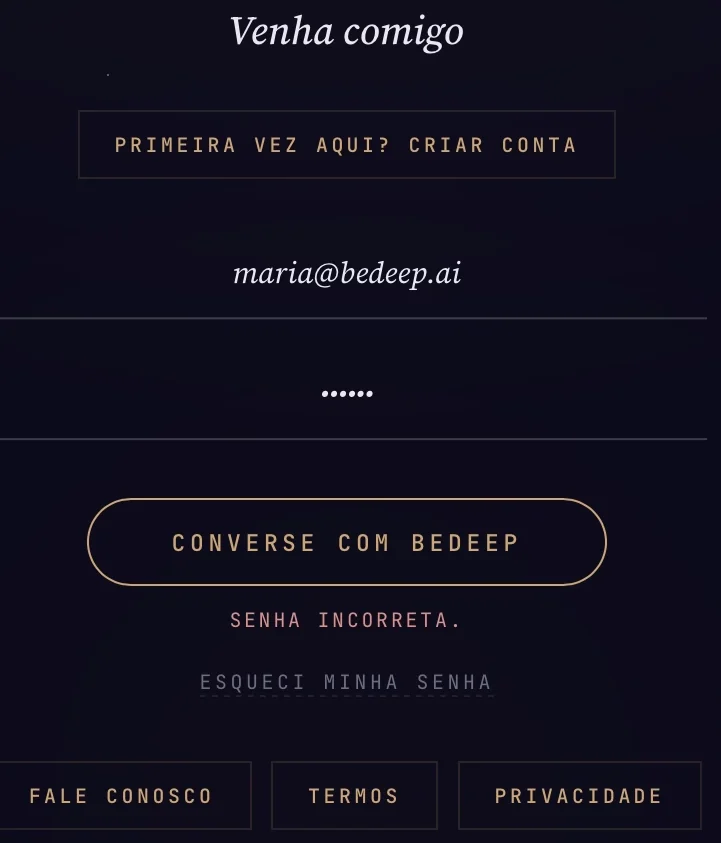
Forgot your password (or want to change it)
The “Forgot my password” link isn’t visible all the time. It only appears after a sign-in attempt that didn’t work. Here’s the path:
- At bedeep.ai/entrar, tap “Already have an account? Sign in with email + password”.
- Type your account email and any password with at least 6 characters. Tap Sign in.
- You’ll see “Incorrect password.” and, right below it, “Forgot my password”. Tap it.
- The screen confirms: “Link sent to your e-mail.”
- Open the email with the subject “BeDeep — reset your password” and tap Reset password. The link is valid for 30 minutes.
- Type the new password twice, with at least 6 characters. If the two don’t match, you’ll see “Passwords don’t match.” When it works, you’ll see “Password updated. Signing you in…” and you go straight into BeDeep.
There’s currently no “change password” screen for when you’re already signed in. To change your password, log out (the ☰ menu › Log out) and follow the steps above.
Caution
The screen says “Link sent to your e-mail.” no matter what: even when the email you typed has no BeDeep account (this is a safeguard), and even when the request was refused because of too many attempts. So if the email doesn’t arrive, first check that you typed your account’s address exactly and, if you requested it several times in a row, wait a minute before requesting it again.
The email with the link doesn’t arrive
Why it happens: the email may have gone to spam, junk or the promotions tab. The address may have been mistyped. Some providers also take a few minutes to deliver.
What to do:
- Search for the word “BeDeep” in your inbox and in all folders.
- Wait a few minutes and check again.
- Check the address you typed. If you requested the link several times in a row, wait a minute before requesting it again.
- Always use the most recent email.
- If nothing arrives even then, contact support (see “How to contact support”, at the end of the chapter). Only the team can look into an email that wasn’t delivered.
“Link expired or invalid. Please try again.” or “Reset link expired or invalid. Request a new one under ‘Forgot my password’.”
These messages appear on a screen titled “Invalid Link”.
Why it happens: the link is past its deadline or was only partly copied. The deadlines are 30 minutes to reset your password, 15 minutes to confirm an email change and 15 minutes for sign-in links.
What to do: request a new link and open it right away. For your password, go through “Forgot my password” again. For an email change, the “Invalid Link” screen may appear with no explanation below the title: go back to bedeep.ai/trocar-email and request the change again. The Try Again button on that screen leads to a page that asks only for your email (“We’ll send a secure link to your email.”) and sends a sign-in link, also valid for 15 minutes. Type exactly the email of the account you already have there.
The “Sign in” (or “Talk to BeDeep”) button doesn’t light up
Why it happens: the button only becomes active once the required fields are filled in. To sign in, that means an email with “@” and a password with at least 6 characters. To create an account, you also need your name, the “I understand that BeDeep is not therapy” box checked and, depending on the case, the age check. Sometimes the browser fills in the password on its own without the button noticing.
What to do: check the fields. Tap the password field and retype the password, or at least the last character. If you’re creating an account and the cursor jumps to the name field with the text “Please enter your name here”, just fill it in.
When trying to sign in: “Name is required.” or “We need to confirm your age to continue.”
Why it happens: you were in Sign in mode, but the email you typed doesn’t match any account. To BeDeep, it’s a new sign-up, so it asks for what’s missing to create an account: your name or the age check. Which of the two messages appears depends on the device and the step. The cause is almost always a typo: an extra period, a swapped letter, “.com” instead of “.com.br”.
What to do: if you already have an account, check the email carefully and try again. Don’t complete the sign-up, or you’ll create a second, empty account. The age check is only required for new accounts: if you already have an account, you don’t go through it. If it really is your first time, tap “First time here? Create account” and sign up as usual (see the “Getting started” chapter).
“An account with this email already exists, but it has no password set. Use ‘Forgot my password’ to create one.”
Why it happens: it’s an older account, created before BeDeep started using passwords.
What to do: tap “Forgot my password”, which appears right below the message, and create your password through the link that arrives by email.
“Too many attempts. Please wait 1 minute.”
Why it happens: there were too many attempts in a row from the same connection. The limit is 10 per minute for signing in or creating an account. It’s a safeguard against people trying to guess passwords.
What to do: wait a minute and try again.
“Connection error. Please try again.”
This message appears on the sign-in screen when the device couldn’t reach BeDeep. Check your internet and try again.
I created my account with the wrong email (or want to change my email)
Why it happens: a typo at sign-up means the account is born with an address that isn’t yours. Everything works, but emails, like the password reset one, go to the wrong address.
What to do:
- If you’re still signed in: open bedeep.ai/trocar-email and type your current password and the new email. BeDeep sends a confirmation link to the new address (“Confirmation link sent to your new email. Click it within 15 minutes.”), and the change only takes effect after you click it. Other messages you may see on that screen: “Incorrect password.”, “This email is already in use by another account.” and “The new email is the same as the current one.”
- If you’ve logged out but remember your password: sign in using the wrong email, exactly as it was typed at sign-up, and then change the address.
- If you remember neither your password nor the exact address: contact support.
Tip
To see which email you’re signed in with right now, open bedeep.ai/trocar-email. The page shows the “Current email”, and you don’t have to change anything.
Conversation
The reply doesn’t arrive (the dots keep going)
Why it happens: the connection got slow or dropped while sending, or the AI service is taking longer than usual.
What to do:
- Wait a little. Long replies can take a few seconds to start.
- If nothing changes, reload the page (in the app, close it and open it again). The conversation reloads from your account, and you’ll see the notice “Conversation restored. Pick up where you left off!”
- If your last message isn’t in the history, send it again.
Tip
If you wrote something long, copy the text before trying again. The typing field empties the moment you send, and the text left in the bubble on screen may not have been saved if the connection failed.
“Sorry, I had a problem. Please try again.”
Why it happens: your device couldn’t deliver the message to BeDeep, whether because there’s no internet, the connection is unstable or the network blocks the site. Your message appears in the bubble, but it may not have arrived.
What to do: check your connection, copy what you wrote and send it again. If this keeps happening, reload the page.

“The response was cut short. Try sending again in a moment.”
Why it happens: the reply started arriving and was cut off along the way, usually by a momentary glitch in the AI service. The part that had already arrived stays on screen, with the notice right below it.
What to do: wait a few seconds and send it again. You can repeat the same message or write something like “your reply was cut off, can you continue?”
“I couldn’t reach the server just now. Your conversation is safe — just try again.”
Why it happens: when opening the conversation, the device couldn’t fetch it. It may be your connection or a brief BeDeep outage.
What to do: tap Try again. Nothing was erased, either in your account or on the device.
The screen flickers, goes back to the start on its own, or shows “I couldn’t open your conversation. Signing in again usually fixes it.”
Why it happens: the device lost its link to your session. This happens mostly inside the apps, when the sign-in data stored on the device gets lost. Instead of going around in circles, BeDeep stops and shows this screen with two ways out.
What to do: tap Try again. If the screen comes back, tap Sign out and sign in again with your email and password. Your conversation is still there. The exception is Ephemeral Mode: if you were in it, signing out discards the ephemeral conversation, and it doesn’t come back.
BeDeep replied with an empty bubble
Why it happens: BeDeep refused the message for a reason the conversation screen can’t show, for example when your session has expired or when your consent to data use wasn’t recorded.
What to do: reload the page. If the “How BeDeep uses your data” window appears, read it and tap I agree and continue. If the empty bubble happens again, log out and sign in again. If it still keeps happening, contact support.
“I couldn’t save the highlight. Reason: This conversation is ephemeral — highlights aren’t saved in it.”
Why it happens: you’re in Ephemeral Mode (the Ephemeral Mode badge appears at the top of the screen). An ephemeral conversation leaves no trace, and that includes highlights: the Highlight passage window opens, but the passage isn’t saved.
What to do: there’s nothing to fix. The notice suggests reloading the page and trying again, but that won’t help while the mode is on. If you want to keep the sentence, copy the text somewhere else before the conversation expires, 30 minutes after the last message. What highlights are and how to use them is covered in the “What your conversations leave behind” chapter.
“My conversation disappeared”
On BeDeep, your conversation history is one continuous thread tied to your email. It’s the same on any device where you sign in with the same account. The exception is Ephemeral Mode, made precisely to leave no trace (see the “The conversation” chapter). When it looks like it’s gone, these are the most common causes:
| What you see | Likely cause | What to do |
|---|---|---|
| The conversation looks empty, as if it were your first time | You signed in with a different email. A single different letter is enough to make another account | Log out and sign in with your usual email. If in doubt, check the “Current email” at bedeep.ai/trocar-email |
| Messages are missing | Someone used Clear history, in the menu, selected messages and tapped Delete selected. Deleting asks for confirmation (“Delete 1 message? This action cannot be undone.”) and is permanent | There’s no way to recover them from the screen. If it wasn’t you, contact support |
| Only the last question and the last reply are missing | The connection dropped in the middle of the exchange | Send it again |
| Diary, Plots or Portraits take you to the subscription page | These areas are for people with an active plan | See the “Plans and account” chapter |
| When you sign in, the screen treats your email as a new account (it asks for your name or the age check), but you’re sure you had an account | The account may have been deleted | Don’t create a new account for now. Contact support first and give them the email |
| The conversation vanishes all at once, or you see “The messages in this conversation have expired.” | You’re in Ephemeral Mode (the Ephemeral Mode badge appears at the top of the screen), and the conversation expires 30 minutes after the last message | That’s how it works. There’s no recovery, not even through support |
| I opened it on another device and the ephemeral conversation isn’t there | The key for reading the ephemeral conversation lives only in the session on the device where the mode started, not in a BeDeep database | Go back to the device where you started. It won’t open on another device |
| I ended Ephemeral Mode (or logged out) and the conversation disappeared | Ending the mode, through the Ephemeral Mode badge, or logging out discards the reading key | That’s the intended behavior. What was said there can no longer be read, not by you and not by the BeDeep team |
| After using Ephemeral Mode, messages from before it are missing | That shouldn’t happen: Ephemeral Mode opens a new conversation and doesn’t touch the previous one. When you end the mode, BeDeep goes back to the conversation you came from | Contact support and tell them the day and the approximate time you used the mode |
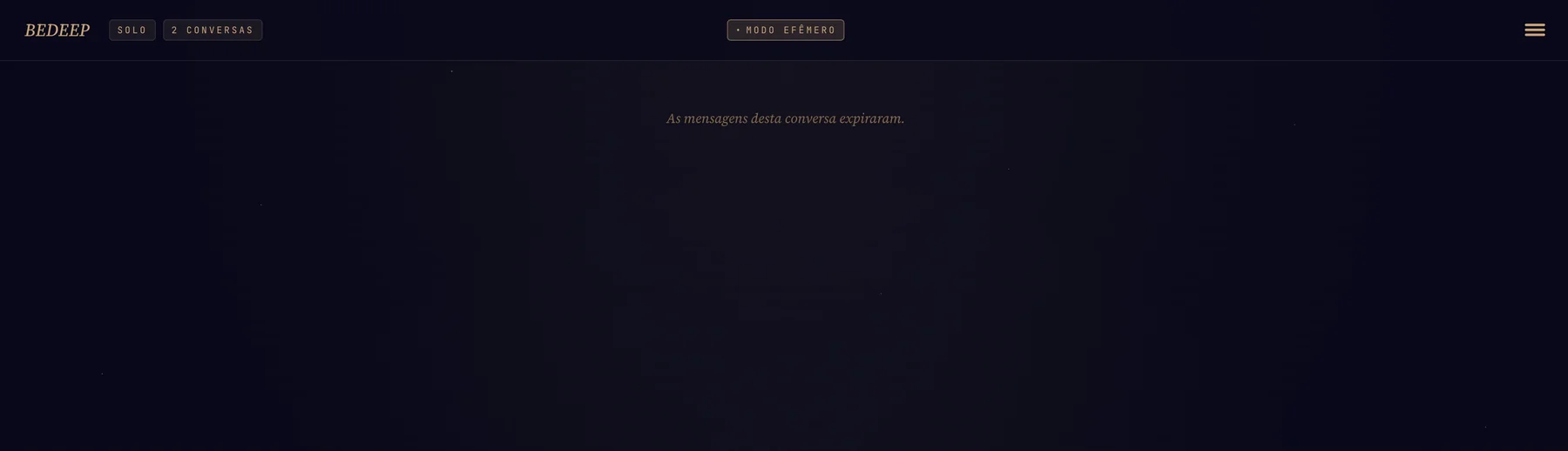
The Diary doesn’t show today’s conversation yet
Why it happens: the Diary is written in the background, from your conversations, once there’s enough material (a few exchanges, not a single sentence). The entry is completed when the conversation pauses: sometimes when you start writing again after a break and, at the latest, about 12 hours after your last message. In practice, if you talked in the evening, you’ll often find the entry the next morning. Conversations in Ephemeral Mode never become diary entries. In AMBIENT, sessions shorter than 5 minutes don’t produce a chapter in the AMBIENT Diary: the card appears as Short conversation, with the Transcript only badge. While there’s nothing yet, the page shows “Your diary is still empty”.
What to do: come back later. On Premium, the Record now button, at the top of the SOLO Diary page, writes the entry for your most recent conversation right away. The details are in the “What your conversations leave behind” chapter.
Voice
One distinction explains almost every problem in this section: speaking, that is, using the microphone, doesn’t use up minutes. What uses up minutes is listening to BeDeep’s spoken reply. If your minutes run out, you keep speaking and the reply comes in writing instead. In AMBIENT, what counts is the length of the session. More on this in the “Voice and conversation modes” chapter.
The microphone doesn’t work, or you see “Microphone permission denied. Please enable it in settings.”
Why it happens: the device or the browser hasn’t given BeDeep permission to use the microphone. Often the permission request was declined by accident. The same message appears when another app is using the microphone at that moment. In AMBIENT, the message is “Couldn’t access the microphone. Check permissions and try again.”
What to do, depending on where you use BeDeep:
| Where | How to allow the microphone |
|---|---|
| iPhone app | iPhone Settings › BeDeep › Microphone (on) |
| Safari on iPhone | In the address bar, tap the page settings icon (“aA” in many versions) › Website Settings › Microphone › Allow |
| Chrome on a computer | Click the icon to the left of the bedeep.ai address › Microphone › Allow. Then reload the page |
| Chrome on Android | Tap the icon to the left of the address › Permissions › Microphone |
| Mac app | System Settings › Privacy & Security › Microphone › BeDeep (on) |
After allowing it, close the conversation screen and open it again. If another app is using the microphone, such as a call or a recorder, close it first.
“I couldn’t hear that. Click to try again.”
Why it happens: on the voice screen, BeDeep couldn’t turn your recording into text. It may have been a momentary glitch in the transcription or the connection. It may also be that what was picked up looked like “phantom text” (see the next item) and was held back on purpose. If the recording comes in empty, for example because you tapped to finish too soon, the screen simply goes back to waiting, with no message. With the microphone in the written conversation, a failure of this kind shows up as “Transcription error. Please try again.”
What to do: tap BeDeep and speak calmly, close to the device and away from noise. Tap again when you’re done (“Click BeDeep when you’re done”).
The transcription comes out wrong, or text you didn’t say appears
Why it happens: speech is turned into text automatically, and that can go wrong with noise, very quiet speech, proper names or mixed languages. There’s also a known flaw in this kind of system: faced with silence, it sometimes “makes up” video-caption lines, like “Subtitles by the Amara.org community” or “Thanks for watching”. BeDeep recognizes the lines of this kind that it already knows and, when what it heard looks like one of them, doesn’t send it. With the microphone in the written conversation, it leaves the text in the typing field and warns “I’m not sure I heard that right. Check it before sending.” On the voice screen, it shows “I couldn’t hear that. Click to try again.”
What to do:
- If text you didn’t say appeared, clear the field and speak again. If it keeps happening, let support know: then the flaw is in the system, not on your end.
- The transcription detects the language of each utterance. If a short utterance comes out written in another language, repeat it with a slightly longer sentence.
- For names and hard words, it’s better to type.
- If BeDeep replied to something you didn’t say, tell it in your next message (“that’s not what I said; I said…”). Your transcribed speech appears in the conversation bubble, so you can check it.
On iPhone, the voice stops when the screen turns off or when you leave the app
Why it happens: iPhone suspends the BeDeep page when the screen locks or when you switch to another app, and the microphone and the voice stop with it. Low Power Mode makes it worse, because it forces the screen to lock after 30 seconds. When you come back, the microphone may stay stopped: you speak and nothing is recorded, or a reply repeats.
What to do:
- During a voice conversation, keep BeDeep open and in the foreground. Don’t press the side button and don’t switch apps.
- If your screen tends to turn off quickly, lengthen Auto-Lock (Settings › Display & Brightness) and, if you can, turn off Low Power Mode while you talk.
- If the voice stopped, tap ← Back when you return to the app, to leave voice mode. Check the last reply in writing, and only then open voice again and start talking.
- Keep the app updated through the App Store.
“Voice playback was incomplete. Please read the transcript before continuing.”
In voice mode, the short version appears: “Audio incomplete — please read the transcript.”
Why it happens: part of the reply’s audio didn’t arrive. The text of the reply is complete in the conversation.
What to do: tap ← Back and read the written reply before going on.
“Your voice minutes have run out. The reply continues in writing.”
In voice mode, the full message appears: “Your voice minutes have run out. The reply continues in writing. I switched to written replies. Speaking is still free. Tap ← Back to read.”
Why it happens: your balance of minutes for listening to replies has reached zero. BeDeep switches to Written reply on its own, and tells you it did.
What to do: you have three options. Tap Continue in text: the voice screen closes and you go back to the written conversation, where the reply is; you can keep using the microphone, and replies come in writing. Tap See plans and minutes to buy more. Or wait for your plan’s minutes to renew. See the Balance section, further down.
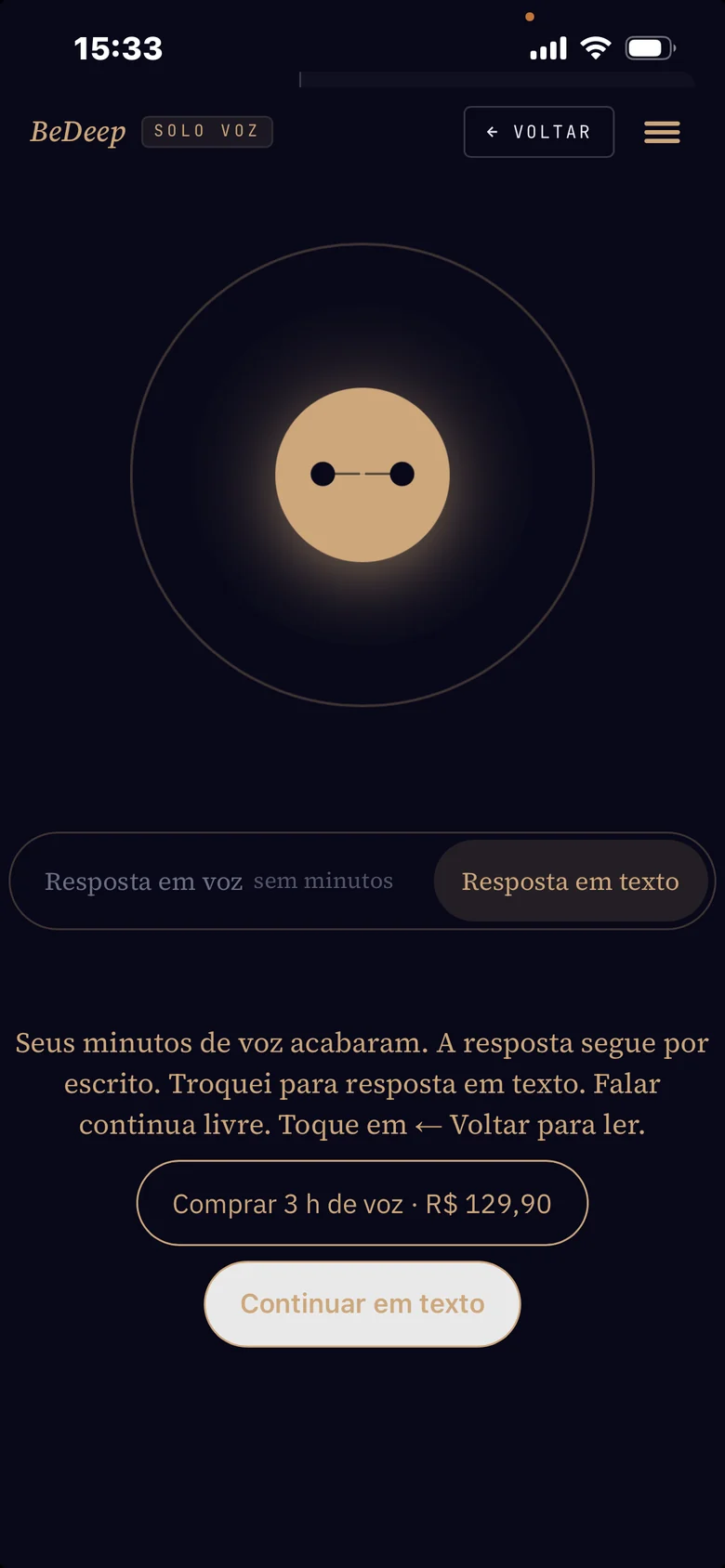
In AMBIENT: “Couldn’t connect to the voice room. Try again.”, “Voice service unavailable. Try again in a few seconds.” or “You have no minutes available.”
Why it happens: the first two messages point to a connection failure with the voice service, which may be on your internet or on BeDeep’s side. The third means your balance has hit zero. AMBIENT is a feature for people with an active plan.
What to do: for the first two, wait a few seconds, check your internet (a stable Wi-Fi network is best) and try starting again. For the third, see the Balance section. If you see “Accept the terms before starting.”, accept the consent shown on screen before you start.
In AMBIENT, BeDeep asked who’s there, or called someone by name
Why it happens: in AMBIENT, the microphone is shared. The conversation can include whoever is in the same place as you, and the transcription separates the voices of the people speaking. That’s why the opening invites anyone with you to say their name: “Hi [your name], I’m listening. If anyone else is there, tell me their name.” When another voice appears, BeDeep asks that person’s name and starts calling them by it. Voice separation is automatic and can get it wrong: a TV, a radio or a conversation in the background can be taken for another person.
What to do:
- If you’re alone, you don’t need to answer the opening invitation. Just keep talking about what you came to talk about, and BeDeep understands that the conversation is with you alone.
- If it asked the name of someone who isn’t there, say you’re alone (or that it was the TV) and carry on. Turn off, turn down or move away from the TV or radio.
- If there really is another person, they can say their name and join in. In Only when called mode, each person has to say “BeDeep” to be heard, including when saying their name.
- Tell the people with you before you start, and agree on it together: what everyone present says is transcribed and becomes part of the conversation and of whatever it produces.
More under “With other people in the room”, in the “Voice and conversation modes” chapter.
In the AMBIENT Diary, what someone else said appears as if you said it
Why it happens: the AMBIENT Diary chapter is written as if only you and BeDeep had spoken, even when there were more people in the session. So what someone else said may appear in the chapter attributed to you.
What to do: to see who said what, open the session’s Transcript, on the same page: it’s the faithful record of what was said and shows the name of whoever spoke, when BeDeep knew it. The page offers no way to correct the chapter, and deleting the transcript doesn’t delete the chapter. If something there bothers you or the other person, contact support.
Payment
Where you pay decides where you manage your subscription. On the website (bedeep.ai), payment is processed by Stripe and the subscription is managed on the site itself, through the My subscription item in the menu. In the iPhone app, the App Store does the billing, and you manage it in iPhone Settings (“Settings › your account › Subscriptions”). In both cases, the plan is tied to your BeDeep account, that is, to your email, and it works on every device where you sign in with it.
I paid on the website and my plan wasn’t unlocked
Why it happens: the payment confirmation reaches BeDeep a few seconds after checkout. The “Subscription active” page warns: “Payment processing may take a few seconds”. Another common cause is being signed in, on the device where you’re checking, with a different account from the one that paid.
What to do:
- Wait a minute or two and reload the conversation. With an active plan, the menu item becomes My subscription and the Diary becomes available.
- Check that you’re signed in with the same email you used for the purchase (see bedeep.ai/trocar-email).
- Log out and sign in again.
- If your plan still isn’t unlocked, contact support. Send the account email, the date and amount of the purchase and the code shown under “Reference” on the “Subscription active” page. If you’ve already closed that page, the receipt that arrived in your email works too.
I bought on iPhone and it doesn’t show up on the website (or the other way around)
Why it happens: the purchase is tied to the BeDeep account that was signed in to the app at the time of purchase. If you signed in to the website with a different email, the plan doesn’t show up. The same goes the other way around.
What to do:
- Make sure you use the same email in both places.
- If the plan doesn’t show up in the iPhone app, open the ☰ menu › Subscribe and tap Restore purchases, at the bottom of the page. The possible responses are “Purchases restored! Updating…”, “No active purchases found on this account.” (your Apple account has no active subscription) or “Couldn’t restore right now. Please try again.”
- In the Android app, the path is the same: ☰ › Subscribe › Restore purchases. It looks for the subscription in the device’s Google account.
- If the subscription was bought while the app was signed in to another BeDeep account, restoring may not fix it. In that case, contact support and give them both emails.
Caution
A subscription made on iPhone is canceled or changed in iPhone Settings, not on the website. On the website, My subscription only opens management for subscriptions paid on the website. For a purchase made on iPhone, it may show “Could not open the portal right now. Please try again shortly.”, and trying again won’t help. The reverse also happens: inside the iPhone app, My subscription opens App Store subscriptions, where a subscription made on the website doesn’t appear.
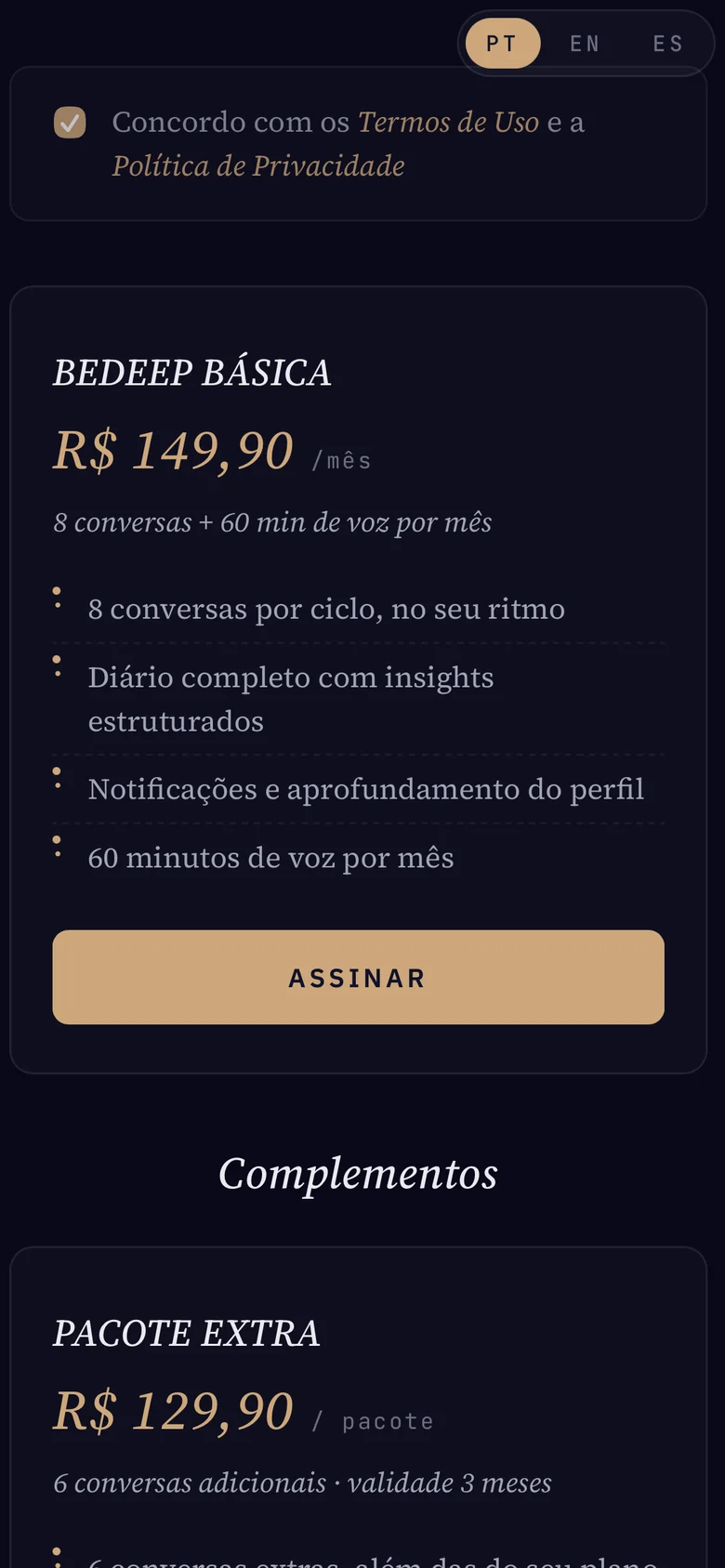
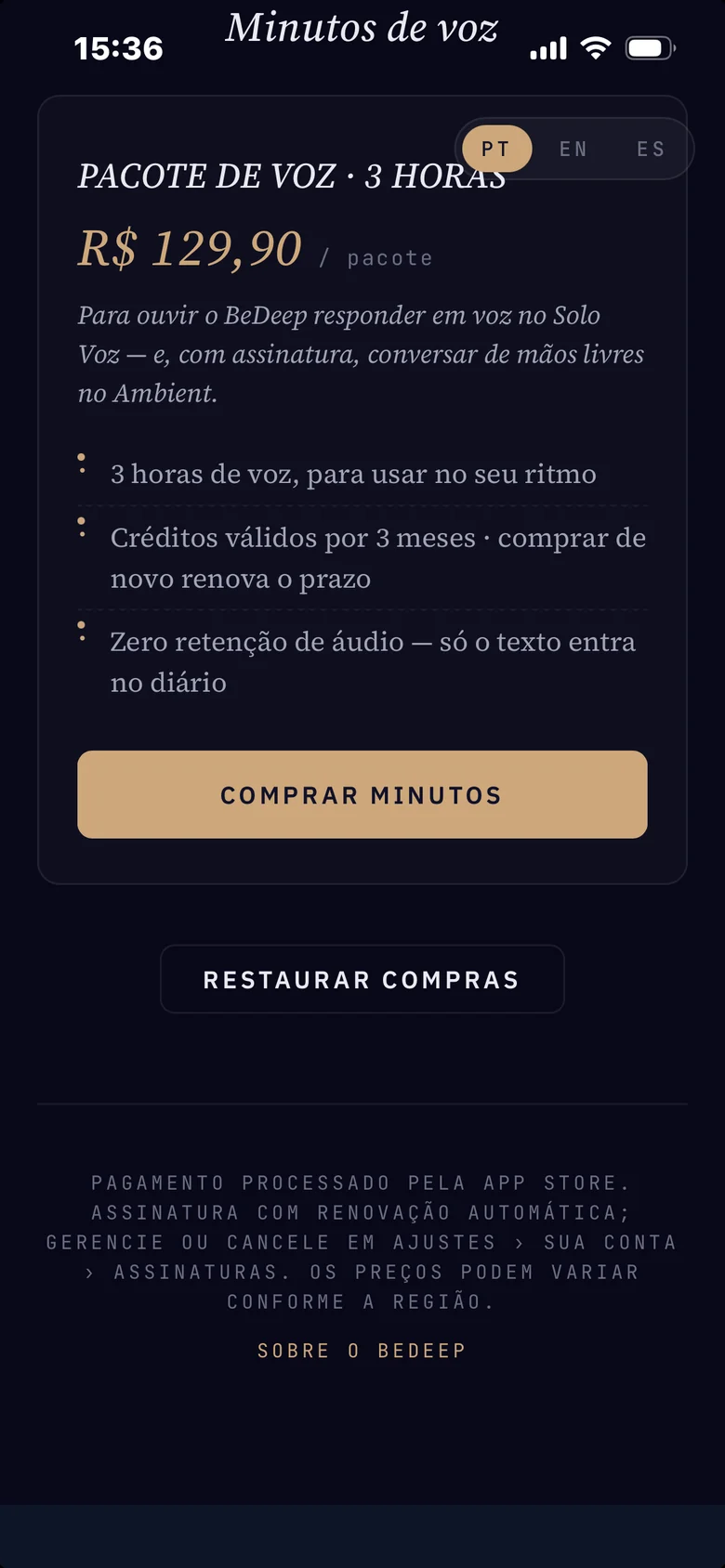
The subscribe or buy button doesn’t respond
Why it happens: before paying, you need to check the “I agree to the Terms of Use and the Privacy Policy” box, at the top of the subscription page. If it’s unchecked, the website shows “You must accept the Terms of Use and Privacy Policy to continue.” and draws your attention to the box. In the iPhone app, the buttons only become active once the box is checked. If you’ve accepted before, the box usually comes already checked.
What to do: check the box and tap the button again.
On iPhone: “We couldn’t complete the purchase.”, “Purchases unavailable right now. Please try again shortly.” or “Purchases still loading. Please try again shortly.”
Why it happens: the App Store didn’t respond or didn’t complete the purchase. The cause may be the connection, the payment method on your Apple account or the store still loading the products. If you canceled in Apple’s window yourself, nothing is charged.
What to do: wait a little and try again. Check your payment method in Settings › your account. Close and reopen the app. If purchases are still unavailable, you can subscribe on the website, in your browser, with the same account.
I can’t find Premium in the iPhone app
Why it happens: Premium appears on the subscription screen when the App Store returns its price. If the store hasn’t responded yet (weak connection, store still loading), the Premium card stays hidden.
What to do: close and reopen the app and check your connection. If it still doesn’t appear, update the app in the App Store. If you already have Premium, it also works in the app, with the same account. You can also subscribe on the website, at bedeep.ai/assinar. The details are in the “Plans and account” chapter.
“The Extra Pack is an add-on. Subscribe to a plan first, then buy conversation packs.”
Why it happens: the Extra Pack and, on the website, Voice Packs can only be bought by people with an active plan. If you don’t have a subscription, the Extra Pack button appears disabled, with this sentence right below it.
What to do: subscribe to a plan first. See the “Plans and account” chapter.
I was charged twice, or I want a refund
Contact support and tell them the date, the amount and where you made the purchase (website, App Store or Google Play). The cancellation and refund rules are in the Terms of Use, at bedeep.ai/termos. Purchases made through the App Store also follow Apple’s rules; those made through Google Play, Google’s.
Gift subscription: the code didn’t appear
Why it happens: gifts are bought on the website. After payment, the “Payment confirmed” page shows “We’re generating your gift code…” until the confirmation arrives, which is usually quick.
What to do: wait on the page. If the code doesn’t appear, follow what the page itself tells you: “Your payment went through. If the code doesn’t appear, message us on WhatsApp with the date and amount of the purchase — it exists and we can recover it.” When the code appears, copy it and keep it somewhere safe.
Gift subscription: the person who received it can’t redeem it
Redemption happens at bedeep.ai/resgatar. The recipient doesn’t need an account: one is created at the time of redemption. These are the possible messages:
| Message | What it means | What to do |
|---|---|---|
| “Signing you in to unlock your gift…” | You weren’t signed in | Sign in or create your account. The code is kept and you come back to the redemption page |
| “We couldn’t find this code. Check the letters and try again.” | The code was mistyped | Copy and paste the code, with no spaces |
| “This code has already been redeemed.” (with the date) | The code has already been used | Check whether it was redeemed on your own account. If not, the buyer should contact support |
| “This code has expired and can no longer be redeemed.” (with the date) | The code is valid for 6 months from the purchase | The buyer should contact support and give the purchase date |
When it works, you’ll see “Done! 1 month of BeDeep unlocked for you.” (or the number of months in the gift). The gift gives months of Basic, and the gifted subscription starts counting on the day it’s redeemed.
Balance: when you run out of conversations or minutes
Where to see what’s left
| What | Where it appears |
|---|---|
| Conversations (Free and Basic) | At the top of the conversation screen, next to “SOLO”, a badge such as “3 CONVERSATIONS” (“Conversations left this cycle”). The number updates when the screen loads. On Premium, which has no conversation limit, the badge doesn’t appear |
| Voice minutes | In voice mode, next to the “Spoken reply” option (for example, “42 min” or “no minutes”). On the AMBIENT page, under “Minutes available” |
Important
For your balance, a new “conversation” starts whenever you write again after a long pause (currently, 2 hours or more). Before that pause, everything counts as one conversation, however long it gets. A conversation in Ephemeral Mode counts the same as any other. If you want your balance to go further, keep each conversation within one stretch of time, without long pauses in the middle.
“…you’ve used your 3 free conversations with BeDeep. To keep talking every day, you need to be a member.”
Why it happens: the Free plan gives you 3 conversations, once. They don’t renew each month. In this message, “being a member” means having a subscription. You don’t need to sign in again. If you’re in voice mode, BeDeep reads the notice without using your voice minutes and closes voice mode.
What to do: on the website, the conversation shows the Subscribe to BeDeep and go deeper button, with the line “Your BeDeep is keeping everything until you return.” In the apps, the text field shows “You’ve used your free conversations.” In the iPhone and Android apps, subscribing is under the ☰ menu › Subscribe. Everything you’ve already talked about stays saved.
“…this conversation has grown long and reached the limit of free access. To keep talking, you need to be a member.”
Why it happens: on the Free plan, the conversation history has a size limit, counting both your messages and BeDeep’s. BeDeep doesn’t cut you off in the middle of a conversation. The limit is checked when you write again after a long pause (currently, 2 hours or more): if the history has already passed that size, this message appears. That’s why it can show up even before you’ve used your 3 free conversations.
What to do: the same as the previous item: subscribe to keep talking.
“…you’ve used the 8 conversations in your Basic plan this cycle.”
The message ends in one of these ways, depending on where you are:
- “You can buy an extra pack of conversations, upgrade to Premium, or wait for your renewal.” (on the website), with the Buy an extra pack button;
- “You can buy an extra pack now, or wait for your renewal.” (in the iPhone app), also with the Buy an extra pack button, which takes you to the App Store purchase;
- “They come back at renewal.” (in the iPhone app, when the pack isn’t sold there).
In every case, the text field then shows “You’ve used this cycle’s conversations.”
Why it happens: Basic includes 8 conversations per cycle. They come back on your subscription’s renewal date, not on the 1st of the month.
What to do: wait for the renewal, buy an Extra Pack (6 conversations, valid for 3 months from purchase) or move to Premium (on the website; or, if you subscribe through Apple or Google Play, under ☰ › My subscription, in the iPhone or Android app). Prices are in the “Plans and account” chapter.
I bought the Extra Pack and don’t see the conversations
Why it happens: the pack’s conversations are only used after your plan’s conversations run out. The conversations badge only updates when the screen loads.
What to do: reload the conversation. For subscribers, the badge adds up the plan’s conversations and the pack’s. If the number doesn’t change, contact support and give the date and amount of the purchase.
My voice minutes ran out
How minutes work:
- If you don’t subscribe, you get 15 voice minutes once, when you create your account.
- Basic includes 60 minutes a month, which don’t carry over.
- Premium includes 300 minutes a month. What you don’t use carries over, up to 15 hours.
- Plan minutes renew at the turn of the month.
- Minutes bought separately, in the Voice Pack, are valid for 3 months, and each new purchase renews the term of your whole purchased balance.
What to do: continue in text (the conversation doesn’t stop, and writing is still unlimited), buy a Voice Pack or wait for the renewal. On the website, Voice Packs are sold only to subscribers. The details on minutes are in the “Voice and conversation modes” chapter; prices, in the “Plans and account” chapter.
I deleted my account, created another with the same email, and the free conversations didn’t come back
Why it happens: the Free plan applies only once per email. Deleting your account and creating another doesn’t renew it.
What to do: to continue, you need to subscribe. If you think there’s been a mistake, contact support.
Apps and the home screen shortcut
BeDeep is the same service everywhere: the bedeep.ai website, the iPhone app, the Mac app and the shortcut you can add to your phone’s home screen. Your account, your conversations and your plan are the same in all of them. Downloading and installing the apps doesn’t require a subscription.
iPhone (App Store app)
The iPhone app is on the App Store: search for “BeDeep” in the store or tap the App Store badge at bedeep.ai.
- The app opens and keeps flickering, or shows “I couldn’t open your conversation…”. Tap Sign out and sign in again (if you were in Ephemeral Mode, this discards the ephemeral conversation). If there’s no button, close the app completely (swipe it up in the list of open apps) and open it again.
- The “Subscribe” item doesn’t appear in the menu. If you already have an active plan, the item is called My subscription: if you subscribed through Apple, you see your plan, with the option to switch to the other one and a shortcut to the iPhone’s Settings; if you subscribed through Google Play, you see the same, with a shortcut to the Play Store.
- Voice and microphone. See the Voice section. The permission is under Settings › BeDeep › Microphone.
- Purchases. Basic and Premium are sold inside the app, through the App Store. To recover a purchase, use Restore purchases (☰ menu › Subscribe, at the bottom of the page).
- Updates. Keep the app updated through the App Store. Most improvements arrive without an update, because the app shows the website itself, but some parts, such as voice, depend on the installed version.
- Internet. The app needs an internet connection to work.
Android
On Android, BeDeep comes through the Google Play app or your phone’s browser. In the app, if something seems stuck, close it and open it again, and accept the update if the Play Store offers one. In the browser, if the page doesn’t open or looks wrong, update the browser, reload the page and, if the problem continues, try a private window — an extension may be getting in the way. To have BeDeep on your home screen, use ☰ › Install on phone (see below).
- My subscription doesn’t show up. Check that you signed in with the same email you used to subscribe. If you subscribed through Google Play, open ☰ › Subscribe and tap Restore purchases.
- I can’t subscribe in the app. Open ☰ › Subscribe and wait for the prices to appear on the cards: they come from Google Play. If they don’t appear, check your connection and that the Play Store is up to date and signed in to an active Google account. You can also subscribe at bedeep.ai/assinar, in the browser; access works on any device.
Mac
The Mac app is downloaded at bedeep.ai/download/mac, or through the Desktop · Mac badge in the “BeDeep wherever you are” section of the home page. It’s an installer file (.dmg) of about 5 MB.
- Microphone. Go to System Settings › Privacy & Security › Microphone › BeDeep. If the microphone still doesn’t work in AMBIENT even with permission granted, use BeDeep in Safari or Chrome.
- I left the age check halfway and can’t get back to it. Quit the app with Cmd+Q and open it again.
- Payment opened in the browser. That’s expected: payment happens outside the app. After paying, go back to the app. If your plan doesn’t show up, quit the app and open it again.
Shortcut on your phone’s home screen
From your phone’s browser, you can add BeDeep to the home screen. It opens like an app and can receive notifications.
- How to install. With your account open in the browser, open the ☰ menu › Install on phone. On iPhone, in Safari: tap the share button in the bottom bar; scroll and tap Add to Home Screen; then tap Add. On Android, tap Install now.
- The “Install on phone” item doesn’t appear. It only appears in the phone’s browser, and disappears when BeDeep is already open from the shortcut.
- The shortcut asked me to sign in again. This can happen the first time. Sign in with the same email and password, and everything will be there.
- The “Subscribe” item doesn’t appear in the shortcut. That’s expected. To subscribe or manage your plan, open bedeep.ai in the browser.
- I don’t get notifications. In the installed shortcut, use the ☰ menu › Test notification. If you see “Test notification sent. If nothing appears in a few seconds, check your system permissions.”, allow BeDeep’s notifications in your phone’s settings. If you see “No active push subscription. Reload the page to register again.”, reload and accept notifications when your device asks.
Age check
BeDeep is for people 18 and over, and the sign-up screen says so: “Suitable for ages 18 and over”. To create a new account, you go through a quick camera age check, run by a specialized service, on a separate screen. On a computer, you click “Continue” and do the capture with the computer’s own camera; the QR code, for doing it on your phone, is just an option. In your phone’s browser, you frame your face and tap the round button that appears at the bottom. In the iPhone app, the check should open inside the app itself: follow the on-screen instructions. If you already have an account, you don’t go through the check when you sign in. People under 18 can’t create an account. The “Safety, privacy and the limits of AI” chapter explains why.
“We need to confirm your age to continue.”
Why it happens: you tapped Talk to BeDeep before doing the check.
What to do: tap Click to verify your age and follow the instructions on the check screen. If you already have an account, see the last item in this section.
The check doesn’t open, or you see “Your browser blocked the age check window. Tap ‘Open the age check’ — it will open now.”
Why it happens: the browser blocked the new window (it’s the pop-up blocker).
What to do: tap Open the age check. If nothing happens, allow pop-up windows from bedeep.ai in your browser settings and try again.
On a computer, the screen shows a QR code
Why it happens: the capture is done with the phone’s camera.
What to do: click “Continue”, below the QR code, and do the capture with the computer’s own camera. The QR code is just an option: if you prefer, point your phone’s camera at it and finish the check on your phone; then go back to the computer, where the screen will show “Age confirmed.”
“You started the age check and it hasn’t finished yet. Finish it in the window that opened — if it closed, resume it here.”
Why it happens: the check was opened but not completed. The window was closed, or you’re still in the middle of it.
What to do: finish in the open window. If it closed, tap Resume the age check.
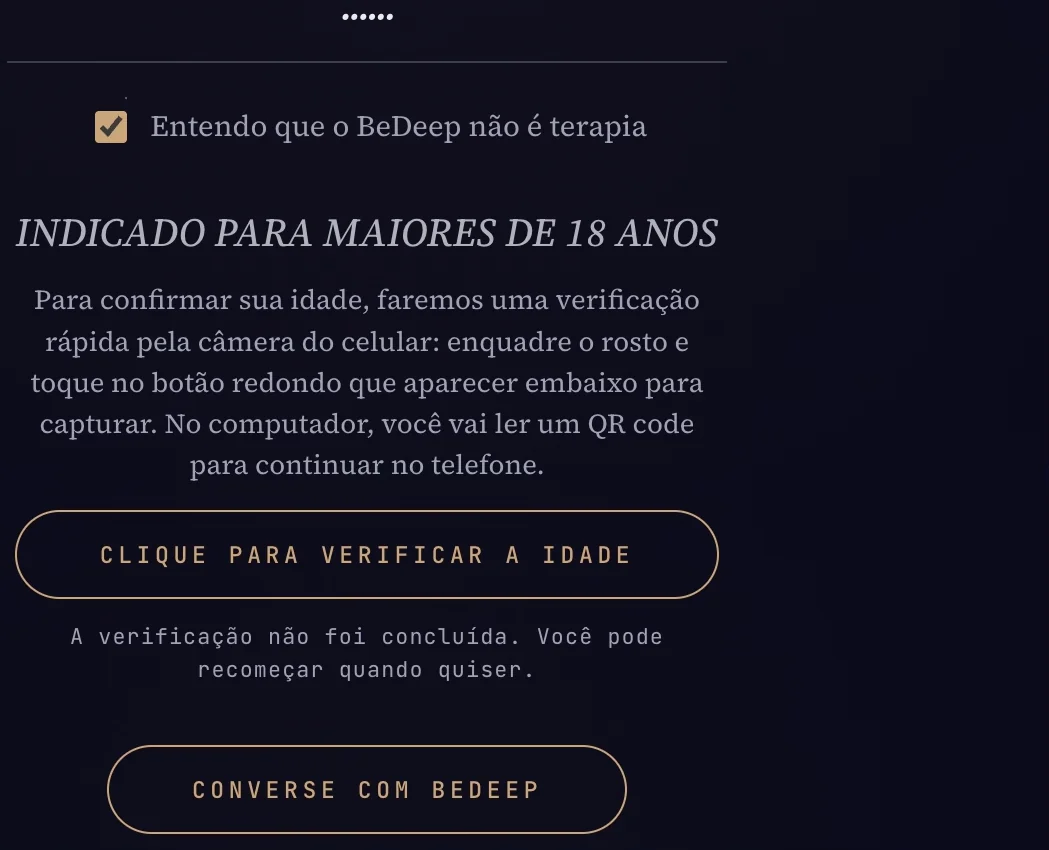
“Waiting for confirmation…” and then “The check wasn’t completed. You can start it again whenever you want.”
Why it happens: the BeDeep screen waits for the check to finish for about 2 minutes. If nothing arrives in that time, it stops waiting, but it doesn’t lose what has already been done.
What to do: if you finished on your phone after the notice, tap Talk to BeDeep again: the completed check stays valid for a while. If you haven’t finished yet, tap Resume the age check and complete it.
In Safari, the check opened in the same tab
Why it happens: in Safari, on both iPhone and Mac, the check opens in place of the BeDeep page. When you finish, you see “Verification complete”, with the line “Your sign-up picks up where you left off.” and the Back to BeDeep button.
What to do: tap Back to BeDeep. The screen shows “Click below and” and the Talk to BeDeep button: tap it to finish signing up. If you see “Something went wrong. Click below and”, with the Back to the home page button, tap it and sign up again. If you opened the check in a separate tab, you can simply close that tab and go back to the BeDeep tab.
“The check is unavailable right now. Please try again in a few minutes.”
The age check service didn’t respond. Wait a few minutes and try again.
The camera doesn’t open during the check
Allow camera access when your device asks. If you declined by accident, allow the camera in your device’s settings (for the browser you’re using or, for the app, for BeDeep) and tap Resume the age check.
“Age confirmed.”, but when you create the account the screen asks for the check again
Why it happens: to unlock sign-up, the check needs to confirm your age with a safety margin. In some cases, even with your age confirmed, sign-up isn’t unlocked automatically.
What to do: don’t keep retrying. Contact support on WhatsApp and say that the screen showed “Age confirmed.” and then asked for the check again.
“We couldn’t confirm that you are 18 or older. If that’s a mistake, talk to us — the check is automatic and it can get it wrong.”
Why it happens: the automatic estimate didn’t confirm that you’re an adult. It can get it wrong because of the lighting, the angle, glasses, or simply because your face looks younger.
What to do: if you’re 18 or older, tap Talk to support, which opens BeDeep’s WhatsApp.
“BeDeep is for people 18 and over.”
Why it happens: the age check, or another available age signal, indicates you’re under 18. In that case the account isn’t created. The screen doesn’t offer a way around this, and that’s on purpose: BeDeep is not for minors.
What to do: if you’re 18 or older, contact support.
I already have an account and the screen asks for the age check
Why it happens: the sign-in screen was in create-account mode, or the email you typed isn’t your account’s.
What to do: tap “Already have an account? Sign in with email + password” and check the email. Existing accounts don’t go through the check.
How to contact support
Channels
| Channel | Where to find it | Stated response time |
|---|---|---|
| Email: bedeep@bedeep.ai | Support page, at bedeep.ai/suporte | “We usually reply within 2 business days.” |
| WhatsApp: (11) 99026-4565 | Contact us link in the footer of bedeep.ai and of the sign-in screen; Contact us item in the iPhone app menu; Talk to support button in the age check | No response time is given for WhatsApp |
If you open WhatsApp from the bedeep.ai footer while signed in, the message already starts with your name and email. That way the team finds your account faster.
BeDeep is a service of Holon Educação LTDA (CNPJ, Brazil’s company registration number, 05.678.105/0001-18), based in São Paulo, Brazil.
What to send to speed things up
- Your BeDeep account email.
- Where the problem happened: iPhone app, Android app, Mac app, home screen shortcut or browser (and which browser). If you know them, also give the device model and the system version.
- When: the day and approximate time.
- What you did and what appeared: the exact message on the screen (like the ones in this chapter) or a screenshot.
- For payment problems: date, amount, where you bought (website or App Store) and, if you paid on the website, the Reference code from the “Subscription active” page.
- For a gift: the code or, if it didn’t appear, the date and amount of the purchase.
- For the age check: which step you stopped at and which message appeared.
- In Ephemeral Mode: just describe what happened. The team can’t read or recover an ephemeral conversation.
Tip
To report a problem, you don’t need to send excerpts from your conversations. If the screenshot shows something personal, crop or cover that part before sending.
A sample message:
Hi, my BeDeep email is __. Today, around h, in the __ (iPhone app / Chrome on my computer / …), the message “_” appeared when I . I’ve already tried ___. Screenshot attached.
Requests about your data (to see, correct or delete it) have their own path: see the “Safety, privacy and the limits of AI” chapter and the Privacy Policy, at bedeep.ai/privacidade. The step-by-step for deleting your account is in the “Plans and account” chapter. The Terms of Use are at bedeep.ai/termos.
The BeDeep Manual · Holon Educação LTDA · English edition, October 2026. This manual describes the product as it works on the date of this edition. Full Terms of Use and Privacy Policy at bedeep.ai.